연결된 소스 저장소의 README 원문 스냅샷입니다. 최신 내용은 저장소에서 확인하세요.
Time planner


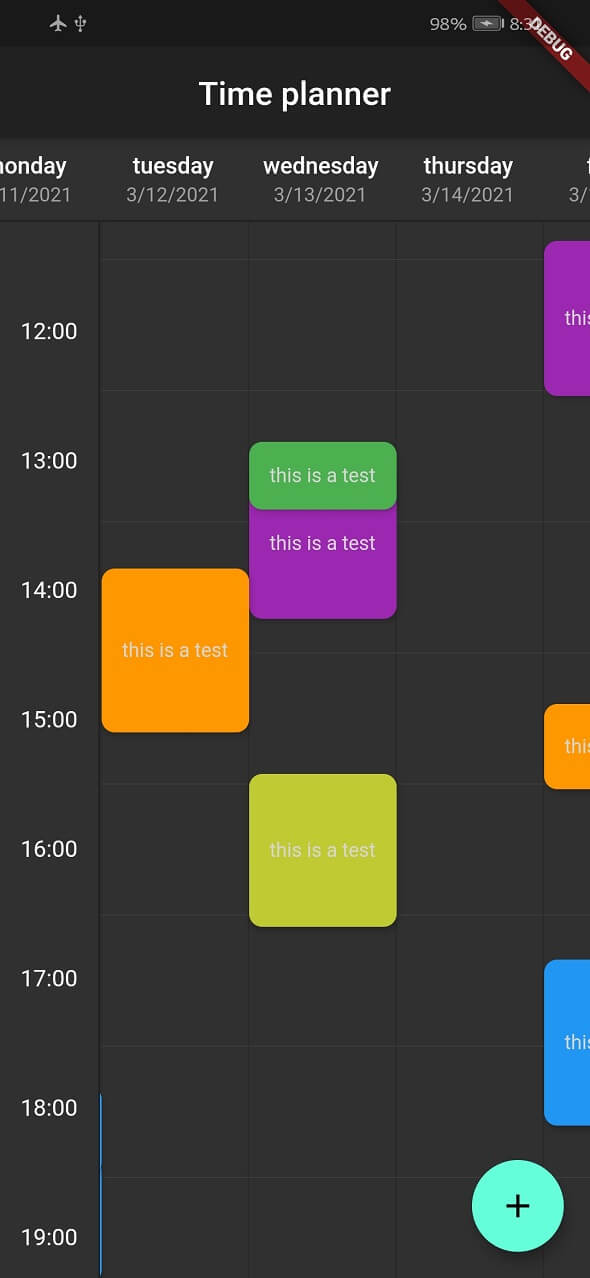
A beautiful, easy to use and customizable time planner for flutter mobile 📱, desktop 🖥 and web 🌐
This is a widget for show tasks to user on a time table.
Each row show an hour and each column show a day but you can change the title of column and show any things else you want.
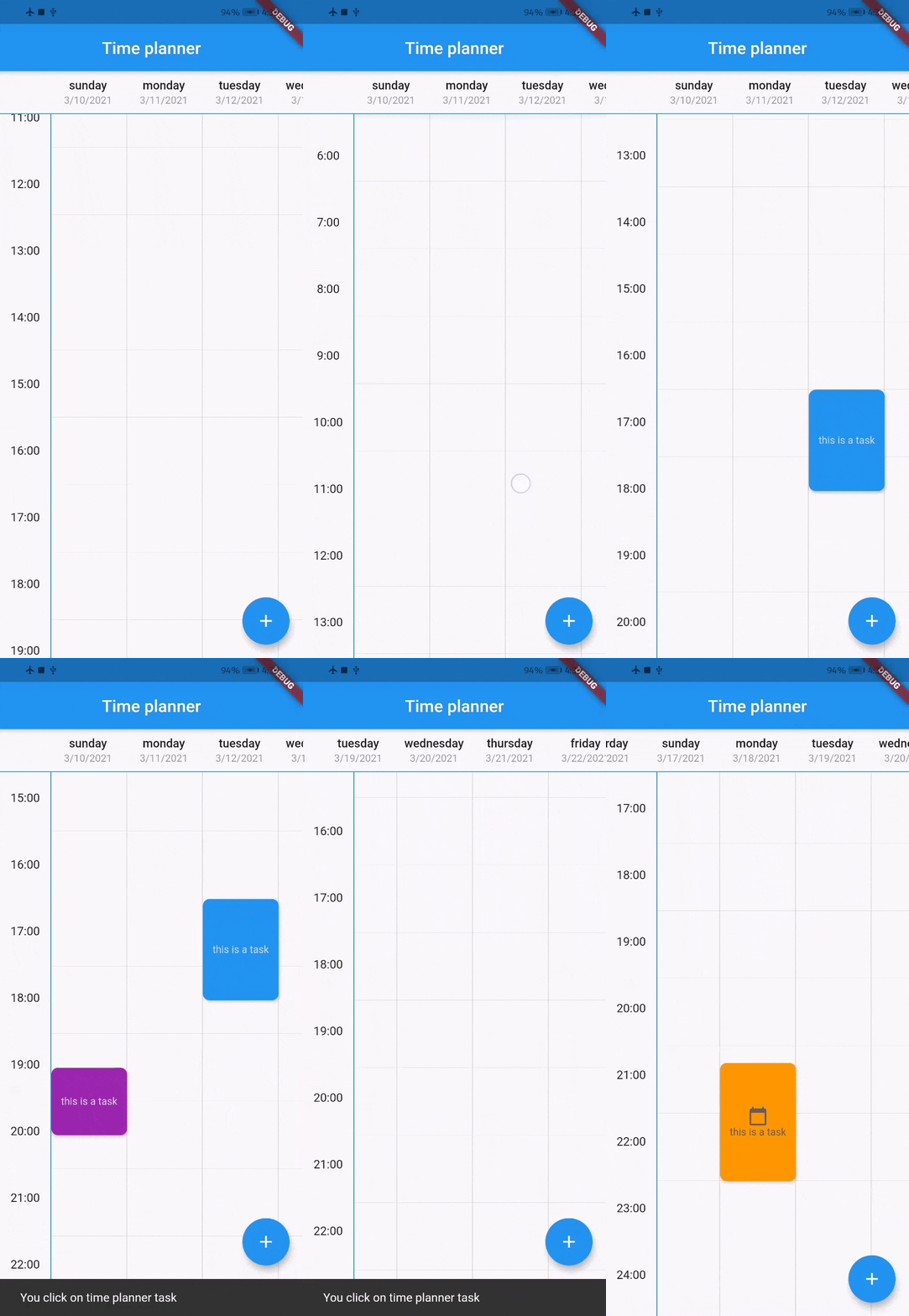
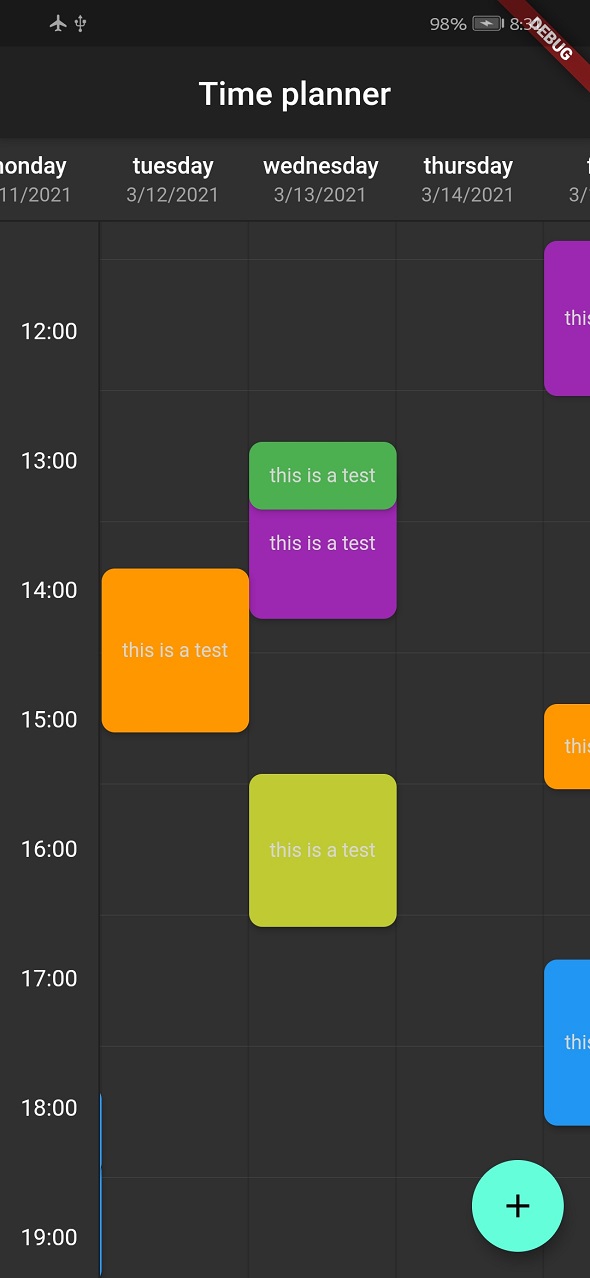
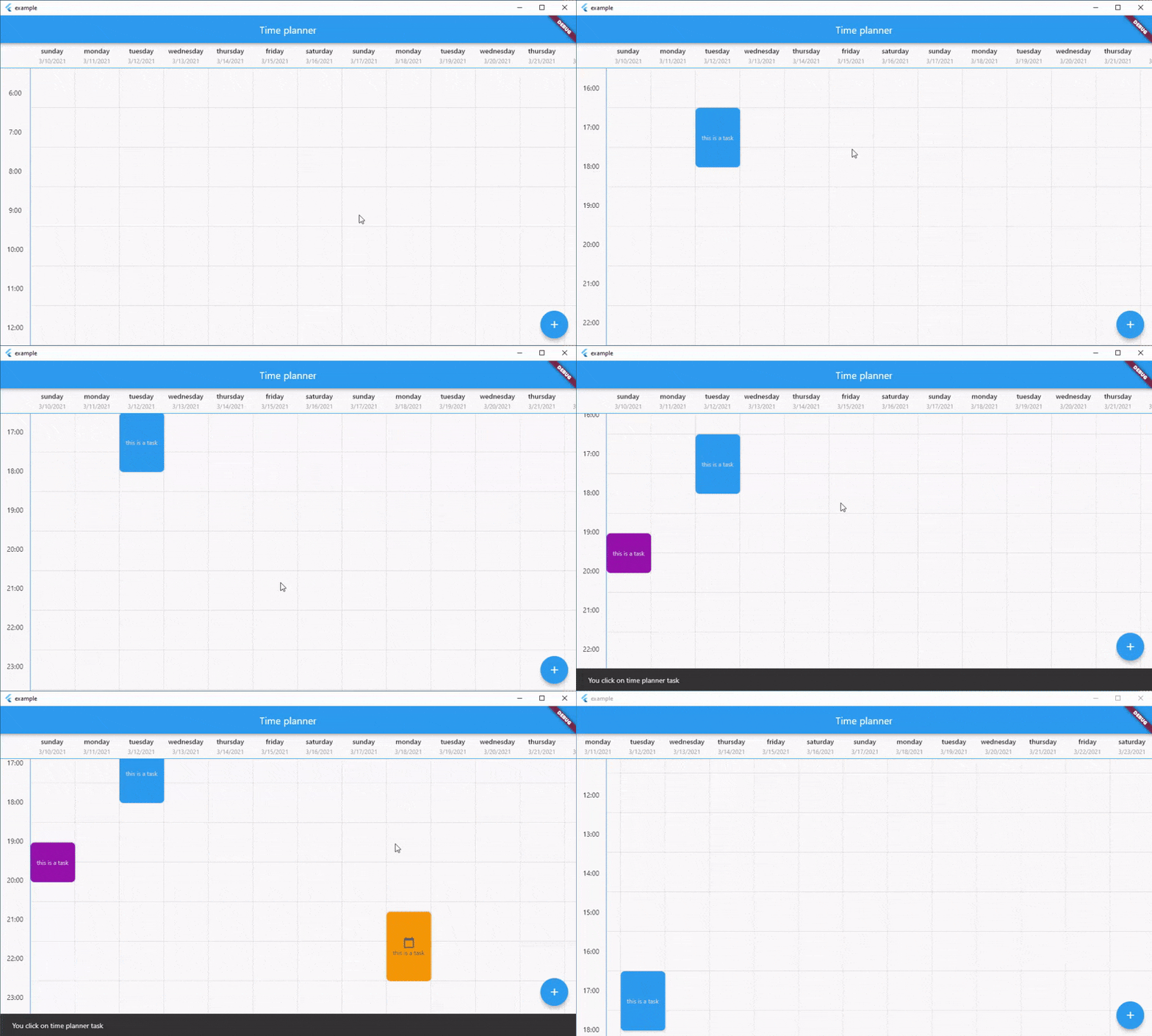
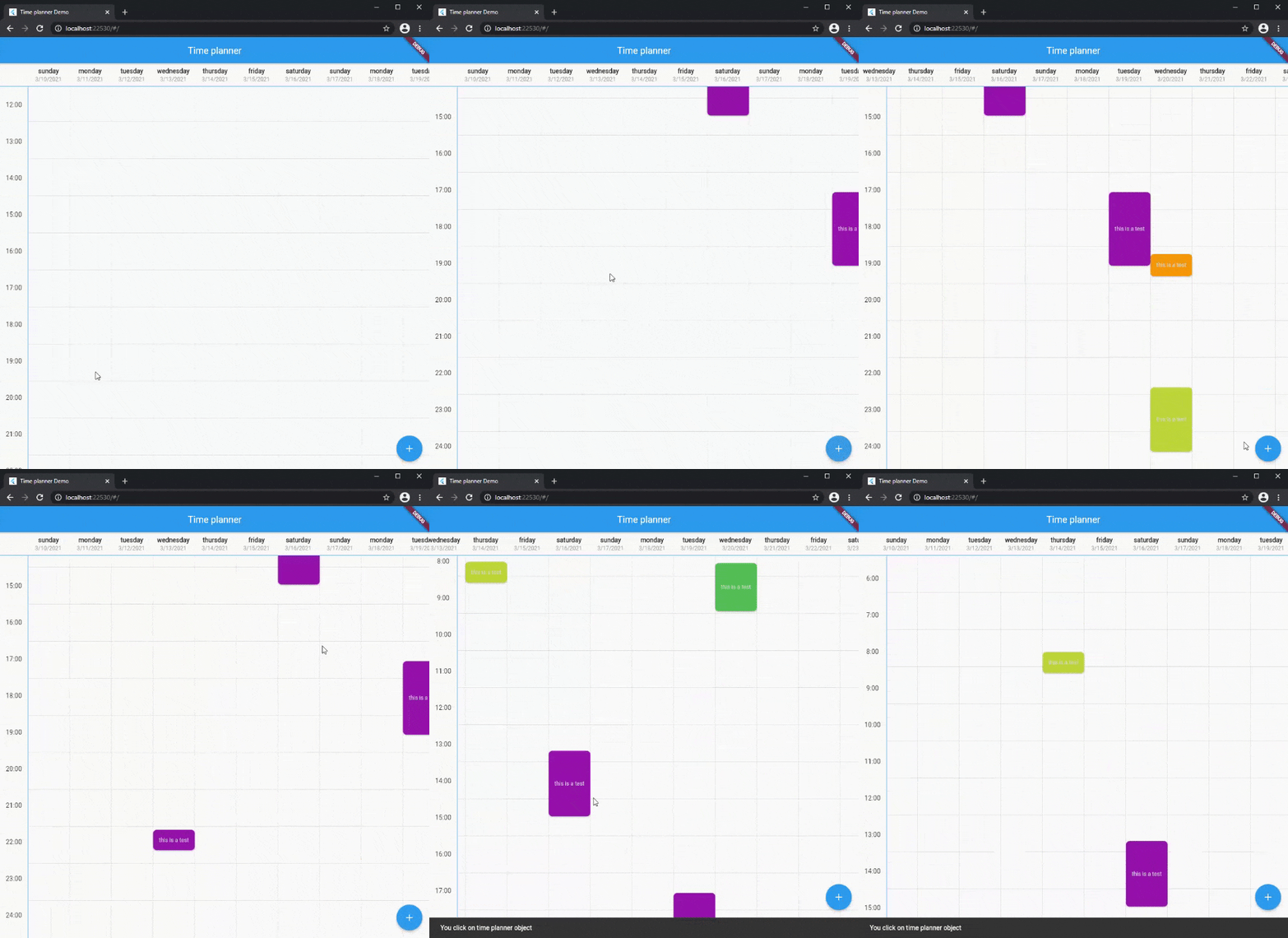
Screenshots
| Mobile |
Dark |
 |
 |
| Desktop |
Web |
 |
 |
Demo
You can see web demo here: https://jamalianpour.github.io/time_planner_demo
Usage
1. add dependencies into you project pubspec.yaml file
dependencies:
  time_planner: ^0.1.2+1
2. import time planner lib
import 'package:time_planner/time_planner.dart';
3. use time planner
List<TimePlannerTask> tasks = [
TimePlannerTask(
color: Colors.purple,
dateTime: TimePlannerDateTime(day: 0, hour: 14, minutes: 30),
minutesDuration: 90,
daysDuration: 1,
onTap: () {},
child: Text(
'this is a task',
style: TextStyle(color: Colors.grey[350], fontSize: 12),
),
),
];
TimePlanner(
startHour: 6,
endHour: 23,
headers: [
TimePlannerTitle(
date: "3/10/2021",
title: "sunday",
),
TimePlannerTitle(
date: "3/11/2021",
title: "monday",
),
TimePlannerTitle(
date: "3/12/2021",
title: "tuesday",
),
],
tasks: tasks,
),
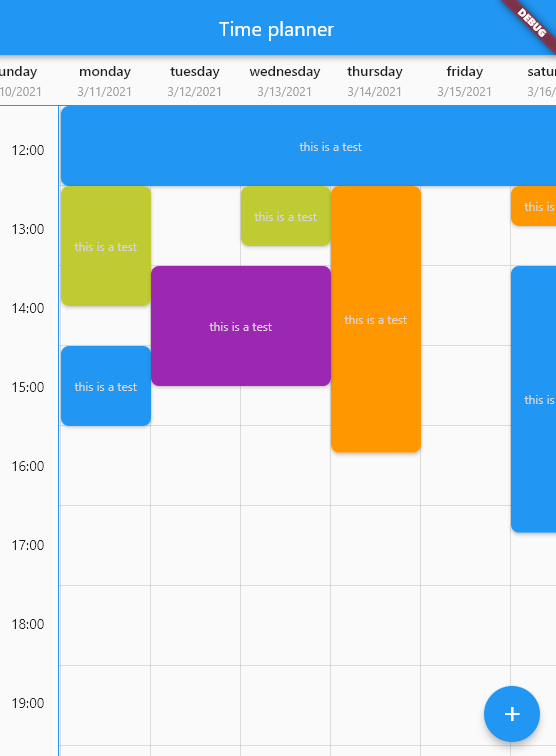
Multi days task
You can add multi days task with daysDuration minimum and default value for this argument is 1 and result look like this :
Style
you can change style of time planner with TimePlannerStyle :
style: TimePlannerStyle(
backgroundColor: Colors.blueGrey[900],
cellHeight: 60,
cellWidth: 60,
dividerColor: Colors.white,
showScrollBar: true,
horizontalTaskPadding: 5,
borderRadius: const BorderRadius.all(Radius.circular(8)),
),
when time planner widget loaded it will be scroll to current local hour and this option is true by default, you can turn this off like this:
currentTimeAnimation: false,
Note
If you use desktop or web platform and want users to be able to move with the mouse in the time planner, add this code to the code:
class MyCustomScrollBehavior extends MaterialScrollBehavior {
@override
Set<PointerDeviceKind> get dragDevices => {
PointerDeviceKind.touch,
PointerDeviceKind.mouse,
};
}
MaterialApp(
scrollBehavior: MyCustomScrollBehavior(),
);
Fill free to fork this repository and send pull request 🏁👍
Medium post