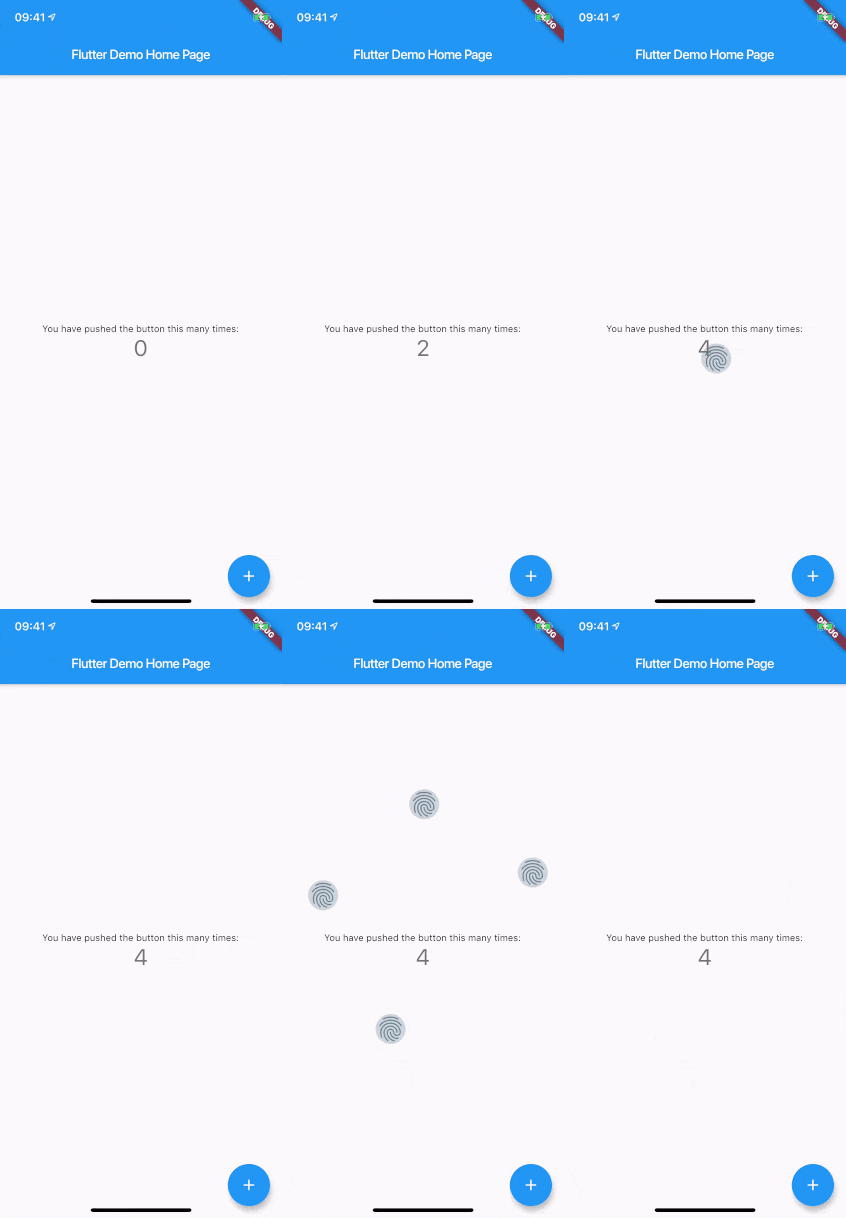
touch_indicator 패키지는 사용자가 화면을 터치한 지점에 최대 다섯 개의 시각적 표시기를 표시합니다. 라이브 발표나 화면 녹화에 이상적이며, 관객이 상호작용이 정확히 어디에서 발생하는지 확인할 수 있도록 도와줍니다. 표시기는 미묘하지만 눈에 띄기 때문에 사용자 경험을 방해하지 않으면서 앱 기능을 효과적으로 보여주는 데 적합합니다. 모바일, 웹, 데스크톱 등 주요 플랫폼 모두에서 사용 가능하며, Flutter 앱에 최소한의 설정으로 쉽게 통합됩니다. 이 패키지는 데모나 튜토리얼 중 일시적으로 사용하기 위해 가볍고 설계되었습니다.
사용 사례
라이브 앱 시연
화면 녹화 튜토리얼
사용자 상호작용 피드백
교육용 앱 워크스루
터치 동작 디버깅
주요 기능
최대 5개의 터치 포인트를 표시합니다
크로스 플랫폼 지원
최소한의 성능 영향
간단한 통합
사용자 정의 가능한 외관
적합한 대상
앱을 발표하는 개발자
소프트웨어를 보여주는 교육자
UI 테스터
앱 데모 제작자
튜토리얼 비디오 녹화
고려 사항
생산 사용을 위한 것이 아님
최종 빌드에서는 지표를 비활성화해야 합니다
모든 하드웨어에서 신뢰할 수 있게 작동하지 않을 수 있습니다
데모 중 일시적으로 사용하는 것이 가장 좋습니다
일부 맥락에서는 시각적 표시가 방해가 될 수 있습니다
원본 README
연결된 소스 저장소의 README 원문 스냅샷입니다. 최신 내용은 저장소에서 확인하세요.
touch_indicator
When you are recording a screencast of your app, you often want to give visual indication of where your fingers are touching the screen. Showing that on Android is easy. On iOS it's less intuitive. touch_indicator makes it easier and consistent on both platforms.
You add this widget as the main widget where you want to display user touches. Usually this will be the direct child of your MaterialApp. It will show an indicator on every touching finger and is completely customizable.
Changes the color of the backdrop and icon. Default is Colors.blueGrey.
indicatorSize
Changes the size of the indicator. Default is 40.0.
indicator
By adding a Widget here, you can change the complete look of the touch indicators. Make sure to supply a proper indicatorSize in order for the indicators to be positioned at the center of your touchpoints.
forceInReleaseMode
When you want to show indicators when the app is running in release mode, make sure to enable this option. Default is false.
enabled
You can enable or disable display of the indicators on the fly with this option. Default is true.