パッケージ、リポジトリ、アプリカテゴリを検索

パッケージ詳細v1.0.1

flutter_sensors

デバイスの利用可能なセンサーにアクセスするためのFlutterプラグイン。

AndroidiOS
30日間ダウンロード
124
いいね数
43
Pub ポイント
130

パッケージをインストール

flutter pub add flutter_sensors

パッケージ概要

公開情報に基づく選定ガイドです。参考としてご利用ください。

flutter_sensors は、加速度計、ジャイロスコープ、マグネトメーターなどのデバイス内蔵センサーにアクセスできるFlutterプラグインです。AndroidおよびiOSデバイスからのリアルタイムの動きや方位データを取得できます。このプラグインは、センサーイベントをリッスンするためのシンプルで一貫したAPIを提供し、動きの追跡やデバイスの動きに基づくインタラクティブな体験が必要なアプリケーションに最適です。Flutterのリアクティブフレームワークとシームレスに統合され、センサーデータストリームを効率的に処理できます。

用途

  • モーションベースのゲームコントロール
  • フィットネスおよびアクティビティのトラッキング
  • 拡張現実アプリケーション
  • デバイスの向き検出
  • インタラクティブUI要素

主な機能

  • リアルタイムセンサー データストリーミング
  • 加速度計、ジャイロスコープ、マグネトメーターのサポート
  • クロスプラットフォーム互換性(AndroidおよびiOS)
  • リアクティブプログラミング向けストリームベースのAPI
  • シンプルなイベント駆動型インターフェース

適している対象

  • 動きに敏感なアプリを開発する開発者
  • デバイスの方向認識を必要とするアプリ
  • インタラクティブで没入型のユーザー体験
  • ウェアラブルおよびフィットネス技術の統合

注意事項

  • Androidで適切な権限が必要です
  • 継続的なセンサーのポーリングによりバッテリー消費が増加する可能性があります
  • データの正確性はデバイスのハードウェアに依存します
  • 高精度産業用途には適していません

元の README

関連するソースリポジトリの README 原文のスナップショットです。最新の内容はリポジトリをご覧ください。

native_video_view

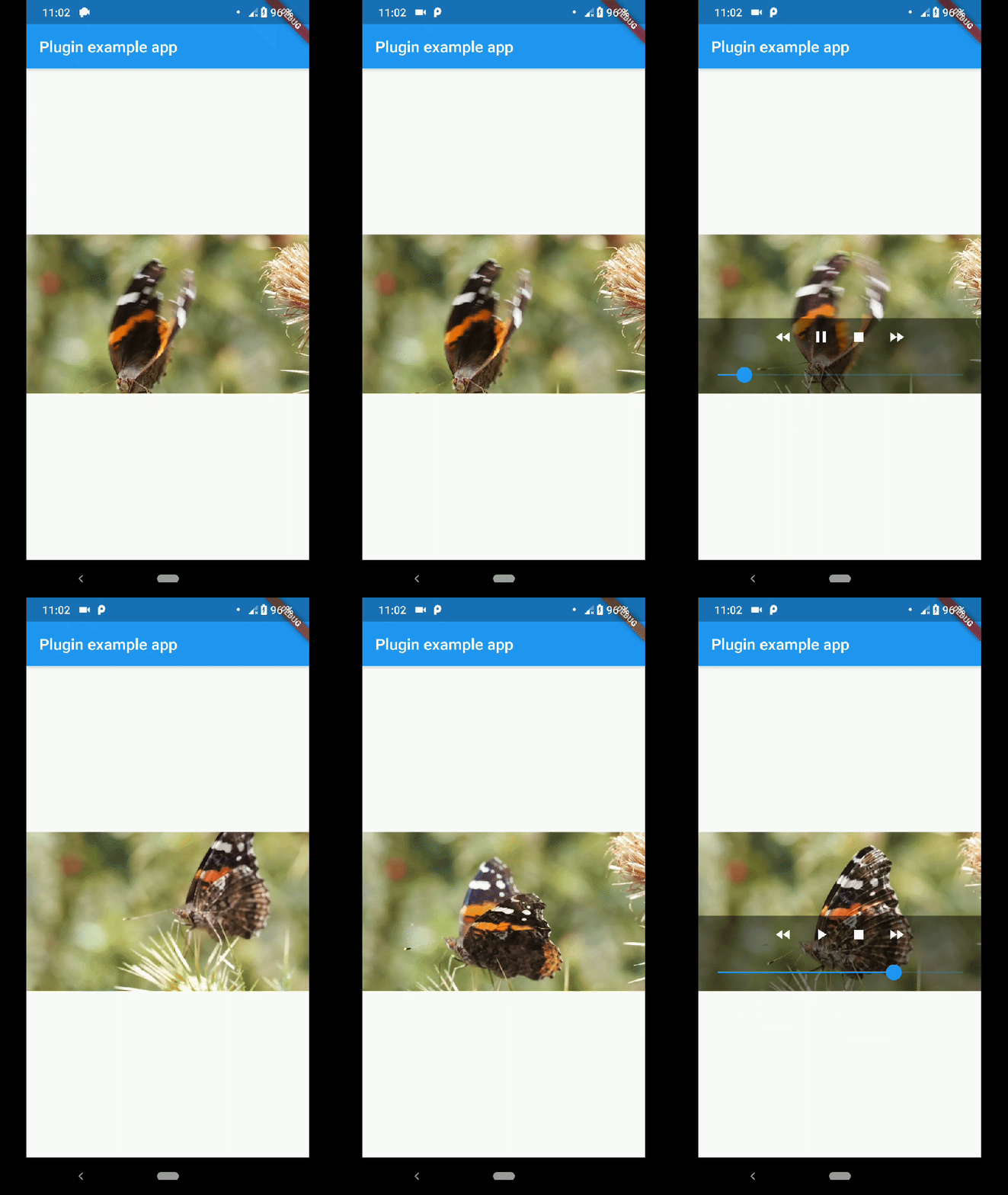
A video player widget displayed using the platform native player (VideoView in Android and AVPlayer in iOS).

example_gif

Disclaimer

This plugin uses VideoView because in some devices the ExoPlayer plugin is not working correctly (due to decoders or something) and VideoView is a reasonable alternative. In iOS is sorta similar to Google's video_player so you should use their plugin if you want a player for iOS only.

Installation

First you need to add the dependency in your pubspec.yaml.

native_video_view: ^0.3.0

Then import the plugin in the .dart file you want to use it.

import 'package:native_video_view/native_video_view.dart';
Android

You need to add the necessary permissions to play the videos. If you are playing videos from the internet, you need to add the internet permissions in your AndroidManifest.xml located in the android folder in your project.

<uses-permission android:name="android.permission.INTERNET" />

If you are going to play videos from the device storage, you need to add the storage permissions.

<uses-permission android:name="android.permission.READ_EXTERNAL_STORAGE" />
iOS

In this platform you need to configure some options in your Info.plist file. This file is located in <project-root>/ios/Runner/ Info.plist.

First add the embedded views configuration.

<key>io.flutter.embedded_views_preview</key>
<true/>

If you want to play videos from the internet add the following.

<key>NSAppTransportSecurity</key>
<dict>
  <key>NSAllowsArbitraryLoads</key>
  <true/>
</dict>

Usage

This plugin has a widget to use in your dart files. Example:

@override
Widget build(BuildContext context) {
return Scaffold(
    appBar: AppBar(
    title: const Text('Plugin example app'),
    ),
    body: Container(
    alignment: Alignment.center,
    child: NativeVideoView(
        keepAspectRatio: true,
        showMediaController: true,
        onCreated: (controller) {
          controller.setVideoSource(
            'assets/example.mp4',
            sourceType: VideoSourceType.asset,
          );
        },
        onPrepared: (controller, info) {
          controller.play();
        },
        onError: (controller, what, extra, message) {
          print('Player Error ($what | $extra | $message)');
        },
        onCompletion: (controller) {
          print('Video completed');
        },
        onProgress: (progress, duration) {
          print('$progress | $duration');
        },
      ),
    ),
  );
}

keepAspectRatio: Wraps the video player in a AspectRatio widget. The aspect ratio is calculated once the video is loaded. By default the aspect ratio is 4/3.

showMediaController: Shows a default media controller overlay in the video player widget.

enableVolumeControl: Adds an option in the MediaController to control the volume of the playback.

useExoPlayer: Use ExoPlayer as the underlying player. Android Only.

autoHide: Automatically hides the media controller after a few seconds of no use. Default is true.

autoHideTime: The time after which the controller is hidden. Default is 2 seconds.

onCreated: (required) Callback called when the PlatformView is finished creating.

onPrepared: (required) Callback called when the player has finished loading the video.

onCompletion: (required) Callback called when the video reached the end.

onError: Callback called if an error occurs in the player.

onProgress: Callback used to notify progress in the video playback.

AudioFocus

To make the player get the audio focus of the system you just have to use the setting requestAudioFocus when setting the video source. See the example below.

@override
Widget build(BuildContext context) {
    return NativeVideoView(
       onCreated: (controller) {
         controller.setVideoSource(
             'assets/example.mp4',
             requestAudioFocus: true,
             sourceType: VideoSourceType.asset,
         );
       },
    );
}

カテゴリー

ソースリポジトリ

このパッケージを使用しているプロジェクト