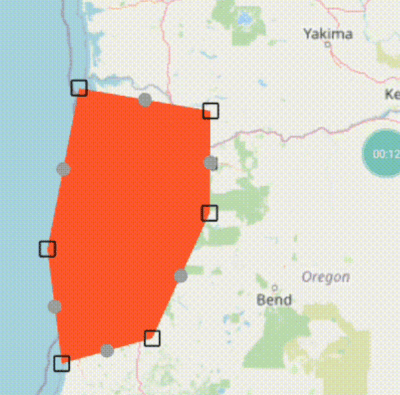
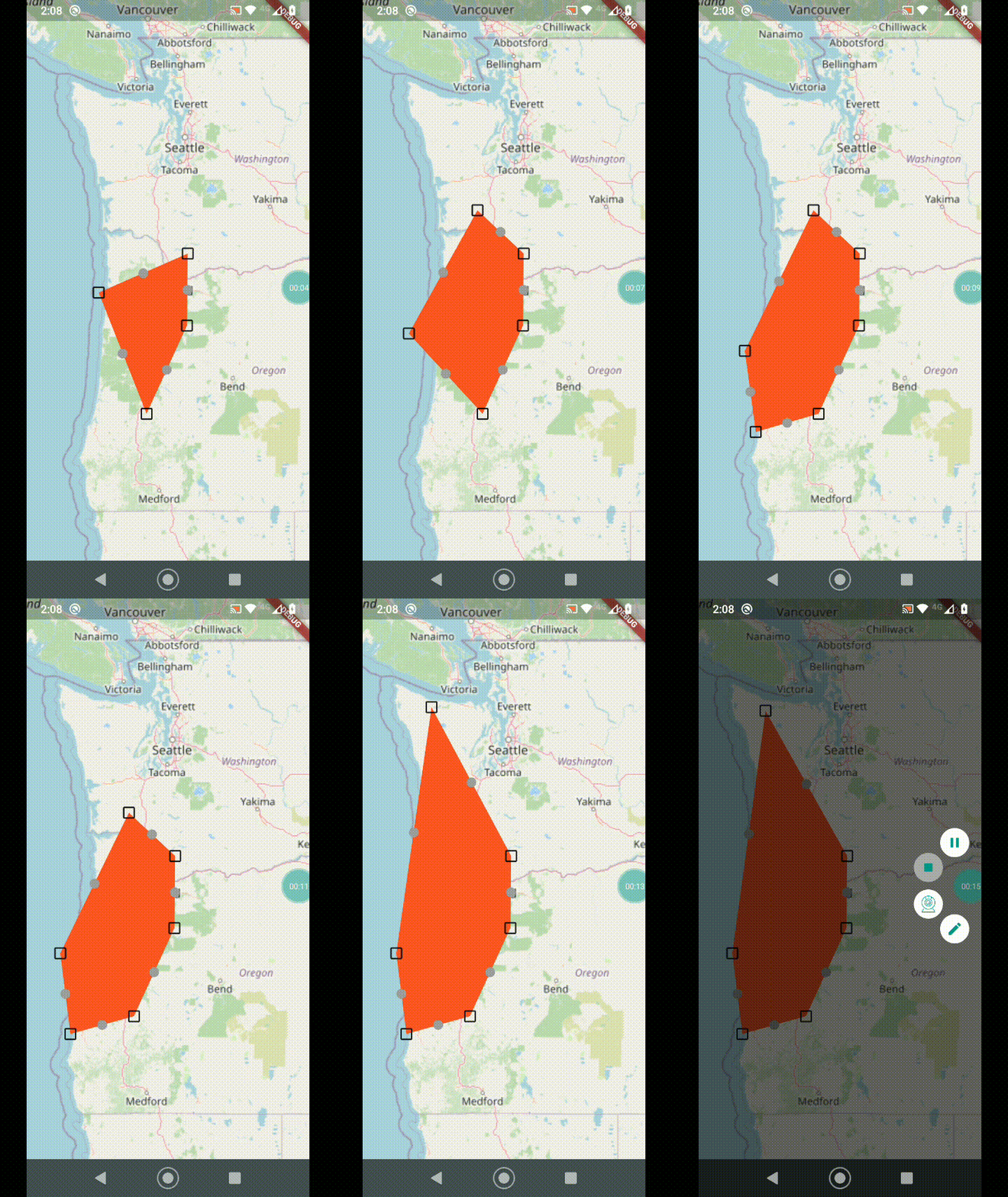
flutter_map 위젯 내에서 선 및 다각형의 인터랙티브 편집을 가능하게 하는 플러터 패키지입니다. 정점 조정을 위한 드래그 가능한 마커를 제공하여 사용자가 지도 위에서 벡터 형상을 직접 생성하거나 수정할 수 있도록 합니다. 지도 기하학에 대한 사용자 입력이 필요한 지리정보 애플리케이션을 위해 설계되었으며, flutter_map의 기존 기능과 원활하게 통합됩니다. 에디터는 라인과 다각형 형식 모두를 지원하며, 모든 지원되는 플랫폼에서 터치 또는 마우스 상호작용을 통해 직관적인 점 조작을 제공합니다.
See the example directory for a complete example app demonstrating the usage
of this package, here are the most important features:
Tap the map to add a marker, add as many as you want.
Drag the main points to move them.
Drag the intermediate points to create a new point there and drag to where you
want.
Long press to delete a point.
Usage
Once the package is installed, make sure to import the package in the file that
you are going to need it, you may also need to import flutter_map_dragmarker:
Set up a new editor instance, tipically inside initState():
var polyEditor = PolyEditor(
  points: testPolyline.points,
  pointIcon: Icon(Icons.crop_square, size: 23),
  intermediateIcon: Icon(Icons.lens, size: 15, color: Colors.grey),
  callbackRefresh: () => { this.setState(() {})},
  addClosePathMarker: false, // set to true if polygon
);
The PolyEditor takes a list of LatLng points that are used to put
DragMarker's over these locations. PolyEditor does not care if the given
list of points is a polyline, it could be something else. This list will be
edited in place so that when the build method is triggered it will use updated
points.
You must also pass a Widget (tipically an Icon) using the pointIcon
parameter that will be used to represent each DragMarker.
You may also pass the optional parameter intermediateIconto display another
DragMarker halfway between the main points. Dragging this marker will create
another main point and the line will be split.
The screen needs to be updated during a drag, so callbackRefresh takes a
function that will get called each drag frame.
For polygons or “closed paths” set the parameter addClosePathMarker to true
so that the end auto-returns to the start. Otherwise, if you just want a basic
polyline, set this to false.
You can add a point programmatically using the onTap callback in MapOptions: