패키지, 저장소 및 앱 카테고리 검색

json_to_form 표지
패키지 상세v0.0.5

json_to_form

Flutter 플러그인은 JSON 형식을 사용자 정의 형식으로 변환합니다.

AndroidiOSWebmacOSWindowsLinux
30일 다운로드
32
좋아요
44
Pub 점수
140

패키지 설치

flutter pub add json_to_form

패키지 개요

공개 정보를 바탕으로 생성한 선택 가이드입니다.

Flutter용 json_to_form 패키지는 개발자가 JSON 구성에서 동적으로 폼을 생성할 수 있도록 합니다. 텍스트 입력, 드롭다운, 체크박스와 같은 폼 필드에 JSON 구조를 매핑함으로써 인터랙티브한 UI 생성을 단순화합니다. 이 플러그인은 UI 컴포넌트를 하드코딩하지 않고도 유연하고 데이터 기반의 폼이 필요한 애플리케이션에 이상적입니다. Android, iOS, Web, macOS, Windows, Linux 등 여러 플랫폼을 지원하여 장치 간 일관된 동작을 보장합니다. 폼 로직을 UI 구현과 분리함으로써 개발 속도와 유지보수성을 향상시킵니다.

사용 사례

  • JSON에서 동적 폼 생성
  • 사용자 입력 인터페이스 구성 가능
  • 원격 폼 구성 업데이트
  • 다중 플랫폼 양식 일관성
  • 입력 화면의 빠른 프로토타이핑

주요 기능

  • JSON 기반 폼 생성
  • 다양한 입력 유형에 대한 지원
  • 플랫폼 독립적 설계
  • 기존 Flutter 앱과의 간편한 통합
  • 런타임 폼 사용자 정의

적합한 대상

  • 데이터 기반 앱을 개발하는 개발자
  • 유연한 폼 레이아웃이 필요한 팀
  • 원격 폼 관리 기능을 갖춘 애플리케이션
  • 프로토타이핑 및 MVP 개발
  • 다중 플랫폼 폼 지원이 필요한 앱

고려 사항

  • 유효한 JSON 스키마 정의가 필요합니다
  • 제한된 내장 검증 규칙
  • 사용자 정의 스타일링에는 추가 설정이 필요할 수 있습니다
  • 정확한 JSON 구조에 의존합니다
  • 복잡한 양식을 위해 추가 상태 관리가 필요할 수 있습니다

원본 README

연결된 소스 저장소의 README 원문 스냅샷입니다. 최신 내용은 저장소에서 확인하세요.

Convert Json to Form for Flutter apps.

:fire: Star and Share :fire: the repo to support the project. Thanks!

A flutter plugin to use convert Json to Form

Instalation

  • Add this to your package's pubspec.yaml file:
dependencies:
  json_to_form: "^0.0.1"
  • You can install packages from the command line: with Flutter:
$ flutter packages get
Json to Form V2 Official!!!
  • Import it Now in your Dart code, you can use:
 import 'package:json_to_form/json_schema.dart'; 
JsonSchema
new JsonSchema(
    decorations: decorations,
    form: form,
    onChanged: (dynamic response) {
        this.response = response;
    },
    actionSave: (data) {
        print(data);
    },
    autovalidateMode: AutovalidateMode.always,
    buttonSave: new Container(
        height: 40.0,
        color: Colors.blueAccent,
        child: Center(
            child: Text("Login",style:TextStyle(color: Colors.white,fontWeight: FontWeight.bold)),
        ),
    ),
),
Attribute
  • form (Type String) Your form in String
  • onChanged (Type Function)(1 parameter) call the function every time a change in the form is made
  • padding (Type Double)
  • formMap (Type Map) Your form in Map
  • errorMessages(Type Map) change string for error of required
  • validations(Type Map) to add validation (TextInput,Input, Password, Email or TextArea)
  • decorations(Type Map) to add decoration (TextInput,Input, Password, Email or TextArea)
  • buttonSave(Type Widget) (not RaisedButton problem in onClick)
  • actionSave(Type Function) the function is called when you click on the widget buttonSave
  • autovalidateMode(Type AutovalidateMode) validation type of the form (autovalidate @Deprecated) use this instead
Form

Create Form String

String formString = json.encode({
    'title': 'form example',
    'description':'',
    'fields': [
        ...
    ]
});

Create Form Map

Map formMap = {
    'title': 'form example',
    'description':'',
    'fields': [
        ...
    ]
};
Fields
  • All fields has attribute labelHidden(default false)
  • Important add key for all field for validation required
TextInput or Input

1.- Types?

  • Input
  • Password
  • Email (has default validation)
  • TextArea
  • TextInput
// Example for json string
// to start with a default value you can add the value attribute
  String formString = json.encode({
    'fields': [
        {
             'key': 'inputKey',
             'type': 'Input',
             'label': 'Hi Group',
             'placeholder': "Hi Group flutter",
             'required': true
        },
        {
             'key': 'inputKey',
             'type': 'Input',
             'label': 'Initial Value',
             'value': 'Hello'
             'required': true
        },
    ]
 });
// Example for json Map
// in Map has Attributes validation and decoration

//important to receive 2 parameters in function of Validation
String validationExample(field, value) {
   if (value.isEmpty) {
     return 'Please enter some text';
   }
   return null;
}

Map formMap = {
    'fields': [
        {
                'key': 'inputKey',
                'type': 'Input',
                'label': 'Hi Group',
                'placeholder': "Hi Group flutter",
                'validator': 'digitsOnly',
                'required': true,
                'decoration': InputDecoration(
                          prefixIcon: Icon(Icons.account_box),
                          border: OutlineInputBorder(),
                ),
                'validation':validationExample,
                'keyboardType':TextInputType.number
        },
    ]
 };

1.- How can I place validations for my form String? Excellent :D.

  • In JsonSchema has attributes (validations, decorations)
  • Important that each field has to has its unique key

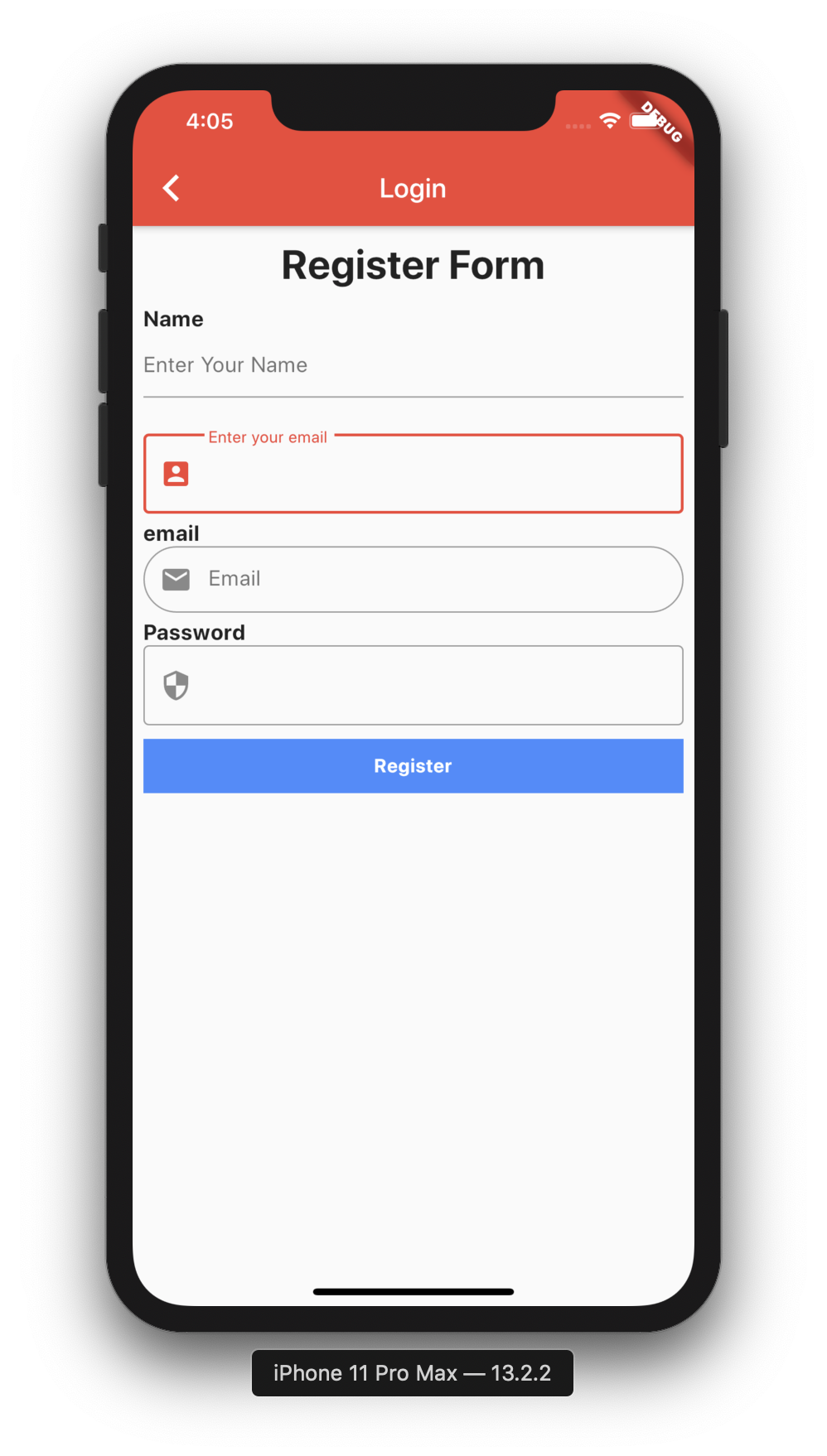
Map decorations = {
    'inputKey': InputDecoration(
      labelText: "Enter your email",
      prefixIcon: Icon(Icons.account_box),
      border: OutlineInputBorder(),
    ),
  };
  
Map validations = {
    'inputKey': validationExample,
}

dynamic response;
new JsonSchema(
    decorations: decorations,
    validations: validations,
    form: formString,
    onChanged: (dynamic response) {
        this.response = response;
    },
    actionSave: (data) {
        print(data);
    },
    buttonSave: new Container(
        height: 40.0,
        color: Colors.blueAccent,
        child: Center(
            child: Text("Login",style:TextStyle(color: Colors.white,fontWeight: FontWeight.bold)),
        ,
    ),
) 
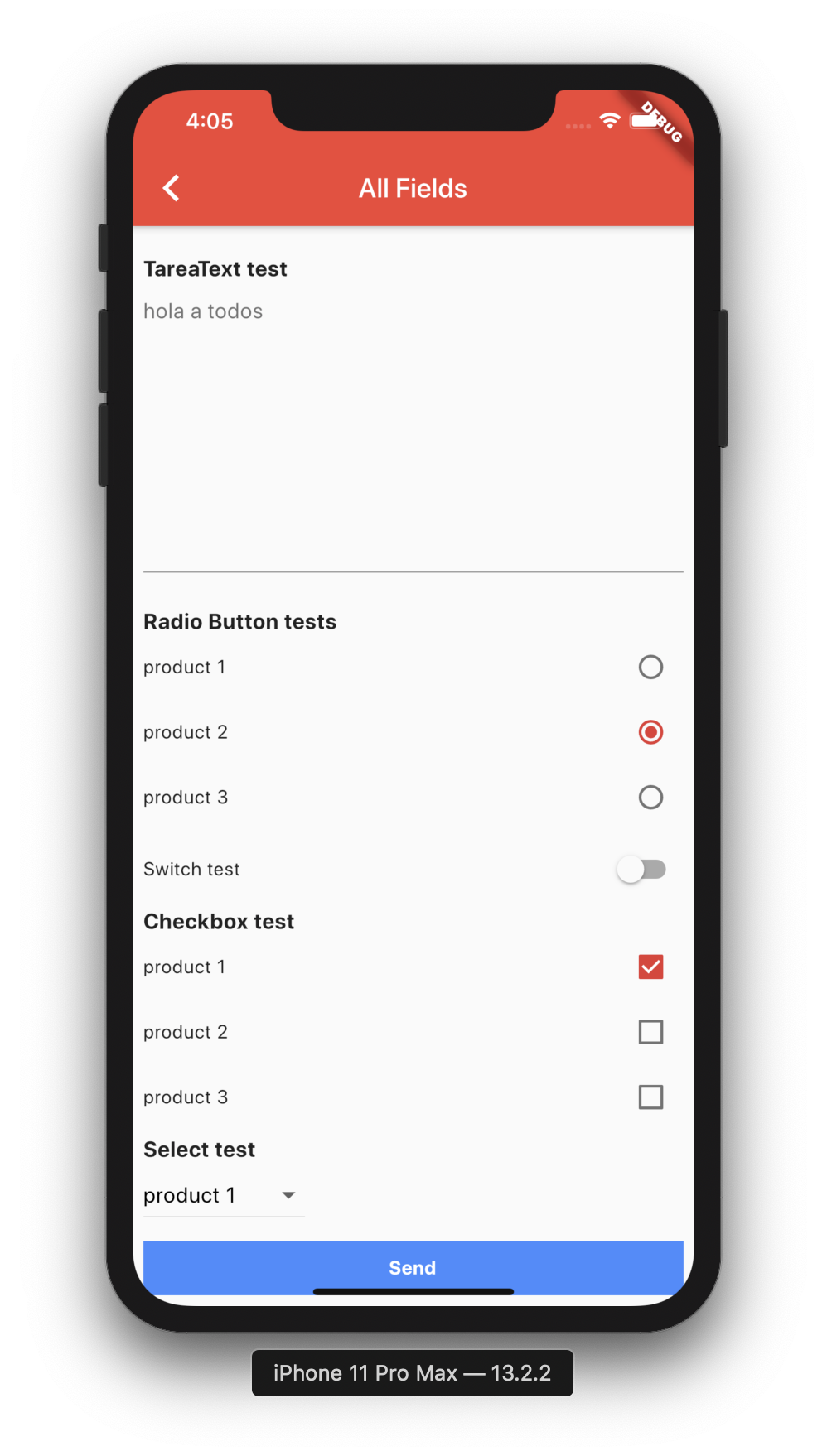
Radio
 String formString = json.encode({
    'fields': [
         {
                'key': 'radiobutton1',
                'type': 'RadioButton',
                'label': 'Radio Button tests',
                'value': 2,
                'items': [
                  {
                    'label': "product 1",
                    'value': 1,
                  },
                  {
                    'label': "product 2",
                    'value': 2,
                  },
                  {
                    'label': "product 3",
                    'value': 3,
                  }
                ]
         },
    ],
 });

Switch
 String formString = json.encode({
    'fields': [
         {
                 'key': 'switch1',
                 'type': 'Switch',
                 'label': 'Switch test',
                 'value': false,
         },
    ],
 });
Checkbox
 String formString = json.encode({
    'fields': [
        {
                'key': 'checkbox1',
                'type': 'Checkbox',
                'label': 'Checkbox test',
                'items': [
                  {
                    'label': "product 1",
                    'value': true,
                  },
                  {
                    'label': "product 2",
                    'value': false,
                  },
                  {
                    'label': "product 3",
                    'value': false,
                  }
                ]
        }
    ],
 });
Select (New Field)
 String formString = json.encode({
    'fields': [
         {
                 'key': 'select1',
                 'type': 'Select',
                 'label': 'Select test',
                 'value':'product 1',
                 'items': [
                   {
                     'label': "product 1",
                     'value': "product 1",
                   },
                   {
                     'label': "product 2",
                     'value': "product 2",
                   },
                   {
                     'label': "product 3",
                     'value': "product 3",
                   }
                 ]
         }
    ],
 });

when text is added to the TextField, add field called response

// initial form_send_email
[{"type":"Input","label":"Subject","placeholder":"Subject"},{"type":"TextArea","label":"Message","placeholder":"Content"}]

// add text (hi) in TextField Message, update dynamic response; and add field called response
[{type: Input, label: Subject, placeholder: Subject, value: hello}, {type: TextArea, label: Message, placeholder: Content, value: hi }]

Json to Form V1
  • Import it Now in your Dart code, you can use:
 import 'package:json_to_form/json_to_form.dart'; 

Usage

  • TextField
  String form = json.encode([
    {
      'type': 'Input',
      'title': 'Hi Group',
      'placeholder': "Hi Group flutter"
    },
    {
      'type': 'Password',
      'title': 'Password',
    },
    {
      'type': 'Email', 
      'title': 'Email test',
      'placeholder': "hola a todos"
    },
    {
      'type': 'TareaText',
      'title': 'TareaText test',
      'placeholder': "hola a todos"
    },
  ]);
  • Radio
 String form = json.encode([
    {
      'type': 'RadioButton',
      'title': 'Radio Button tests',
      'value': 2,
      'list': [
        {
          'title': "product 1",
          'value': 1,
        },
        {
          'title': "product 2",
          'value': 2,
        },
        {
          'title': "product 3",
          'value': 3,
        }
      ]
    },
  ]);
  • Switch
String form = json.encode([
    {
      'type': 'Switch',
      'title': 'Switch test',
      'switchValue': false,
    },
  ]);
  • Checkbox
String form = json.encode([
    {
      'type': 'Checkbox',
      'title': 'Checkbox test 2',
      'list': [
        {
          'title': "product 1",
          'value': true,
        },
        {
          'title': "product 2",
          'value': true,
        },
        {
          'title': "product 3",
          'value': false,
        }
      ]
    },
  ]);
  • Example
 String form_send_email = json.encode([
    {'type': 'Input', 'title': 'Subject', 'placeholder': "Subject"},
    {'type': 'TareaText', 'title': 'Message', 'placeholder': "Content"},
  ]);
 dynamic response;
 
 @override
   Widget build(BuildContext context) {
     return new Scaffold(
       appBar: new AppBar(
         title: new Text(widget.title),
       ),
       body: new SingleChildScrollView(
         child: new Container(
           child: new Column(children: <Widget>[
             new CoreForm(
               form: form,
               onChanged: (dynamic response) {
                 this.response = response;
               },
             ),
             new RaisedButton(
                 child: new Text('Send'),
                 onPressed: () {
                   print(this.response.toString());
                 })
           ]),
         ),
       ),
     );
   }

When there is a change in the form, the (dynamic response;) is updated,

               onChanged: (dynamic response) {
                 this.response = response;
               },

when text is added to the TextField, add field called response

// initial form_send_email
[{"type":"Input","title":"Subject","placeholder":"Subject"},{"type":"TareaText","title":"Message","placeholder":"Content"}]

// add text (hi) in TextField Message, update dynamic response; and add field called response
[{type: Input, title: Subject, placeholder: Subject}, {type: TareaText, title: Message, placeholder: Content, response: hi }]

Getting Started

For help getting started with Flutter, view our online documentation.

For help on editing package code, view the documentation.

카테고리

소스 저장소

이 패키지를 사용하는 프로젝트

아직 데이터가 없습니다.