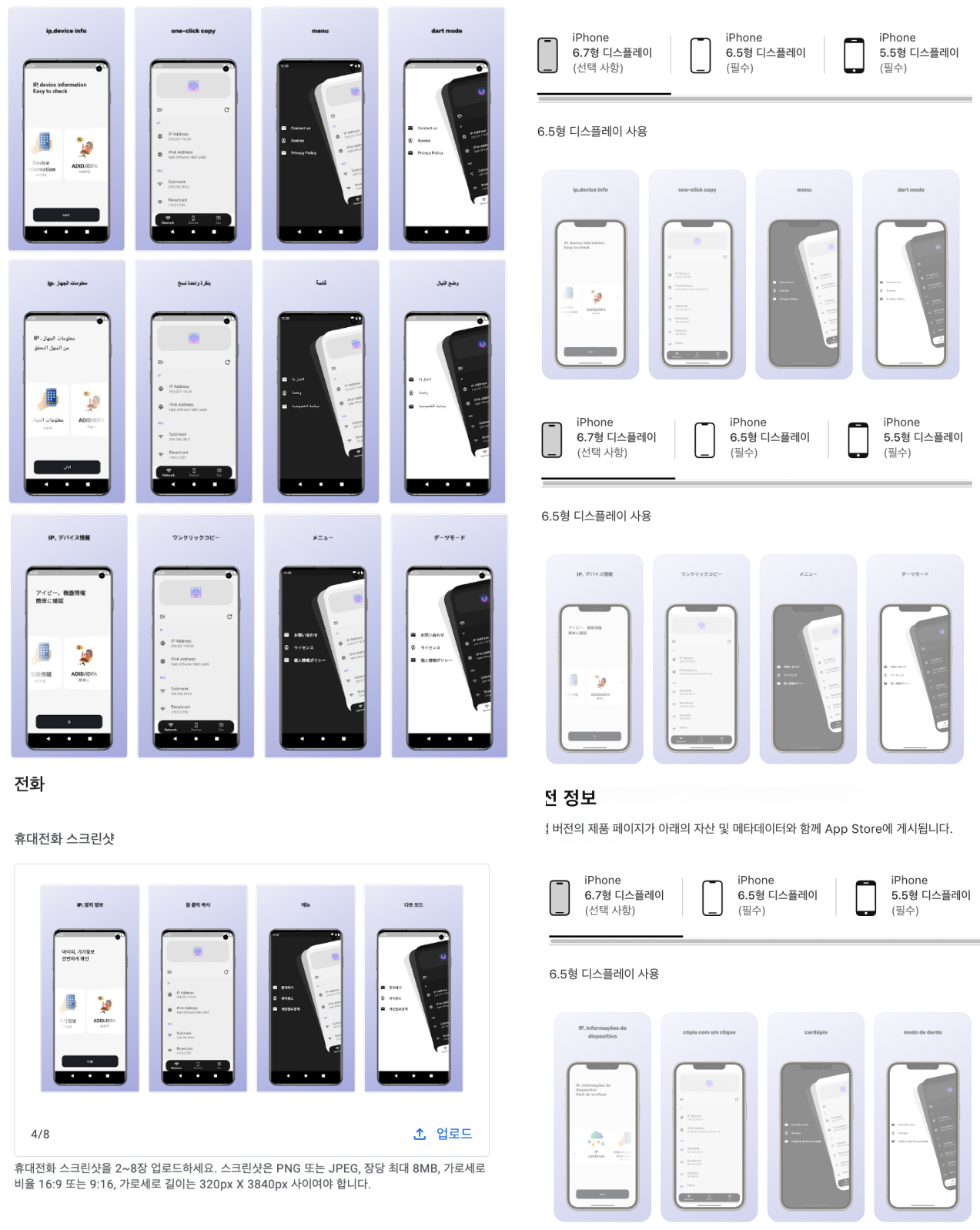
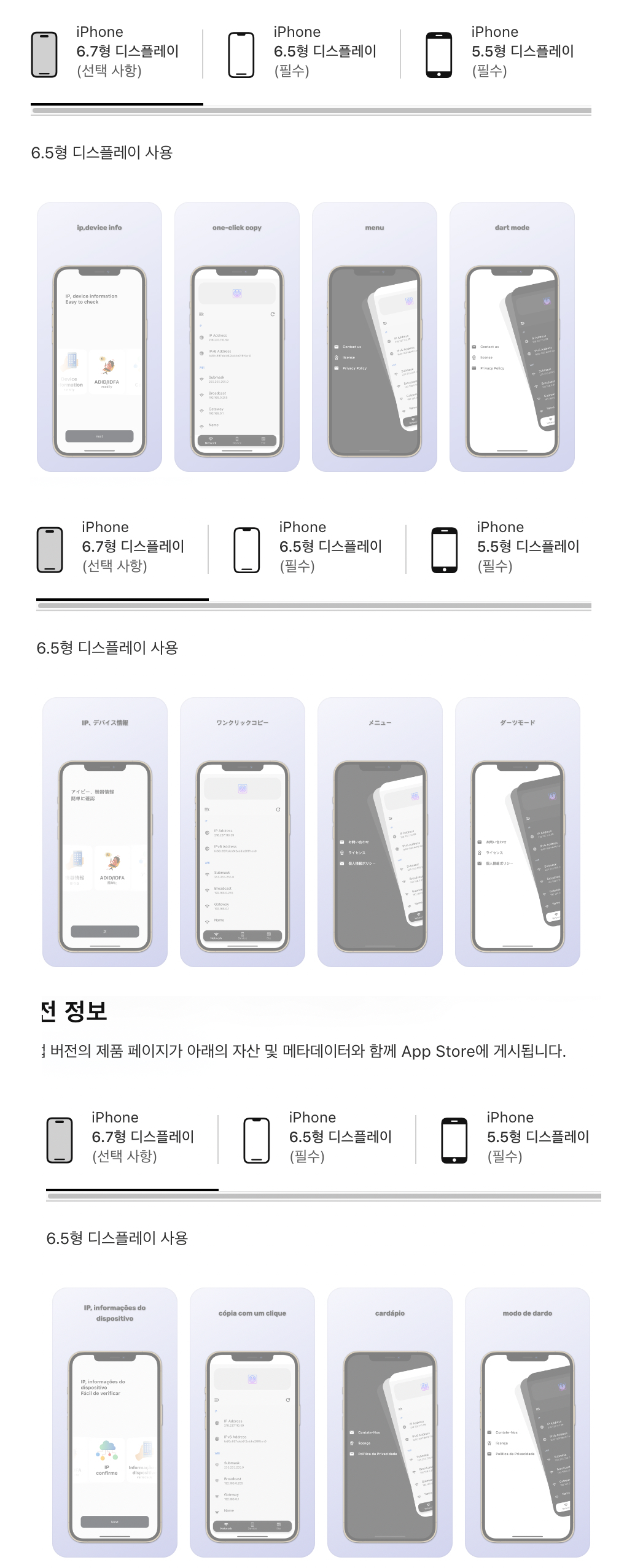
Originaler README-Schnappschuss aus dem verknüpften Quell-Repository. Aktuelle Inhalte finden Sie im Repository.
Auto App Translate
A library that screenshots by language and then creates and distributes store images by language.
How to Use?
0. prepare
The following libraries must be set up to apply this library
1. Setup the config file
dev_dependencies:
   flutter_driver:
    sdk: flutter
   emulators: ^0.5.1
   auto_screenshot_translate:
   test: ^1.17.12
2. create android / ios emulator
it should be made to fit the size of the store. please refer this link
android
open android studio
tools - Device Manager - Create Device - New Hardware Profile
Samsung Galaxy S10
Device Name: Samsung Galaxy S10
Screen - Resolution: 1440 x 3040
click next until "Verify Configuration" step
click "Show Advanced Settings"
Emulated Performance - Boot option: Cold Boot
Memory and Storage - Internal Storage: more then 2000MB
nexus_9
Device Name: nexus_9
Screen - Resolution: 1536 x 2048
click next until "Verify Configuration" step
click "Show Advanced Settings"
Emulated Performance - Boot option: Cold Boot
Memory and Storage - Internal Storage: more then 2000MB
ios
open xcode
window in the menu bar
click "devices and simulators"
click "Simulator" in the top left
click "+" in the bottom left
add
iPhone 8
iPhone 8 Plus
iPad Pro (12.9-inch) (5rd generation)
iPhone 14 Pro Max
3. set the gitingore.
Because there are hundreds of images, you need to exclude those images from git.
/auto_translation/screenshots/
/auto_translation/framed/
/auto_translation/metadata/
4. Set the scene of the screenshot in the app
before taking a screenshot, you need to set which screen to take a screenshot.
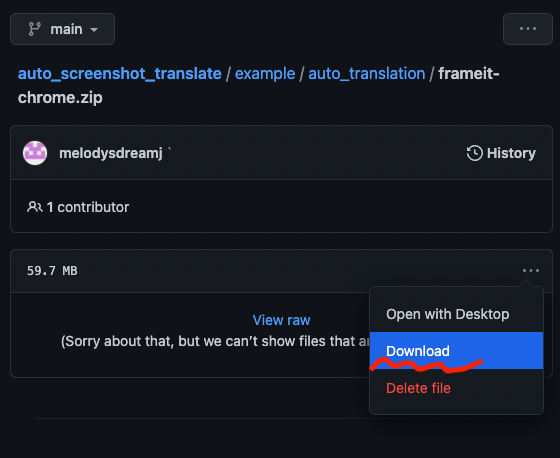
1. download text_drive.zip file, and put it in the project root directory.
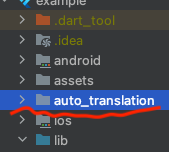
2. create "auto_translation" directory in the project root directory.
3. download frameit-chrome.zip folder, and put it in the "auto_translation" directory.
5. create "screenshots/frameit.yaml" to auto_translation directory.
rewrite:
- pattern: 'samsung-galaxy-s10-plus'
replace: 'samsungapps-samsung-galaxy-s10-plus'
action: duplicate
images:
samsungapps-samsung-galaxy-s10-plus:
cropHeight: 2600
device: 'samsung-galaxy-s10-plus'
previewLabel: 'Samsung App Store'
css: |
.scene {
background: rgb(34,193,195);
background: linear-gradient(0deg, rgba(34,193,195,1) 0%, rgba(253,187,45,1) 100%);
}
.frame-bg-shadow {
filter: drop-shadow(25px 25px 15px blue);
}
6. create "make_screenshots.dart" file in the "auto_translation" directory and write the following code.
import 'dart:io' ;
import 'package:emulators/emulators.dart' ;
import 'package:auto_screenshot_translate/callable/core_my/my_language_code/entity/flutter_support_language_for_screenshot.dart' ;
Future <void > main () async {
final emu = await Emulators .build ();
await emu.shutdownAll ();
List <String > devices = [
'nexus_9' ,
'Samsung_Galaxy_S10' ,
'iPhone 8 Plus' ,
'iPhone 8' ,
'iPad Pro (12.9-inch) (5th generation)' ,
'iPhone 15 Pro Max' ,
];
for (int i = 0 ; i < devices.length; i++) {
await emu.forEach ([devices[i]])((device) async {
for (final c in flutterLocalizeSupportLanguagesForScreenShot) {
var p = await emu.drive (
device,
'test_driver/page1.dart' ,
config: c,
);
stderr.addStream (p.stderr);
await stdout.addStream (p.stdout);
p = await emu.drive (
device,
'test_driver/page2.dart' ,
config: c,
);
stderr.addStream (p.stderr);
await stdout.addStream (p.stdout);
p = await emu.drive (
device,
'test_driver/page3.dart' ,
config: c,
);
stderr.addStream (p.stderr);
await stdout.addStream (p.stdout);
p = await emu.drive (
device,
'test_driver/page4.dart' ,
config: c,
);
stderr.addStream (p.stderr);
await stdout.addStream (p.stdout);
p = await emu.drive (
device,
'test_driver/page5.dart' ,
config: c,
);
stderr.addStream (p.stderr);
await stdout.addStream (p.stdout);
}
});
}
}
7. Open the terminal in the project root and enter the following to create a screenshots.
dart auto_translation/make_screenshots.dart
8. you can see the screenshots in the "auto_translation/screenshots" directory.
9. remove underbar in the file name of the galaxy screenshots.
create dart file name is "frame_galaxy_remove_under_bar.dart" in the "auto_translation" directory and write the following code.
import 'package:auto_screenshot_translate/auto_screenshot_translate.dart' ;
Future <void > main () async {
AutoScreenshotTranslate .removeUnderBarInGalaxy ();
}
run this file in the terminal.
dart auto_translation/frame_galaxy_remove_under_bar.dart
10. prepare screenshot title for generate store images.
create dart file name is "frame_prepare.dart" in the "auto_translation" directory and write the following code.
import 'package:auto_screenshot_translate/auto_screenshot_translate.dart' ;
import 'package:auto_screenshot_translate/callable/core_my/my_screenshot_helper/entity/my_screenshot_info.dart' ;
Future <void > main () async {
MyScreenshotInfo myScreenshotInfo = MyScreenshotInfo (
screenshotTitle01: "" ,
screenshotTitle02: "" ,
screenshotTitle03: "" ,
screenshotTitle04: "" ,
screenshotTitle05: "" ,
screenshotSubTitle01: "" ,
screenshotSubTitle02: "" ,
screenshotSubTitle03: "" ,
screenshotSubTitle04: "" ,
screenshotSubTitle05: "" ,
screenshotStartLanguageCode: "en" ,
googleTranslateApiKey: '' ,
);
AutoScreenshotTranslate .prepareGenerateScreenshotFrame (myScreenshotInfo);
}
Fill in the screenshotSubTitle0~ with the instructions you want to use and run the code below at the project root terminal.
dart auto_translation/frame_prepare.dart
after translate, you can see "keyword.strings" file in the auto_translation/screenshots directory.
11. Open a terminal at the location of pubspec.yaml in the frameit-chrome folder and enter the following.
cd auto_translation/frameit-chrome
brew install dart@2.12
brew info dart@2.12
export PATH="/opt/homebrew/opt/dart@2.12/libexec/bin:$PATH "
dart pub get
12. Enter the following command in the project root terminal to generate store images.
brew install dart@2.12
brew info dart@2.12
export PATH="/opt/homebrew/opt/dart@2.12/libexec/bin:$PATH "
dart auto_translation/frameit-chrome/bin/frameit_chrome.dart
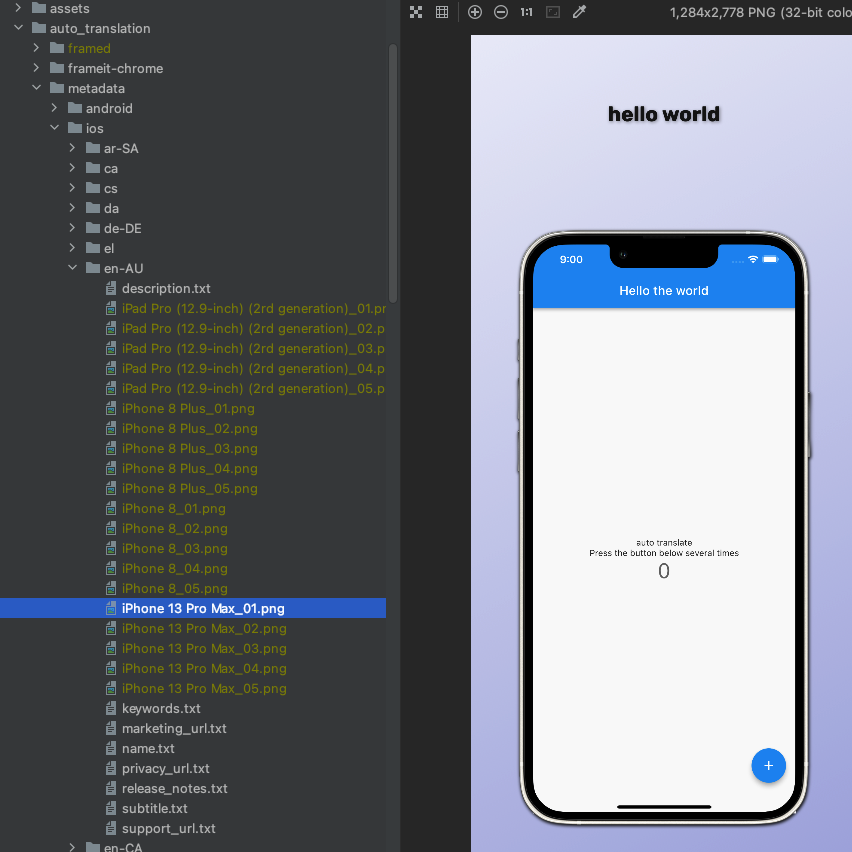
13. You can see that the store image is generated in the "auto_translation/framed" directory as follows.
14. Move the generated file to the file structure that fastlane can understand.
create dart file name is "framed_distribute.dart" in the "auto_translation" directory and write the following code.
import 'package:auto_screenshot_translate/auto_screenshot_translate.dart' ;
Future <void > main () async {
AutoScreenshotTranslate .distributeScreenshotFrameFile ();
}
run this file in the terminal.
dart auto_translation/framed_distribute.dart
You can see the files that are made of structures that fastlane can understand.
15. deploy to play store and app store.
- play store
1. Setup the fastlane config file(android)
please refer to the official document and auto_store_translate library.
2. Add the code below under platform:android do in the android/fastlane/fastfile file.
    lane :metaWithScreenshot do
      upload_to_play_store(
          track: 'internal',
          metadata_path: '../auto_translation/metadata/android',
          skip_upload_changelogs: true,
          release_status: 'draft',
          aab: '../build/app/outputs/bundle/release/app-release.aab',
      )
    end
3. Open the terminal in the android project location and enter the following.
fastlane metaWithScreenshot
4. You will see the translated information in the play store console.
- app store
1. Setup the fastlane config file(ios)
please refer to the official document .
2. Add the code below under platform:ios do in the ios/fastlane/fastfile file.
   lane :onlyScreenShotOverWrite do
      get_certificates           # invokes cert
      get_provisioning_profile   # invokes sigh
      deliver(
          skip_metadata: true,
          screenshots_path: '../metadata/[프로젝트명]/ios/screenshots',
          overwrite_screenshots: true,
          force: true, # Skip HTMl report verification
          # skip_screenshots: true,
          skip_binary_upload: true,
      )
   end
3. Open the terminal in the ios project location and enter the following.
fastlane onlyScreenShotOverWrite
4. You will see the translated information in the app store connect.