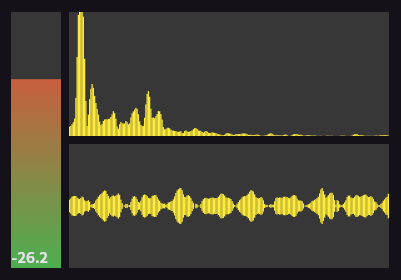
Ein Low-Level-Audio-Aufnahmeprogramm, das miniaudio als Backend verwendet. Erkennen von Stille und Speichern in WAV-Audio-Datei. Audio-Welle, FFT und Lautstärke können in Echtzeit abgerufen werden.
Aus öffentlichen Paketdaten erstellte Orientierung.
flutter_recorder ist ein Low-Level-Audioaufnahmeprogramm für Flutter, das miniaudio als Backend nutzt. Es ermöglicht die Echtzeit-Audiokapierung mit Funktionen wie Stilleerkennung, Export von WAV-Dateien sowie den Zugriff auf Audiowellenformen, FFT-Daten und Lautstärken während der Aufnahme. Für Entwickler konzipiert, die eine feinabgestimmte Kontrolle über die Audioeingabe benötigen, unterstützt es mehrere Plattformen wie Android, iOS, Web, macOS, Windows und Linux. Ideal für Anwendungen, die präzise Audiobearbeitung oder -analyse erfordern.
Anwendungsfälle
Echtzeit-Audioanalyse
Spracherkennung
Audio-Waveform-Visualisierung
Geräuschpegelüberwachung
WAV-Dateierzeugung
Audio-Signalverarbeitung
Hauptmerkmale
Stille Erkennung
Echtzeit-Audio-Datenzugriff
WAV-Datei-Ausgabe
FFT und Volumenpegelextraktion
Plattformübergreifende Unterstützung
Low-Level-Audiokontrolle
Geeignet für
Audio-Engineering-Apps
Spracherkennungssysteme
Musikproduktionswerkzeuge
Sound-Analyse-Utilities
Entwickler, die rohe Audioströme benötigen
Hinweise
Erfahrung mit Audio-Signalverarbeitung erforderlich
Eingeschränkte hochstufige Abstraktionen
plattformspezifische Audio-Berechtigungen
Möglicher Leistungseinfluss auf Geräten mit geringer Leistungsfähigkeit
Keine integrierte Wiedergabefunktion
Original-README
Originaler README-Schnappschuss aus dem verknüpften Quell-Repository. Aktuelle Inhalte finden Sie im Repository.
A low-level audio recorder plugin that uses miniaudio as the backend and supports all the platforms. It can detect silence and save to a WAV audio file. Audio wave and FFT data can be obtained in real-time as for the volume level.
Linux
Windows
Android
MacOS (under test)
iOS (under test)
web (WASM compatible)
💙
💙
💙
💙
💙
💙
🌟 Key Features:
Cross-platform: Supports Linux, Windows, Android, MacOS, iOS, and web.
High performance: Built using the fast and efficient miniaudio C library with FFI.
WAV or Ogg Opus Recording: Record in WAV or Ogg Opus format with pause functionality.
Choose Data Type: samplerate, mono or stereo, audio format (u8, s8, s16le, s24le, s32le or f32le).
Device Flexibility: Choose your recording device.
Stream audio data: Listen to PCM or Opus audio data stream.
Silence Detection: Automatically detects silence via callback or Stream.
Customizable Silence Threshold: Define what’s considered “silence” for your recordings.
Adjustable Pause Timing*: Set how long silence lasts before pausing, and how soon to resume recording.
Real-time Audio Metrics: Access volume, audio wave, and FFT data in real-time.
Device & Microphone Lifecycle Notifications: Listen to deviceNotificationEvents for hardware route changes, disconnects, and OS interruptions (e.g. phone calls).
Auto Gain: Experimental Auto Gain filter.
Cross Platform: Supports all platforms with WASM support for the web.
🚀 Setup
After setting up permission for you Android, MacOS or iOS, in your app, you will need to ask for permission to use the microphone maybe using permission_handler plugin.
https://pub.dev/packages/permission_handler
Operating systems and browsers provide native hardware DSP and preprocessing pipelines (e.g. Acoustic Echo Cancellation, Automatic Gain Control, Noise Suppression). flutter_recorder allows configuring these directly in init():
voiceCommunication: Configures AVAudioSessionModeVoiceChat with Apple hardware VoiceProcessingIO (hardware AEC and AGC). Avoids the need for external audio_session configuration.
videoChat: Configures AVAudioSessionModeVideoChat with Apple voice processing optimized for video calls and speakerphone.
speechRecognition: Configures AVAudioSessionModeMeasurement with minimal hardware gain distortion for speech-to-text.
unprocessed: Configures AVAudioSessionModeMeasurement with flat frequency response and zero gain coloring for raw DSP analysis.
generic: Configures standard AVAudioSessionCategoryPlayAndRecord with default system routing.
If omitted (null), the active AVAudioSession is left untouched, preserving external session management (e.g. audio_session package).
Web (WebInputPreset)
unprocessed(Default): Disables browser AEC, AGC, and Noise Suppression ({echoCancellation: false, autoGainControl: false, noiseSuppression: false}). Prevents browser "volume pumping" / gating so raw audio reaches your app.
voiceRecognition: Enables browser AGC and Noise Suppression without AEC ({echoCancellation: false, autoGainControl: true, noiseSuppression: true}).
noiseSuppression: Enables only browser Noise Suppression ({noiseSuppression: true}).
echoCancellation: Enables only browser Echo Cancellation ({echoCancellation: true}).
macOS
On macOS, CoreAudio HAL captures raw, unprocessed audio from the selected input device by default. System-wide "Voice Isolation" and "Wide Spectrum" Mic Modes in macOS Sonoma/Sequoia can be selected by the user in the macOS menu bar / Control Center.
MacOS, iOS Permissions
Add the permission in Runner/Info.plist.
<key>NSMicrophoneUsageDescription</key><string>Some message to describe why you need this permission</string>
on MacOS :
In capabilities, activate "Audio input" in debug and release schemes or add in macos/Runner/*.entitlements files:
Web (Single-Threaded & Multi-Threaded AudioWorklet)
flutter_recorder supports both Single-Threaded (ST) and Multi-Threaded (MT) WebAssembly builds:
Multi-Threaded (AudioWorklet): Offloads audio capture, DSP filtering, and Opus encoding to a dedicated Web Audio AudioWorklet / pthread thread for high-performance, glitch-free audio without frame drops.
Single-Threaded: Fallback mode for environments where SharedArrayBuffer is unavailable.
1. Configure web/index.html
Add init_recorder_module.dart.js to your web/index.html. It automatically picks the right WASM build flavor (MT or ST) at runtime and dynamically loads the required JS glue:
Multi-threaded WASM requires SharedArrayBuffer, which modern browsers only enable in cross-origin isolated contexts. Ensure your web server serves the following HTTP response headers:
Run or build your app enabling Dart to WebAssembly compilation via --wasm:
# Run locally with WASM:
flutter run -d chrome --wasm \
  --web-browser-flag '--disable-web-security' \
  -t lib/main.dart --release

# Build for production with WASM:
flutter build web --wasm --release
🌐 Web Audio Preprocessing (AEC, AGC, Noise Suppression)
By default, web browsers automatically enable their own built-in Automatic Gain Control (AGC), Acoustic Echo Cancellation (AEC), and Noise Suppression on the microphone. In loopback and custom filter setups, browser AGC can cause an unwanted volume pumping / oscillation effect.
You can configure or disable these browser-level filters at any time using:
// Configure browser audio constraints (web only, no-op on other platforms):Recorder.instance.setWebAudioConstraints(
echoCancellation: false, // Disable browser AEC (e.g. to use flutter_recorder's native AEC)
autoGainControl: false, // Disable browser AGC to eliminate volume pumping/oscillation
noiseSuppression: false, // Disable browser noise suppression for raw audio capture
);
Note: In Chromium-based browsers, the browser's WebRTC audio processing graph is instantiated when getUserMedia() is first called. Dynamically changing these flags while recording (via applyConstraints) may be ignored by the browser. For guaranteed effect, call setWebAudioConstraints()before calling Recorder.instance.init() or starting capture.
Linux
GStreamer is installed by default on most distributions, but if not, please install it through your distribution's package manager.
Installing Flutter using snap could cause compilation problems with native plugins. The only solution is to uninstall it with sudo snap remove flutter and install it the official way.
🤖 AI Agent Skills
flutter_recorder includes bundled Agent Skills (SKILL.md instruction files) to help AI coding agents (Claude, Cursor, Gemini, GitHub Copilot, Cline, Codex, OpenCode, etc.) generate correct, high-performance code for all features of this audio recorder plugin.
Install or update the skills in your project by running:
dart run flutter_recorder:skills
To check whether installed skills are up to date without modifying any files:
dart run flutter_recorder:skills --check
🛠️ Usage Example
import'package:permission_handler/permission_handler.dart';
[...]
/// If you are running on Android, MacOS or iOS, ask the permission to use the microphone:if (defaultTargetPlatform == TargetPlatform.android ||
defaultTargetPlatform == TargetPlatform.iOS ||
defaultTargetPlatform == TargetPlatform.macOS) {
Permission.microphone.request().isGranted.then((value) async {
if (!value) {
await [Permission.microphone].request();
}
});
/// Initialize the capture device and start it:try {
Recorder.instance.init();
Recorder.instance.start();
} onExceptioncatch (e) {
debugPrint('init() error: $e\n');
}
/// On Web platform it is better to initialize and wait the user to give/// mic permission. Then use `start()` when it's needed.// Start recording (WAV is the default):Recorder.instance.startRecording(completeFilePath: 'audioCompleteFilenameWithPath.wav');
// Or record to Ogg Opus:Recorder.instance.startRecording(
completeFilePath: 'audioCompleteFilenameWithPath.opus',
format: RecordingFormat.opusOgg,
);
/// Stop recording:Recorder.instance.stopRecording();
Tip: Use Recorder.instance.listCaptureDevices() to see available devices and pass an optional deviceID to init().
Tip2: Use the format, sampleRate and channels with the init() method to define recorder parameters.
Tip3: When recording with silence detection and want to record a little bit before the threshold db is reached, use the setSecondsOfAudioToWriteBefore() method.
Tip4: On Android, pass androidInputPreset to init() to compare capture presets such as voiceRecognition, voiceCommunication, camcorder, or unprocessed.
🔇 Silence Detection Example
Want to skip the silence? Here’s how to configure it:
Recorder.instance.setSilenceDetection(
enable: true,
onSilenceChanged: (isSilent, decibel) {
/// Here you can check if silence is changed./// Or you can do the same thing with the Stream/// [Recorder.instance.silenceChangedEvents]
},
);
/// the silence threshold in dB. A volume under this value is considered to be silence.Recorder.instance.setSilenceThresholdDb(-27);
/// the value in seconds of silence after which silence is considered as such.Recorder.instance.setSilenceDuration(0.5);
/// Set seconds of audio to write before starting recording again after silence.Recorder.instance.setSecondsOfAudioToWriteBefore(0.0);
NOTE: this is only available when initializing the recorder with PCMFormat.f32le format.
📊 Real-time Audio Visualization (Waveform & FFT)
The recorder provides a high-performance, SIMD-accelerated (via PFFFT) audio analysis pipeline with Blackman windowing and smoothing.
// 1. Listen to real-time audio visualization events:Recorder.instance.audioVisualizationEvents.listen((AudioVisualizationData data) {
// Number of channels in this packet (1 for mono/merged, 2+ for multi-channel)final channelCount = data.channelCount;
// Waveform samples in range [-1.0, 1.0]final waveData = data.waveData; // or data.wave for all channels// FFT frequency bins in range [0.0, 1.0]final fftData = data.fftData; // or data.fft for all channels
});
// 2. Enable visualization:Recorder.instance.setVisualizationEnabled(
true,
windowSize: 256, // Power of 2 between 128 and 8192
kind: VisualizationKind.waveAndFft, // wave, fft, or waveAndFft
channel: VisualizationChannel.merged, // merged (mono downmix), all, or channel index
);
// Optional: Configure FFT smoothing (0.0 to 1.0)Recorder.instance.setFftSmoothing(0.6);
// Get current volume level in dB [-100, 0]:double volume = Recorder.instance.getVolumeDb();
NOTE: Audio visualization is available when initializing the recorder with PCMFormat.f32le format.
📢 Audio data stream
/// Listen to audio data stream. The data is received in Uint8List.Recorder.instance.uint8ListStream.listen((data) {
/// the [data] is of type `AudioDataContainer` and, whatever format is passed to/// the `init()` method, it is available with [data.rawData] which is of `Uint8List`/// type. This is useful if we want to write into a file./// It is possible to convert audio data to the desired format using one of the/// `data.to[*]List` methods. Be aware that the conversion is compute expensive and/// should be avoided if possible initializing the recorder with the format/// desired.
});
/// Start streaming (PCM is the default):Recorder.instance.startStreamingData();
/// Or stream encoded Opus packets:Recorder.instance.startStreamingData(format: StreamingFormat.opus);
/// Stop streaming:Recorder.instance.stopStreamingData();
[!CAUTION]
Audio data must be processed as it is received. To optimize performance, the same memory is used to store data for all incoming streams, meaning the data will be overwritten. Therefore, you must copy the data if you need to populate a buffer while it arrives.
For example, when using RxDart.bufferTime, it will fill a List of AudioDataContainer objects, but when you attempt to read them, you will find that all the items contain the same data.
🎧 Device & Microphone Lifecycle Notifications
Hardware state changes and OS audio events can happen outside your app's direct control (e.g. unplugging headphones, system audio route changes, or incoming phone calls on iOS). You can listen to native device notifications via the deviceNotificationEvents broadcast stream:
[!WARNING]
This is an experimental feature, may change in the future.
finalRecorder recorder = Recorder.instance;
// Please look at the [Recorder.instance.autoGainFilter] doc to have a parameters overview.finalAutoGain autoGain = recorder.filters.autoGainFilter;
// You can now query or set parameters:// For example with [autoGain.queryTargetRms] you can query the "human" name, `min`, `max` and `def` values.// Set a new parameter value:
autoGain.targetRms.value = newValue;
// Get a new parameter value:final value = autoGain.targetRms.value;
flutter_recorder integrates real-time Acoustic Echo Cancellation powered by SpeexDSP (Revised BSD License) to remove loudspeaker feedback and room reflections from the microphone signal.
final recorder = Recorder.instance;

// 1. Activate the AEC filter
recorder.filters.echoCancellationFilter.activate();

// 2. Adjust parameters
recorder.filters.echoCancellationFilter.filterLengthMs.value = 150; // 10 to 500 ms
recorder.filters.echoCancellationFilter.denoiseEnabled.value = 1;    // 0 or 1
recorder.filters.echoCancellationFilter.denoiseLevelDb.value = -30;  // -60 to 0 dB
Choose Reference Audio Mode:
Depending on your application architecture, AEC can obtain its far-end speaker reference in two ways:
// Keep native loopback off so mic audio is not duplicated
recorder.setLoopback(enable: false);

// Capture loudspeaker audio from flutter_soloud (or your VoIP decoder) and feed it to AEC:
soloud.startMixerOutputStream(format: MixerOutputFormat.pcmF32le).listen((mixerData) {
  recorder.feedPlaybackData(mixerData, format: PCMFormat.f32le);
});
Voice Calls / Video Conferencing: Eliminates remote caller echo when loudspeaker is active.
Gaming with Voice Chat: Cancels background game music and SFX played via flutter_soloud from the chat mic.
Voice Assistants (Barge-In): Allows devices to hear user commands while actively playing music or responses.