Pakete, Repositories und App-Kategorien suchen

Cover von json_to_form
Paketdetailsv0.0.5

json_to_form

Das Plugin für Flutter konvertiert das JSON-Format in ein benutzerdefiniertes Format.

AndroidiOSWebmacOSWindowsLinux
30-Tage-Downloads
32
Likes
44
Pub-Punkte
140

Paket installieren

flutter pub add json_to_form

Paketübersicht

Aus öffentlichen Paketdaten erstellte Orientierung.

Das json_to_form-Paket für Flutter ermöglicht Entwicklern das dynamische Erstellen von Formularen aus JSON-Konfigurationen. Es vereinfacht die Erstellung interaktiver Benutzeroberflächen, indem es JSON-Strukturen auf Formularfelder wie Texteingaben, Dropdowns und Kontrollkästchen abbildet. Dieses Plugin ist ideal für Anwendungen, die flexible, datengesteuerte Formulare erfordern, ohne UI-Komponenten hartcodieren zu müssen. Es unterstützt mehrere Plattformen, darunter Android, iOS, Web, macOS, Windows und Linux, und sorgt für ein konsistentes Verhalten über Geräte hinweg. Das Paket beschleunigt die Entwicklung und verbessert die Wartbarkeit, indem es die Formularelogik von der UI-Implementierung entkoppelt.

Anwendungsfälle

  • Dynamische Formularerstellung aus JSON
  • Konfigurierbare Benutzereingabeschnittstellen
  • Remote-Formularkonfigurationsaktualisierungen
  • Plattformübergreifende Formularkonsistenz
  • Schnellprototyp für Eingabebildschirme

Hauptmerkmale

  • JSON-getriebene Formularerstellung
  • Unterstützung für verschiedene Eingabetypen
  • Plattformunabhängiger Entwurf
  • Einfache Integration in bestehende Flutter-Apps
  • Laufzeitformularanpassung

Geeignet für

  • Entwickler, die datengesteuerte Anwendungen erstellen
  • Teams, die flexible Formularlayouts benötigen
  • Anwendungen mit remote Formularverwaltung
  • Prototyping und MVP-Entwicklung
  • Apps, die Mehrplattform-Formularunterstützung erfordern

Hinweise

  • Gültige JSON-Schema-Definition erforderlich
  • Eingeschränkte integrierte Überprüfungsregeln
  • Benutzerdefinierte Stileinstellungen erfordern möglicherweise zusätzliche Einrichtung
  • Abhängig von der genauen JSON-Struktur
  • Kann zusätzliche Zustandsverwaltung für komplexe Formulare erfordern

Original-README

Originaler README-Schnappschuss aus dem verknüpften Quell-Repository. Aktuelle Inhalte finden Sie im Repository.

Convert Json to Form for Flutter apps.

:fire: Star and Share :fire: the repo to support the project. Thanks!

A flutter plugin to use convert Json to Form

Instalation

  • Add this to your package's pubspec.yaml file:
dependencies:
  json_to_form: "^0.0.1"
  • You can install packages from the command line: with Flutter:
$ flutter packages get
Json to Form V2 Official!!!
  • Import it Now in your Dart code, you can use:
 import 'package:json_to_form/json_schema.dart'; 
JsonSchema
new JsonSchema(
    decorations: decorations,
    form: form,
    onChanged: (dynamic response) {
        this.response = response;
    },
    actionSave: (data) {
        print(data);
    },
    autovalidateMode: AutovalidateMode.always,
    buttonSave: new Container(
        height: 40.0,
        color: Colors.blueAccent,
        child: Center(
            child: Text("Login",style:TextStyle(color: Colors.white,fontWeight: FontWeight.bold)),
        ),
    ),
),
Attribute
  • form (Type String) Your form in String
  • onChanged (Type Function)(1 parameter) call the function every time a change in the form is made
  • padding (Type Double)
  • formMap (Type Map) Your form in Map
  • errorMessages(Type Map) change string for error of required
  • validations(Type Map) to add validation (TextInput,Input, Password, Email or TextArea)
  • decorations(Type Map) to add decoration (TextInput,Input, Password, Email or TextArea)
  • buttonSave(Type Widget) (not RaisedButton problem in onClick)
  • actionSave(Type Function) the function is called when you click on the widget buttonSave
  • autovalidateMode(Type AutovalidateMode) validation type of the form (autovalidate @Deprecated) use this instead
Form

Create Form String

String formString = json.encode({
    'title': 'form example',
    'description':'',
    'fields': [
        ...
    ]
});

Create Form Map

Map formMap = {
    'title': 'form example',
    'description':'',
    'fields': [
        ...
    ]
};
Fields
  • All fields has attribute labelHidden(default false)
  • Important add key for all field for validation required
TextInput or Input

1.- Types?

  • Input
  • Password
  • Email (has default validation)
  • TextArea
  • TextInput
// Example for json string
// to start with a default value you can add the value attribute
  String formString = json.encode({
    'fields': [
        {
             'key': 'inputKey',
             'type': 'Input',
             'label': 'Hi Group',
             'placeholder': "Hi Group flutter",
             'required': true
        },
        {
             'key': 'inputKey',
             'type': 'Input',
             'label': 'Initial Value',
             'value': 'Hello'
             'required': true
        },
    ]
 });
// Example for json Map
// in Map has Attributes validation and decoration

//important to receive 2 parameters in function of Validation
String validationExample(field, value) {
   if (value.isEmpty) {
     return 'Please enter some text';
   }
   return null;
}

Map formMap = {
    'fields': [
        {
                'key': 'inputKey',
                'type': 'Input',
                'label': 'Hi Group',
                'placeholder': "Hi Group flutter",
                'validator': 'digitsOnly',
                'required': true,
                'decoration': InputDecoration(
                          prefixIcon: Icon(Icons.account_box),
                          border: OutlineInputBorder(),
                ),
                'validation':validationExample,
                'keyboardType':TextInputType.number
        },
    ]
 };

1.- How can I place validations for my form String? Excellent :D.

  • In JsonSchema has attributes (validations, decorations)
  • Important that each field has to has its unique key

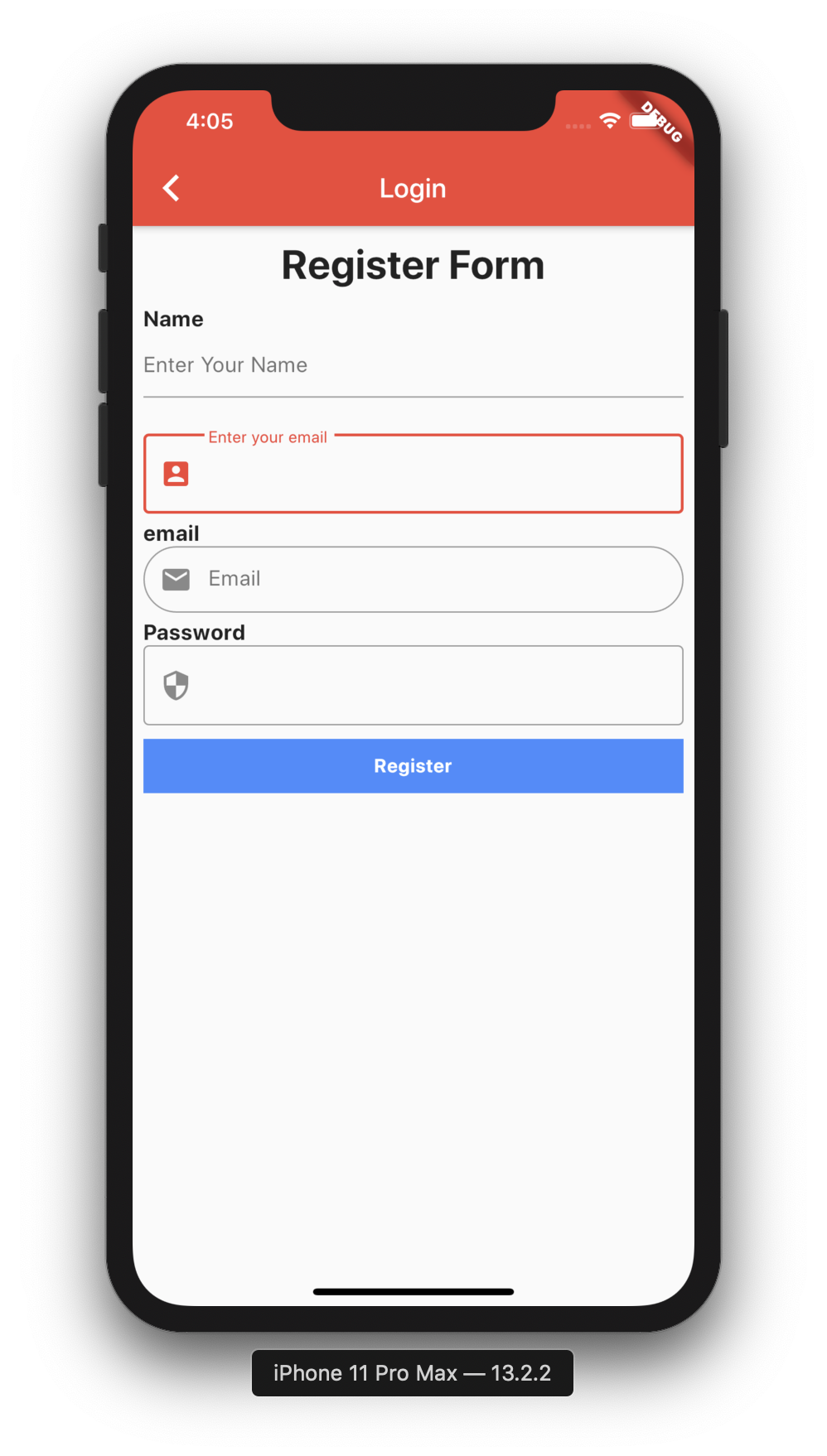
Map decorations = {
    'inputKey': InputDecoration(
      labelText: "Enter your email",
      prefixIcon: Icon(Icons.account_box),
      border: OutlineInputBorder(),
    ),
  };
  
Map validations = {
    'inputKey': validationExample,
}

dynamic response;
new JsonSchema(
    decorations: decorations,
    validations: validations,
    form: formString,
    onChanged: (dynamic response) {
        this.response = response;
    },
    actionSave: (data) {
        print(data);
    },
    buttonSave: new Container(
        height: 40.0,
        color: Colors.blueAccent,
        child: Center(
            child: Text("Login",style:TextStyle(color: Colors.white,fontWeight: FontWeight.bold)),
        ,
    ),
) 
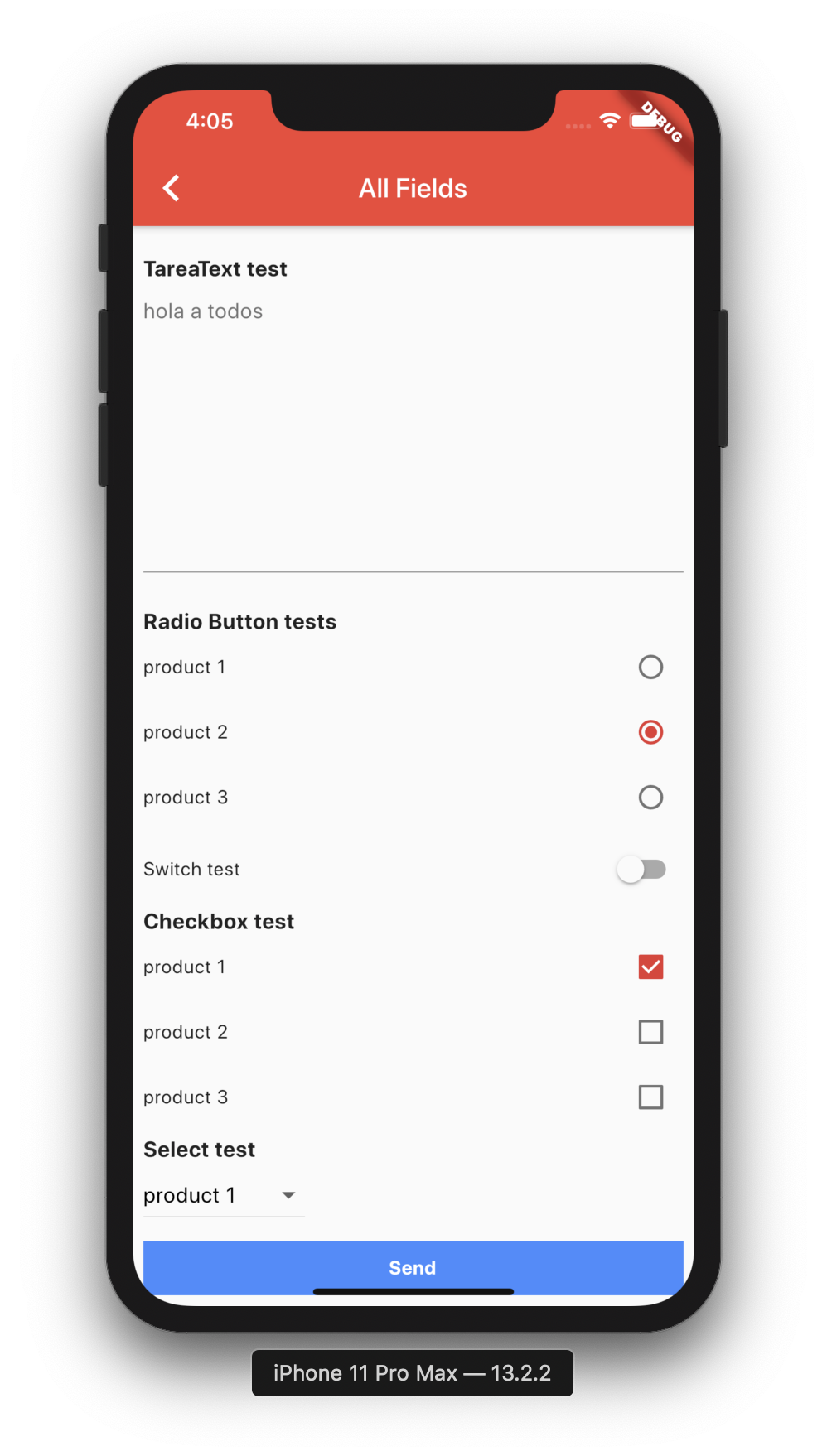
Radio
 String formString = json.encode({
    'fields': [
         {
                'key': 'radiobutton1',
                'type': 'RadioButton',
                'label': 'Radio Button tests',
                'value': 2,
                'items': [
                  {
                    'label': "product 1",
                    'value': 1,
                  },
                  {
                    'label': "product 2",
                    'value': 2,
                  },
                  {
                    'label': "product 3",
                    'value': 3,
                  }
                ]
         },
    ],
 });

Switch
 String formString = json.encode({
    'fields': [
         {
                 'key': 'switch1',
                 'type': 'Switch',
                 'label': 'Switch test',
                 'value': false,
         },
    ],
 });
Checkbox
 String formString = json.encode({
    'fields': [
        {
                'key': 'checkbox1',
                'type': 'Checkbox',
                'label': 'Checkbox test',
                'items': [
                  {
                    'label': "product 1",
                    'value': true,
                  },
                  {
                    'label': "product 2",
                    'value': false,
                  },
                  {
                    'label': "product 3",
                    'value': false,
                  }
                ]
        }
    ],
 });
Select (New Field)
 String formString = json.encode({
    'fields': [
         {
                 'key': 'select1',
                 'type': 'Select',
                 'label': 'Select test',
                 'value':'product 1',
                 'items': [
                   {
                     'label': "product 1",
                     'value': "product 1",
                   },
                   {
                     'label': "product 2",
                     'value': "product 2",
                   },
                   {
                     'label': "product 3",
                     'value': "product 3",
                   }
                 ]
         }
    ],
 });

when text is added to the TextField, add field called response

// initial form_send_email
[{"type":"Input","label":"Subject","placeholder":"Subject"},{"type":"TextArea","label":"Message","placeholder":"Content"}]

// add text (hi) in TextField Message, update dynamic response; and add field called response
[{type: Input, label: Subject, placeholder: Subject, value: hello}, {type: TextArea, label: Message, placeholder: Content, value: hi }]

Json to Form V1
  • Import it Now in your Dart code, you can use:
 import 'package:json_to_form/json_to_form.dart'; 

Usage

  • TextField
  String form = json.encode([
    {
      'type': 'Input',
      'title': 'Hi Group',
      'placeholder': "Hi Group flutter"
    },
    {
      'type': 'Password',
      'title': 'Password',
    },
    {
      'type': 'Email', 
      'title': 'Email test',
      'placeholder': "hola a todos"
    },
    {
      'type': 'TareaText',
      'title': 'TareaText test',
      'placeholder': "hola a todos"
    },
  ]);
  • Radio
 String form = json.encode([
    {
      'type': 'RadioButton',
      'title': 'Radio Button tests',
      'value': 2,
      'list': [
        {
          'title': "product 1",
          'value': 1,
        },
        {
          'title': "product 2",
          'value': 2,
        },
        {
          'title': "product 3",
          'value': 3,
        }
      ]
    },
  ]);
  • Switch
String form = json.encode([
    {
      'type': 'Switch',
      'title': 'Switch test',
      'switchValue': false,
    },
  ]);
  • Checkbox
String form = json.encode([
    {
      'type': 'Checkbox',
      'title': 'Checkbox test 2',
      'list': [
        {
          'title': "product 1",
          'value': true,
        },
        {
          'title': "product 2",
          'value': true,
        },
        {
          'title': "product 3",
          'value': false,
        }
      ]
    },
  ]);
  • Example
 String form_send_email = json.encode([
    {'type': 'Input', 'title': 'Subject', 'placeholder': "Subject"},
    {'type': 'TareaText', 'title': 'Message', 'placeholder': "Content"},
  ]);
 dynamic response;
 
 @override
   Widget build(BuildContext context) {
     return new Scaffold(
       appBar: new AppBar(
         title: new Text(widget.title),
       ),
       body: new SingleChildScrollView(
         child: new Container(
           child: new Column(children: <Widget>[
             new CoreForm(
               form: form,
               onChanged: (dynamic response) {
                 this.response = response;
               },
             ),
             new RaisedButton(
                 child: new Text('Send'),
                 onPressed: () {
                   print(this.response.toString());
                 })
           ]),
         ),
       ),
     );
   }

When there is a change in the form, the (dynamic response;) is updated,

               onChanged: (dynamic response) {
                 this.response = response;
               },

when text is added to the TextField, add field called response

// initial form_send_email
[{"type":"Input","title":"Subject","placeholder":"Subject"},{"type":"TareaText","title":"Message","placeholder":"Content"}]

// add text (hi) in TextField Message, update dynamic response; and add field called response
[{type: Input, title: Subject, placeholder: Subject}, {type: TareaText, title: Message, placeholder: Content, response: hi }]

Getting Started

For help getting started with Flutter, view our online documentation.

For help on editing package code, view the documentation.

Kategorien

Quell-Repository

Projekte, die dieses Paket verwenden

Noch keine Daten verfügbar.