Aus öffentlichen Paketdaten erstellte Orientierung.
Logarte ist eine umfassende In-App-Debug-Konsole für Flutter-Anwendungen, die Echtzeitprotokollierung, Netzwerküberprüfung, Speicherüberwachung und passwortgeschützten Zugriff bietet, um sensible Daten zu schützen. Für Entwickler konzipiert, bietet sie eine benutzerfreundliche Oberfläche, um das Verhalten der App während Entwicklung und Tests auf mehreren Plattformen wie Android, iOS, Web, macOS, Windows und Linux zu verfolgen. Das Paket erhöht die Effizienz der Fehlersuche, indem es wichtige Tools in einer einzigen sicheren Oberfläche bündelt und so die Diagnose von Problemen erleichtert, ohne sich ausschließlich auf Terminal-Logs zu verlassen.
Anwendungsfälle
Echtzeit-Debugging von Flutter-Apps
Überwachung von Netzwerkanfragen und -antworten
Überprüfung des lokalen Speichers und gemeinsamer Einstellungen
Sicherung von Debug-Tools mit Passwortschutz
Testen des App-Verhaltens auf mehreren Plattformen
Hauptmerkmale
In-App-Debug-Konsole mit reichhaltiger Benutzeroberfläche
Debugging komplexer Zustands- oder Netzwerkprobleme
Hinweise
Nicht für den Produktiveinsatz vorgesehen
Benötigt manuelle Aktivierung im Debug-Modus
Kann die App-Größe leicht erhöhen
Das Passwort muss zur Laufzeit festgelegt werden
Beschränkt auf Entwicklung- und Testumgebungen
Original-README
Originaler README-Schnappschuss aus dem verknüpften Quell-Repository. Aktuelle Inhalte finden Sie im Repository.
logarte
In-app debug console and logger for Flutter apps.
📦 Features
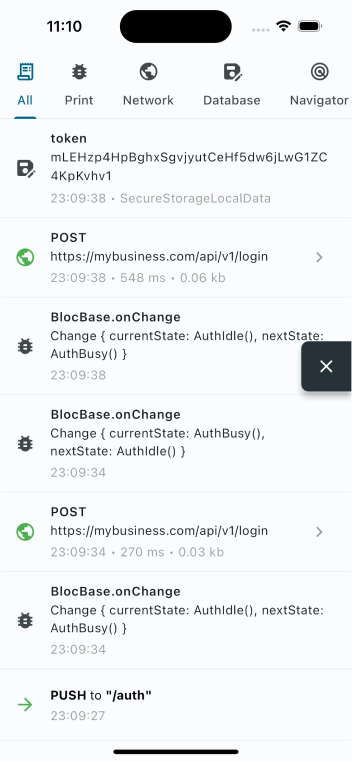
🚀 In-app console: Monitor your app inside your app
🔒 Access control: Optional password protection
📡 Network inspector: Track API calls and responses
📁 Storage monitor: Track local storage operations
📤 Copy & export: Share debug logs with your team
📄 Curl command: Copy cURL command for API requests
📱 Screenshots
Console
API Request
Password
🩵 Sponsors
Want to say "thanks"? Check out our sponsors:
🪚 Usage
Add to pubspec.yaml
dependencies:logarte:^0.2.1
Then run flutter pub get.
Initialize
Create a global Logarte instance:
finalLogarte logarte = Logarte(
// Protect with password
password: '1234',
// Skip password in debug mode
ignorePassword: kDebugMode,
// Share network request
onShare: (String content) {
Share.share(content);
},
// To have logs in IDE's debug console (default is false)
disableDebugConsoleLogs: false,
// Add shortcut actions (optional)
onRocketLongPressed: (context) {
// e.g: toggle theme mode
}
onRocketDoubleTapped: (context) {
// e.g: change language
}
);
Enable the debug console
In debug mode
Ideally, you should attach the floating button to the widget tree, then click it to open the debug console. This is the preferred way because you don't know when you'll need it and sometimes you might need to go back and forth many times. So, it's better to have it on the UI always.
This will attach the floating button when in debug mode. Curious how you can access it in production when it's not debug mode? Check below.
In production
Logarte is as valuable in production mode as it is in debug mode. Whenever you find a bug, notice something not working, API requests failing, etc., you should be able to check the console and find why.
Two ways to access in production:
Hidden gesture trigger
LogarteMagicalTap is a widget that attaches the floating button to the UI when tapped 10 times. Wrap any non-tappable widget, keep it secret, and make sure you've set a password while initializing.
LogarteMagicalTap(
  logarte: logarte,
  child: Text('App Version 1.0'),
)
Manual trigger
You might also have creative ideas on when and how to open the console. For example, I used a shake detection plugin and attached the floating button when the device was shaken 3 times consecutively. From my experience, this is extremely valuable. Why? Imagine: you've opened your app, went to deeper screens, and an API call failed. You say 'Thank God I've already integrated logarte. Let's open that console!' But you need to go to the page where you used LogarteMagicalTap, which might be too far or not visible at that stage of the app - maybe you're showing it on the profile page and you are on the login page. So be creative about where to add it and consider using shake detection or anything that would serve you better.
logarte.openConsole(context);
Different from the .attach(context) method, this will directly open the console (password page if set, else the console itself).
While initializing, you can pass a custom tab widget to the Logarte instance. This tab will be shown in the console.
This is useful when you want to add a custom tab to the console, for example, to change the environment, copy device's FCM token, clear local cache, etc.