Aus öffentlichen Paketdaten erstellte Orientierung.
PasswordGrid ist ein Flutter-Paket, das Entwicklern ermöglicht, sichere, anpassbare Passwortgitter für die Benutzerauthentifizierung zu erstellen. Es unterstützt mehrere Plattformen wie Android, iOS, Web, macOS, Windows und Linux und ist daher ideal für plattformübergreifende Anwendungen, die eine gitterbasierte Passworteingabe erfordern. Das Paket bietet eine intuitive Schnittstelle zur Eingabe von Passwörtern über ein Gitterlayout, was die Benutzerfreundlichkeit erhöht, während die Sicherheit gewahrt bleibt. Es integriert sich nahtlos in das Widget-System von Flutter und kann problemlos an die Designanforderungen der App angepasst werden.
Anwendungsfälle
Sichere Anmelnoberflächen
Zwei-Faktor-Authentifizierung
Grid-basierte Passworteingabe
Plattformübergreifende App-Entwicklung
Benutzerfreundliche Authentifizierung
Anpassbare Benutzeroberfläche für Passworteingabe
Hauptmerkmale
Plattformübergreifende Unterstützung
Anpassbares Rasterlayout
Sichere Passworteingabe
Einfache Integration mit Flutter
reaktives Design
Unterstützt mehrere Betriebssysteme
Geeignet für
Mobile und Web-Anwendungen
Authentifizierungssysteme
Sicherheitsorientierte Anwendungen
Entwickler, die wiederverwendbare UI-Komponenten suchen
Apps, die eine gitterbasierte Eingabe benötigen
Multiplattformprojekte
Hinweise
Erfordert sorgfältige Behandlung sensibler Daten
Kann zusätzliche Überprüfungslogik erfordern
Nicht geeignet für komplexe Passwortrichtlinien
Die Anpassung der Benutzeroberfläche erfordert möglicherweise fortgeschrittene Flutter-Kenntnisse
Beschränkt auf Passworteingabe im Rasterstil
Hängt von externem Quellcode für Aktualisierungen ab
Original-README
Originaler README-Schnappschuss aus dem verknüpften Quell-Repository. Aktuelle Inhalte finden Sie im Repository.
PasswordGrid
A Flutter Package to Generate Password Grid. You can use this widget directly in your application UI.
Stay Secure with 2FA Passcode Grid
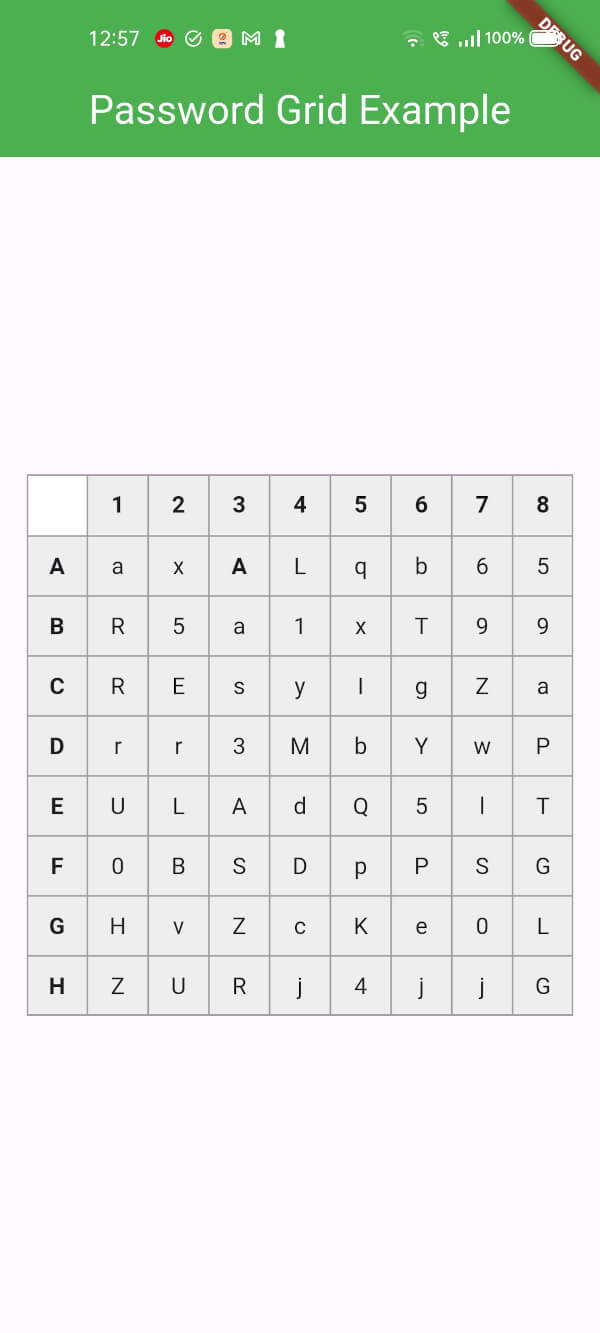
A password grid, also called a "passcode grid," is a table with rows and columns containing unique letters or numbers where you select specific combinations to authenticate, essentially acting as a visual password by choosing specific coordinates on the grid to form your login credentials; to use it, you would typically be presented with a grid, then asked to enter the letters or numbers from specific grid positions (like "A3, B2, C1") to log in, usually requiring you to save or print the grid for future use as it's unique to your account.
Key points about using a password grid:
Access your grid:
While designing a authentication system, you can ask your users to enter the values in the Password grid as a 2FA passcode.
The user will be prompted to access your grid, which you should generate and show them.
The password grid can be generated at the time of user signin and they should save it for future use. so that the user can use the grid for 2FA authentication.
Select coordinates:
The system will ask the user to enter the letters or numbers from specific grid positions, usually indicated by a combination of a column letter and row number (e.g., "B2", A8, etc).
Enter the code:
The user will enter the values from the requested grid coordinates into the 2FA login field to authenticate.
Benefits of a password grid:
Enhanced security:
Since the user selects multiple characters from a grid, it's harder for someone to guess your password compared to a simple text-based password.
Shoulder surfing resistant:
Less susceptible to "shoulder surfing" attacks where someone observes your password entry because the grid doesn't reveal the exact password sequence.
Accessibility for some users:
Can be easier for people who struggle with remembering complex passwords.
Usage
In your application,
import'package:passwordgrid/main.dart';
then pass grid configuration
GridConfig config = GridConfig(
numbers: true,
alphaUpper: true,
alphaLower: true,
symbols: false,
gridSize: 8, // max size is 8 and min size is 5
);
// or Optionally pass GridConfig or use default valuesGridConfig? config;
// and invoke thisPasswordGrid passwordGrid = PasswordGrid(config: config);
// sample code@overrideWidgetbuild(BuildContext context) {
// pass grid configurationGridConfig config = GridConfig(
numbers: true,
alphaUpper: true,
alphaLower: true,
symbols: false,
gridSize: 8, // max size is 8 and min size is 5
);
// or Optionally pass GridConfig or use default values// GridConfig? config;PasswordGrid passwordGrid = PasswordGrid(config: config);
returnScaffold(
appBar: AppBar(
title: Text('Password Grid Example'),
backgroundColor: Colors.green,
centerTitle: true,
titleTextStyle: TextStyle(
color: Colors.white,
fontSize: 24,
),
),
body: Center(
child: passwordGrid,
),
);
}
An example application of how to use this password grid package is included in the example folder.
This will generate a password grid similar to
Grid Configuration
While generating grid, you can configure the grid generation parameters.
  GridConfig config = GridConfig(
    numbers: false,
    alphaUpper: true,
    alphaLower: true,
    symbols: false,
    gridSize: 6, // max size is 8 and min size is 5
  );
If everything is set to false as below, then it is invalid, so grid parameters will be set to default. i.e., all falsg will be set to true