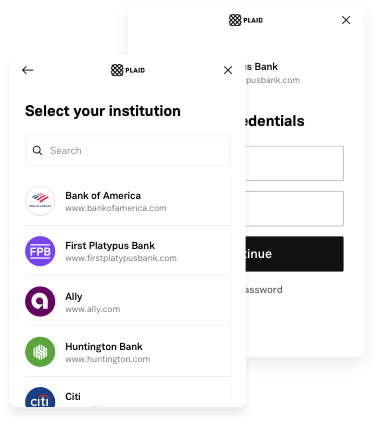
Aus öffentlichen Paketdaten erstellte Orientierung.
Plaid Flutter ist ein Flutter-Paket, das die nativen SDKs von Plaid für iOS, Android und Web integriert und so eine nahtlose Zugriffsmöglichkeit auf Finanzdaten in Flutter-Anwendungen ermöglicht. Es bietet eine einheitliche Schnittstelle zum Verbinden von Bankkonten, Abrufen von Transaktionsdaten und zur Identitätsüberprüfung über Plaid Link. Das Paket vereinfacht die Integration, indem es plattformspezifische Implementierungen abstrahiert, während native Leistung und Sicherheitsstandards beibehalten werden. Entwickler können die starke Infrastruktur von Plaid nutzen, um Identitätsüberprüfungen, Einkommensbestätigungen und Kontenaggregation über mehrere Plattformen hinweg durchzuführen.
Anwendungsfälle
Bankkontoverknüpfung
Abfrage von Transaktionsdaten
Identitätsüberprüfung
Einkommensüberprüfung
Finanzkontenaggregation
Echtzeit-Guthabenaktualisierungen
Hauptmerkmale
Native iOS- und Android SDK-Integration
Web-Unterstützung über Plaid Link
Einheitliche Flutter-API
sichere Authentifizierungsablauf
Plattformübergreifende Konsistenz
Echtzeit-Daten-Synchronisierung
Geeignet für
Fintech-Apps
Budgeting-Tools
Kreditplattformen
Zahlungsverarbeitungssysteme
Wealth-Management-Apps
Anwendungen zur Kostenverfolgung
Hinweise
Benötigt ein Plaid-Konto und API-Schlüssel
plattformspezifische Berechtigungen erforderlich
Beschränkte Anpassung der Link-Oberfläche
Abhängig von der Verfügbarkeit des Plaid-Service
Potenzielle Latenz während der ersten Verbindung
Einhaltung finanzieller Datenbestimmungen
Original-README
Originaler README-Schnappschuss aus dem verknüpften Quell-Repository. Aktuelle Inhalte finden Sie im Repository.
In order to initialize Plaid Link, you will need to create a link_token at /link/token/create. After generating a link_token, you'll need to pass it into your app and use it to open Link:
...
LinkTokenConfiguration _configuration = LinkTokenConfiguration(
token: "<GENERATED_LINK_TOKEN>",
);
// Create the internal handler for Plaid Link.// This is a one-time use object that opens a Link session.// Must be called before `open()`.// Completes when Plaid is ready to open, or throws an error if setup fails.awaitPlaidLink.create(configuration: _configuration);
/// Open Plaid Link by calling open on the handler.PlaidLink.open();
...
Note that each time you open Link, you will need to get a new link_token from your server and create a new LinkTokenConfiguration with it.
A link_token can be configured for different Link flows depending on the fields provided during token creation. It is the preferred way of initializing Link going forward. You will need to pass in most of your Link configurations server-side in the /link/token/create endpoint rather than client-side where they previously existed.
If your integration is still using a public_key to initialize Plaid Link, the LinkConfiguration class has support for it. Check the migration guide to upgrade your app to the link_token flow.
(Identity Verification only) - Enable camera support
When using the Identity Verification product, the Link SDK may use the camera if a user needs to take a picture of identity documentation. To support this workflow, add a NSCameraUsageDescription entry to your ios/Runner/Info.plist with an informative string.
OAuth configuration
If your integration uses only Identity Verification or Monitor, this steps can be skipped; they are mandatory otherwise.
Registering your redirect URI:
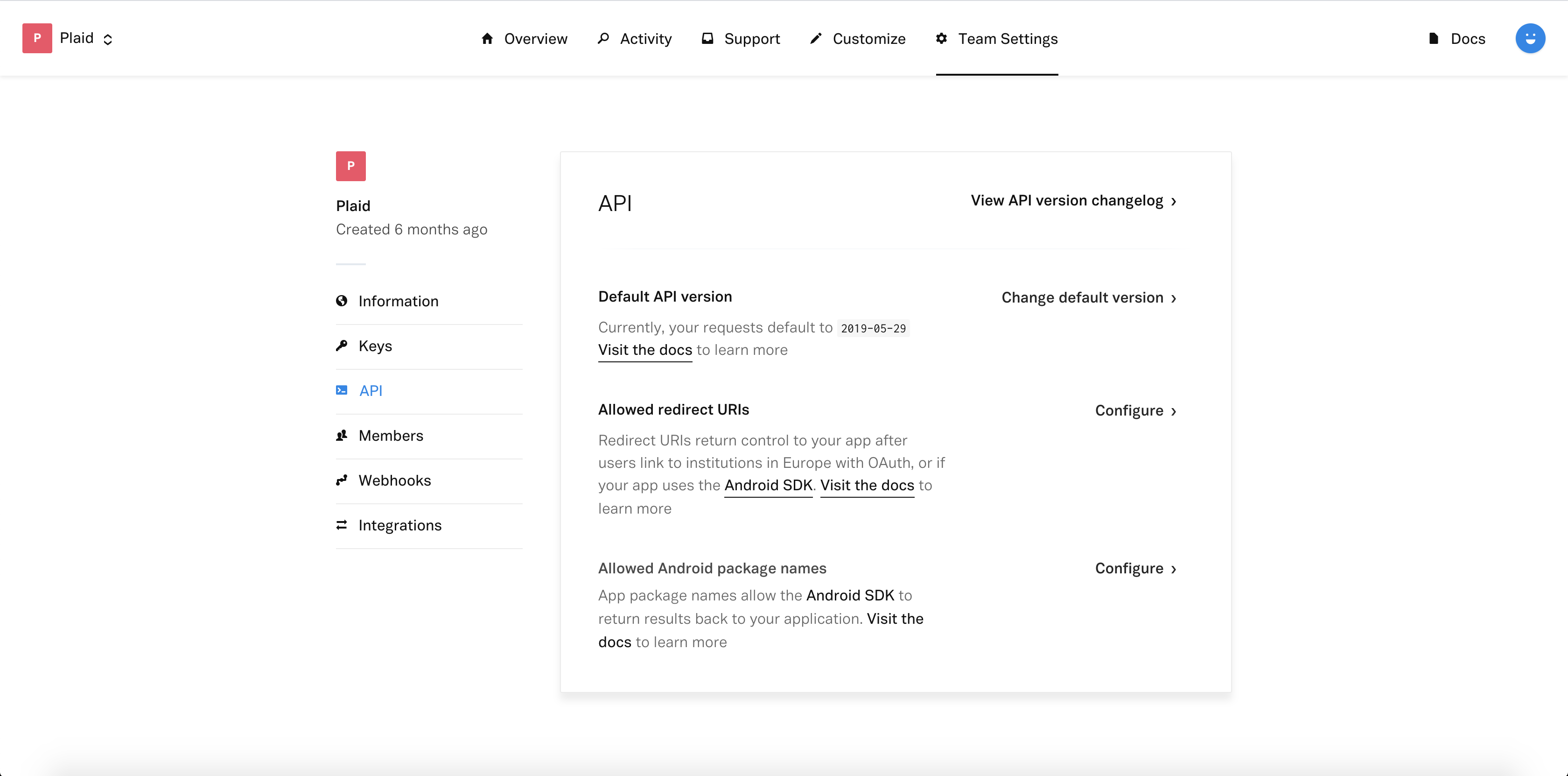
Sign in to the Plaid Dashboard and go to the Team Settings -> API page.
Next to Allowed redirect URIs click Configure then Add New URI.
Enter your redirect URI, which you must also set up as a Universal Link for your application, for example: https://app.example.com/plaid/.
Click Save Changes
These redirect URIs must be set up as Universal Links in your application.
Go to the project level android/app/build.gradle and make sure you are using a minSdk >= 21
(Identity Verification only) - Enable camera support
If your app uses Identity Verification, a user may need to take a picture of identity documentation or a selfie during the Link flow. To support this workflow, the CAMERA, WRITE_EXTERNAL_STORAGE, RECORD_AUDIO, and MODIFY_AUDIO_SETTINGS permissions need to be added to your application's AndroidManifest.xml.
Register your App ID
Sign in to the Plaid Dashboard and go to the Team Settings -> API page.
Next to Allowed Android Package Names click Configure then Add New Android Package Name.
Enter your package name, for example com.plaid.example.