Aus öffentlichen Paketdaten erstellte Orientierung.
Ein hochgradig anpassbarer Flutter-Widget zur einfachen Darstellung von QR-Codes. Er ermöglicht Entwicklern, das Erscheinungsbild von QR-Codes mit Optionen für Größe, Farbe, Form und Logo-Integration anzupassen. Das Paket unterstützt mehrere Plattformen wie Android, iOS, Web, macOS, Windows und Linux und ist daher ideal für plattformübergreifende Anwendungen. Mit einer sauberen API und eingebauten Stilfunktionen vereinfacht es die Generierung von QR-Codes ohne externe Abhängigkeiten. Perfekt für Apps, die brandnahe oder interaktive QR-Codes benötigen.
Anwendungsfälle
Marken-QR-Codes generieren
Logos zu QR-Codes hinzufügen
QR-Codes in Web- und Mobilanwendungen einbetten
Dynamische QR-Codes erstellen
QR-Codes in Dashboards anzeigen
Hauptmerkmale
Anpassbare Farben und Größen
Logo-Overlay-Unterstützung
Plattformübergreifende Kompatibilität
Einfache API
Hoch konfigurierbares Design
Eingebaute Fehlerkorrektur
Geeignet für
Mobile-App-Entwickler
Webanwendungsersteller
designorientierte Projekte
E-Commerce- und Marketing-Apps
Apps, die benutzererzeugte QR-Codes erfordern
Hinweise
Kann eine Leistungsoptimierung für große Batches erfordern
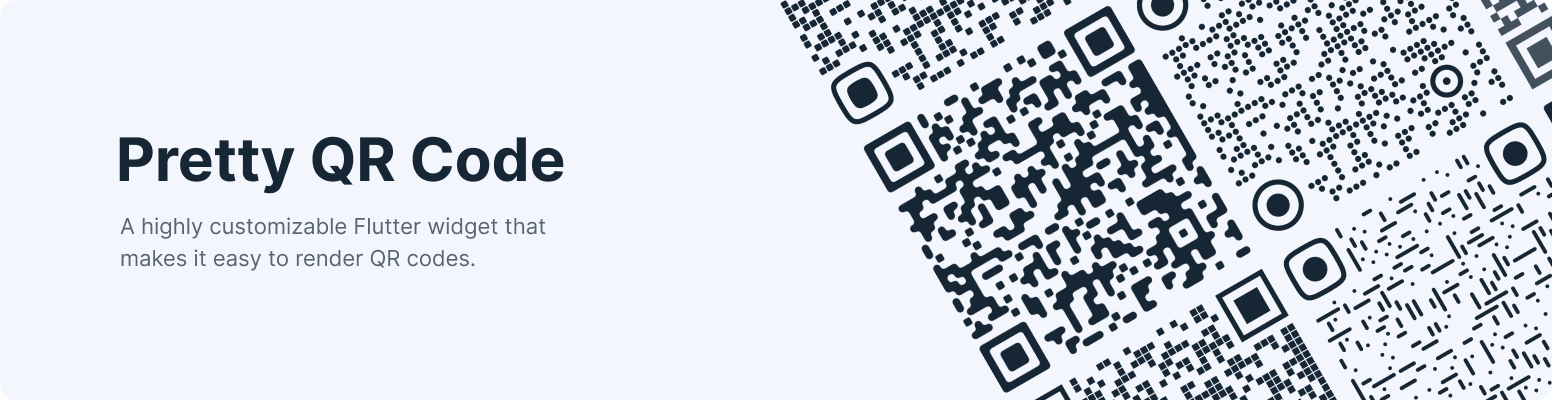
Shapes - The widget provides functionality for rendering various built-in shapes, namely smooth, squares and dots, or you can even create your patterns using the package API.
PrettyQrView.data(
data: 'lorem ipsum dolor sit amet',
decoration: constPrettyQrDecoration(
image: PrettyQrDecorationImage(
image: AssetImage('images/flutter.png'),
),
quietZone: PrettyQrQuietZone.standart,
),
)
If you want to pass non-string data or want to specify a QR version, consider using the default PrettyQrView constructor:
@protectedlateQrImage qrImage;
@overridevoidinitState() {
super.initState();
final qrCode = QrCode(
8,
QrErrorCorrectLevel.H,
)..addData('lorem ipsum dolor sit amet');
qrImage = QrImage(qrCode);
}
@overrideWidgetbuild(BuildContext context) {
returnPrettyQrView(
qrImage: qrImage,
decoration: constPrettyQrDecoration(),
);
}
Note: Do not create QrImage inside the build method; otherwise, you may have an undesired jank in the UI thread.
Combine several styles
To combine multiple styles in a single QR code, you can use PrettyQrCustomShape, as shown in the example below:
PrettyQrView.data(
data: 'lorem ipsum dolor sit amet',
decoration: constPrettyQrDecoration(
shape: PrettyQrShape.custom(
PrettyQrSquaresSymbol(),
finderPattern: PrettyQrSmoothSymbol(),
alignmentPatterns: PrettyQrDotsSymbol(),
),
),
)
Save the symbol as an image
You can save the QR code as an image using the toImage or toImageAsBytes extension methods that apply to QrImage. Optionally, the configuration parameter may be used to set additional saving options, such as pixel ratio or text direction.
final qrCode = QrCode.fromData(
data: 'lorem ipsum dolor sit amet',
errorCorrectLevel: QrErrorCorrectLevel.H,
);
final qrImage = QrImage(qrCode);
final qrImageBytes = await qrImage.toImageAsBytes(
size: 512,
format: ImageByteFormat.png,
decoration: constPrettyQrDecoration(),
);
See the example folder for more code samples of the various possibilities.
Contributing
Contributions are welcomed!
Here is a curated list of how you can help:
Fix typos/grammar mistakes
Report parts of the documentation that are unclear
Report bugs and scenarios that are difficult to implement