सार्वजनिक जानकारी से बना चयन मार्गदर्शन। केवल संदर्भ हेतु।
चेवी एक फ्लटर पैकेज है जो कपिटान और मैटेरियल डिज़ाइन शैलियों के लिए बिल्ट-इन प्लेकंट्रोल्स के साथ कस्टमाइज़ेबल वीडियो प्लेयर प्रदान करता है। यह नीचे के वीडियो प्लेयर इंजन को लपेटता है, जो प्लेबैक कंट्रोल, प्रगति इंडिकेटर और कई प्लेटफॉर्मों पर फुलस्क्रीन सपोर्ट के साथ एक सुविधाजनक इंटरफेस प्रदान करता है। आसान एकीकरण के लिए डिज़ाइन किया गया, चेवी फ्लटर ऐप्स में वीडियो प्लेबैक अनुभव को न्यूनतम सेटअप के साथ बढ़ाता है। यह एंड्रॉइड, आईओएस, वेब और मैकओएस का समर्थन करता है, जिससे यह क्रॉस-प्लेटफॉर्म एप्लिकेशन के लिए आदर्श बन जाता है जिसमें स्थिर वीडियो प्लेबैक कार्यक्षमता की आवश्यकता होती है।
उपयोग
मोबाइल ऐप्स में वीडियो एम्बेड करना
कस्टम यूआई के साथ मीडिया प्लेयर बनाना
शैक्षिक ऐप में वीडियो सामग्री का समर्थन करना
स्ट्रीमिंग या पाठ्यक्रम एप्लिकेशन बनाना
वेब ऐप्स में पूर्ण स्क्रीन वीडियो प्लेबैक जोड़ना
मुख्य विशेषताएँ
Cupertino और Material डिज़ाइन नियंत्रण
फुलस्क्रीन समर्थन
कस्टमाइज़ किए गए प्लेबैक नियंत्रण
प्लेटफॉर्म के अनुकूलता
मौजूदा वीडियो प्लेयर के साथ आसान एकीकरण
इनके लिए उपयुक्त
वीडियो-भारी Flutter ऐप बना रहे विकासकर्ता
प्लेटफॉर्म-संगत यूआई घटकों की आवश्यकता वाली टीमें
सरल लेकिन चमकदार वीडियो प्लेबैक की आवश्यकता वाले ऐप्स
शैक्षिक या मनोरंजन प्लेटफॉर्म
Flutter का उपयोग करने वाले वेब और मोबाइल ऐप डेवलपर
विचार योग्य बातें
एक संगत वीडियो स्रोत (उदाहरण के लिए HTTP URL या स्थानीय फ़ाइल) की आवश्यकता है
मूल यूआई तत्वों के आगे कस्टमाइजेशन सीमित
नीचे के वीडियो प्लेयर के कार्यान्वयन पर निर्भर करता है
उन्नत विशेषताओं जैसे उपशीर्षक के लिए अतिरिक्त सेटिंग की आवश्यकता हो सकती है
जटिल वीडियो संपादन कार्य प्रवाह के लिए उपयुक्त नहीं
मूल README
संबंधित सोर्स रिपॉज़िटरी के मूल README का स्नैपशॉट। नवीनतम सामग्री के लिए रिपॉज़िटरी देखें।
chewie
The video player for Flutter with a heart of gold.
The video_player plugin provides low-level
access to video playback.
Chewie uses the video_player under the hood and wraps it in a friendly Material or Cupertino UI!
This library is NOT responsible for any issues caused by video_player, since it's merely a UI
layer on top of it.
In other words, if you see any PlatformExceptions being thrown in your app due to video playback,
they are exclusive to the video_player library.
Instead, please raise an issue related to it with the Flutter Team.
🔀 Flutter Version Compatibility
This library will at the very least make a solid effort to support the second most recent version
of Flutter released. In other words, it will adopt N-1 version support at
the bare minimum.
However, this cannot be guaranteed either due to major changes between Flutter versions or
this library's dependencies. Should that occur, future updates will be released as major or minor
versions as needed.
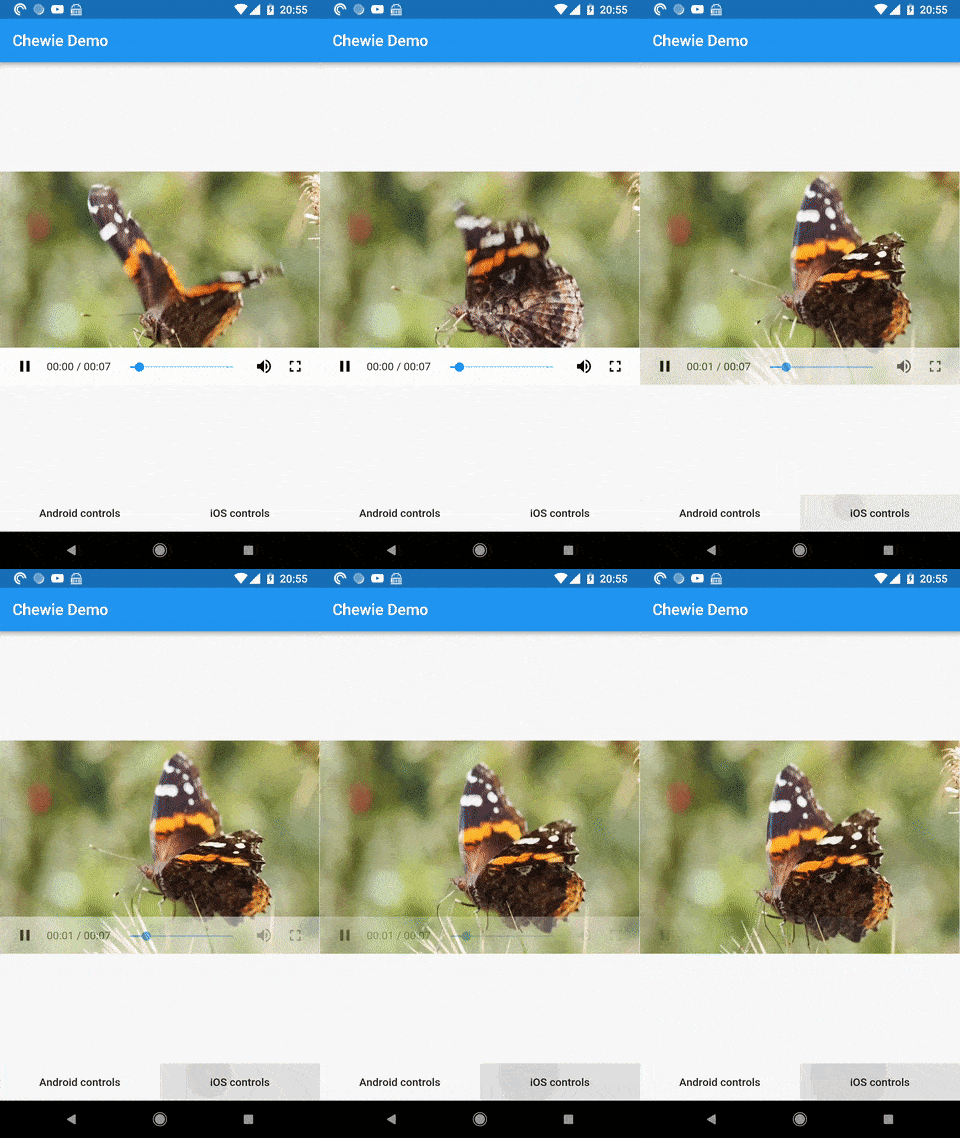
🖼️ Preview
MaterialControls
MaterialDesktopControls
CupertinoControls
⬇️ Installation
In your pubspec.yaml file within your Flutter Project add chewie and video_player under dependencies:
Chewie has some options which control the video. These options appear by default in a showModalBottomSheet (similar to YT). By default, Chewie passes Playback speed and Subtitles options as an OptionItem.
To add additional options, just add these lines to your ChewieController:
Your additionalOptions are already included here (if you provided additionalOptions)!
pauseOnBackgroundTap (Tap Anywhere to Pause/Play)
The pauseOnBackgroundTap feature allows the video to be paused or played by tapping anywhere on the video player area.
This eliminates the need for users to tap the play/pause icon in the center of the video.
This feature can be enabled by setting the pauseOnBackgroundTap property in the ChewieController.
When enabled, tapping anywhere on the video will toggle between play and pause states.
final chewieController = ChewieController(
  videoPlayerController: videoPlayerController,
  pauseOnBackgroundTap: true, // Allow tapping anywhere on the video to pause/play
);
Chewie allows you to enhance the video playback experience with text overlays. You can add a List<Subtitle> to your ChewieController, restyle the default subtitle box with subtitleStyle, or replace it entirely with the subtitleBuilder function.
Showing Subtitles by Default
Chewie provides the showSubtitles flag, allowing you to control whether subtitles are displayed automatically when the video starts. By default, this flag is set to false.
Adding Subtitles
Here’s an example of how to add subtitles to your ChewieController:
Cue text extracted from WebVTT or SubRip files often carries inline markup, and Chewie renders it for you:
Subtitle(
index: 0,
start: Duration.zero,
end: constDuration(seconds: 10),
text: '<i>The law is the law, Mr. Hancock.</i>',
),
<b>, <i>, <u> and <font color="#rrggbb"> are applied on top of your text style. The other WebVTT cue tags — <c.class>, <v Speaker>, <lang xx>, <ruby>/<rt> and timestamp tags — are dropped while their text is kept, and escapes such as & are decoded. A tag that opens on one line and closes on the next works too.
Parsing is lenient, so cue text is never mangled: 5 < 10 and <3 are shown as written, an unclosed tag simply runs to the end of the cue, and a stray closing tag is ignored. If you would rather show cue text exactly as it arrives, set subtitleStyle: SubtitleStyle(renderMarkup: false).
Styling Subtitles
subtitleStyle changes how the default subtitle box looks without giving up markup rendering:
Leaving textStyle.color unset inherits the colour from the surrounding DefaultTextStyle, which is what Chewie does by default.
Customizing Subtitles
Reach for subtitleBuilder when you need to build the whole widget yourself. It receives the cue exactly as you supplied it — markup and all — and Chewie's own rendering, including subtitleStyle, is skipped. Run the cue through parseSubtitleMarkup to keep markup working:
Pass a list of ChewieChapters, sorted by ascending start time, to draw the progress bar as YouTube-style chapter segments. Hovering or scrubbing the bar shows the pointed chapter's title above it:
When chapters is empty (the default), the progress bar is rendered as a single continuous segment, as before.
📺 Casting
Chewie can hand playback over to a cast receiver — a Chromecast, an Android TV,
anything you can talk to — and drive it from the same controls.
What Chewie provides is the UI and the handover: a cast button in every skin, a
device picker, an overlay in place of the video while a session is live, and the
local↔remote transitions in both directions. What it deliberately does not
provide is a sender. A pure-Flutter video player package has no business
dragging the Google Cast SDK, its native dependencies and its permission
requirements into every app that just wants play controls — so you supply the
backend, and Chewie stays agnostic about which one.
Wiring it up
Implement ChewieCastController against the sender of your choice, then hand it
to the ChewieController along with the media the receiver should fetch:
castMedia is required whenever castController is set. Chewie cannot derive
it from the VideoPlayerController: the receiver fetches the stream itself, so
the URL has to be reachable from the TV, and a file:// or asset source has
no remote equivalent at all.
What happens on connect
When your controller moves its connectionState to
CastConnectionState.connected, Chewie:
pauses the local player and notes where it was,
calls load(castMedia, startAt: <that position>, autoPlay: <was it playing>),
replaces the video surface with the casting overlay,
routes play, pause, seek, volume and the progress bar to the receiver.
On disconnected it runs the same trip in reverse, seeking the local player to
wherever the receiver got to and resuming if it was playing. Chewie listens to
your controller but never disposes it, so one instance can serve many videos.
Implementing a backend
ChewieCastController is a ChangeNotifier with three groups of members:
discovery (devices, isDiscovering, startDiscovery, stopDiscovery),
session (connectionState, connectedDevice, connect, disconnect) and
remote playback (value, load, play, pause, seekTo, setVolume,
setPlaybackSpeed). Call notifyListeners() whenever any of them change —
every piece of cast UI rebuilds off those notifications.
value is a VideoPlayerValue, the same type the local player reports, which is
what lets one set of controls render a remote session identically to a local
one. Only duration, position, buffered, isPlaying, isBuffering,
isInitialized, volume and playbackSpeed are read; leave the rest at their
defaults.
The example app ships a DemoCastController that fakes discovery, a connection
delay and a ticking receiver, so you can see the whole flow without a
Chromecast on the desk.
Options
Option
Description
castController
Your backend. Casting is off entirely when this is null.
castMedia
What the receiver should play. Required alongside castController.
allowCasting
Hides the cast button without tearing the backend out. Defaults to true.
castTranslations
Strings for the button, picker and overlay.
castOverlayBuilder
Replaces the default "Casting to …" overlay.
additionalControls
Extra widgets for the control bar itself, for controls that cannot be an options-sheet row.
Extra control-bar buttons
additionalOptions adds rows to the options sheet. When a control has to be a
widget rather than a menu entry — a platform view, say — put it in the bar
itself:
They sit alongside the built-in buttons and inherit the bar's show/hide
behaviour, so they fade with the rest of the controls instead of floating over
the video.
The motivating case is AirPlay: Apple exposes no way to select a route
programmatically, so the button must be UIKit's own AVRoutePickerView.
🧪 Example
Please run the app in the example/ folder to start playing!
⏪ Migrating from Chewie < 0.9.0
Instead of passing the VideoPlayerController and your options to the Chewie widget you now pass them to the ChewieController and pass that later to the Chewie widget.
final playerWidget = Chewie(
  videoPlayerController,
  autoPlay: true,
  looping: true,
);
becomes
final chewieController = ChewieController(
  videoPlayerController: videoPlayerController,
  autoPlay: true,
  looping: true,
);

final playerWidget = Chewie(
  controller: chewieController,
);
🗺️ Roadmap
[x] MaterialUI
[x] MaterialDesktopUI
[x] CupertinoUI
[x] Options with translations
[x] Subtitles
[x] CustomControls
[x] Auto-Rotate on FullScreen depending on Source Aspect-Ratio
[x] Live-Stream and UI
[x] AutoPlay
[x] Placeholder
[x] Looping
[x] Start video at
[x] Custom Progress-Bar colors
[x] Custom Overlay
[x] Allow Sleep (Wakelock)
[x] Playbackspeed Control
[x] Custom Route-Pagebuilder
[x] Custom Device-Orientation and SystemOverlay before and after fullscreen
[x] Custom ErrorBuilder
[ ] Support different resolutions of video
[ ] Re-design State-Manager with Provider
[x] Screen-Mirroring / Casting (backend-agnostic; see Casting)
⚠️ Android warning
There is an open issue that the buffering state of a video is not reported correctly. With this, the loading state is always triggered, hiding controls to play, pause or seek the video. A workaround was implemented until this is fixed, however it can't be perfect and still hides controls if seeking backwards while the video is paused, as a result of lack of correct buffering information (see #912).
Add the following to partly fix this behavior:
// Your init code can be above
videoController.addListener(yourListeningMethod);
// ...bool wasPlayingBefore = false;
voidyourListeningMethod() {
if (!videoController.value.isPlaying && !wasPlayingBefore) {
// -> Workaround if seekTo another position while it was paused before.// On Android this might lead to infinite loading, so just play the// video again.
videoController.play();
}
wasPlayingBefore = videoController.value.isPlaying;
// ...
}
You can also disable the loading spinner entirely to fix this problem in a more complete way, however will remove the loading indicator if a video is buffering.
The video_player plugin used by chewie will only work in iOS simulators if you are on flutter 1.26.0 or above. You may need to switch to the beta channel flutter channel beta
Please refer to this issue.