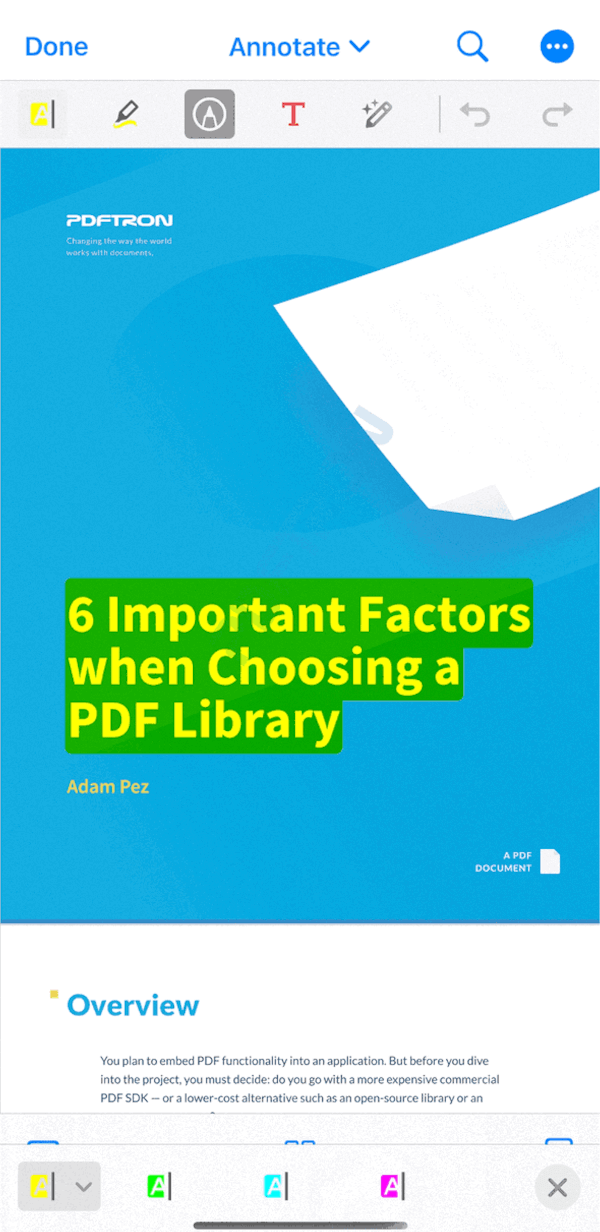
एक सुविधाजनक लेपन, जो PDFTron मोबाइल SDK का उपयोग करके चलने वाले Flutter एप्लिकेशन के निर्माण के लिए है, जो चिकनी, लचीली और स्वतंत्र दस्तावेज़ देखने की सुविधा प्रदान करता है।
सार्वजनिक जानकारी से बना चयन मार्गदर्शन। केवल संदर्भ हेतु।
pdftron_flutter एक Flutter पैकेज है जो PDFTron मोबाइल SDK को लपेटता है, जिससे डेवलपर्स को Flutter एप्लिकेशन में शक्तिशाली, उच्च प्रदर्शन वाले दस्तावेज़ देखने की क्षमता एकीकृत करने में सक्षम बनाता है। यह पैकेज PDFs और अन्य फ़ाइल प्रारूपों के लिए चिकनी रेंडरिंग, टिप्पणी और दस्तावेज़ संशोधन का समर्थन करता है, बिना किसी वेब-आधारित समाधान पर निर्भर हुए। पैकेज एंड्रॉइड और iOS पर मूल प्रदर्शन का उपयोग करते हुए एक साफ, Flutter-अनुकूल API प्रदान करता है। वेब-आधारित समाधानों पर निर्भर नहीं रहते हुए बलवान दस्तावेज़ प्रबंधन की आवश्यकता वाले एप्लिकेशन के लिए आदर्श है।
उपयोग
मोबाइल ऐप में डॉक्यूमेंट देखें
इंटरैक्टिव पीडीएफ अनोटेशन
ऑफलाइन दस्तावेज़ प्रोसेसिंग
बहु-प्रारूप दस्तावेज समर्थन
सुरक्षित दस्तावेज़ साझाकरण
मुख्य विशेषताएँ
PDFTron SDK के माध्यम से मूल प्रदर्शन
PDF और अन्य दस्तावेज़ प्रारूपों का समर्थन
एंबेडेड टूल्स
ऑफलाइन कार्यक्षमता
प्लेटफॉर्म के अनुकूलता
इनके लिए उपयुक्त
एंटरप्राइज मोबाइल ऐप्स
ई-लर्निंग प्लेटफॉर्म
कानूनी और मेडिकल दस्तावेज़
डिजिटल फॉर्म और वर्कफ्लो
सामग्री-समृद्ध एप्लिकेशन
विचार योग्य बातें
PDFTron से लाइसेंस की आवश्यकता है
मूल सीडी के अतिरिक्त सेटअप एकीकरण
एप्प बंडल में संभावित आकार वृद्धि
SDK ज्ञान के बिना सीमित कस्टमाइजेशन
PDFTron के अपडेट चक्र पर निर्भर करता है
मूल README
संबंधित सोर्स रिपॉज़िटरी के मूल README का स्नैपशॉट। नवीनतम सामग्री के लिए रिपॉज़िटरी देखें।
About PDFTron Flutter Wrapper
[!IMPORTANT]
This repository serves as a wrapper around the native SDKs. It exposes only a limited set of APIs intended for basic viewing, annotating and removing components from the out‑of‑box UI. Any advanced customization or access to lower‑level functionality should be performed directly through the native SDKs rather than this wrapper.
The rest of this README.md contains documentation, installation instructions, and information for the null safe version of our SDK.
Legacy UI
Version 0.0.6 is the last stable release for the legacy UI.
The release can be found here: https://github.com/ApryseSDK/pdftron-flutter/releases/tag/legacy-ui.
Installation
First follow the Flutter getting started guides to install, set up an editor, and create a Flutter Project. The rest of this guide assumes your project is created by running flutter create myapp.
Add the following dependency to your Flutter project in myapp/pubspec.yaml file:
If you want to use our null safe package from pub.dev:
In your myapp/android/app/src/main/AndroidManifest.xml file, add the following lines:
<manifest xmlns:android="http://schemas.android.com/apk/res/android"
package="com.example.myapp">
<!-- Required if you want to work with online documents -->
+ <uses-permission android:name="android.permission.INTERNET" />
<!-- Required if you want to record audio annotations -->
+ <uses-permission android:name="android.permission.RECORD_AUDIO" />
<application
...
+ android:largeHeap="true">
<!-- Add license key in meta-data tag here. This should be inside the application tag. -->
+ <meta-data+ android:name="pdftron_license_key"+ android:value="@string/PDFTRON_LICENSE_KEY" />
...
<activity
...
- android:windowSoftInputMode="adjustResize"+ android:windowSoftInputMode="adjustPan">
</activity>
If you are using the DocumentView widget, change the parent class of your MainActivity file (either Kotlin or Java) to FlutterFragmentActivity:
Check that your Android device is running by running the command flutter devices. If none are available, follow the device set up instructions in the Install guides for your platform.
Run the app with the command flutter run.
iOS
The following instructions are only applicable to iOS development; click here for the Android counterpart.
[!IMPORTANT]
As of March 2025, use of the PDFTron and PDFTronTools podspecs distributed specifically for the PDFTron Flutter wrapper (https://pdftron.com/downloads/ios/flutter/pdftron/latest.podspec and https://pdftron.com/downloads/ios/flutter/pdftron-tools/latest.podspec, respectively) is deprecated and no longer maintained.
Please update to the latest podspecs provided for the wrapper as soon as possible (https://www.pdftron.com/downloads/ios/cocoapods/xcframeworks/pdftron/latest.podspec) and (https://www.pdftron.com/downloads/ios/cocoapods/xcframeworks/pdftron-tools/latest.podspec)
# Uncomment this line to define a global platform for your project
- # platform :ios, '9.0'+ platform :ios, '10.0'
...
target 'Runner' do
...
+ # PDFTron Pods+ pod 'PDFTron', podspec: 'https://www.pdftron.com/downloads/ios/cocoapods/xcframeworks/pdftron/latest.podspec'+ pod 'PDFTronTools', podspec: 'https://www.pdftron.com/downloads/ios/cocoapods/xcframeworks/pdftron-tools/latest.podspec'
end
To ensure integration process is successful, run flutter build ios --no-codesign
Run flutter emulators --launch apple_ios_simulator
Run flutter run
Widget or Plugin
There are 2 different ways to use PDFTron Flutter API:
Present a document via a plugin.
Show a PDFTron document view via a Widget.
You must choose either the widget or plugin, and use it for all APIs. Mixing widget and plugin APIs will not function correctly. Whether you choose the widget or plugin is personal preference.
If you pick the Android widget, you will need to add padding for operating system intrusions like the status bar at the top of the device. One way is to set the enabled system UI, and then wrap the widget in a SafeArea or use an AppBar:
// If using Flutter v2.3.0-17.0.pre or earlier.SystemChrome.setEnabledSystemUIOverlays(
SystemUiOverlay.values
);
// If using later Flutter versions.SystemChrome.setEnabledSystemUIMode(
SystemUiMode.edgeToEdge,
);
// If using SafeArea:returnSafeArea (
child: DocumentView(
onCreated: _onDocumentViewCreated,
));
// If using AppBar:returnScaffold(
appBar: AppBar( toolbarHeight: 0 ),
body: DocumentView(
onCreated: _onDocumentViewCreated,
));
Usage
If you want to use local files on Android, add the following dependency to myapp/pubspec.yaml:
permission_handler:^11.3.1
Open lib/main.dart, replace the entire file with the following:
import'dart:async';
import'dart:io'showPlatform;
import'package:flutter/material.dart';
import'package:flutter/services.dart';
import'package:pdftron_flutter/pdftron_flutter.dart';
// Uncomment this if you are using local files// import 'package:permission_handler/permission_handler.dart';voidmain() => runApp(MyApp());
classMyAppextendsStatelessWidget{
@overrideWidgetbuild(BuildContext context) {
returnMaterialApp(
home: Viewer(),
);
}
}
classViewerextendsStatefulWidget{
@override_ViewerStatecreateState() => _ViewerState();
}
class_ViewerStateextendsState<Viewer> {
String _version = 'Unknown';
String _document =
"https://pdftron.s3.amazonaws.com/downloads/pl/PDFTRON_mobile_about.pdf";
bool _showViewer = true;
@overridevoidinitState() {
super.initState();
initPlatformState();
showViewer();
// If you are using local files delete the line above, change the _document field// appropriately and uncomment the section below.// if (Platform.isIOS) {// // Open the document for iOS, no need for permission.// showViewer();// } else {// // Request permission for Android before opening document.// launchWithPermission();// }
}
// Future<void> launchWithPermission() async {// PermissionStatus permission = await Permission.storage.request();// if (permission.isGranted) {// showViewer();// }// }// Platform messages are asynchronous, so initialize in an async method.Future<void> initPlatformState() async {
String version;
// Platform messages may fail, so use a try/catch PlatformException.try {
// Initializes the PDFTron SDK, it must be called before you can use any functionality.PdftronFlutter.initialize("your_pdftron_license_key");
version = awaitPdftronFlutter.version;
} onPlatformException {
version = 'Failed to get platform version.';
}
// If the widget was removed from the tree while the asynchronous platform// message was in flight, you want to discard the reply rather than calling// setState to update our non-existent appearance.if (!mounted) return;
setState(() {
_version = version;
});
}
voidshowViewer() async {
// opening without a config file will have all functionality enabled.// await PdftronFlutter.openDocument(_document);var config = Config();
// How to disable functionality:// config.disabledElements = [Buttons.shareButton, Buttons.searchButton];// config.disabledTools = [Tools.annotationCreateLine, Tools.annotationCreateRectangle];// Other viewer configurations:// config.multiTabEnabled = true;// config.customHeaders = {'headerName': 'headerValue'};// An event listener for document loadingvar documentLoadedCancel = startDocumentLoadedListener((filePath) {
print("document loaded: $filePath");
});
awaitPdftronFlutter.openDocument(_document, config: config);
try {
// The imported command is in XFDF format and tells whether to add, modify or delete annotations in the current document.PdftronFlutter.importAnnotationCommand(
"<?xml version=\"1.0\" encoding=\"UTF-8\"?>\n" +
" <xfdf xmlns=\"http://ns.adobe.com/xfdf/\" xml:space=\"preserve\">\n" +
" <add>\n" +
" <square style=\"solid\" width=\"5\" color=\"#E44234\" opacity=\"1\" creationdate=\"D:20200619203211Z\" flags=\"print\" date=\"D:20200619203211Z\" name=\"c684da06-12d2-4ccd-9361-0a1bf2e089e3\" page=\"1\" rect=\"113.312,277.056,235.43,350.173\" title=\"\" />\n" +
" </add>\n" +
" <modify />\n" +
" <delete />\n" +
" <pdf-info import-version=\"3\" version=\"2\" xmlns=\"http://www.pdftron.com/pdfinfo\" />\n" +
" </xfdf>");
} onPlatformExceptioncatch (e) {
print("Failed to importAnnotationCommand '${e.message}'.");
}
try {
// Adds a bookmark into the document.PdftronFlutter.importBookmarkJson('{"0":"Page 1"}');
} onPlatformExceptioncatch (e) {
print("Failed to importBookmarkJson '${e.message}'.");
}
// An event listener for when local annotation changes are committed to the document.// xfdfCommand is the XFDF Command of the annotation that was last changed.var annotCancel = startExportAnnotationCommandListener((xfdfCommand) {
String command = xfdfCommand;
print("flutter xfdfCommand:\n");
// Dart limits how many characters are printed onto the console. // The code below ensures that all of the XFDF command is printed.if (command.length > 1024) {
int start = 0;
int end = 1023;
while (end < command.length) {
print(command.substring(start, end) + "\n");
start += 1024;
end += 1024;
}
print(command.substring(start));
} else {
print("flutter xfdfCommand:\n $command");
}
});
// An event listener for when local bookmark changes are committed to the document.// bookmarkJson is JSON string containing all the bookmarks that exist when the change was made.var bookmarkCancel = startExportBookmarkListener((bookmarkJson) {
print("flutter bookmark: $bookmarkJson");
});
var path = awaitPdftronFlutter.saveDocument();
print("flutter save: $path");
// To cancel event:// annotCancel();// bookmarkCancel();// documentLoadedCancel();
}
@overrideWidgetbuild(BuildContext context) {
returnScaffold(
body: Container(
width: double.infinity,
height: double.infinity,
child:
// Uncomment this to use Widget version of the viewer.// _showViewer// ? DocumentView(// onCreated: _onDocumentViewCreated,// ):Container(),
),
);
}
// This function is used to control the DocumentView widget after it has been created.// The widget will not work without a void Function(DocumentViewController controller) being passed to it.void_onDocumentViewCreated(DocumentViewController controller) async {
Config config = newConfig();
var leadingNavCancel = startLeadingNavButtonPressedListener(() {
// Uncomment this to quit the viewer when leading navigation button is pressed.// this.setState(() {// _showViewer = !_showViewer;// });// Show a dialog when leading navigation button is pressed._showMyDialog();
});
controller.openDocument(_document, config: config);
}
Future<void> _showMyDialog() async {
print('hello');
return showDialog<void>(
context: context,
barrierDismissible: false, // User must tap button!
builder: (BuildContext context) {
returnAlertDialog(
title: Text('AlertDialog'),
content: SingleChildScrollView(
child: Text('Leading navigation button has been pressed.'),
),
actions: <Widget>[
TextButton(
child: Text('OK'),
onPressed: () {
Navigator.of(context).pop();
},
),
],
);
},
);
}
}