सार्वजनिक जानकारी से बना चयन मार्गदर्शन। केवल संदर्भ हेतु।
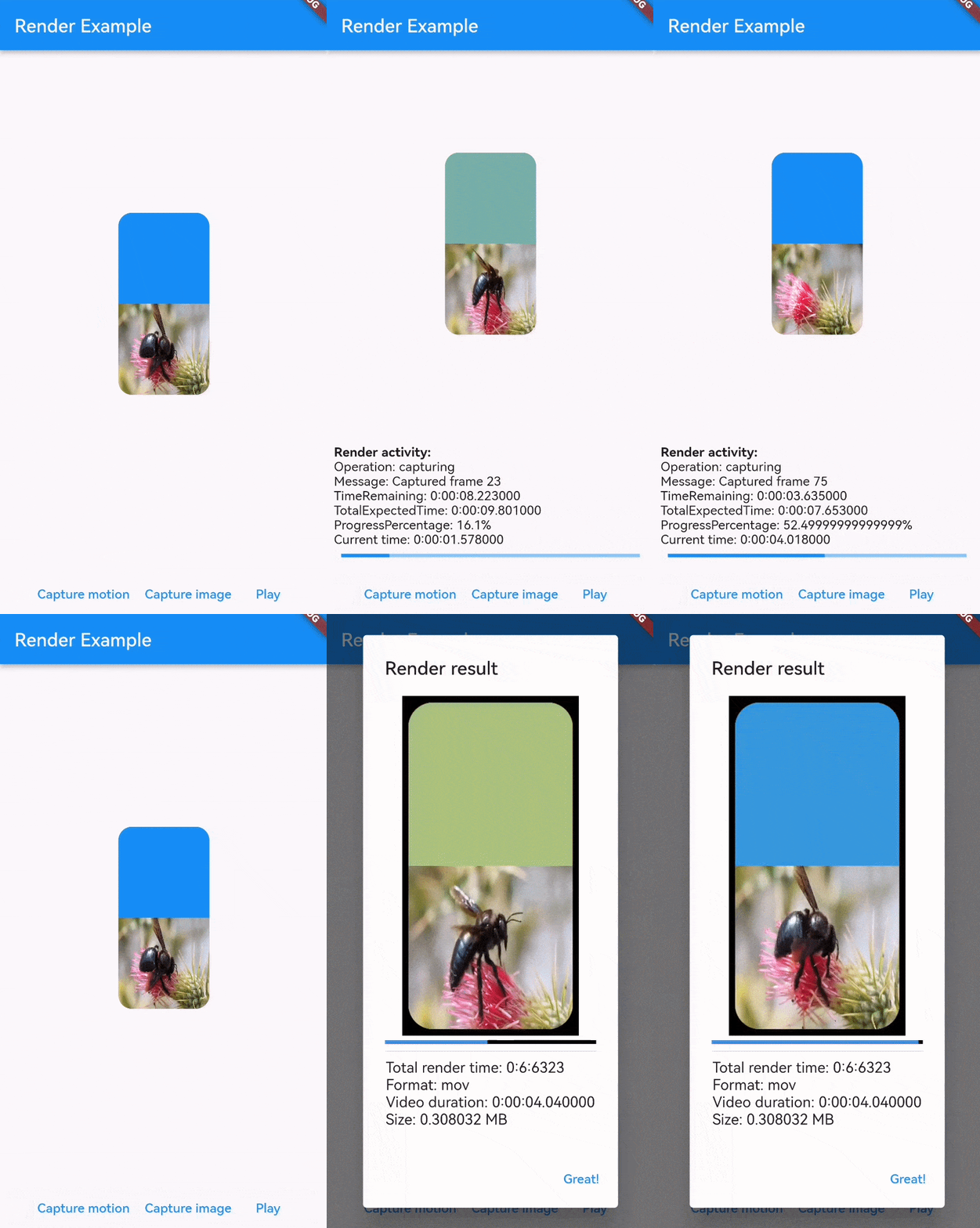
render पैकेज फ्लटर विंडोज को चित्र या वीडियो जैसे विभिन्न निर्यात योग्य फॉरमेट में निर्यात करने की अनुमति देता है, जिसमें स्थिर और एनिमेटेड दोनों शामिल हैं। यह विकासकर्ताओं को ऐप वातावरण से सीधे मूल फ्लटर UI को कैप्चर करने की अनुमति देता है, जो प्रीव्यू, डॉक्यूमेंटेशन संसाधन या स्वचालित परीक्षण आउटपुट बनाने के लिए आदर्श है। क्रॉस-प्लेटफॉर्म उपयोग के लिए बनाया गया, यह Android, iOS और macOS का समर्थन करता है, उपकरणों के बीच सुसंगत रेंडरिंग सुनिश्चित करता है। पैकेज फ्लटर के रेंडरिंग पाइपलाइन के साथ बिना किसी बाधा के एकीकृत है, वास्तविक समय में विंडोज वृक्ष को कैप्चर करने के लिए एक सरल API प्रदान करता है।
उपयोग
दस्तावेज़ के लिए UI स्क्रीनशॉट बनाना
Flutter कंपोनेंट्स के एनिमेटेड प्रीव्यू बनाना
दृश्य सत्यापन के साथ UI परीक्षण को स्वचालित करना
चित्र फ़ाइलों में डायनामिक विजेट स्थिति का निर्यात करना
इंटरैक्टिव यूआई फ्लो के वीडियो रिकॉर्डिंग बनाना
मुख्य विशेषताएँ
स्थिर और एनिमेटेड विजेट रेंडरिंग का समर्थन करता है
क्रॉस-प्लेटफॉर्म संगतता (Android, iOS, macOS)
Flutter pub के माध्यम से सरल एकीकरण
विजेट वृक्ष रेंडरिंग के सीधे पहुँच
विभिन्न फ़ाइल प्रारूपों में निर्यात करें
इनके लिए उपयुक्त
दृश्य संसाधनों की आवश्यकता वाले UI डिज़ाइनर
टेस्ट ऑटोमेशन इंजीनियर्स
दस्तावेज़ निर्माता
Flutter विकासकर्मी प्रीव्यू टूल बना रहे हैं
गतिशील सामग्री निर्यात करने वाले ऐप्स
विचार योग्य बातें
पूर्ण कार्यक्षमता के लिए प्लेटफ़ॉर्म-विशिष्ट सेटअप की आवश्यकता होती है
जटिल एनीमेशन रेंडर करते समय प्रदर्शन प्रभाव
समर्थित प्लेटफॉर्म तक सीमित
CI/CD पाइपलाइन्स के लिए अतिरिक्त कॉन्फ़िगरेशन की आवश्यकता हो सकती है
रनटाइम UI संशोधन के लिए नहीं बनाया गया है
मूल README
संबंधित सोर्स रिपॉज़िटरी के मूल README का स्नैपशॉट। नवीनतम सामग्री के लिए रिपॉज़िटरी देखें।
Render
A flutter widget to render and convert widgets into a wide range of exportable file formats.
Main features include:
Render static widgets to export formats (eg. png, jpeg, ...)
Render moving widgets to export formats (eg. gif, mp4, ...)
Record rendering moving widgets to export formats
Rendering widgets that are not in your widget tree (not displayed/build)
All features support (if supported by format): Transparency & sound
Not sure about Render? Check out the comparison to screenshot
and screen_recorderhere.
This will add a line like this to your package's pubspec.yaml (and run an implicit flutter pub get):
dependencies:render:^x.x.x
Alternatively, your editor might support flutter pub get. Check the docs for your editor to learn
more.
Import it
Now in your Dart code, you can use:
import'package:render/render.dart';
Quick start
Render provides you with a wide range of methods to capture widgets. All widgets to be captures
must be wrapped in the Render widget, with a provided controller to initiate rendering.
Note that the render widget cannot change its size during capturing as dynamic dimensions of output
files are universally not supported by main formats. Wrapping your widget in an expandable widget,
therefore may throw an error.
import'package:render/render.dart';
final controller = RenderController();
Render(
controller: controller,
child: Container(),
),
final result = await controller.captureMotion(Duration(seconds: 4));
await controller.captureImage(format: ImageFormat.png, settings: ImageSettings(pixelRatio: 3),);
Tip: full interactive example for usage in ./example folder.
Usage
In the following the 3 different operations for rendering is mentioned. Multiple simultaneous
operations on one Render instance are allowed, but only one RenderController per Render
instance is expected.
Image rendering
There are 4 methods you can call to capture an image:
captureImage() to render the child of Render widget, which is in your widget tree.
captureImageFromWidget(Widget widget) to render a invisible provided widget.
captureImageWithStream() to render the child of Render widget, which is in your
widget tree with a notification stream.
captureImageFromWidgetWithStream(Widget widget) to render a invisible provided widget with a
notification stream.
final imageResult = await renderController.captureImage(
format: ImageFormat.png,
settings: constImageSettings(pixelRatio: 3),
);
Image.file(imageResult.output); // show result as image
Look up Handle Streams to get to know how to render images
with a notification streams.
Motion rendering
There are 4 methods you can call to capture motion of a widget:
captureMotion() to render the child of Render widget, which is in your widget tree.
captureMotionFromWidget(Widget widget) to render a invisible provided widget.
captureMotionWithStream() to render the child of Render widget, which is in your
widget tree with a notification stream.
captureMotionFromWidgetWithStream(Widget widget) to render a invisible provided widget with a
notification stream.
final result = await renderController.captureMotionWithStream(
functionController.duration,
settings: constMotionSettings(pixelRatio: 4),
format: Format.gif,
);
final controller = VideoPlayerController.file(result.output);
await controller.initialize();
await controller.play();
VideoPlayer(snapshot.data!); // show result as video
Audio:
Currently there is no way to record the internal audio
of a flutter app or specific widgets, therefore the only feasible way for now is to pass audio as a
file. To do this you can pass multiple audio files (from eg. video, url, music, etc) to the target
format:
Depending on the rendering settings, motion rendering can take quite long, so it is highly
recommended to use methods with stream return, to notify the user about the progress of rendering.
Look up Handle Streams to get to know how to render motion
with a notification streams.
Recording motion
There are 2 methods you can call to record motion of a widget. Both
functions returns a MotionRecorder to stop()and access the stream of the activity.
recordMotion() to record the child of Render widget, which is in your widget tree.
recordMotionFromWidget(Widget widget) to record a invisible provided widget.
final recorder = renderController.recordMotion(
functionController.duration,
settings: constMotionSettings(pixelRatio: 5),
format: constGifFormat(),
);
awaitFuture.delayed(Duration(seconds: 5));
final result = await recorder.stop(); // result can then be displayed (see Motion rendering)
Depending on the rendering settings, motion rendering can take quite long, so it is highly
recommended to use methods with stream return, to notify the user about the progress of rendering.
Look up Handle Streams to get to know how to listen to the
recording stream, to notify the user about the process of rendering/capturing.
Out of context
...fromWidget() method's replace the need for the [Render] widget as a parent widget.
Simply pass the widget that needs to be rendered in the function.
Note that rendering out of context will still build and render each frame of the widget. It will not
reduce processing time in any way.
final imageResult = await renderController.captureImageFromWidget(
Container(), // The widget to be rendered
format: ImageFormat.png,
settings: constImageSettings(pixelRatio: 3),
);
Image.file(imageResult.output); // show result as image
Known Confusions:
Sound during capturing: When capturing motions with sound out of context, it will still play the
sound in the application. To conquer this, please remove the playing sound of your video widget
and pass the sound to the audio input of the format.
Handling stream & information flow
Using information stream is highly recommended for rendering motion, due to longer loading phases.
The following example shows how to handle streams of a rendering process:
final stream = renderController.captureMotionWithStream( // start capturing with stream
functionController.duration,
settings: constMotionSettings(pixelRatio: 10),
format: constGifFormat(),
);
stream.listen((event) { // listens to stream until it closes by itself (when result is present)// other events might be result, log or errorif (event.isActivity){
final activity = event asRenderActivity;
// Here could be a setState() call to update your process statusprint("Process: ${activity.progressPercentage}");
}
});
// result can then be displayed (see Motion rendering)final result = await stream.firstWhere((event) => event.isResult || event.isFatalError);
🔩 Compatibility
Limitations and Performance
Render supports transparency across with all compatible file types (video & image). Note, that the
default flutter Video_player does not support displaying
transparent videos and will only show a black or white background.
The maximum frame rate of rendering is limited to the maximum frame rate of the current flutter
application. Very high quality rendering (>60fps, >10xlogical pixels) might reduce application
frame rate and consequently the fluency of rendering, resulting in frame jumps in the output file.
Using settings to keep up performance
You can take advantage of simultaneousCaptureHandlers, pixelRatio and frameRate in
the RenderSettings class.
Handlers process and write frames from the RAM to a local directory. Each frame size is determined
by the size of pixelRatio, and the frameRateis settings how many handler operations are needed
per
second. Having multiple handlers at the same time heavily influences the performance of the
application during rendering.
The more handlers are running simultaneously the worse gets the framerate and might result in a "
laggy" behavior. Less simultaneously handlers result in longer loading phases, as simultaneous
handling can not be done during capturing anymore.
Note, that if there a lot of unhandled frames it might still result in laggy behavior, as the
application's RAM gets filled with UI images, instead of many handler operations.
To get a good sweet spot you can follow the following introduction for your specific situation:
Low pixelRatio - high frameRate - many handlers
high pixelRatio - low frameRate - many handlers
high pixelRatio - high frameRate - few handlers
Supported Platforms
Android
iOS
Web
macOS
Windows
Linux
Support
SDK 16+
9.0+
Any
10.11+
Windows 10+
any
Motion
✔️
✔️
❌️️
✔️
Untested
Untested
Image
✔️
✔️
❌️️️
✔️
Untested
Untested
There currently no support for web, as file writing is
an issue. Windows version might require a simple rewrite of processing structure, but i do not have
access to a device to debug.
Exportable Formats
Below are the currently supported and planned formats, that are also mostly supported by the default
flutter Video_player
and Image visualizer. Note that the
default video player does not support transparency.
Motion Formats
.mp4
.mov
.gif
.webp
.apng
.mpeg
.mkv
.hls
.dash
.raw
.qtff
Support
✔️
✔️
✔️
[ ]
[ ]
[ ]
[ ]
[ ]
[ ]
[ ]
[ ]
Image Formats
.jpg
.png
.bmp
.tiff
.tga
.pvr
.ico
.psd
.exr
Support
✔️
✔️
✔️
✔️
[ ]
[ ]
[ ]
[ ]
[ ]
Custom Formats
In case you want to export your rendering as a custom format, that is currently not supported by
this plugin, but supported by FFmpeg conversion, you can follow the instructions below to extend
the format class:
classYourFormatextendsMotionFormat{ // you can either extend MotionFormat or ImageFormatfinaldynamic formatSpecificSetting;
/// Your format descriptionYourFormat({
requiredthis.formatSpecificSetting,
requiredsuper.handling,
requiredsuper.interpolation,
requiredsuper.scale,
}) : super(
processShare: 0.3,
audio: null, // if your format does not have audio support
);
@overrideMotionFormatcopyWith({RenderScale? scale, Interpolation? interpolation}) {
throwUnimplementedError();
}
@overrideStringgetextension => "YourExtension";
@overrideFFmpegRenderOperationprocessor(
{requiredString inputPath,
requiredString outputPath,
requireddouble frameRate}) {
//return an FFmpegRenderOperation that takes care of all settings returnsuper.processor(
inputPath: inputPath,
outputPath: outputPath,
frameRate: frameRate,
);
}
}
After creating your format you can simply use it as format in Render methods:
controller.captureImage(format: YourFormat());
If you think your format can be of use for other, please submit it as a new issue or pull request
and we can merge it for public use.
📁 Class documentation
In the following example you can see the documentation for main connections between classes and
usages every parameter is also documented in the code itself.
Note that there might be parameters which are not shown in the following class diagram.
%% DIAGRAM CAN ONLY BE SHOWN IN DESKTOP GITHUB (https://github.com/polarby/render#%EF%B8%8F-class-documentation)

classDiagram
    YourWidget <|-- Render
    Render <|-- RenderController
    YourWidget <|-- RenderController : .fromWidget()
    RenderController <|-- MotionSettings
    RenderController <|-- ImageSettings
    note for RenderController "Additinonal Parameters:\n-RenderFormat format\n-LogLevel logLevel\nMotion:\n-Duration duration"


    class Render{
        -Widget child
        -RenderController controller
    }
    class RenderController{
        -captureImage(ImageSettings settings)
        -captureImageWithStream(ImageSettings settings)
        -captureImageFromWidget(Widget widget, ImageSettings settings)
        -captureImageFromWidgetWithStream(Widget widget, ImageSettings settings)
        -captureMotion(MotionSettings settings)
        -captureMotionWithStream(MotionSettings settings)
        -captureMotionFromWidget(Widget widget, MotionSettings settings)
        -captureMotionFromWidgetWithStream(Widget widget, MotionSettings settings)
        -recordMotion(MotionSettings settings)
        -recordMotionFromWidget(Widget widget, MotionSettings settings)
    }
    class MotionSettings{
        -pixelRatio
        -processTimeout
        -frameRate
        -simultaneousCaptureHandlers
    }
    class ImageSettings{
        -pixelRatio
        -processTimeout
    }
Comparison is not ought to be biased, if you feel something is wrong please reach out on github
🔧 Under the hood
%% DIAGRAM CAN ONLY BE SHOWN IN DESKTOP GITHUB (https://github.com/polarby/render#%EF%B8%8F-render-under-the-hood)

stateDiagram
    [*] --> Capturing
    Capturing --> Handling
    Handling --> Capturing
    Handling --> Processing
    Processing --> [*]
Render contains native flutter methods to capture frames and a light FFmpeg wrapper for format
conversion.
It relies on RepaintBoundary to capture flutter widgets frame by frame. Each frame is needs to be
build-out (not necessary in a visible widget tree) to be able to get captured.
During capturing, handlers are asynchronously initiated to do conversion from a captured raw image
and then write the file of eachframe in png format to a temporary directory.
In the processing step, each frame is read from the temporary
directory, to then be processed by Ffmpeg (a tool for
video, audio and image processing), which then process each frame to the wanted output type.
Scaling of frames, sound adaption is also handled here.
📑 Licence & Patents
Render alone is licenced
under MIT Licence,
because Open-Source rocks, and everything else just sucks for everyone!
Disclaimer: I am not a lawyer. If you are concerned enough, seek professional legal advice.
This package also takes advantage of FFmpeg plugin, which is believed to have
patented algorithms, but even themselves "don't know it":
Does FFmpeg use patented algorithms? We do not know, we are not lawyers so we are not
qualified to answer this. Also we have never read patents to implement any part of FFmpeg, so even
if we were qualified we could not answer it as we do not know what is patented. Furthermore the
sheer number of software patents makes it impossible to read them all so no one (lawyer or not)
could answer such a question with a definite no, those who do lie.
Also note that, they may not assert their right to prevent you using the invention.
They would only do so if your use of the invention materially impacts their
sales or otherwise made them more money than taking legal action against you.
Source
Please refer to Pub.dev to see the used library's
and possibly different sub-licences.
🚨 Known Issues
Platform views cannot be rendered by flutter
itself (Platform views examples: Google Maps, Camera, etc.).
There is an active issue to find an alternative
for Render plugin.
📢 Additional information & Contribution
Contributions are very welcome and can be merged within hours if testing is successful.
Please note that this is an open source project and is not maintained by a company, but only
volunteers.