सार्वजनिक जानकारी से बना चयन मार्गदर्शन। केवल संदर्भ हेतु।
Screenshot Modes एक Flutter पैकेज है जो अपने ऐप में स्क्रीनशॉट लेने का आसान, स्वचालित तरीका प्रदान करता है। device_preview पैकेज के लिए डिज़ाइन किया गया, यह विकास और परीक्षण के दौरान स्क्रीनशॉट को बिना किसी हस्तमैथुन के बिना बनाने और प्रबंधित करने में विकासकर्ताओं की सहायता करता है। इससे विज़ुअल प्रतिक्रिया के लिए तत्काल फीडबैक मिलता है। UI परीक्षण और डिज़ाइन पुष्टि के लिए उपयुक्त, यह विभिन्न उपकरणों और अभिमुखीकरणों में ऐप के अवस्था को दस्तावेज़ करने की प्रक्रिया को सरल बनाता है।
उपयोग
UI परीक्षण
डिज़ाइन मान्यता
क्रॉस-डिवाइस प्रीव्यू
स्वचालित स्क्रीनशॉट कैप्चर
विकास डिबगिंग
मुख्य विशेषताएँ
device_preview के साथ एकीकरण
स्वचालित स्क्रीनशॉट कैप्चर
कई डिवाइस मोड का समर्थन
pub के माध्यम से सरल सेटअप
रियल-टाइम प्रीव्यू स्नैपशॉट्स
इनके लिए उपयुक्त
Flutter विकासकर्ता
UI/UX डिजाइनर
टेस्ट ऑटोमेशन इंजीनियर्स
एप्प प्रोटोटाइपिंग टीमें
गुणवत्ता आश्वासन परीक्षक
विचार योग्य बातें
कार्य करने के लिए device_preview की आवश्यकता है
विकास परिवेश तक सीमित
कोई रनटाइम स्क्रीनशॉट क्षमता नहीं
उत्पादन उपयोग के लिए नहीं बनाया गया है
device_preview अपडेट पर निर्भर करता है
मूल README
संबंधित सोर्स रिपॉज़िटरी के मूल README का स्नैपशॉट। नवीनतम सामग्री के लिए रिपॉज़िटरी देखें।
screenshot_modes
easy screenshot take for your app
screenshot_modes is a flutter package that work as a plugin for device preview package, take automatics screenshots for pages app
setup this plugin
0- you will need to setup device preview package first before using this plugin. it is just a few step.
simple mode :
simple mode you will just select device frame you want and function navigate to page and the plugin will make it work ,
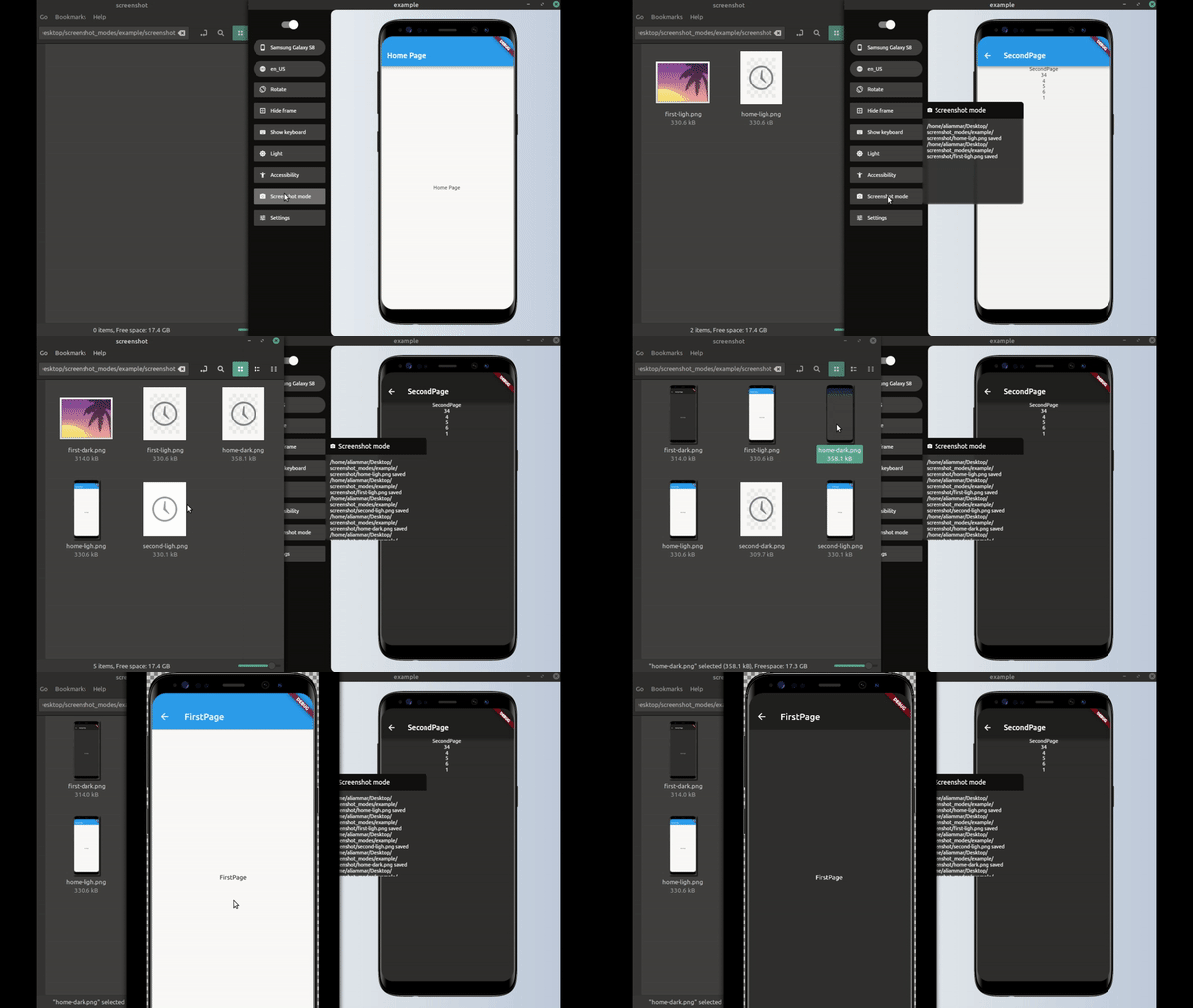
will take screenshot for all your page in all frames in dark and light mode.
3- define saveScreenShot function this response for saving the image or upload it to some server or that ever you want to do with the image example to save the image in desktop
Future<String> saveScreenShot(DeviceScreenshotWithLabel screen) async {
String name = screen.label.join('/');
final path = join(Directory.current.path, 'screenshot', '$name.png');
final imageFile = File(path);
await imageFile.create(recursive: true);
await imageFile.writeAsBytes(screen.deviceScreenshot.bytes);
return'$path saved'; // message printed to device preview plugins windows;
}
you could benefid from DevicePreviewHelper class to change device , theme and other helper function
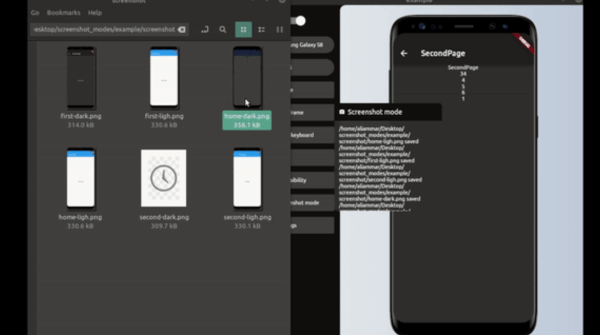
5- click the new button(screenshot mode) in device preview tabs
_______
what is ItemScreenMode :
it is represents every screenshot we will take
function parameter is a function that called before take screen
we must navigate to the page you want take screenshot for it
maybe also get some data from database or api before navigate
label parameter is string helps for naming the image inside processor (saveScreenShot)
modes parameter is another list of ItemScreenMode used if we have nested mode
like light/dark for all pages and change frame for all pages
like in above example
could i set function parameter for ItemScreenMode to null ?
yes when you don't need to do any things before first shot taken maybe when you already inside home page (defalut page) and in right themes mode
tips : don't do that if you have multi nested page
why we must use DirectPageRouteBuilder for navigation
you must use DirectPageRouteBuilder for navigation like this
because the MaterialPageRoute have 500ms Duration for animations
this will cause as a problem with screenshot
so we must either use DirectPageRouteBuilder or await 500ms Duration after Navigation inside ItemScreenMode function
we prefers to use this plugin on desktop
TODO :
resizing the image for every mode ( so we could resized to the size required by google play or app store) ( now could done in saveScreenShot function )