File Saver는 바이트, 파일 경로, 스트림 또는 URL에서 장치 저장소에 파일을 저장할 수 있는 크로스 플랫폼 플러터 패키지입니다. Android, iOS, Web, macOS, Windows, Linux 등 모든 주요 플랫폼을 지원하여 파일 내보내기 또는 다운로드 기능이 필요한 애플리케이션에 이상적입니다. 일관된 API를 통해 플랫폼 간에 파일 처리를 단순화하고, 타겟 환경에 관계없이 신뢰할 수 있는 파일 지속성을 보장합니다. 문서, 이미지 또는 기타 데이터 파일을 생성하거나 처리하는 앱에서 특히 유용합니다.
사용 사례
생성된 문서 내보내기
이미지 또는 미디어 파일 저장
URL에서 파일 다운로드
파일 스트림 처리
크로스 플랫폼 파일 지속성
주요 기능
여러 입력 유형(바이트, 경로, 스트림, URL)을 지원합니다
크로스 플랫폼 호환성
간단하고 일관된 API
모바일, 데스크톱 및 웹에서 작동합니다
파일 인코딩 및 MIME 유형을 처리합니다
내장된 오류 처리
적합한 대상
파일 내보내기 필요 앱
데이터 기반 애플리케이션
미디어 또는 문서 관리 도구
웹 및 데스크톱용 Flutter 앱
다중 플랫폼을 대상으로 하는 개발자
고려 사항
Android/iOS에서 플랫폼별 권한이 필요합니다
웹용 추가 구성이 필요할 수 있습니다
파일 크기 제한은 플랫폼에 따라 다릅니다
대규모 파일 작업에 적합하지 않습니다
파일 이름 또는 위치에 대한 사용자 지정 제한
원본 README
연결된 소스 저장소의 README 원문 스냅샷입니다. 최신 내용은 저장소에서 확인하세요.
FileSaver
Huge Shoutout to all the contributors and the people who are using this package, I'm really grateful to all of you. Thank you for your support.
This plugin package primarily focuses on one task: saving files on Android, iOS, Web, Windows, MacOS, and Linux.
It might not have a plethora of features, but it does this job well.
This package depends on path_provider for Android and iOS, browser download APIs for Web, and platform file APIs for desktop. The main reason I built this plugin was to
avoid using HTML just for downloading files. The plugin is pretty simple and saves the file in Downloads folder in
Windows, MacOS, Linux and directly downloads the file in Web, in iOS, the file is Saved in Application
Documents Directory, and in Android it is saved in the applications files directory Android/data/your.package.name/file/your_file.extension.
Getting Started
The plugin itself is pretty easy to use. Just call the method saveFile() with respective arguments.
String name which takes the name of the file, Uint8List bytes which will be your actual encoded file,
Or File file which will be your file in the File object (from dart:io)
Or Stirng filePath which will be your file path
Or LinkDetails link which will provide the link, header, request methid and body to your file. LinkDetails can be used as
Out of these parameters, you will have to use atleast one
String fileExtension this will be your file extension. bool includeExtension this controls whether to include the extension in the saved file name. Set to false to save files without extension (e.g., "myfile" instead of "myfile.txt"). Defaults to true.
Another parameter is MimeType type Specifically for Web, which will be your file
type
String customMimeType this will be your custom mime type, if you want to use your own mime type, you can use this parameter
Dio dioClient this will be your dio client, if you want to use dio for downloading the file, you can use this parameter
Uint8List Function(Uint8List) transformDioResponse this will be your function to transform the response, if you want to transform the response as per your requirement, you can use this parameter
MimeType is also included in my Package, I've included types for Sheets, Presentation, Word, Plain Text, PDF,
MP3, MP4 and many other common formats
or you can call saveAs() available for Android, iOS, macOS, Windows, and Web
All the parameters in this method is same as the saveFile() method.
For very large direct URL downloads, prefer handing the URL to the browser on
web or Android DownloadManager so the app does not fetch the full file into
memory:
downloadLink is a browser/system handoff. On Web it cannot attach custom
headers such as Authorization. Browser-managed cookies may be sent only if the
URL and cookie policy allow it. On Android, downloadLink uses
DownloadManager and can pass request headers.
For authenticated large downloads on Web, use saveLinkAsStream. It uses
fetch, so request headers and browser-managed credentials can be included,
then it streams the response into a user-selected file:
This Web path requires the File System Access API and CORS permission from the
server. JavaScript cannot manually set the Cookie header; use normal browser
session cookies, a signed URL, or an Authorization header instead.
For native platforms, prefer filePath/file or saveAsStream for large
generated content so the final save step can stream/copy from disk. On Web,
saveAsStream uses the File System Access API where the browser supports it:
Web has different behavior depending on where the data comes from:
Use case
Recommended API
Memory behavior
Browser support
Direct public/signed URL
downloadLink
Browser handles the download; the Flutter app does not hold the full file
Chrome, Edge, Firefox, Safari
Direct URL with request headers
saveLinkAsStream
Fetch streams the response into a user-selected file
Chrome/Edge and other browsers that implement the File System Access API
Already have Uint8List bytes
saveFile / saveAs
Creates a Blob, so the full file is held in browser memory
Chrome, Edge, Firefox, Safari
App-generated stream
saveAsStream
Writes chunks to a user-selected file without creating a giant Blob
Chrome/Edge and other browsers that implement the File System Access API
Local file path
Not supported on Web
Browsers do not expose real local file paths to web apps
Not available
Firefox/Mozilla and Safari do not currently provide the writable File System
Access API needed by saveAsStream. For very large files in those browsers,
use downloadLink with a direct server/CDN/S3 URL so the browser download
manager streams the file to disk. Avoid passing multi-GB Uint8List values to
saveFile/saveAs on Web because that path must create a Blob in memory.
Note: customMimeType can only be used when mimeType is set to MimeType.custom
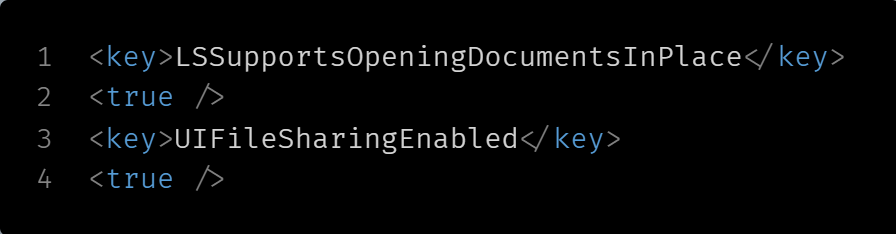
These Settings are optional for iOS, as in iOS the file will be saved in application documents directory but will not be visible in Files application, to make your file visible in iOS Files application, make the changes mentioned below.
iOS:
Go to your project folder, ios/Runner/info.plist and Add these keys:
Open Your Project in XCode (Open XCode -> Open a project or file -> Your_Project_Folder/macos/Runner.xcworkspace)
Open your entitlement file (DebugProfile.entitlements & 'YOUR_PROJECT_NAME'Profile.entitlements)
Add these rows:
and if you get Client Socket Exception while saving files in MacOS from link,
you have to add this key in the DebugProfile.entitlements and Release.entitlements of your macOS application and set the value to true