Aus öffentlichen Paketdaten erstellte Orientierung.
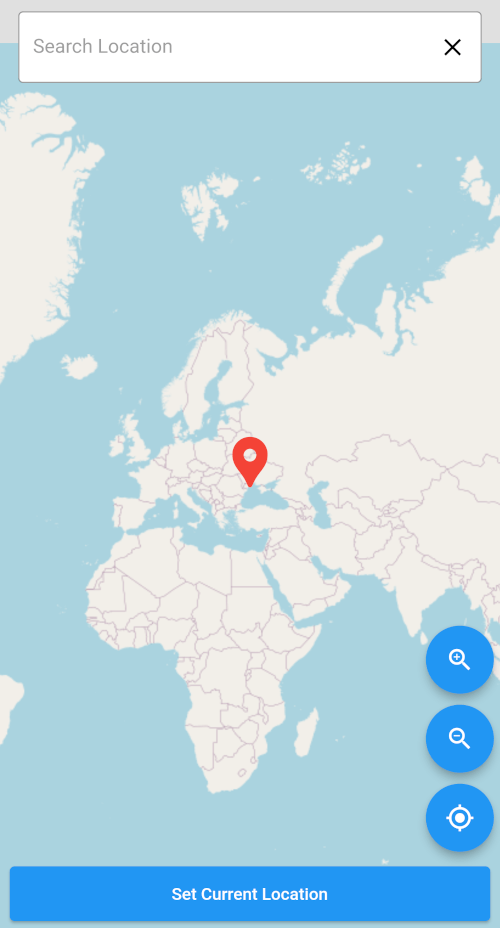
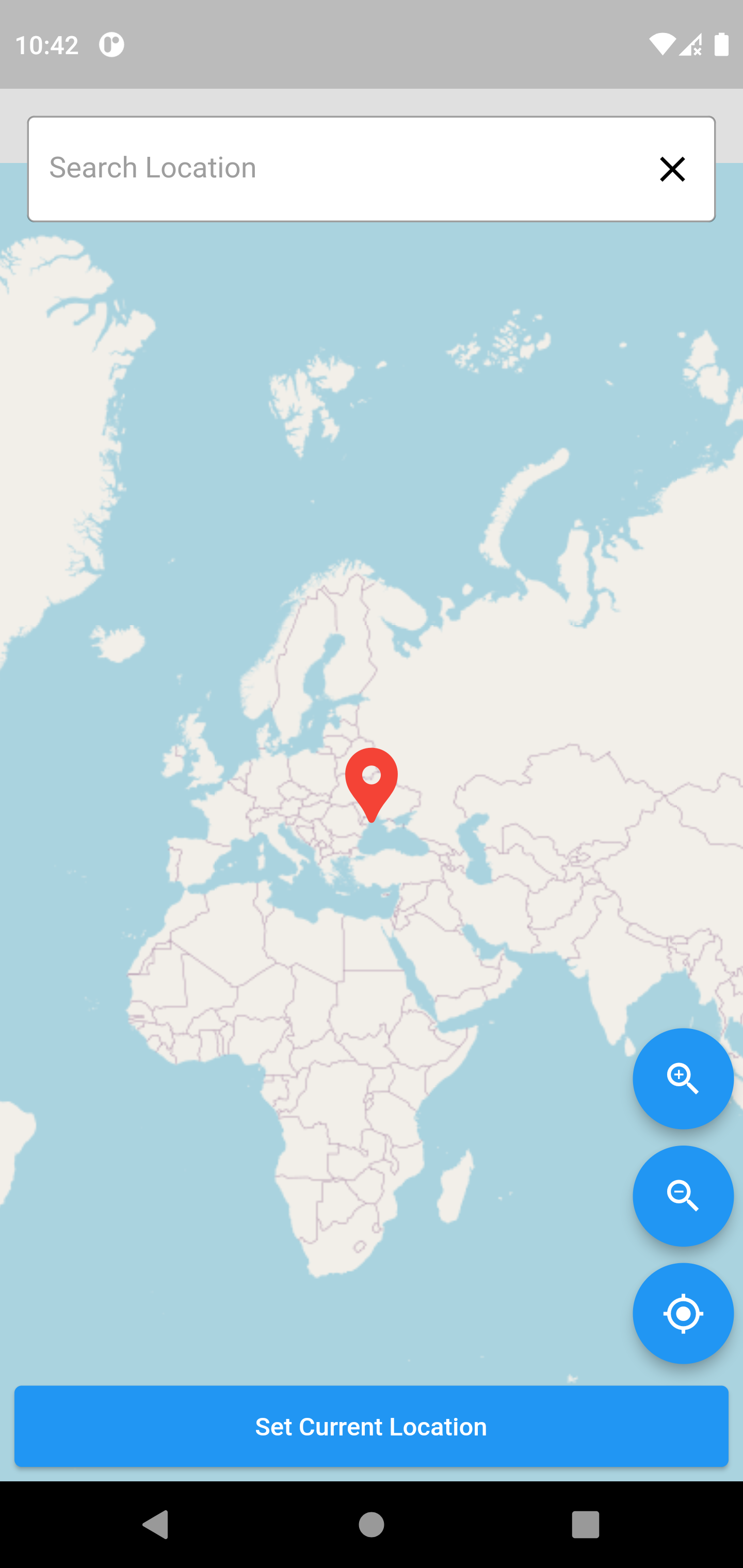
Ein Flutter-Paket, das die Ortsuche und Standortauswahl mithilfe von OpenStreetMap ermöglicht und umfangreiche Anpassungsoptionen für Karten in mobilen und Web-Anwendungen bietet. Es integriert sich nahtlos in Flutter-Projekte und liefert eine interaktive Kartenschnittstelle zur Standortauswahl. Das Paket unterstützt mehrere Plattformen wie Android, iOS, Web, macOS, Windows und Linux und ist somit vielseitig für die plattformübergreifende Entwicklung geeignet. Entwickler können die Benutzeroberfläche und das Verhalten an die Design- und Funktionsanforderungen ihrer App anpassen.
Anwendungsfälle
Adressenauswahl basierend auf Karte
Anpassbarer Standortauswähler in Apps
Plattformübergreifende Standorteingabe
Ortsuche mit OpenStreetMap
Interaktive Kartenintegration
Geolocation-Dienste in Flutter
Hauptmerkmale
OpenStreetMap-Integration
Hochgradig anpassbare Benutzeroberfläche
Multiplattformunterstützung
Suchfunktion platzieren
Echtzeit-Standortauswahl
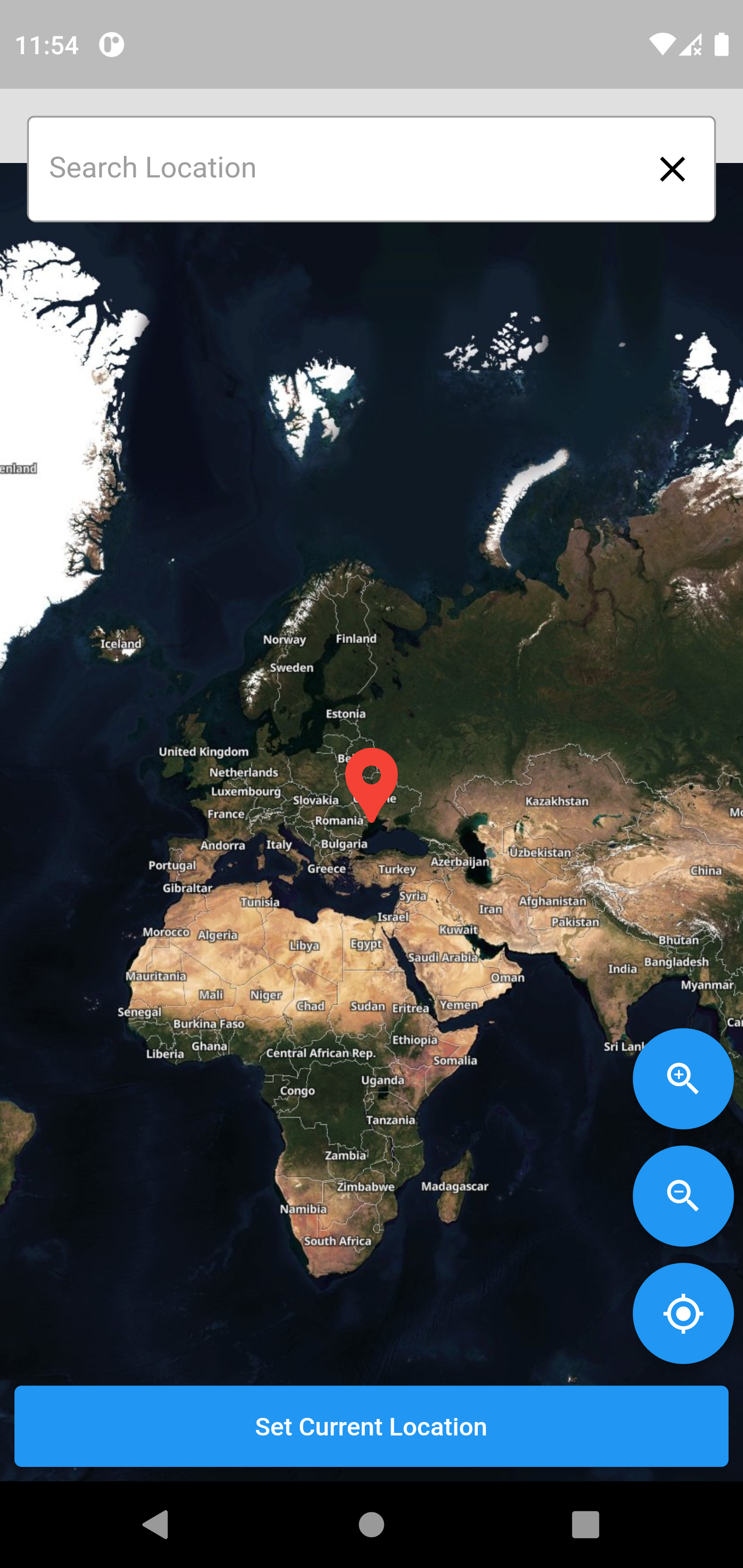
Konfigurierbare Kartenstile
Geeignet für
Entwickler von ortsbasierten Anwendungen
Apps mit benutzerdefinierten Kartenoberflächen
Projekte, die OpenStreetMap verwenden
Plattformübergreifende Flutter-Anwendungen
UX-orientierte Ortsauswahl-Hilfen
Hinweise
Benötigt Internetverbindung für Kartendaten
Beschränkt auf OpenStreetMap (nicht Google Maps)
Benutzerdefinierte Stile erfordern möglicherweise zusätzliche Konfiguration
Abhängig von der Rendering-Engine von Drittanbietern
Möglicher Leistungseinbruch auf Geräten mit geringer Leistungsfähigkeit
Auf mobilen Plattformen ist eine ordnungsgemäße Handhabung von Berechtigungen erforderlich
Original-README
Originaler README-Schnappschuss aus dem verknüpften Quell-Repository. Aktuelle Inhalte finden Sie im Repository.
location_picker_flutter_map
A comprehensive Flutter package that provides location picking, place search, and map interactions using OpenStreetMap with extensive customization options and clean architecture.
✨ Features
🗺️ Interactive Map: Pan, zoom, and tap to select locations
🔍 Smart Search: Real-time location search with autocomplete suggestions
📍 Current Location: GPS-based location tracking with intelligent permission handling
🎨 Highly Customizable: 50+ customization options organized in configuration classes
🔧 Clean Architecture: Service layer pattern with dedicated classes for different concerns
🌍 Multi-language: RTL support and internationalization
⚡ Performance Optimized: Efficient API calls, debouncing, and resource management
🛡️ Error Handling: Comprehensive error management with user-friendly messages
🔒 Permission Management: Smart permission dialogs with clear explanations
🎯 What's New in v4.0.0
🏗️ Clean Architecture & Service Layer
LocationService: Modern GPS operations with LocationSettings API
GeocodingService: Nominatim API with proper HTTP headers and rate limiting
To add the location_picker_flutter_map to your Flutter application read the instructions. Below are some Android and iOS specifics that are required for the package to work correctly.
Android
Upgrade pre 1.12 Android projects
Since version 5.0.0 this plugin is implemented using the Flutter 1.12 Android plugin APIs. Unfortunately this means App developers also need to migrate their Apps to support the new Android infrastructure. You can do so by following the Upgrading pre 1.12 Android projects migration guide. Failing to do so might result in unexpected behaviour.
AndroidX
The geolocator plugin requires the AndroidX version of the Android Support Libraries. This means you need to make sure your Android project supports AndroidX. Detailed instructions can be found here.
The TL;DR version is:
Add the following to your "gradle.properties" file:
Make sure you set the compileSdkVersion in your "android/app/build.gradle" file to 35:
android {
  compileSdkVersion 35

  ...
}
Make sure you replace all the android. dependencies to their AndroidX counterparts (a full list can be found here: Migrating to AndroidX).
Permissions
On Android you'll need to add either the ACCESS_COARSE_LOCATION or the ACCESS_FINE_LOCATION permission to your Android Manifest. To do so open the AndroidManifest.xml file (located under android/app/src/main) and add one of the following two lines as direct children of the <manifest> tag (when you configure both permissions the ACCESS_FINE_LOCATION will be used by the geolocator plugin):
Starting from Android 10 you need to add the ACCESS_BACKGROUND_LOCATION permission (next to the ACCESS_COARSE_LOCATION or the ACCESS_FINE_LOCATION permission) if you want to continue receiving updates even when your App is running in the background:
Starting from Android 14 (SDK 34) you need to add the FOREGROUND_SERVICE_LOCATION permission (next to the ACCESS_COARSE_LOCATION or the ACCESS_FINE_LOCATION or the ACCESS_BACKGROUND_LOCATION permission) if you want to continue receiving updates even when your App is running in the foreground:
FOREGROUND_SERVICE_LOCATION
NOTE: Specifying the ACCESS_COARSE_LOCATION permission results in location updates with an accuracy approximately equivalent to a city block. It might take a long time (minutes) before you will get your first locations fix as ACCESS_COARSE_LOCATION will only use the network services to calculate the position of the device. More information can be found here.
iOS
On iOS you'll need to add the following entry to your Info.plist file (located under ios/Runner) in order to access the device's location. Simply open your Info.plist file and add the following (make sure you update the description so it is meaningful in the context of your App):
<key>NSLocationWhenInUseUsageDescription</key><string>This app needs access to location when open.</string>
If you don't need to receive updates when your app is in the background, then add a compiler flag as follows: in XCode, click on Pods, choose the Target 'geolocator_apple', choose Build Settings, in the search box look for 'Preprocessor Macros' then add the BYPASS_PERMISSION_LOCATION_ALWAYS=1 flag.
Setting this flag prevents your app from requiring the NSLocationAlwaysAndWhenInUseUsageDescription entry in Info.plist, and avoids questions from Apple when submitting your app.
You can also have the flag set automatically by adding the following to the ios/Podfile of your application:
post_install do |installer|
  installer.pods_project.targets.each do |target|
    if target.name == "geolocator_apple"
      target.build_configurations.each do |config|
        config.build_settings['GCC_PREPROCESSOR_DEFINITIONS'] ||= ['$(inherited)', 'BYPASS_PERMISSION_LOCATION_ALWAYS=1']
      end
    end
  end
end
If you do want to receive updates when your App is in the background (or if you don't bypass the permission request as described above) then you'll need to:
Add the Background Modes capability to your XCode project (Project > Signing and Capabilities > "+ Capability" button) and select Location Updates. Be careful with this, you will need to explain in detail to Apple why your App needs this when submitting your App to the AppStore. If Apple isn't satisfied with the explanation your App will be rejected.
Add an NSLocationAlwaysAndWhenInUseUsageDescription entry to your Info.plist (use NSLocationAlwaysUsageDescription if you're targeting iOS <11.0)
When using the requestTemporaryFullAccuracy({purposeKey: "YourPurposeKey"}) method, a dictionary should be added to the Info.plist file.
<key>NSLocationTemporaryUsageDescriptionDictionary</key><dict><key>YourPurposeKey</key><string>The example App requires temporary access to the device's precise location.</string></dict>
The second key (in this example called YourPurposeKey) should match the purposeKey that is passed in the requestTemporaryFullAccuracy() method. It is possible to define multiple keys for different features in your app. More information can be found in Apple's documentation.
NOTE: the first time requesting temporary full accuracy access it might take several seconds for the pop-up to show. This is due to the fact that iOS is determining the exact user location which may take several seconds. Unfortunately this is out of our hands.
On iOS 16 and above you need to specify UIBackgroundModeslocation to receive location updates in the background.
On macOS you'll need to add the following entries to your Info.plist file (located under macOS/Runner) in order to access the device's location. Simply open your Info.plist file and add the following (make sure you update the description so it is meaningfull in the context of your App):
<key>NSLocationUsageDescription</key><string>This app needs access to location.</string>
You will also have to add the following entry to the DebugProfile.entitlements and Release.entitlements files. This will declare that your App wants to make use of the device's location services and adds it to the list in the "System Preferences" -> "Security & Privace" -> "Privacy" settings.
When using the requestTemporaryFullAccuracy({purposeKey: "YourPurposeKey"}) method, a dictionary should be added to the Info.plist file.
<key>NSLocationTemporaryUsageDescriptionDictionary</key><dict><key>YourPurposeKey</key><string>The example App requires temporary access to the device's precise location.</string></dict>
The second key (in this example called YourPurposeKey) should match the purposeKey that is passed in the requestTemporaryFullAccuracy() method. It is possible to define multiple keys for different features in your app. More information can be found in Apple's documentation.
NOTE: the first time requesting temporary full accuracy access it might take several seconds for the pop-up to show. This is due to the fact that macOS is determining the exact user location which may take several seconds. Unfortunately this is out of our hands.
Web
To use the Geolocator plugin on the web you need to be using Flutter 1.20 or higher. Flutter will automatically add the endorsed geolocator_web package to your application when you add the geolocator: ^6.2.0 dependency to your pubspec.yaml.
The following methods of the geolocator API are not supported on the web and will result in a UnsupportedError:
Geolocator Web is available only in secure_contexts (HTTPS). More info about the Geolocator API can be found here.
Windows
To use the Geolocator plugin on Windows you need to be using Flutter 2.10 or higher. Flutter will automatically add the endorsed geolocator_windows package to your application when you add the geolocator: ^8.1.0 dependency to your pubspec.yaml.