पैकेज, रिपॉज़िटरी और ऐप श्रेणियाँ खोजें

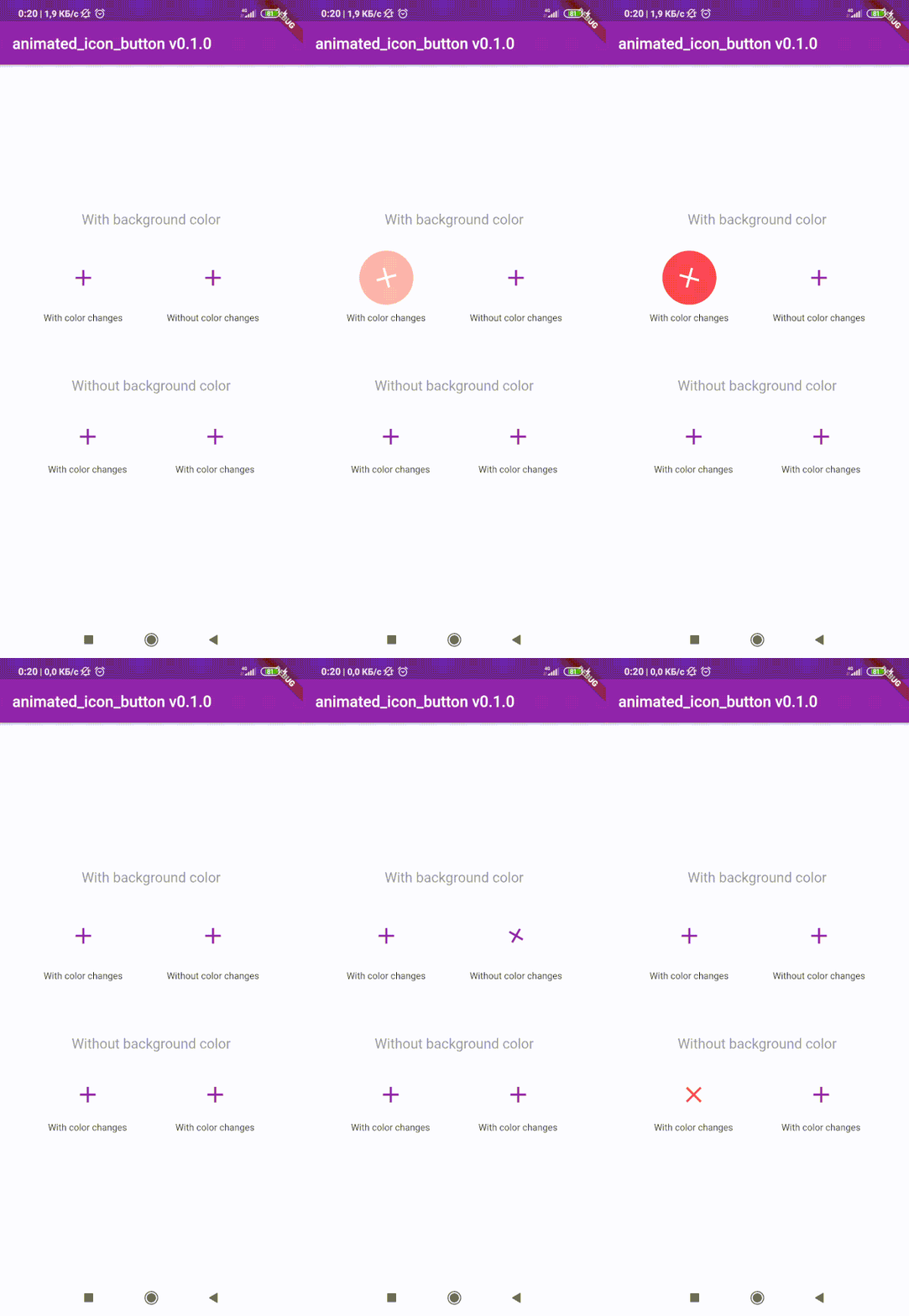
animated_icon_button कवर
पैकेज विवरणv1.0.2

animated_icon_button

कस्टम एनिमेटेड IconButton बनाने के लिए Flutter पैकेज। सभी उपलब्ध आइकन शामिल हैं। मूल IconButton पर आधारित।

AndroidiOSWebmacOSWindowsLinux
30-दिन डाउनलोड
14.7 हज़ार
लाइक
295
Pub अंक
160

पैकेज इंस्टॉल करें

flutter pub add animated_icon_button

पैकेज अवलोकन

सार्वजनिक जानकारी से बना चयन मार्गदर्शन। केवल संदर्भ हेतु।

एक फ्लटर पैकेज जो मूल आइकन बटन को स्मूथ, कस्टमाइज़ेबल एनीमेशन के साथ बढ़ाता है। यह सभी उपलब्ध आइकन का समर्थन करता है और विकासकर्ताओं को न्यूनतम कोड के साथ दृश्य रूप से आकर्षक बटन इंटरैक्शन बनाने की अनुमति देता है। फ्लटर के मूल आइकन बटन पर आधारित, यह संगतता बनाए रखता है जबकि स्केल, रोटेशन और रंग संक्रमण जैसे डायनामिक प्रभाव जोड़ता है। आधुनिक UI में उपयोगकर्ता प्रतिक्रिया और दृश्य आकर्षण के महत्वपूर्ण होने पर आदर्श है।

उपयोग

  • इंटरैक्टिव ऐप बटन बनाना
  • फॉर्म में उपयोगकर्ता प्रतिक्रिया को बढ़ाना
  • डैशबोर्ड में माइक्रो-इंटरैक्शन जोड़ना
  • एनिमेटेड नेविगेशन तत्वों का डिज़ाइन करना
  • दृश्य संकेतों के माध्यम से पहुँच को बेहतर बनाना
  • आकर्षक ऑनबोर्डिंग स्क्रीन्स बनाना

मुख्य विशेषताएँ

  • पूर्व-निर्मित एनीमेशन प्रीसेट
  • सभी फ्लटर आइकन के लिए समर्थन
  • कस्टमाइज़ की गई एनीमेशन अवधि और वक्र
  • मौजूदा कोड के साथ आसान एकीकरण
  • हल्का और कार्यक्षम
  • क्रॉस-प्लेटफॉर्म संगतता

इनके लिए उपयुक्त

  • गतिशील घटकों की तलाश करने वाले UI/UX डिज़ाइनर
  • इंटरैक्टिव ऐप्स बनाने वाले डेवलपर्स
  • हल्के लेकिन प्रभावी एनीमेशन की आवश्यकता वाले परियोजनाएं
  • उपयोगकर्ता भागीदारी पर केंद्रित ऐप
  • मल्टी-प्लेटफॉर्म डिप्लॉयमेंट के लिए फ्लटर का उपयोग करने वाली टीमें

विचार योग्य बातें

  • बंडल आकार में थोड़ा वृद्धि हो सकती है
  • प्रदर्शन के लिए एनीमेशन का संयोजन बहुत सावधानी से करें
  • उच्च आवृत्ति के बटन दबाने के लिए उपयुक्त नहीं
  • Flutter के एनिमेशन सिस्टम की समझ की आवश्यकता है
  • प्रामाणिक बटन लेबल के साथ सबसे अच्छा जुड़ाव उपयोगकर्ता एक्सेसिबिलिटी के लिए

मूल README

संबंधित सोर्स रिपॉज़िटरी के मूल README का स्नैपशॉट। नवीनतम सामग्री के लिए रिपॉज़िटरी देखें।

animated_icon_button

😊 Flutter package to create custom animated IconButton.

😵 Includes all available icons. Based on native IconButton.


Breaking Change

After 1.0.2 version you can use multiple icons.

Getting Started

Follow these steps to use this library

Add dependency
dependencies:
  animated_icon_button: ^1.0.2 #latest version
Add import package
import 'package:animated_icon_button/animated_icon_button.dart';
Easy to use

Simple example of use AnimatedIconButton
Put this code in your project at an screen and wait for magic 😊

    AnimatedIconButton(
        onPressed: () => print('all icons pressed'),
        icons: [
            AnimatedIconButtonEntry(
                icon: Icon(Icons.add),
                onPressed: () => print('add pressed'),
            ),
            AnimatedIconButtonEntry(
                icon: Icon(Icons.close),
            ),
        ],
    ),
More icons

Now you can use more than 2 icons Add new icons to your list and they will change one by one

    AnimatedIconButton(
        size: 35,
        onPressed: () {
            print('all icons pressed');
        },
        duration: const Duration(milliseconds: 200),
        icons: <AnimatedIconButtonEntry>[
            AnimatedIconButtonEntry(
                icon: Icon(
                    Icons.mic,
                    color: Colors.purple,
                ),
                onPressed: () => print('mic pressed'),
                backgroundColor: Colors.white,
            ),
            AnimatedIconButtonEntry(
                icon: Icon(
                    Icons.g_translate,
                    color: Colors.purple,
                ),
                backgroundColor: Colors.white,
            ),
            AnimatedIconButtonEntry(
                icon: Icon(
                    Icons.collections_sharp,
                    color: Colors.purple,
                ),
                backgroundColor: Colors.white,
            ),
        ],
    ),
Custom animation controller

In order to animate your icons in a custom way, like on text changed or when pressing a button, just use the animationController property as follows.

    var animationController = AnimationController(
        vsync: this,
        duration: Duration(milliseconds: 200),
        reverseDuration: Duration(milliseconds: 200),
    );

    AnimatedIconButton(
        animationController: animationController,
        size: 35,
        onPressed: () {
            print('all icons pressed');
        },
        duration: const Duration(milliseconds: 200),
        icons: <AnimatedIconButtonEntry>[
            AnimatedIconButtonEntry(
                icon: Icon(
                    Icons.mic,
                    color: Colors.purple,
                ),
                onPressed: () => print('mic pressed'),
                backgroundColor: Colors.white,
            ),
            AnimatedIconButtonEntry(
                icon: Icon(
                    Icons.g_translate,
                    color: Colors.purple,
                ),
                backgroundColor: Colors.white,
            ),
            AnimatedIconButtonEntry(
                icon: Icon(
                    Icons.collections_sharp,
                    color: Colors.purple,
                ),
                backgroundColor: Colors.white,
            ),
        ],
    ),

Then, whenever you want, execute your animationController.forward() and animationController.reverse() methods to get your icons animated.

Don't forget when you use this property duration is not used, so it can be emitted.

श्रेणियाँ

निर्भरताएँ

निर्भरता सूची 1 आइटम

सोर्स रिपॉज़िटरी

इस पैकेज का उपयोग करने वाले प्रोजेक्ट