सार्वजनिक जानकारी से बना चयन मार्गदर्शन। केवल संदर्भ हेतु।
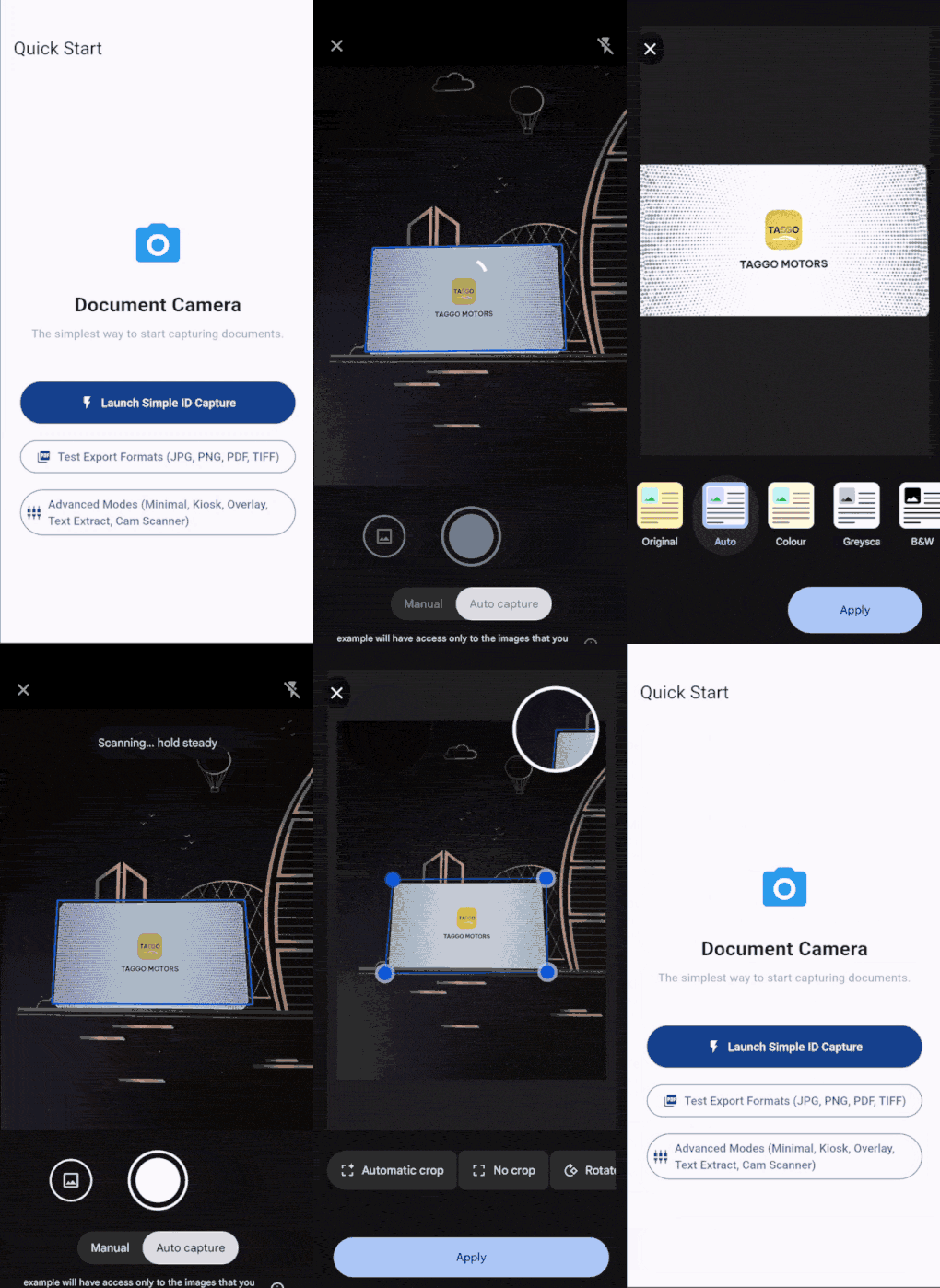
एक फ्लटर पैकेज जो कस्टमाइज़ेबल कैमरा इंटरफ़ेस के उपयोग से दस्तावेज़ छवियों को कैप्चर और क्रॉप करने की अनुमति देता है। यह ऐप में दस्तावेज़ स्कैनिंग के लिए एक स्ट्रीमलाइन समाधान प्रदान करता है, जिसमें उपयोगकर्ता रियल-टाइम प्रीव्यू और स्वचालित किनारे के निर्धारण के साथ दस्तावेज़ को सटीक ढंग से फ्रेम कर सकते हैं। डेवलपर्स के लिए बनाया गया है जो अपने ऐप में दस्तावेज़ कैप्चर कार्यक्षमता को एक सरल तरीके से एकीकृत करना चाहते हैं, यह एंड्रॉइड और आईओएस दोनों प्लेटफॉर्म का समर्थन करता है। पैकेज हल्का है और इंप्लीमेंट करने में आसान है, जिसे फॉर्म, रसीद या आईडी सत्यापन कार्यप्रवाह के लिए आदर्श बनाता है।
उपयोग
मोबाइल ऐप में दस्तावेज़ स्कैनिंग
रसीद और इन्वॉइस कैप्चर
आईडी और पासपोर्ट सत्यापन
फॉर्म डिजिटाइजेशन
ऑनबोर्डिंग वर्कफ्लो
मुख्य विशेषताएँ
कस्टमाइज़ किए जा सकने वाला कैमरा UI
रियल-टाइम डॉक्यूमेंट किनारे का पता लगाना
स्वचालित छवि क्रॉपिंग
Android और iOS के लिए समर्थन
Flutter के साथ सरल एकीकरण
इनके लिए उपयुक्त
मोबाइल ऐप विकासकर्ता
दस्तावेज़ प्रोसेसिंग ऐप्स
पहचान सत्यापन प्रणाली
वित्त और बैंकिंग ऐप्स
ई-कॉमर्स और रिटेल ऐप्स
विचार योग्य बातें
कैमरा की अनुमति की आवश्यकता है
अतिरिक्त छवि सुधार की आवश्यकता हो सकती है
उपकरण कैमरा गुणवत्ता पर निर्भर करता है
दस्तावेज-विशिष्ट उपयोग केस के लिए सीमित
सामान्य फोटो कैप्चर के लिए उपयुक्त नहीं
मूल README
संबंधित सोर्स रिपॉज़िटरी के मूल README का स्नैपशॉट। नवीनतम सामग्री के लिए रिपॉज़िटरी देखें।
Document Camera Frame
DocumentCameraFrame — Scan, crop, and extract text from physical documents with a single Flutter widget. Edge detection, perspective correction, OCR, five distinct UI modes, and PDF/image export included.
Demo
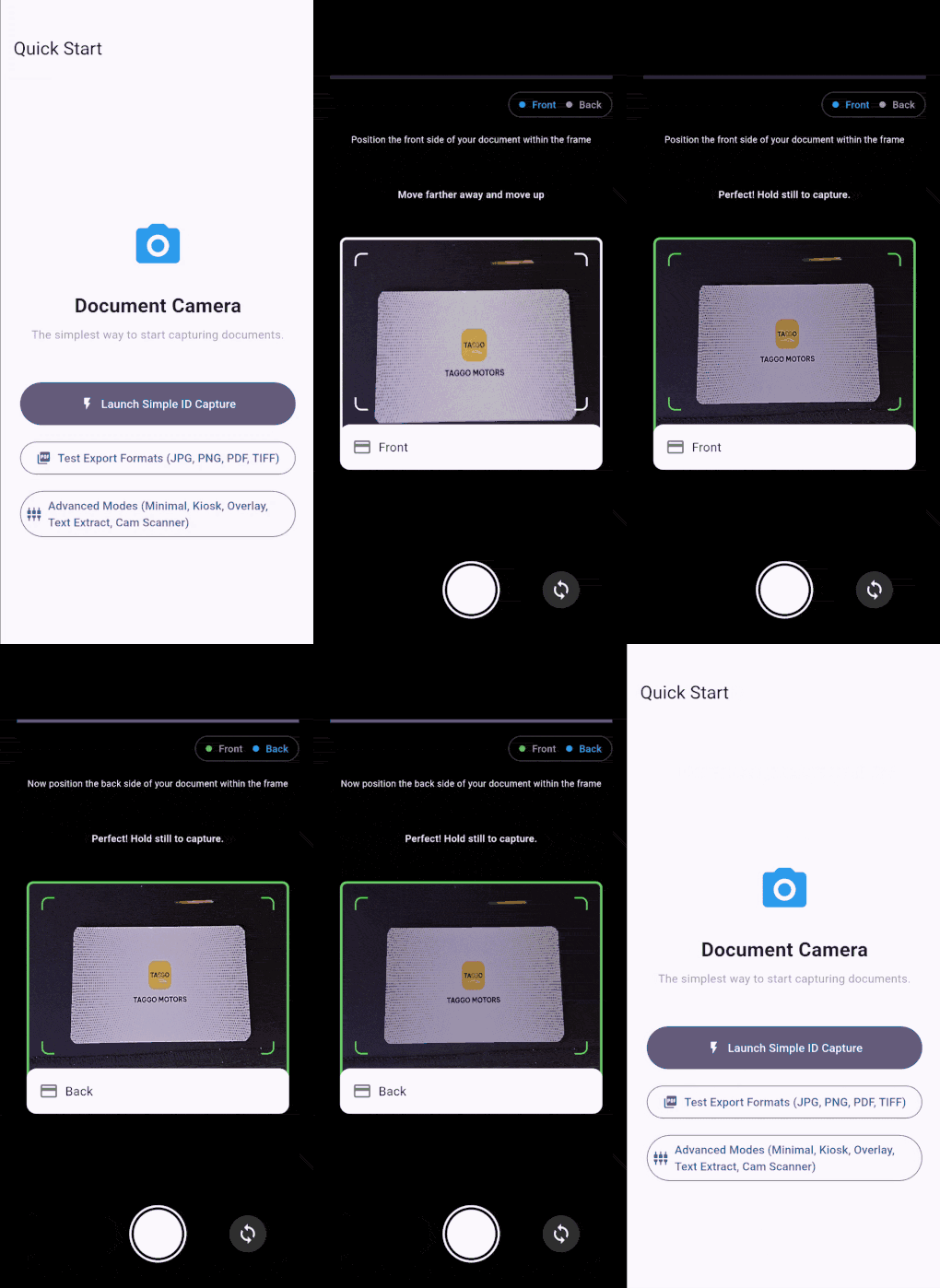
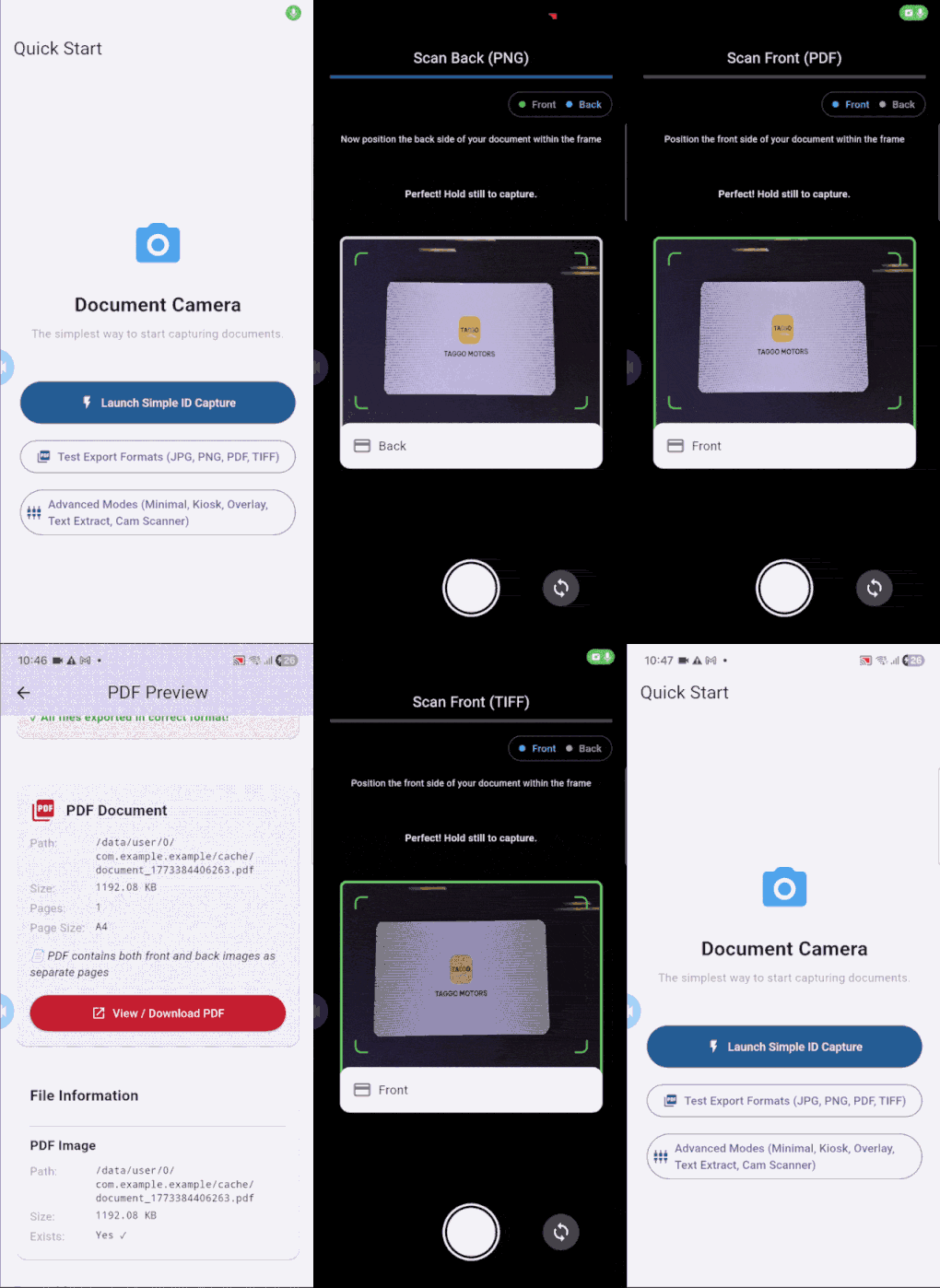
Here's a quick preview of DocumentCameraFrame in action:
Default Mode
Export Example
Default UI mode — live camera preview with frame, progress bar, side indicators, and auto-capture
Export in action — capturing and exporting documents as JPG, PNG, PDF, or TIFF
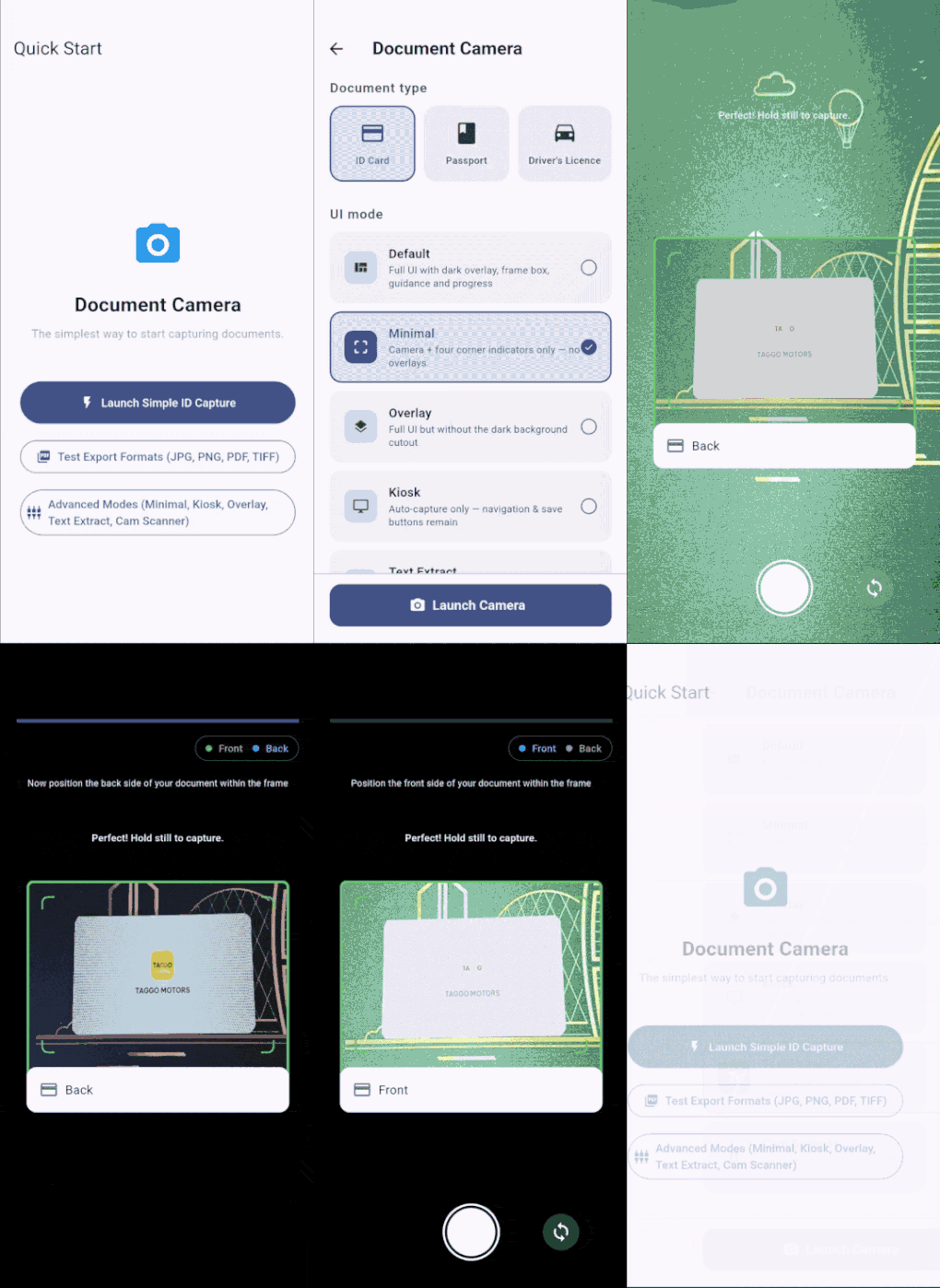
UI Modes
CamScanner Mode
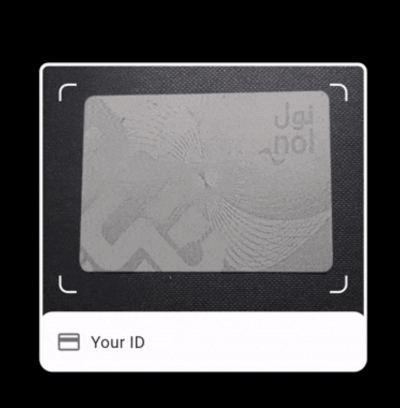
All built-in UI modes — default, minimal, overlay, kiosk, and textExtract
Native CamScanner mode — delegates to the platform's built-in document scanner
Features
⚡ Smart Capture Engine
📸 Live Camera Preview with adjustable document frame
✂️ Custom Frame Dimensions for precise cropping
🎯 Intelligent Auto-Capture — Real-time analysis of image stability and document alignment triggers automatic capture
🔄 Dual-Sided Workflow — Native support for multi-step scanning (e.g., ID Front → ID Back) with animated transitions or native flow
📲 Native Scanning Engine — Delegate scanning to platform-native UIs (Google ML Kit on Android, VisionKit on iOS) for professional-grade edge detection and perspective correction
📳 Haptic Guidance — Integrated vibration patterns to guide users without them needing to look at the screen
🔎 Precision Computer Vision
🎯 ML Kit Edge Detection — Sub-millisecond boundary detection for precise document isolation
🖼️ Perspective Correction — Automatically transforms skewed or angled captures into flat, top-down professional documents
The DocumentCameraUIMode enum controls the visibility of various elements and default behaviors:
Feature
default
minimal
overlay
kiosk
textExtract
camScanner
Dark cutout overlay
✅
❌
❌
✅
✅
❌ (Native)
Frame border + corners
✅
✅*
✅
✅
✅
❌ (Native)
Bottom frame container
✅
❌
✅
✅
✅
❌ (Native)
Progress bar & dots
✅
❌
❌
✅
✅
❌ (Native)
Static instructions (Top)
✅
❌
❌
✅
✅
❌ (Native)
Dynamic Alignment Hints**
✅
❌
✅
✅
✅
❌ (Native)
Screen title / Close btn
✅
❌
✅
✅
✅
❌ (Native)
Camera Switcher
✅
✅
✅
❌
✅
❌ (Native)
Capture button (circle)
✅
✅
✅
❌
✅
❌ (Native)
Action buttons (Save/Retake)
✅
✅
✅
✅
✅
❌ (Native)
Auto-capture trigger
✅
❌
✅
✅
✅
❌ (Native)
On-device OCR (default)
❌
❌
❌
❌
✅
❌
Native Scanning UI
❌
❌
❌
❌
❌
✅
* Minimal uses CornerBox indicators instead of a full-screen frame border.
** Dynamic feedback based on document alignment (e.g., "Move closer", "Move right").
🔐 Security & Compliance
🔒 Offline-Only — Designed for FinTech and HealthTech—zero external network calls
🛡️ No Data Retention — Images stay in the app's sandbox; you control the lifecycle
🔐 Privacy-First Architecture — All processing happens on-device
Installation
Add the package to your Flutter project using:
flutter pub add document_camera_frame
Quick Start
Minimal Example
The package follows the Flutter-standard await Navigator.push(...) pattern — identical to
showDatePicker, ImagePicker, and other Flutter APIs. Push the camera, await the result,
then navigate forward. onDocumentSaved is optional — the package always pops with the
result automatically.
import'package:document_camera_frame/document_camera_frame.dart';
import'package:flutter/material.dart';
Future<void> launchCamera(BuildContext context) async {
finalDocumentCaptureData? result = awaitNavigator.push<DocumentCaptureData>(
context,
MaterialPageRoute(
builder: (_) => DocumentCameraFrame(
frameWidth: 320,
frameHeight: 200,
requireBothSides: true,
// onDocumentSaved is optional — use it for side effects like// analytics or intermediate processing. Navigation is already// handled: the package pops with the result automatically.
),
),
);
if (result != null && context.mounted) {
// Navigate to your result screen — or do anything else with the data.print('Front image: ${result.frontImagePath}');
print('Back image: ${result.backImagePath}');
}
}
Common Use Cases
Driver's License (Both Sides)
DocumentCameraFrame(
frameWidth: 320,
frameHeight: 200,
titleStyle: DocumentCameraTitleStyle(
frontSideTitle: Text('Scan Front of License',
style: TextStyle(color: Colors.white)),
backSideTitle: Text('Scan Back of License',
style: TextStyle(color: Colors.white)),
),
requireBothSides: true,
enableAutoCapture: true,
onFrontCaptured: (imagePath) => print('Front: $imagePath'),
onBackCaptured: (imagePath) => print('Back: $imagePath'),
// onDocumentSaved is optional — use it for side effects like// analytics or intermediate processing. Navigation is already// handled: the package pops with the result automatically.
)
Passport (Single Side)
DocumentCameraFrame(
frameWidth: 300,
frameHeight: 450,
titleStyle: DocumentCameraTitleStyle(
title: Text('Scan Passport', style: TextStyle(color: Colors.white)),
),
requireBothSides: false,
sideIndicatorStyle: DocumentCameraSideIndicatorStyle(
showSideIndicator: false,
),
enableAutoCapture: false, // Manual capture only
instructionStyle: DocumentCameraInstructionStyle(
showInstructionText: true,
frontSideInstruction: "Position passport within the frame",
),
// onDocumentSaved is optional — use it for side effects like// analytics or intermediate processing. Navigation is already// handled: the package pops with the result automatically.
)
ID Card with Custom Styling
DocumentCameraFrame(
frameWidth: 320,
frameHeight: 200,
requireBothSides: true,
enableAutoCapture: true,
buttonStyle: DocumentCameraButtonStyle(
captureButtonText: "Take Photo",
saveButtonText: "Done",
retakeButtonText: "Try Again",
),
progressStyle: DocumentCameraProgressStyle(
progressIndicatorColor: Colors.blue,
),
frameStyle: DocumentCameraFrameStyle(
outerFrameBorderRadius: 16.0,
),
// onDocumentSaved is optional — use it for side effects like// analytics or intermediate processing. Navigation is already// handled: the package pops with the result automatically.
)
📱 UI Modes
Easily switch between different UI layouts using the uiMode parameter:
// Kiosk Mode (Auto-capture only, no capture button)DocumentCameraFrame(
uiMode: DocumentCameraUIMode.kiosk,
enableAutoCapture: true,
// onDocumentSaved is optional — use it for side effects like// analytics or intermediate processing. Navigation is already// handled: the package pops with the result automatically.
)
// Minimal Mode (Clean view, only corners and buttons)DocumentCameraFrame(
uiMode: DocumentCameraUIMode.minimal,
)
// Native CamScanner Mode (Delegates to the OS's native document scanner)DocumentCameraFrame(
uiMode: DocumentCameraUIMode.camScanner,
requireBothSides: true, // Guides user to scan front then back separately
)
Note: In camScanner mode, all custom frame and styling properties (borders, colors, buttons) are ignored as the platform's native scanner UI takes over.
Export Formats
Choose the output format for your captured documents. The package supports 4 formats: JPG (default), PNG, PDF, and TIFF.
Generate multi-page PDFs from captured documents with configurable page sizes.
DocumentCameraFrame(
  frameWidth: 320,
  frameHeight: 200,
  outputFormat: DocumentOutputFormat.pdf,
  pdfPageSize: PdfPageSize.a4, // or PdfPageSize.letter
  requireBothSides: true, // Creates 2-page PDF
)
PDF Features:
Multi-page support: Front and back images become separate pages
Page sizes: A4 (210×297mm) or Letter (8.5×11 inches)
Automatic compression: Optimized file size while maintaining quality
Single-page PDFs: Works with requireBothSides: false for passports, etc.
Automatic Cleanup: Temporary JPG files are automatically deleted after PDF generation to save disk space.
Format Parameters
Parameter
Type
Description
Default
outputFormat
DocumentOutputFormat
Output format (jpg, png, pdf, tiff)
DocumentOutputFormat.jpg
pdfPageSize
PdfPageSize
PDF page size (a4 or letter)
PdfPageSize.a4
imageQuality
int
Compression quality for JPG (1-100)
90
initialFlashMode
FlashMode
Initial camera flash mode
FlashMode.auto
DocumentCaptureData Fields
When using different formats, the DocumentCaptureData object contains:
classDocumentCaptureData{
finalString? frontImagePath; // Path to front image (.jpg, .png, etc.)finalString? backImagePath; // Path to back image (if captured)finalString? frontPreviewPath; // Path to displayable JPG (especially for TIFF)finalString? backPreviewPath; // Path to displayable JPG (especially for TIFF)finalString? pdfPath; // Path to PDF (only when outputFormat is PDF)finalString? frontOcrText; // OCR text (if enableExtractText is true)finalString? backOcrText; // OCR text (if enableExtractText is true)boolget hasPdf => pdfPath != null && pdfPath!.isNotEmpty;
boolget hasFrontText => frontOcrText != null && frontOcrText!.isNotEmpty;
boolget hasBackText => backOcrText != null && backOcrText!.isNotEmpty;
}
Complete Example
DocumentCameraFrame(
frameWidth: 320,
frameHeight: 200,
outputFormat: DocumentOutputFormat.pdf,
pdfPageSize: PdfPageSize.a4,
imageQuality: 90,
initialFlashMode: FlashMode.auto,
requireBothSides: true,
enableAutoCapture: true,
enableExtractText: true,
titleStyle: DocumentCameraTitleStyle(
frontSideTitle: Text('Scan Front', style: TextStyle(color: Colors.white)),
backSideTitle: Text('Scan Back', style: TextStyle(color: Colors.white)),
),
// onDocumentSaved is optional — use it for side effects like// analytics or intermediate processing. Navigation is already// handled: the package pops with the result automatically.
)
Note: All format parameters are optional. Existing code continues to work without changes (JPG is the default format).
OCR (Text Extraction)
Note: OCR is Latin-only (no Arabic). The on-device ML Kit model supports English and other Latin-script languages only.
Extract text from captured documents using on-device OCR. No API key or internet required.
Basic OCR Usage
Set enableExtractText: true to run on-device text recognition after capture:
final result = awaitNavigator.push<DocumentCaptureData>(
context,
MaterialPageRoute(
builder: (_) => DocumentCameraFrame(
frameWidth: 320,
frameHeight: 200,
enableExtractText: true,
// onDocumentSaved is optional — use it for side effects like// analytics or intermediate processing. Navigation is already// handled: the package pops with the result automatically.
),
),
);
if (result != null) {
print('Front text: ${result.frontOcrText}');
print('Back text: ${result.backOcrText}');
}
Custom OCR
For custom OCR (e.g., from file paths elsewhere), use the exported OcrService class:
import'package:document_camera_frame/document_camera_frame.dart';
final ocrService = OcrService();
final text = await ocrService.extractText('/path/to/image.jpg');
print('Extracted text: $text');
Native Scanning (Direct Access)
If you want to launch the native scanner directly without the DocumentCameraFrame widget, you can use the CamScannerService:
import'package:document_camera_frame/document_camera_frame.dart';
final service = CamScannerService();
finalList<String> paths = await service.scan(maxPages: 2);
if (paths.isNotEmpty) {
print('Scanned files: $paths');
}
Setup Requirements
iOS Setup
Set the minimum iOS deployment target to 15.5 or higher in your ios/Podfile:
platform :ios, '15.5' # or newer version
Add the following keys to your ios/Runner/Info.plist file to request camera and microphone
permissions:
<plistversion="1.0"><dict><!-- Add the following keys inside the <dict> section --><key>NSCameraUsageDescription</key><string>We need camera access to capture documents.</string><key>NSMicrophoneUsageDescription</key><string>We need microphone access for audio-related features.</string></dict></plist>
Android Setup
Update your android/app/build.gradle to set compileSdk to 35 and minSdk to 21:
Important: This package depends on Google ML Kit and CameraX libraries that require compileSdk 35 or higher. If you only set minSdk 21 without updating compileSdk, your build will fail with:
Dependency requires libraries and applications that depend on it
to compile against version 35 or later of the AndroidAPIs.
Also make sure Android 15 (API 35) is installed via Android Studio → SDK Manager.
Add these permissions to your AndroidManifest.xml file:
<manifestxmlns:android="http://schemas.android.com/apk/res/android"><uses-permissionandroid:name="android.permission.WRITE_EXTERNAL_STORAGE" /><uses-permissionandroid:name="android.permission.READ_EXTERNAL_STORAGE" /><uses-permissionandroid:name="android.permission.CAMERA" /><uses-featureandroid:name="android.hardware.camera" /><uses-featureandroid:name="android.hardware.camera.autofocus" /><applicationandroid:label="MyApp"android:name="${applicationName}"android:icon="@mipmap/ic_launcher"><!-- Activities and other components --></application></manifest>
Handling Camera Access Permissions
Permission errors may occur when initializing the camera. You must handle them appropriately. Below
are the possible error codes:
Error Code
Description
CameraAccessDenied
User denied camera access permission.
CameraAccessDeniedWithoutPrompt
iOS only. User previously denied access and needs to enable it manually via Settings.
CameraAccessRestricted
iOS only. Camera access is restricted (e.g., parental controls).
AudioAccessDenied
User denied microphone access permission.
AudioAccessDeniedWithoutPrompt
iOS only. User previously denied microphone access and needs to enable it manually via Settings.
AudioAccessRestricted
iOS only. Microphone access is restricted (e.g., parental controls).
Widget Parameters
Core Parameters
Parameter
Type
Description
Required
Default Value
frameWidth
double
Width of the document capture frame.
✅
—
frameHeight
double
Height of the document capture frame.
✅
—
outputFormat
DocumentOutputFormat
Output format: jpg, png, pdf, or tiff.
❌
DocumentOutputFormat.jpg
pdfPageSize
PdfPageSize
PDF page size (a4 or letter) when outputFormat is PDF.
❌
PdfPageSize.a4
imageQuality
int
Compression quality for JPG formats (1-100).
❌
90
enableAutoCapture
bool
Enables automatic capture when a document is properly aligned in the frame.
❌
false
requireBothSides
bool
Whether to require both sides (if false, can save with just front side).
❌
true
showCloseButton
bool
Flag to control the visibility of the CloseButton (optional).
❌
false
cameraIndex
int?
Index to specify which camera to use (e.g., 0 for back, 1 for front) (optional).
❌
0 (back)
bottomFrameContainerChild
Widget?
Custom content for the bottom container (optional).
❌
null
bottomHintText
String?
Optional bottom hint text shown in the bottom container.
❌
null
sideInfoOverlay
Widget?
Optional widget shown on the right (e.g. a check icon).
❌
null
showDetectionStatusText
bool
Show the (dynamic) live detection status text (e.g. "Move closer").
❌
true
initialFlashMode
FlashMode
Initial camera flash mode: auto, off, on, torch.
❌
FlashMode.auto
uiMode
DocumentCameraUIMode
Controls which UI elements are rendered (see UI Mode Visibility Matrix).
❌
defaultMode
Styling Classes
Parameter
Type
Description
Required
Default Value
animationStyle
DocumentCameraAnimationStyle
Animation styling configuration for the camera widget.
❌
DocumentCameraAnimationStyle()
frameStyle
DocumentCameraFrameStyle
Frame styling configuration for borders and appearance.
❌
DocumentCameraFrameStyle()
buttonStyle
DocumentCameraButtonStyle
Button styling configuration for all buttons.
❌
DocumentCameraButtonStyle()
titleStyle
DocumentCameraTitleStyle
Title styling configuration for screen titles.
❌
DocumentCameraTitleStyle()
sideIndicatorStyle
DocumentCameraSideIndicatorStyle
Side indicator styling configuration.
❌
DocumentCameraSideIndicatorStyle()
progressStyle
DocumentCameraProgressStyle
Progress indicator styling configuration.
❌
DocumentCameraProgressStyle()
instructionStyle
DocumentCameraInstructionStyle
Instruction text styling configuration.
❌
DocumentCameraInstructionStyle()
Callbacks
Parameter
Type
Description
Required
Default Value
onFrontCaptured
Function(String)?
Callback triggered when front side is captured.
❌
null
onBackCaptured
Function(String)?
Callback triggered when back side is captured.
❌
null
onDocumentSaved
Function(DocumentCaptureData)?
Callback when document is saved (one-sided e.g. passport, or both sides). Optional — use await Navigator.push to receive the result instead.
❌
null
onBothSidesSaved
Function(DocumentCaptureData)?
Deprecated. Use onDocumentSaved instead. Still supported for backward compatibility.
❌
null
enableExtractText
bool
When true, runs on-device OCR and sets documentData.frontOcrText / backOcrText before the callback.
❌
false
onRetake
VoidCallback?
Callback triggered when the "Retake" button is pressed.
❌
null
onCameraError
void Function(Object error)?
Callback triggered when a camera-related error occurs (e.g., initialization, streaming, or capture failure).
❌
null
Navigation note:onDocumentSaved is an optional side-channel for analytics or intermediate
processing. The package pops itself with the result automatically — use
await Navigator.push<DocumentCaptureData>(...) to receive the data, identical to
showDatePicker or ImagePicker.
Styling Classes Details
DocumentCameraAnimationStyle
Property
Type
Description
Default Value
capturingAnimationDuration
Duration?
Duration for the capturing animation (optional).
null
capturingAnimationColor
Color?
Color for the capturing animation (optional).
null
capturingAnimationCurve
Curve?
Curve for the capturing animation (optional).
null
frameFlipDuration
Duration
Duration for the flip animation between sides.
Duration(milliseconds: 1200)
frameFlipCurve
Curve
Curve for the flip animation between sides.
Curves.easeInOut
DocumentCameraFrameStyle
Property
Type
Description
Default Value
outerFrameBorderRadius
double
Radius of the outer border of the frame.
12.0
innerCornerBorderRadius
double
Radius of the inner corners of the frame.
8.0
frameBorder
BoxBorder?
Border for the displayed frame (optional).
null
⚠️ Breaking change (v2.5.7):innerCornerBorderRadius was previously misnamed
innerCornerBroderRadius. Update any references in your code if upgrading from v2.5.6 or earlier.
DocumentCameraButtonStyle
Property
Type
Description
Default Value
captureOuterCircleRadius
double?
Radius of the outer circle of the capture button.
null
captureInnerCircleRadius
double?
Radius of the inner circle of the capture button.
null
captureButtonText
String?
Text for the "Capture" button.
null
captureFrontButtonText
String?
Text for capture button when capturing front side.
null
captureBackButtonText
String?
Text for capture button when capturing back side.
null
saveButtonText
String?
Text for the "Save" button.
null
nextButtonText
String?
Text for "Next" button (when moving from front to back).
null
previousButtonText
String?
Text for "Previous" button (when going back to front).
null
retakeButtonText
String?
Text for the "Retake" button.
null
captureButtonStyle
ButtonStyle?
Style for the "Capture" button (optional).
null
actionButtonStyle
ButtonStyle?
Style for action buttons (optional).
null
retakeButtonStyle
ButtonStyle?
Style for the "Retake" button (optional).
null
captureButtonAlignment
Alignment?
Alignment of the "Capture" button (optional).
null
captureButtonPadding
EdgeInsets?
Padding for the "Capture" button (optional).
null
captureButtonWidth
double?
Width for the "Capture" button (optional).
null
captureButtonHeight
double?
Height for the "Capture" button (optional).
null
actionButtonAlignment
Alignment?
Alignment of action buttons (optional).
null
actionButtonPadding
EdgeInsets?
Padding for action buttons (optional).
null
actionButtonWidth
double?
Width for action buttons (optional).
null
actionButtonHeight
double?
Height for action buttons (optional).
null
captureButtonTextStyle
TextStyle?
Text style for the "Capture" button text (optional).
null
actionButtonTextStyle
TextStyle?
Text style for action buttons (optional).
null
retakeButtonTextStyle
TextStyle?
Text style for the "Retake" button text (optional).
null
DocumentCameraTitleStyle
Property
Type
Description
Default Value
showScreenTitle
bool
Show or hide the screen title area at the top of the frame.
true
title
Widget?
Widget to display as the screen's title (optional).
null
frontSideTitle
Widget?
Title for the front side. Defaults to white "Front Side" text.
White "Front Side"
backSideTitle
Widget?
Title for the back side. Defaults to white "Back Side" text.
White "Back Side"
screenTitleAlignment
Alignment?
Alignment of the screen title (optional).
null
screenTitlePadding
EdgeInsets?
Padding for the screen title (optional).
null
DocumentCameraSideIndicatorStyle
Property
Type
Description
Default Value
showSideIndicator
bool
Show the side indicator. Set true to enable.
false
topPosition
double?
Side indicator position from the top (optional).
null
rightPosition
double?
Side indicator position from the right (optional).
null
sideIndicatorBackgroundColor
Color?
Background color for side indicator.
null
sideIndicatorBorderColor
Color?
Border color for side indicator.
null
sideIndicatorActiveColor
Color?
Active color for side indicator.
null
sideIndicatorInactiveColor
Color?
Inactive color for side indicator.
null
sideIndicatorCompletedColor
Color?
Completed color for side indicator.
null
sideIndicatorTextStyle
TextStyle?
Text style for side indicator text.
null
DocumentCameraProgressStyle
Property
Type
Description
Default Value
progressIndicatorColor
Color?
Color for the progress indicator (optional).
null
progressIndicatorHeight
double
Height of the progress indicator.
4.0
DocumentCameraInstructionStyle
Property
Type
Description
Default Value
showInstructionText
bool
Show the (static) top instruction banner. Hidden by default.
false
frontSideInstruction
String?
Instruction text for front side capture.
null
backSideInstruction
String?
Instruction text for back side capture.
null
instructionTextStyle
TextStyle?
Text style for instruction text (optional).
null
🔧 Troubleshooting
Common Issues
Camera not initializing:
✅ Check camera permissions in device settings
✅ Ensure minSdk is at least 21 and compileSdk is at least 35 (Android)
✅ Verify camera permissions in Info.plist (iOS)
Android build fails with "compile against version 35" error:
✅ Set compileSdk 35 and targetSdk 35 in android/app/build.gradle
✅ Install Android 15 (API 35) via Android Studio → SDK Manager
✅ Run flutter clean && flutter pub get after updating
Build errors:
💡 Run flutter clean && flutter pub get
💡 Confirm all platform-specific setup is complete
💡 Ensure minimum iOS deployment target is 15.5 or higher in your ios/Podfile
Permission denied errors:
⚠️ Handle permission errors gracefully in your app UI
⚠️ Guide users to enable permissions in device settings
⚙️ Performance Tips
📱 The package automatically manages camera resources
🗂️ Images are saved to the temporary directory by default
🚫 Consider implementing proper error handling for production apps
📌 Full Example
For a comprehensive example with multiple document types, see example/main.dart.
Contributing
Contributions are welcome! If you find a bug or have a feature request, please open an issue or submit a pull request.