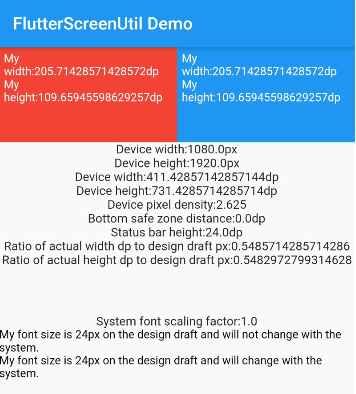
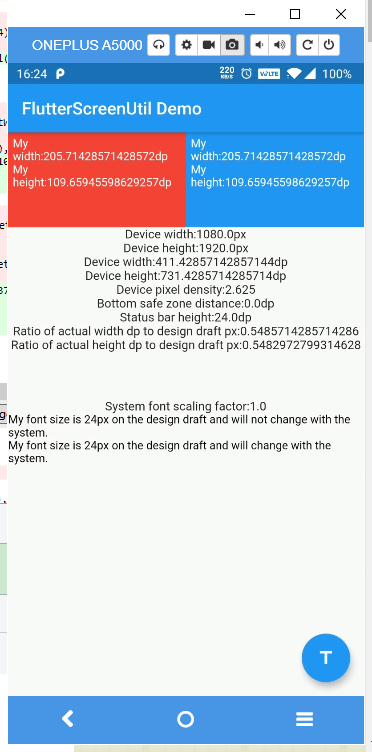
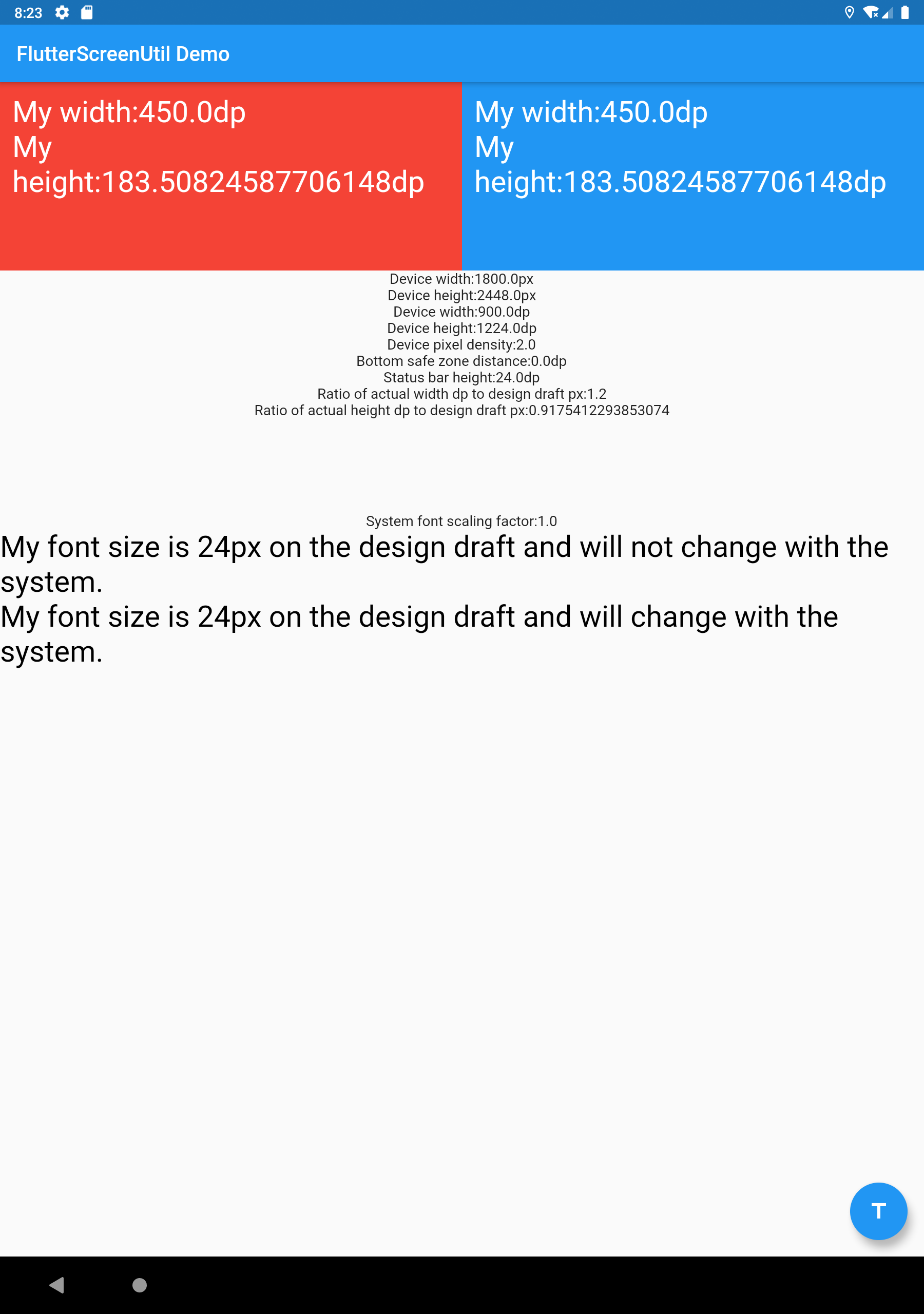
flutter_screenutil은 다양한 기기 모델의 화면 크기와 글꼴 크기를 자동으로 조정하여 반응형 UI 개발을 간소화하도록 설계된 Flutter 플러그인입니다. 화면 크기, 밀도 또는 방향에 관계없이 일관된 레이아웃과 타이포그래피를 보장합니다. 논리적 픽셀과 스케일링 요소를 사용하여 어떤 기기에서도 선명하고 적절한 비율로 보이는 디자인을 만드는 신뢰할 수 있는 방법을 제공합니다. 이 패키지는 Android, iOS, Web, macOS, Windows, Linux 등 모든 주요 플랫폼을 지원하며, 정확한 시각적 일관성을 필요로 하는 크로스플랫폼 애플리케이션에 이상적입니다.
사용 사례
크로스 플랫폼 앱 개발
다양한 화면 크기에서 반응형 레이아웃
장치 간 일관된 글꼴 크기 조정
다른 장치 밀도에 적응하는 디자인
다양한 하드웨어에서 피크셀 정밀도의 UI 만들기
다기기 앱에서 디자인의 일관성 유지
주요 기능
자동 화면 및 폰트 스케일링
모든 플러터 플랫폼 지원
유연한 구성 옵션
픽셀 정밀도 반응성
iPhone 12 기반 내장 설계 참조
기존 Flutter 프로젝트와의 간편한 통합
적합한 대상
반응형 Flutter 앱을 개발하는 개발자
디자인 일관성을 우선시하는 팀
여러 장치 유형을 대상으로 하는 프로젝트
정밀한 UI 적응이 필요한 앱
시각적 정확도에 집중하는 프론트엔드 개발자
개발자와 협업하는 UX 디자이너
고려 사항
설계 참조 값과 함께 초기 설정이 필요합니다
복잡한 사용자 정의 레이아웃에 대한 조정이 필요할 수 있습니다
실제 장치에서 철저한 테스트를 대체할 수 없습니다
정의된 디자인 시스템과 함께 사용할 때 가장 효과적입니다
스케일링에 제한됨; 동적 콘텐츠 레이아웃을 처리하지 않음
과도한 중첩 위젯 사용 시 성능에 미치는 영향
원본 README
연결된 소스 저장소의 README 원문 스냅샷입니다. 최신 내용은 저장소에서 확인하세요.
flutter_screenutil
A flutter plugin for adapting screen and font size.Let your UI display a reasonable layout on different screen sizes!
Note: This plugin is still under development, and some APIs might not be available yet.
List/Set of widget names that should be excluded from rebuilding tree.
enableScaleWH
Function
null
Support enable scale width and height.
enableScaleText
Function
null
Support enable scale text.
Note : You must either provide builder, child or both.
Rebuild list
Starting from version 5.9.0, ScreenUtilInit won't rebuild the whole widget tree, instead it will mark widget needs build only if:
Widget is not a flutter widget (widgets are available in Flutter Docs)
Widget does not start with underscore (_)
Widget does not declare SU mixin
responsiveWidgets does not contains widget name
If you have a widget that uses the library and doesn't meet these options you can either add SU mixin or add widget name in responsiveWidgets list.
Initialize and set the fit size and font size to scale according to the system's "font size" accessibility option
Please set the size of the design draft before use, the width and height of the design draft.
The first way (You should use it once in your app)
voidmain() => runApp(MyApp());
classMyAppextendsStatelessWidget{
constMyApp({Key? key}) : super(key: key);
@overrideWidgetbuild(BuildContext context) {
//Set the fit size (Find your UI design, look at the dimensions of the device screen and fill it in,unit in dp)returnScreenUtilInit(
designSize: constSize(360, 690),
minTextAdapt: true,
splitScreenMode: true,
// Use builder only if you need to use library outside ScreenUtilInit context
builder: (_ , child) {
returnMaterialApp(
debugShowCheckedModeBanner: false,
title: 'First Method',
// You can use the library anywhere in the app even in theme
theme: ThemeData(
primarySwatch: Colors.blue,
textTheme: Typography.englishLike2018.apply(fontSizeFactor: 1.sp),
),
home: child,
);
},
child: constHomePage(title: 'First Method'),
);
}
}
The second way:You need a trick to support font adaptation in the textTheme of app theme
Hybrid development uses the second way
not support this:
MaterialApp(
  ...
  //To support the following, you need to use the first initialization method
  theme: ThemeData(
    textTheme: TextTheme(
      button: TextStyle(fontSize: 45.sp)
    ),
  ),
)
classMyAppextendsStatelessWidget{
@overrideWidgetbuild(BuildContext context) {
returnMaterialApp(
debugShowCheckedModeBanner: false,
title: 'Flutter_ScreenUtil',
theme: ThemeData(
primarySwatch: Colors.blue,
),
home: HomePage(title: 'FlutterScreenUtil Demo'),
);
}
}
classHomePageextendsStatefulWidget{
constHomePage({Key key, this.title}) : super(key: key);
finalString title;
@override_HomePageStatecreateState() => _HomePageState();
}
class_HomePageStateextendsState<HomePage> {
@overrideWidgetbuild(BuildContext context) {
//Set the fit size (fill in the screen size of the device in the design) //If the design is based on the size of the 360*690(dp)ScreenUtil.init(context, designSize: constSize(360, 690));
...
}
}
Note: calling ScreenUtil.init second time, any non-provided parameter will not be replaced with default value. Use ScreenUtil.configure instead
ScreenUtil().setWidth(540) (dart sdk>=2.6 : 540.w) //Adapted to screen widthScreenUtil().setHeight(200) (dart sdk>=2.6 : 200.h) //Adapted to screen height , under normal circumstances, the height still uses x.wScreenUtil().radius(200) (dart sdk>=2.6 : 200.r) //Adapt according to the smaller of width or heightScreenUtil().setSp(24) (dart sdk>=2.6 : 24.sp) //Adapter font12.sm //return min(12,12.sp)ScreenUtil().pixelRatio //Device pixel densityScreenUtil().screenWidth (dart sdk>=2.6 : 1.sw) //Device widthScreenUtil().screenHeight (dart sdk>=2.6 : 1.sh) //Device heightScreenUtil().bottomBarHeight //Bottom safe zone distance, suitable for buttons with full screenScreenUtil().statusBarHeight //Status bar height , Notch will be higherScreenUtil().textScaleFactor //System font scaling factorScreenUtil().scaleWidth //The ratio of actual width to UI designScreenUtil().scaleHeight //The ratio of actual height to UI designScreenUtil().orientation //Screen orientation0.2.sw //0.2 times the screen width0.5.sh //50% of screen height20.setVerticalSpacing // SizedBox(height: 20 * scaleHeight)20.horizontalSpace // SizedBox(height: 20 * scaleWidth)constRPadding.all(8) // Padding.all(8.r) - take advantage of const key wordEdgeInsets.all(10).w //EdgeInsets.all(10.w)REdgeInsets.all(8) // EdgeInsets.all(8.r)EdgeInsets.only(left:8,right:8).r // EdgeInsets.only(left:8.r,right:8.r).BoxConstraints(maxWidth: 100, minHeight: 100).w //BoxConstraints(maxWidth: 100.w, minHeight: 100.w)Radius.circular(16).w //Radius.circular(16.w)BorderRadius.all(Radius.circular(16)).w
Adapt screen size
Pass the dp size of the design draft((The unit is the same as the unit at initialization)):
Adapted to screen width: ScreenUtil().setWidth(540),
Adapted to screen height: ScreenUtil().setHeight(200), In general, the height is best to adapt to the width
If your dart sdk>=2.6, you can use extension functions:
The height can also use setWidth to ensure that it is not deformed(when you want a square)
The setHeight method is mainly to adapt to the height, which is used when you want to control the height of a screen on the UI to be the same as the actual display.
Generally speaking, 50.w!=50.h.
//for example://If you want to display a rectangle:Container(
width: 375.w,
height: 375.h,
),
//If you want to display a square based on width:Container(
width: 300.w,
height: 300.w,
),
//If you want to display a square based on height:Container(
width: 300.h,
height: 300.h,
),
//If you want to display a square based on minimum(height, width):Container(
width: 300.r,
height: 300.r,
),
Adapter font
//Incoming font size(The unit is the same as the unit at initialization)ScreenUtil().setSp(28)
28.sp
//for example:Column(
crossAxisAlignment: CrossAxisAlignment.start,
children: <Widget>[
Text(
'16sp, will not change with the system.',
style: TextStyle(
color: Colors.black,
fontSize: 16.sp,
),
textScaleFactor: 1.0,
),
Text(
'16sp,if data is not set in MediaQuery,my font size will change with the system.',
style: TextStyle(
color: Colors.black,
fontSize: 16.sp,
),
),
],
)
Setting font does not change with system font size
APP global:
MaterialApp(
debugShowCheckedModeBanner: false,
title: 'Flutter_ScreenUtil',
theme: ThemeData(
primarySwatch: Colors.blue,
),
builder: (context, widget) {
returnMediaQuery(
///Setting font does not change with system font size
data: MediaQuery.of(context).copyWith(textScaleFactor: 1.0),
child: widget,
);
},
home: HomePage(title: 'FlutterScreenUtil Demo'),
),
Specified Text:
Text("text", textScaleFactor: 1.0)
Specified Widget:
MediaQuery(
  // If there is no context available you can wrap [MediaQuery] with [Builder]
  data: MediaQuery.of(context).copyWith(textScaleFactor: 1.0),
  child: AnyWidget(),
)
In version 5.9.0, to ensure compatibility and proper functioning of your tests, it is crucial to use the method tester.pumpAndSettle(); when conducting widget tests that depend on animations or a settling time to complete their state.
In the previous version, this step was not strictly necessary. However, to maintain consistency in your tests and avoid unexpected errors, it's strongly recommended incorporating await tester.pumpAndSettle(); in your widget tests if you are using version 5.9.0
Example usage:
testWidgets('Should ensure widgets settle correctly', (WidgetTester tester) async {
await tester.pumpWidget(
constMaterialApp(
home: ScreenUtilInit(
child: MyApp(),
),
),
);
// Insertion of recommended method to prevent failuresawait tester.pumpAndSettle();
// Continue with your assertions and tests
});