搜索插件、代码仓与 APP 分类

flutter_earth_globe 封面
插件详情v2.2.1

flutter_earth_globe

一个用纯 Dart 编写的可交互且完全可自定义的 3D 地球仪控件。

AndroidiOSWebmacOSWindowsLinux
近 30 天下载
3580
喜欢数
87
Pub 分数
150

安装插件

flutter pub add flutter_earth_globe

插件介绍

基于插件公开信息、社区数据与项目使用情况整理的选型参考。

一个完全可定制的3D交互式地球仪小部件,完全使用Dart构建,使开发者能够在多个平台上显示和操作逼真的地球模型。该包支持平滑旋转、缩放和触摸交互,非常适合地理可视化、教育应用或数据仪表板。它利用纯Dart实现跨平台兼容性,无需原生依赖。地球仪可以使用自定义纹理、光照和动画进行样式设置,为创意实现提供灵活性。

适合场景

  • 地理数据可视化
  • 教育类应用程序
  • 交互式地图
  • 旅行和旅游应用
  • 环境监测仪表板

主要特点

  • 纯 Dart 实现
  • 跨平台支持
  • 可自定义的材质和光照
  • 流畅的基于触摸的交互
  • 逼真的3D地球渲染
  • 可配置的旋转和缩放

适合对象

  • 开发交互式地理工具的开发者
  • 教育工作者创建视觉学习体验
  • 需要沉浸式3D地球显示的应用程序
  • 使用单一代码库针对多个平台的团队

使用建议

  • 对低端设备的更高性能需求
  • 限于类地球球形模型
  • 需要仔细优化以用于网络部署
  • 纹理大小影响内存使用
  • 初始设置可能需要了解3D概念

原始 README

以下为关联源码仓库的 README 原文快照,最新内容请访问源码仓库。

Flutter Earth Globe

Overview

Flutter Earth Globe is an interactive 3D sphere widget for Flutter applications. This widget is designed to be easy to use and highly customizable, making it ideal for any application that requires a visually appealing representation of a planet.

Why Flutter Earth Globe?
  • 🎨 Fully Customizable - Every aspect of the globe can be styled: colors, textures, atmosphere, points, connections, satellites, and more
  • 🚀 GPU-Accelerated - Leverages fragment shaders for smooth, high-performance rendering
  • 🌍 Feature-Rich - Day/night cycles, atmospheric effects, orbital satellites, animated connections
  • 📱 Cross-Platform - Works on iOS, Android, Web, and Desktop
  • 🔧 Flexible API - Simple defaults with deep customization options when you need them

This package was inspired by Globe.GL and Sphere.

Table of Contents

Live Demo

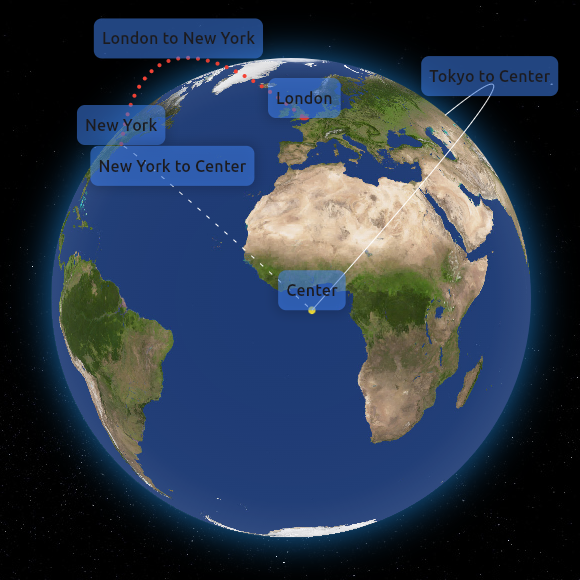
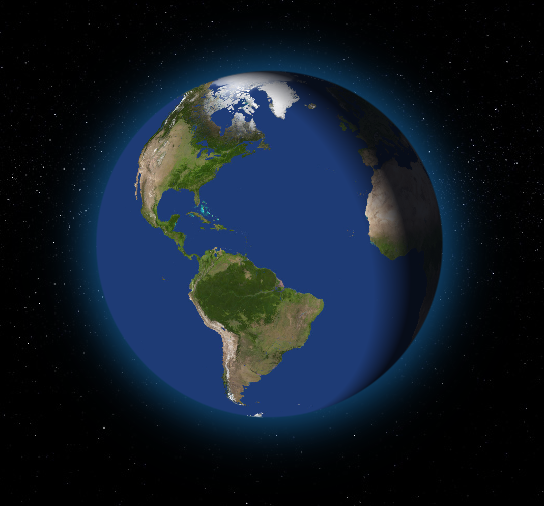
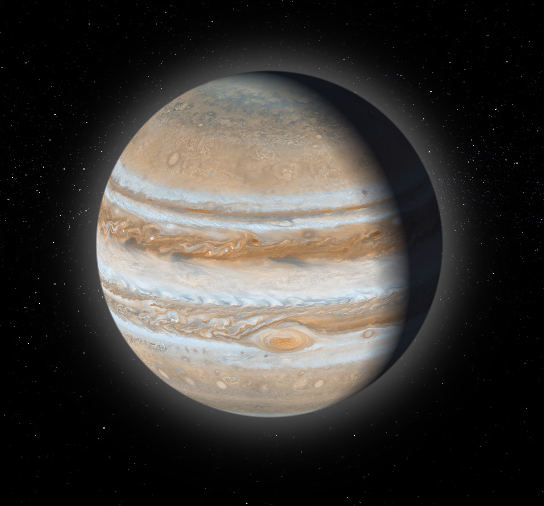
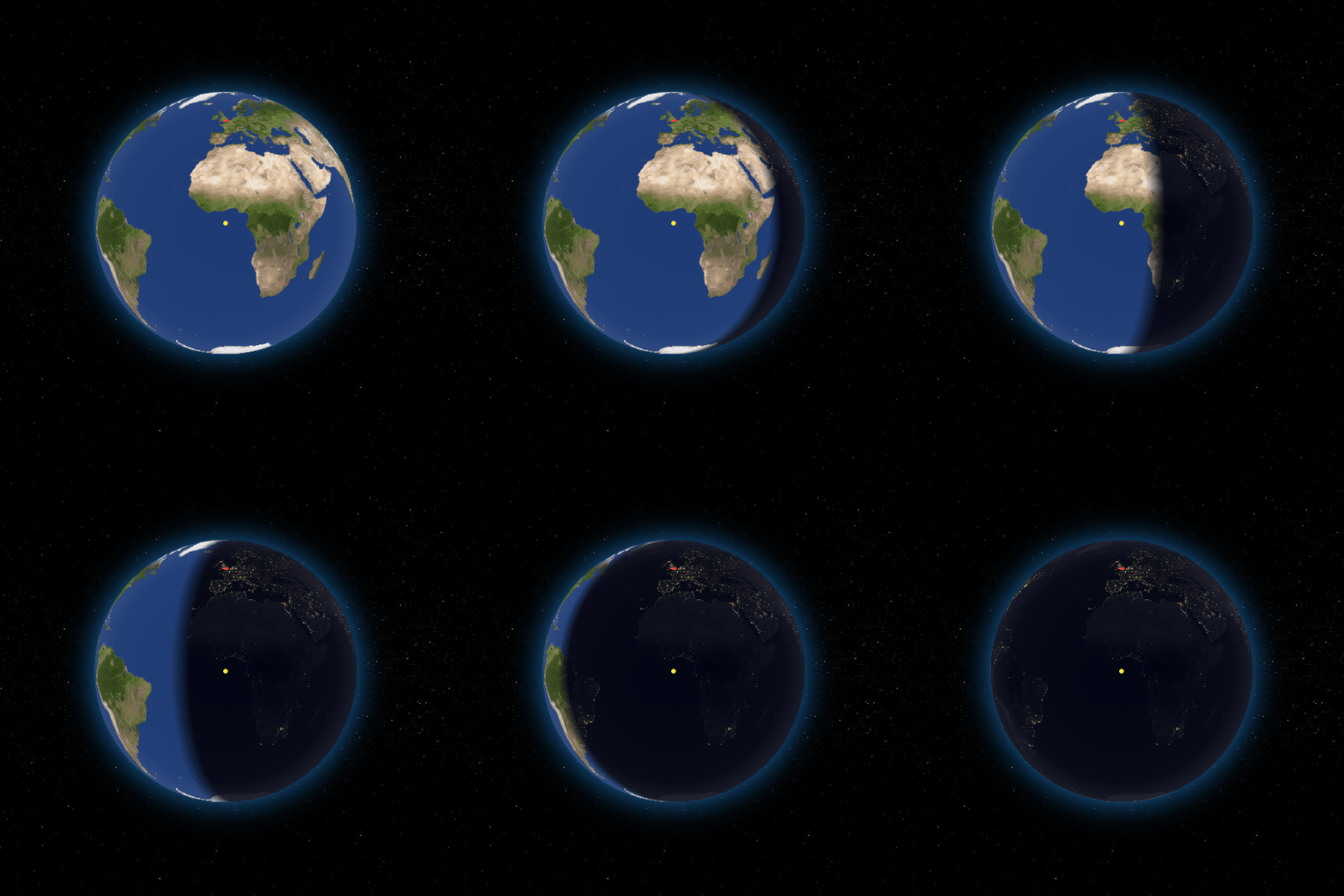
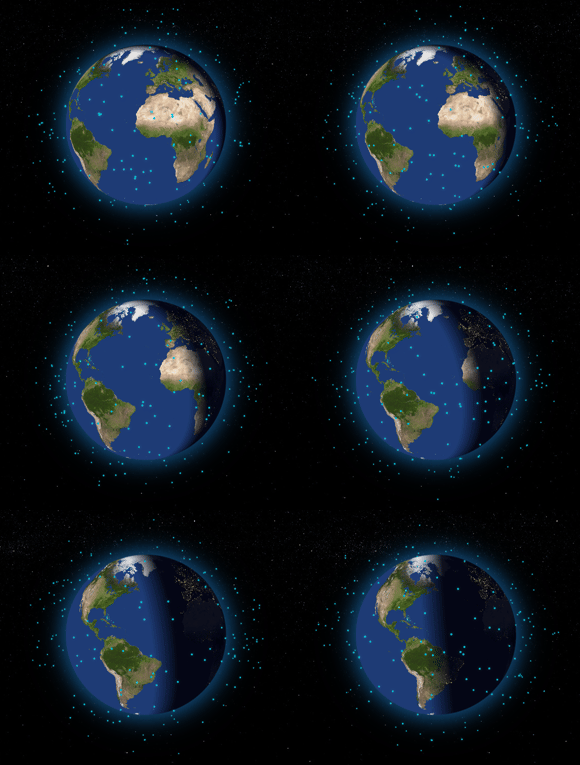
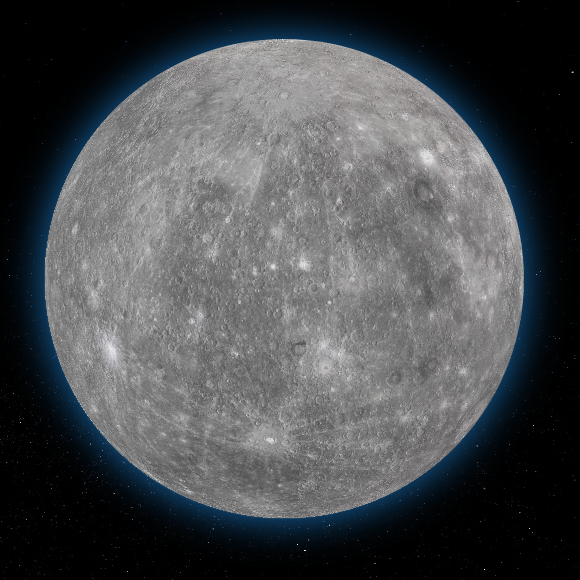
image Day/Night Cycle image Day/Night Cycle Animation Satellites with Day/Night Cycle image image

Features

  • 3D Interactive Globe: A realistic and interactive 3D model of the Earth with GPU-accelerated rendering.
  • Customizable Appearance: Options to customize the appearance of the globe including colors, textures, and more.
  • Zoom and Rotation: Users can interact with the globe through zoom and rotation gestures with smooth animations.
  • Point Support: Ability to place customizable points on the globe with 3D tilt effects.
  • Connections Support: Ability to create animated arc connections between different coordinates.
  • Satellites Support: Add orbiting satellites with customizable styles and orbital parameters.
  • Custom Labels Support: Ability to create custom widget labels for a point, connection, or satellite.
  • Day/Night Cycle: Realistic day/night cycle with two modes - texture swap for detailed night textures or simulated overlay for quick setup.
  • Customizable Atmosphere: Fully configurable atmospheric glow with adjustable color, intensity, opacity, and thickness.
  • Ring Light Effect: Directional lighting around the globe for enhanced 3D depth perception.
  • Responsive Design: Ensures compatibility with a wide range of devices and screen sizes.
  • Smooth Anti-aliased Edges: High-quality rendering with smooth globe edges.

Installation

To install Flutter Earth Globe, follow these steps:

  1. Add the package to your Flutter project's pubspec.yaml file:

    dependencies:
      flutter_earth_globe: ^2.1.0
    

    or just run

     flutter pub add flutter_earth_globe
    
  2. Import the package in your Dart code:

    import 'package:flutter_earth_globe/flutter_earth_globe.dart';
    
Web Build Requirements

⚠️ Important: When building or running for web, you must use the --wasm flag for the shaders to work correctly. Without this flag, you may experience rendering issues or strange visual behavior.

# Run for web with WASM
flutter run -d chrome --wasm

# Build for web with WASM
flutter build web --wasm

Quick Start

Here is a basic example of how to integrate the Flutter Earth Globe into your Flutter app:

import 'package:flutter/material.dart';
import 'package:flutter_earth_globe/flutter_earth_globe.dart';
import 'package:flutter_earth_globe/flutter_earth_globe_controller.dart';

class MyGlobe extends StatefulWidget {
  @override
  _MyGlobeState createState() => _MyGlobeState();
}

class _MyGlobeState extends State<MyGlobe> {
  late FlutterEarthGlobeController _controller;

  @override
  void initState() {
    super.initState();
    _controller = FlutterEarthGlobeController(
      rotationSpeed: 0.05,
      isBackgroundFollowingSphereRotation: true,
      background: Image.asset('assets/2k_stars.jpg').image,
      surface: Image.asset('assets/2k_earth-day.jpg').image,
    );
  }

  @override
  Widget build(BuildContext context) {
    return Scaffold(
      body: SafeArea(
        child: FlutterEarthGlobe(
          controller: _controller,
          radius: 120,
        ),
      ),
    );
  }
}

Adding Objects to the Globe

Flutter Earth Globe supports multiple types of objects that can be placed on or around the globe:

Points

Points are markers placed on the globe's surface at specific coordinates.

_controller.addPoint(Point(
  id: '1',
  coordinates: const GlobeCoordinates(51.5072, 0.1276),
  label: 'London',
  isLabelVisible: true,
  style: const PointStyle(color: Colors.red, size: 6),
  onTap: () => print('London tapped!'),
  onHover: () => print('Hovering over London'),
));
📖 Point API Reference
Point Properties
Property Type Required Description
id String ✅ Unique identifier for the point
coordinates GlobeCoordinates ✅ Latitude and longitude position
label String? ❌ Text label displayed near the point
labelBuilder Widget Function()? ❌ Custom widget builder for the label
isLabelVisible bool ❌ Whether to show the label (default: false)
style PointStyle ❌ Visual style of the point
onTap VoidCallback? ❌ Callback when point is tapped
onHover VoidCallback? ❌ Callback when point is hovered
PointStyle Properties
Property Type Default Description
size double 4.0 Size of the point in pixels
color Color white Color of the point
altitude double 0.0 Height above the globe surface
transitionDuration int 500 Fade in/out animation duration (ms)
merge bool false Whether to merge with nearby points
Point Controller Methods
// Add a point
_controller.addPoint(point);

// Update an existing point
_controller.updatePoint('point-id', label: 'New Label', style: newStyle);

// Remove a point
_controller.removePoint('point-id');

// Clear all points
_controller.clearPoints();

// Get a point by ID
Point? point = _controller.getPoint('point-id');

Connections

Connections are animated arcs between two coordinates on the globe.

_controller.addPointConnection(PointConnection(
  id: 'connection-1',
  start: const GlobeCoordinates(51.5072, 0.1276),    // London
  end: const GlobeCoordinates(40.7128, -74.0060),    // New York
  label: 'London - New York',
  isLabelVisible: true,
  style: PointConnectionStyle(
    type: PointConnectionType.dashed,
    color: Colors.cyan,
    lineWidth: 2,
    dashAnimateTime: 2000,
    animateOnAdd: true,
  ),
));
📖 Connection API Reference
PointConnection Properties
Property Type Required Description
id String ✅ Unique identifier for the connection
start GlobeCoordinates ✅ Starting coordinates
end GlobeCoordinates ✅ Ending coordinates
label String? ❌ Text label displayed at the midpoint
labelBuilder Widget Function()? ❌ Custom widget builder for the label
isLabelVisible bool ❌ Whether to show the label (default: false)
curveScale double ❌ Height of the arc curve (default: 0.5)
style PointConnectionStyle ❌ Visual style of the connection
onTap VoidCallback? ❌ Callback when connection is tapped
onHover VoidCallback? ❌ Callback when connection is hovered
PointConnectionStyle Properties
Property Type Default Description
type PointConnectionType solid Line type: solid, dashed, or dotted
color Color white Color of the connection line
lineWidth double 1.0 Width of solid lines
dashSize double 4.0 Length of dashes
dotSize double 1.0 Size of dots
spacing double 8.0 Space between dashes/dots
dashAnimateTime int 0 Time (ms) for dash to travel the arc (0 = disabled)
transitionDuration int 500 Fade in/out duration (ms)
animateOnAdd bool true Animate arc growth when added
growthAnimationDuration int 1000 Arc growth animation duration (ms)
Connection Types
// Solid line
PointConnectionStyle(type: PointConnectionType.solid)

// Dashed line with animation
PointConnectionStyle(
  type: PointConnectionType.dashed,
  dashSize: 4,
  spacing: 6,
  dashAnimateTime: 2000,
)

// Dotted line
PointConnectionStyle(
  type: PointConnectionType.dotted,
  dotSize: 2,
  spacing: 4,
)
Connection Controller Methods
// Add a connection
_controller.addPointConnection(connection);

// Update an existing connection
_controller.updatePointConnection('connection-id', 
  label: 'New Label',
  style: newStyle,
);

// Remove a connection
_controller.removePointConnection('connection-id');

// Clear all connections
_controller.clearPointConnections();

Satellites

Satellites are objects that orbit around the globe with customizable orbital parameters.

// Geostationary satellite
_controller.addSatellite(Satellite(
  id: 'geo-sat-1',
  coordinates: GlobeCoordinates(0, -75.2),
  altitude: 0.35,
  label: 'GOES-16',
  isLabelVisible: true,
  style: SatelliteStyle(
    size: 6,
    color: Colors.yellow,
    shape: SatelliteShape.circle,
    hasGlow: true,
  ),
));

// Orbiting satellite (ISS-like)
_controller.addSatellite(Satellite(
  id: 'iss',
  coordinates: GlobeCoordinates(0, 0),
  altitude: 0.06,
  label: 'ISS',
  orbit: SatelliteOrbit(
    inclination: 51.6,
    period: Duration(seconds: 30),
  ),
  style: SatelliteStyle(
    size: 8,
    shape: SatelliteShape.satelliteIcon,
    showOrbitPath: true,
  ),
));
📖 Satellite API Reference
Satellite Properties
Property Type Required Description
id String ✅ Unique identifier for the satellite
coordinates GlobeCoordinates ✅ Position (used if no orbit defined)
altitude double ✅ Height above globe surface (0.0 - 1.0+)
label String? ❌ Text label for the satellite
labelBuilder Widget Function()? ❌ Custom widget builder for the label
isLabelVisible bool ❌ Whether to show the label (default: false)
orbit SatelliteOrbit? ❌ Orbital parameters for animation
style SatelliteStyle ❌ Visual style of the satellite
SatelliteStyle Properties
Property Type Default Description
size double 4.0 Size of the satellite
color Color white Color of the satellite
shape SatelliteShape circle Shape: circle, square, triangle, star, satelliteIcon
hasGlow bool false Enable glow effect
glowColor Color? null Color of the glow (defaults to satellite color)
glowIntensity double 0.5 Intensity of the glow effect
sizeAttenuation bool true Scale size based on distance
showOrbitPath bool false Show the orbital path
orbitPathColor Color white30 Color of the orbit path
orbitPathWidth double 1.0 Width of the orbit path
orbitPathDashed bool false Use dashed line for orbit path
SatelliteOrbit Properties
Property Type Default Description
inclination double 0.0 Orbital inclination in degrees
period Duration 90 min Time for one complete orbit
raan double 0.0 Right ascension of ascending node
initialPhase double 0.0 Starting phase in degrees
eccentricity double 0.0 Orbital eccentricity (0 = circular)
Satellite Controller Methods
// Add a satellite
_controller.addSatellite(satellite);

// Update an existing satellite
_controller.updateSatellite('satellite-id',
  label: 'New Label',
  style: newStyle,
);

// Remove a satellite
_controller.removeSatellite('satellite-id');

// Clear all satellites
_controller.clearSatellites();

Globe Configuration

Loading Textures
// Load surface texture
_controller.loadSurface(Image.asset('assets/2k_earth-day.jpg').image);

// Load night texture (for day/night cycle)
_controller.loadNightSurface(Image.asset('assets/2k_earth-night.jpg').image);

// Load background
_controller.loadBackground(
  Image.asset('assets/2k_stars.jpg').image,
  isBackgroundFollowingSphereRotation: true,
);
Day/Night Cycle

Flutter Earth Globe supports two day/night modes:

Texture Swap Mode (Default)

Uses separate day and night textures for maximum visual quality:

final _controller = FlutterEarthGlobeController(
  surface: Image.asset('assets/2k_earth-day.jpg').image,
  nightSurface: Image.asset('assets/2k_earth-night.jpg').image,
  isDayNightCycleEnabled: true,
  dayNightMode: DayNightMode.textureSwap,
  dayNightBlendFactor: 0.15,
);
Simulated Mode

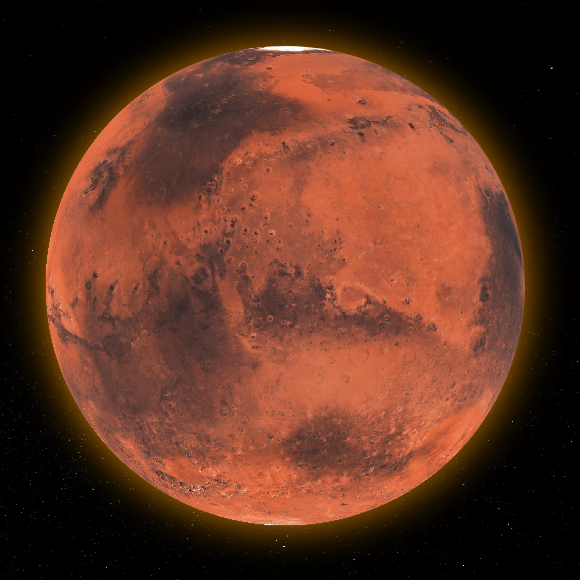
Applies a color overlay to simulate night without needing a separate texture - perfect for planets without a dedicated night texture:

final _controller = FlutterEarthGlobeController(
  surface: Image.asset('assets/2k_mars.jpg').image,
  isDayNightCycleEnabled: true,
  dayNightMode: DayNightMode.simulated,
  simulatedNightColor: const Color(0xFF0a1628),  // Deep blue night
  simulatedNightIntensity: 0.7,  // 0.0 - 1.0
);
Day/Night Controls
// Start animated cycle
_controller.startDayNightCycle(cycleDuration: Duration(seconds: 30));

// Stop animation
_controller.stopDayNightCycle();

// Manual sun position
_controller.setSunPosition(longitude: 45.0, latitude: 10.0);

// Use real-time sun position
_controller.setUseRealTimeSunPosition(true);

// Switch modes at runtime
_controller.setDayNightMode(DayNightMode.simulated);
_controller.setSimulatedNightColor(Colors.indigo.shade900);
_controller.setSimulatedNightIntensity(0.8);
Atmosphere Customization

The atmospheric glow is fully customizable:

final _controller = FlutterEarthGlobeController(
  // Atmosphere settings
  showAtmosphere: true,
  atmosphereColor: Colors.cyan,        // Glow color
  atmosphereOpacity: 0.8,              // 0.0 - 1.0
  atmosphereThickness: 0.15,           // Relative to globe radius
  atmosphereBlur: 25.0,                // Blur radius
);

// Update at runtime
_controller.setAtmosphereColor(Colors.orange);  // Mars-like atmosphere
_controller.setAtmosphereOpacity(0.6);

Tip: Match the atmosphere color to your planet's texture for a cohesive look - blue for Earth, orange for Mars, pale yellow for Venus.

Sphere Style
_controller.setSphereStyle(SphereStyle(
  shadowColor: Colors.orange.withAlpha(204),
  shadowBlurSigma: 20,
));
📖 Controller API Reference
FlutterEarthGlobeController Constructor
Property Type Default Description
surface ImageProvider? null Day surface texture
nightSurface ImageProvider? null Night surface texture
background ImageProvider? null Background texture
rotationSpeed double 0.0 Auto-rotation speed
zoom double 0.0 Initial zoom level
minZoom double -1.0 Minimum zoom level
maxZoom double 5.0 Maximum zoom level
isZoomEnabled bool true Enable zoom gestures
zoomSensitivity double 0.8 Zoom gesture sensitivity
panSensitivity double 1.0 Pan gesture sensitivity
showAtmosphere bool true Show atmospheric glow
atmosphereColor Color blue Atmosphere glow color
atmosphereBlur double 25.0 Atmosphere blur radius
atmosphereThickness double 0.15 Atmosphere thickness
atmosphereOpacity double 0.6 Atmosphere opacity
isDayNightCycleEnabled bool false Enable day/night cycle
dayNightMode DayNightMode textureSwap Mode: textureSwap or simulated
dayNightBlendFactor double 0.15 Day/night transition sharpness
simulatedNightColor Color dark blue Overlay color for simulated mode
simulatedNightIntensity double 0.6 Overlay intensity (0.0 - 1.0)
useRealTimeSunPosition bool false Calculate sun from real time
Rotation Control
// Start/stop rotation
_controller.startRotation();
_controller.stopRotation();
_controller.toggleRotation();

// Set rotation speed
_controller.setRotationSpeed(0.1);

// Rotate to specific coordinates
_controller.rotateToCoordinates(GlobeCoordinates(lat, lon));

// Set zoom
_controller.setZoom(2.0);
Callbacks
_controller.onLoaded = () {
  print('Globe loaded!');
};

FlutterEarthGlobe(
  controller: _controller,
  radius: 150,
  onZoomChanged: (zoom) => print('Zoom: $zoom'),
  onHover: (coordinates) => print('Hover: $coordinates'),
  onTap: (coordinates) => print('Tap: $coordinates'),
)

Contributors

We would like to thank all the contributors who have helped make this project a success. Your contributions, big or small, make a significant impact on the development and improvement of this project.

If you would like to contribute, please feel free to fork the repository, make your changes, and submit a pull request.

How to Contribute
  1. Fork the Repository: Click the 'Fork' button at the top right corner of this repository.
  2. Clone Your Fork: Clone your fork to your local machine.
  3. Create a Branch: Create a new branch for your modifications (git checkout -b feature/YourFeature).
  4. Make Your Changes: Make the necessary changes to the project.
  5. Commit Your Changes: Commit your changes (git commit -am 'Add some feature').
  6. Push to the Branch: Push your changes to your branch (git push origin feature/YourFeature).
  7. Open a Pull Request: Go to the repository on GitHub and open a pull request.

We are excited to see your contributions and are looking forward to growing this project with the community!

Support the Library

You can also support the library by liking it on pub, staring in on Github and reporting any bugs you encounter.

License

This project is licensed under the MIT License - see the LICENSE file for details.

所属分类

依赖

依赖清单 2 项

源码仓库

使用此插件的项目

暂无相关数据。