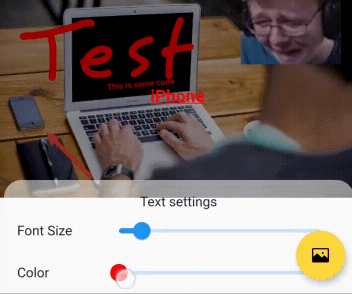
Flutter Painter V2 是一个功能强大的 Flutter 小部件,允许用户在可自定义的背景颜色或图像上绘制涂鸦、书写文字、添加形状以及插入图片。专为交互式绘图和绘画设计,支持实时输入和直观的手势操作,并提供编辑、保存和压缩多媒体内容的工具。适用于需要创意标注、签名捕获或数字素描的应用程序,可在 Android、iOS、Web、macOS、Windows 和 Linux 平台上无缝运行。
适合场景
数字签名捕获
互动白板应用程序
创意素描工具
图像注释和标记
教育类绘画应用
协作式设计界面
主要特点
手绘自由涂鸦
添加文本注释
插入几何形状
在画布上叠加图像
支持多个平台
导出并压缩图纸
适合对象
应用开发者构建绘图功能
教育工作者创建互动学习工具
需要注释功能的设计人员
需要用户生成内容的应用程序
移动和基于网络的创意应用
表单和文件中的签名收集
使用建议
性能可能因复杂图层而异
高分辨率导出需要足够的内存
有限的内置导出格式
无原生撤销/重做历史
需要手动处理状态持久化
可能需要对大画布进行优化
原始 README
以下为关联源码仓库的 README 原文快照,最新内容请访问源码仓库。
Flutter Painter 🎨🖌️
A pure-Flutter package for painting.
Summary
Flutter Painter provides you with a widget that can be used to draw on it. Right now, it supports:
Free-style drawing: Scribble anything you want with any width and color.
Objects that you can move, scale and rotate in an easy and familiar way, such as:
Text with any TextStyle.
Shapes such as lines, arrows, ovals and rectangles with any Paint.
Images that can be flipped.
Free-style eraser to erase any part of a drawing or object you don't want on the painter.*
These are called drawables.
You can use a color or an image for the background of your drawing, and export your painting as an image.
Example
You can check out the example tab for an example on how to use the package.
The example is hosted here if you want to try it out yourself!
A video recording showing the example running:
Usage
First, you'll need a PainterController object. The PainterController controls the different drawables, the background you're drawing on and provides the FlutterPainter widget with the settings it needs. Then, in your UI, use the FlutterPainter widget with the controller assigned to it.
You can also use the FlutterPainter.builder constructor, which uses a builder method that automatically updates whenever a change happens in the controller, without using setState, callbacks, or listeners. However, this will perform worse than a StatefulWidget since it will rebuild more often, so it is recommended to use if the widget tree that depends on PainterController is simple.
NOTE:FlutterPainter does not define its own constraints on its size, so it is advised to use a widget that can provide its child with size constraints, such as SizedBox or AspectRatio (more on constraints here).
NOTE: If mutiple parts of your UI depend on the PainterController, you can use a ValueListeneableBuilder with the valueListenable being your controller, which will re-build automatically whenever the controller updates. This is the approach used in the example project.
Callbacks
FlutterPainter has some helpful callbacks that are called when internal changes happen in the widget itself.
onDrawableCreated: Called when a drawable is created from FlutterPainter. Passes the drawable as an arugment.
onDrawableDeleted: Called when a drawable is deleted from FlutterPainter. Passes the drawable as an arugment.
onSelectedObjectDrawableChanged: Called when the selected object drawable changes. This can be useful if you want to display some UI to edit the object's properties. Passes the selected object drawable as an argument.
If the drawable is updated (moved, for example), the passed drawable will become invalid. Make sure to use PainterController.selectedObjectDrawable to get the up-to-date value of the selected drawable.
onPainterSettingsChanged: Called when the settings of PainterController are changed from FlutterPainter itself. Passes the new settings as an argument.
PainterController
The PainterController is the heart of the operation of Flutter Painter. It controls the settings for FlutterPainter, its background, and all of its drawables, and the selected object drawable.
All setters on PainterController directly notify your FlutterPainter to respond and repaint. If you're using FlutterPainter.builder, the builder is automatically called to build the widget tree. If not, make sure to use setState and listen to the callbacks
NOTE: If you are using multiple painters, make sure that each FlutterPainter widget has its own PainterController, do not use the same controller for multiple painters.
Settings
There are currently three types of settings:
freeStyleSettings: They control the parameters used in drawing scribbles, such as the width and color. It also has a field to enable/disable scribbles, to prevent the user from drawing on the FlutterPainter.
textSettings: They mainly control the TextStyle of the text being drawn. It also has a focus node field (more on focus nodes here) to allow you to detect when the user starts and stops editing text.
objectSettings: These settings control objects that can be moved, scaled and rotated. Texts, shapes and images are all considered objects. It controls layout assist, which allows to center objects and rotate them at a right angle, and settings regarding the object controls for scaling, rotating and resizing.
shapeSettings: These control the paint and shape factory used (Shape Factory is used to create shapes), and whether the shape is drawn once or continiously.
scaleSettings: These settings control the scaling on the painter (zooming in/out). By default, scaling is disabled.
You can provide initial settings for the things you want to draw through the settings parameter in the constructor of the PainterController.
Each setting and sub-setting has extension setters and getters which you can use to read and modify the value of that setting.*
For example, this is how you would modify the stroke width of free-style drawings:
NOTE: If you're not using the extensions library, note that all of the settings objects are immutable and cannot be modified, so in order to change some settings, you'll have to create a copy of your current settings and apply the changes you need (this is similar to how you would copy ThemeData).
Background
You can also provide a background for the FlutterPainter widget from the controller. You can either use a color or an image as a background.
In order to use a color, you can simply call the backgroundDrawable extension getter on any color.*
voidsetBackground(){
// Sets the background to the color black
controller.background = Colors.black.backgroundDrawable;
}
In order to use an image, you will need an Image object from the dart library dart:ui. Since Flutter has an Image widget from the Material package, we'll refer to the image type we need as ui.Image.
import'dart:ui'as ui;
ui.Image? myImage;
In order to get the ui.Image object from usual image sources (file, asset, network), you can use an ImageProvider with the image extension getter (Examples of ImageProvider: FileImage, MemoryImage, NetworkImage). This getter returns Future<ui.Image>.*
Then, you can use the backgroundDrawable extension getter on the ui.Image.*
voidsetBackground() async {
// Obtains an image from network and creates a [ui.Image] objectfinal ui.Image myImage = awaitNetworkImage('https://picsum.photos/960/720').image;
// Sets the background to the image
controller.background = myImage.backgroundDrawable;
}
The background can also be assigned from the constructor of PainterController directly.
Drawables
All the drawables drawn on FlutterPainter are stored and controller by the PainterController. On most use cases, you won't need to interact with the drawables directly. However, you may add, insert, replace or remove drawables from the code (without the user actually drawing them).
You can assign an initial list of drawables from the PainterController constructor to initialize the controller with them. You can also modify them from the controller, but be careful, use the methods from the PainterController itself and don't modify the drawables list directly.
PainterController also provides the currently-selected ObjectDrawable from the getter field PainterController.selectedObjectDrawable. This value stays up-to-date for any changes from the UI (the user selecting a new object drawable, for example). You can also programatically select and de-select an object drawable, granted it is in the list of drawables of the controller.
The selected object drawable will also be automatically update if it is replaced or removed from the controller.
Rendering Image
From the PainterController, you can render the contents of FlutterPainter as a PNG-encoded ui.Image object. In order to do that, you need to provide the size of the output image. All the drawings will be scaled according to that size.
From the ui.Image object, you can convert it into a raw bytes list (Uint8List) in order to display it with Image.memory or save it as a file.
Flutter Painter supports free-style erasing of drawables. However, whenever you use the erase mode, all object drawables will be locked in place and cannot be modified. This is done because erasing is just another layer, and if objects stayed movable, you'd be able to move from under and around erased areas of the painting, which doesn't make sense. If you un-do the action of using the erase mode, the objects will be unlocked again and you'll be able to move them.
Extensions
Flutter Painter consists of 3 libraries:
flutter_painter_pure, which contains all the APIs of Flutter Painter except for extensions on Flutter and Flutter Painter itself.
flutter_painter_extensions, which contains all the extensions defined and used by Flutter Painter.
flutter_painter which includes both previously mentioned libraries.
This is done so that people who don't want to use the extensions (conflicts, too many getters/setters, etc...) can use the pure library, and for people who only need the extensions to be able to import them alone.
If you're trying to use the extensions and they're showing as undefined, make sure you're importing the correct library.
Flutter Web
The html renderer for Flutter Web is not supported, and using it will cause unexpected behavior and errors (also includes the auto renderer which chooses the renderer depending on the device). If you're using it for Flutter Web, make sure to use --web-renderer canvaskit as an argument for your run/build commands. If you need to use auto or html for any reason (such as better performance), consider using another package.
If anybody is willing to help out the Flutter Web issue or with testing it would be highly appreciated (either contact me through my GitHub or contribute and post a pull request).
Support Me
If you like my work and would like to support me, feel free to do so :D