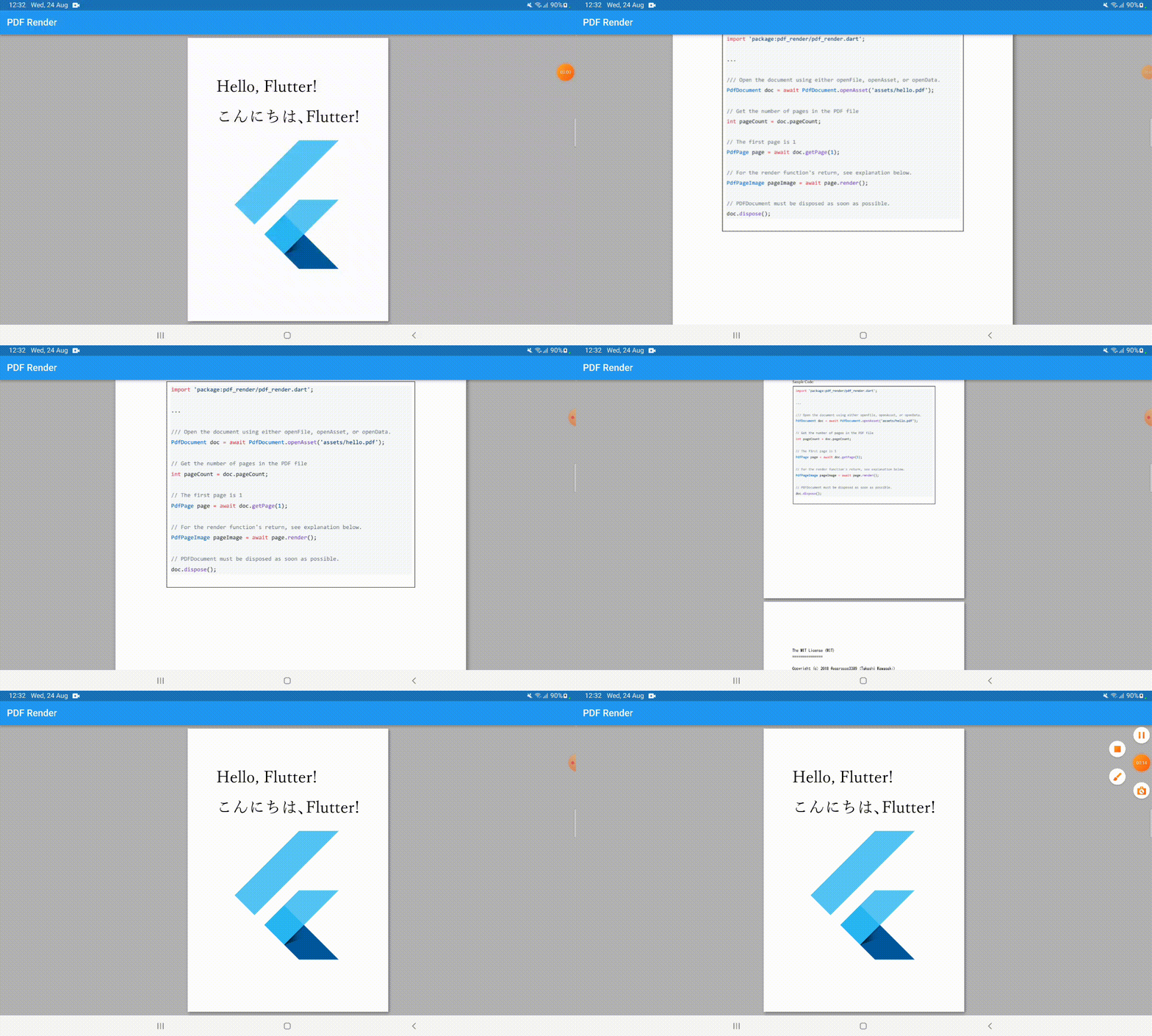
pdf_render 是一个 Flutter 插件,提供中间 PDF 渲染功能以及用于在应用程序中显示 PDF 的直观 Flutter 小部件。它使开发者能够高效地渲染 PDF 页面,支持可定制选项的光栅化和矢量渲染。该包通过提供即用型小部件简化了集成,这些小部件处理布局、缩放和页面导航。专为性能和易用性设计,非常适合需要文档查看功能的应用程序,例如电子书、表单或报告。
适合场景
在应用程序中显示PDF文档
使用自定义样式渲染 PDF
构建文档查看器界面
将PDF集成到移动工作流程中
支持离线文档访问
主要特点
中间渲染API
易于使用的 Flutter 小部件
可自定义的页面渲染
高效的内存使用
支持多种PDF格式
适合对象
文档密集型应用
电子书阅读器
表单和报表查看器
需要PDF显示的移动应用
寻求轻量级PDF解决方案的开发者
使用建议
仅限渲染;不支持编辑
需要仔细处理大型PDF文件
无内置搜索功能
平台特定的渲染行为
可能需要针对复杂布局进行额外优化
原始 README
以下为关联源码仓库的 README 原文快照,最新内容请访问源码仓库。
Notice (2024-01-22)
If you want to move to pdfrx but you have some compatibility issues or any other problems or questions, please feel free to open new discussions on Discussions on pdfrx.
Notice (2023-12-05)
New plugin, named pdfrx, is a better replacement for pdf_render. And pdf_render is now in maintenance mode. No new features are added to pdf_render.
Add this to your package's pubspec.yaml file and execute flutter pub get:
dependencies:pdf_render:^1.4.12
Web
For Web, you should add <script> tags on your index.html:
The plugin utilizes PDF.js to support Flutter Web.
To use the Flutter Web support, you should add the following code just before <script src="main.dart.js" type="application/javascript"></script> inside index.html:
<!-- IMPORTANT: load pdfjs files --><scriptsrc="https://cdn.jsdelivr.net/npm/pdfjs-dist@3.4.120/build/pdf.min.js"type="text/javascript"
></script><scripttype="text/javascript">
pdfjsLib.GlobalWorkerOptions.workerSrc =
"https://cdn.jsdelivr.net/npm/pdfjs-dist@3.4.120/build/pdf.worker.min.js";
pdfRenderOptions = {
// where cmaps are downloaded fromcMapUrl: "https://cdn.jsdelivr.net/npm/pdfjs-dist@3.4.120/cmaps/",
// The cmaps are compressed in the casecMapPacked: true,
// any other options for pdfjsLib.getDocument.// params: {}
};
</script>
You can use any URL that specify PDF.js distribution URL.
cMapUrl indicates cmap files base URL and cMapPacked determines whether the cmap files are compressed or not.
Flutter app restrict its capability by enabling App Sandbox by default. You can change the behavior by editing your app's entitlements files depending on your configuration. See the discussion below.
The easiest option to access files on your disk, set com.apple.security.app-sandbox to false on your entitlements file though it is not recommended for releasing apps because it completely disables App Sandbox.
PdfViewer is an extensible PDF document viewer widget which supports pinch-zoom.
The following fragment is a simplest use of the widget:
@overrideWidgetbuild(BuildContext context) {
returnnewMaterialApp(
home: newScaffold(
appBar: newAppBar(
title: constText('Pdf_render example app'),
),
backgroundColor: Colors.grey,
// You can use either PdfViewer.openFile, PdfViewer.openAsset, or PdfViewer.openData
body: PdfViewer.openAsset(
'assets/hello.pdf',
params: PdfViewerParams(pageNumber: 2), // show the page-2
)
)
);
}
PdfViewer does not support any gestures except panning and pinch-zooming. To support other gestures, you can wrap the widget with GestureDetector as explained above.
typedefBuildPageContentFunc = WidgetFunction(
BuildContext context,
int pageNumber,
Rect pageRect);
The third parameter, pageRect is location of page in viewer's world coordinates.
Single page view
The following fragment illustrates the easiest way to render only one page of a PDF document using PdfDocumentLoader widget. It is suitable for showing PDF thumbnail.
Using PdfDocumentLoader in combination with PdfPageView, you can show multiple pages of a PDF document. In the following fragment, ListView.builder is utilized to realize scrollable PDF document viewer.
The most important role of PdfDocumentLoader is to manage life time of PdfDocument and it disposes the document when the widget tree is going to be disposed.
Both PdfDocumentLoader and PdfPageView accepts pageBuilder parameter if you want to customize the visual of each page.
The following fragment illustrates that:
PdfPageView(
pageNumber: index + 1,
// pageSize is the PDF page size in pt.
pageBuilder: (context, textureBuilder, pageSize) {
//// This illustrates how to decorate the page image with other widgets//returnStack(
alignment: Alignment.bottomCenter,
children: <Widget>[
// the container adds shadow on each pageContainer(
margin: EdgeInsets.all(margin),
padding: EdgeInsets.all(padding),
decoration: BoxDecoration(boxShadow: [
BoxShadow(
color: Colors.black45,
blurRadius: 4,
offset: Offset(2, 2))
]),
// textureBuilder builds the actual page image
child: textureBuilder()),
// adding page number on the bottom of rendered pageText('${index + 1}', style: TextStyle(fontSize: 50))
],
);
},
)
textureBuilder
textureBuilder (PdfPageTextureBuilder) generates the actual widget that directly corresponding to the page image. The actual widget generated may vary upon the situation. But you can of course customize the behavior of the function with its parameter.
So if you want to generate widget of an exact size, you can specify size explicitly.
Please note that the size is in density-independent pixels. The function is responsible for determining the actual pixel size based on device's pixel density.
placeholderBuilder is the final resort that controls the "placeholder" for loading or failure cases.
/// Creates page placeholder that is shown on page loading or even page load failure.typedefPdfPagePlaceholderBuilder = WidgetFunction(Size size, PdfPageStatus status);
/// Page loading status.enumPdfPageStatus {
/// The page is currently being loaded.
loading,
/// The page load failed.
loadFailed,
}
PDF rendering APIs
The following fragment illustrates overall usage of PdfDocument:
import'package:pdf_render/pdf_render.dart';
...
// Open the document using either openFile, openAsset, or openData.// For Web, file name can be relative path from index.html or any arbitrary URL// but affected by CORS.PdfDocument doc = awaitPdfDocument.openAsset('assets/hello.pdf');
// Get the number of pages in the PDF fileint pageCount = doc!.pageCount;
// The first page is 1PdfPage page = await doc!.getPage(1);
// For the render function's return, see explanation belowPdfPageImage pageImage = await page.render();
// Now, you can access pageImage!.pixels for raw RGBA data// ...// Generating dart:ui.Image cache for later use by imageIfAvailableawait pageImage.createImageIfNotAvailable();
// PDFDocument must be disposed as soon as possible.
doc!.dispose();
To embed the image in the widget tree, you can use RawImage:
@overrideWidgetbuild(BuildContext context) {
returnCenter(
child: Container(
padding: EdgeInsets.all(10.0),
color: Colors.grey,
child: Center(
// before using imageIfAvailable, you should call createImageIfNotAvailable
child: RawImage(image: pageImage.imageIfAvailable, fit: BoxFit.contain))
)
);
}
If you just building widget tree, you had better use faster and efficient PdfPageImageTexture.
PdfDocument.openXXX
On PdfDocument class, there are three functions to open PDF from a real file, an asset file, or a memory data.
// from an asset filePdfDocument docFromAsset = awaitPdfDocument.openAsset('assets/hello.pdf');
// from a file// For Web, file name can be relative path from index.html or any arbitrary URL// but affected by CORS.PdfDocument docFromFile = awaitPdfDocument.openFile('/somewhere/in/real/file/system/file.pdf');
// from PDF memory image on Uint8ListPdfDocument docFromData = awaitPdfDocument.openData(data);
classPdfDocument{
/// File path, `asset:[ASSET_PATH]` or `memory:` depending on the content opened.finalString sourceName;
/// Number of pages in the PDF document.finalint pageCount;
/// PDF major version.finalint verMajor;
/// PDF minor version.finalint verMinor;
/// Determine whether the PDF file is encrypted or not.finalbool isEncrypted;
/// Determine whether the PDF file allows copying of the contents.finalbool allowsCopying;
/// Determine whether the PDF file allows printing of the pages.finalbool allowsPrinting;
// Get a page by page number (page number starts at 1)Future<PdfPage> getPage(int pageNumber);
// Dispose the instance.Future<void> dispose();
}
classPdfPage{
finalPdfDocumentdocument; // For internal purposefinalint pageNumber; // Page number (page number starts at 1)finaldouble width; // Page width in points; pixel size on 72-dpifinaldouble height; // Page height in points; pixel size on 72-dpi// render sub-region of the PDF page.Future<PdfPageImage> render({
int x = 0,
int y = 0,
int? width,
int? height,
double? fullWidth,
double? fullHeight,
bool backgroundFill = true,
bool allowAntialiasingIOS = false
});
}
render function extracts a sub-region (x,y) - (x + width, y + height) from scaled fullWidth x fullHeight PDF page image. All the coordinates are in pixels.
The following fragment renders the page at 300 dpi:
classPdfPageImage{
/// Page number. The first page is 1.finalint pageNumber;
/// Left X coordinate of the rendered area in pixels.finalint x;
/// Top Y coordinate of the rendered area in pixels.finalint y;
/// Width of the rendered area in pixels.finalint width;
/// Height of the rendered area in pixels.finalint height;
/// Full width of the rendered page image in pixels.finalint fullWidth;
/// Full height of the rendered page image in pixels.finalint fullHeight;
/// PDF page width in points (width in pixels at 72 dpi).finaldouble pageWidth;
/// PDF page height in points (height in pixels at 72 dpi).finaldouble pageHeight;
/// RGBA pixels in byte array.finalUint8List pixels;
/// Get [dart:ui.Image] for the object.Future<Image> createImageIfNotAvailable() async;
/// Get [Image] for the object if available; otherwise null./// If you want to ensure that the [Image] is available,/// call [createImageIfNotAvailable].Image? get imageIfAvailable;
}
If you just need RGBA byte array, you can use pixels for that purpose. The pixel at (x,y) is on pixels[(x+y*width)*4]. Anyway, it's highly discouraged to modify the contents directly though it would work correctly.
classPdfPageImageTexture{
finalPdfDocument pdfDocument;
finalint pageNumber;
finalint texId;
boolget hasUpdatedTexture;
PdfPageImageTexture({requiredthis.pdfDocument, requiredthis.pageNumber, requiredthis.texId});
/// Create a new Flutter [Texture]. The object should be released by calling [dispose] method after use it.staticFuture<PdfPageImageTexture> create({requiredPdfDocument pdfDocument, requiredint pageNumber});
/// Release the object.Future<void> dispose();
/// Extract sub-rectangle ([x],[y],[width],[height]) of the PDF page scaled to [fullWidth] x [fullHeight] size./// If [backgroundFill] is true, the sub-rectangle is filled with white before rendering the page content.Future<bool> extractSubrect({
int x = 0,
int y = 0,
requiredint width,
requiredint height,
double? fullWidth,
double? fullHeight,
bool backgroundFill = true,
});
}
Sometimes, when you're using Landscape mode on your Phone or Tablet and you need to show pdf fit to the center of the screen then you can use this code to customize the pdf layout.
@overrideWidgetbuild(BuildContext context) {
returnScaffold(
appBar: AppBar(
title: Text(widget.title),
),
backgroundColor: Colors.white70,
body: PdfViewer.openAsset(
'assets/hello.pdf',
params: PdfViewerParams(
layoutPages: (viewSize, pages) {
List<Rect> rect = [];
final viewWidth = viewSize.width;
final viewHeight = viewSize.height;
final maxHeight = pages.fold<double>(0.0, (maxHeight, page) => max(maxHeight, page.height));
final ratio = viewHeight / maxHeight;
var top = 0.0;
for (var page in pages) {
final width = page.width * ratio;
final height = page.height * ratio;
final left = viewWidth > viewHeight ? (viewWidth / 2) - (width / 2) : 0.0;
rect.add(Rect.fromLTWH(left, top, width, height));
top += height + 8/* padding */;
}
return rect;
},
),
),
);
}