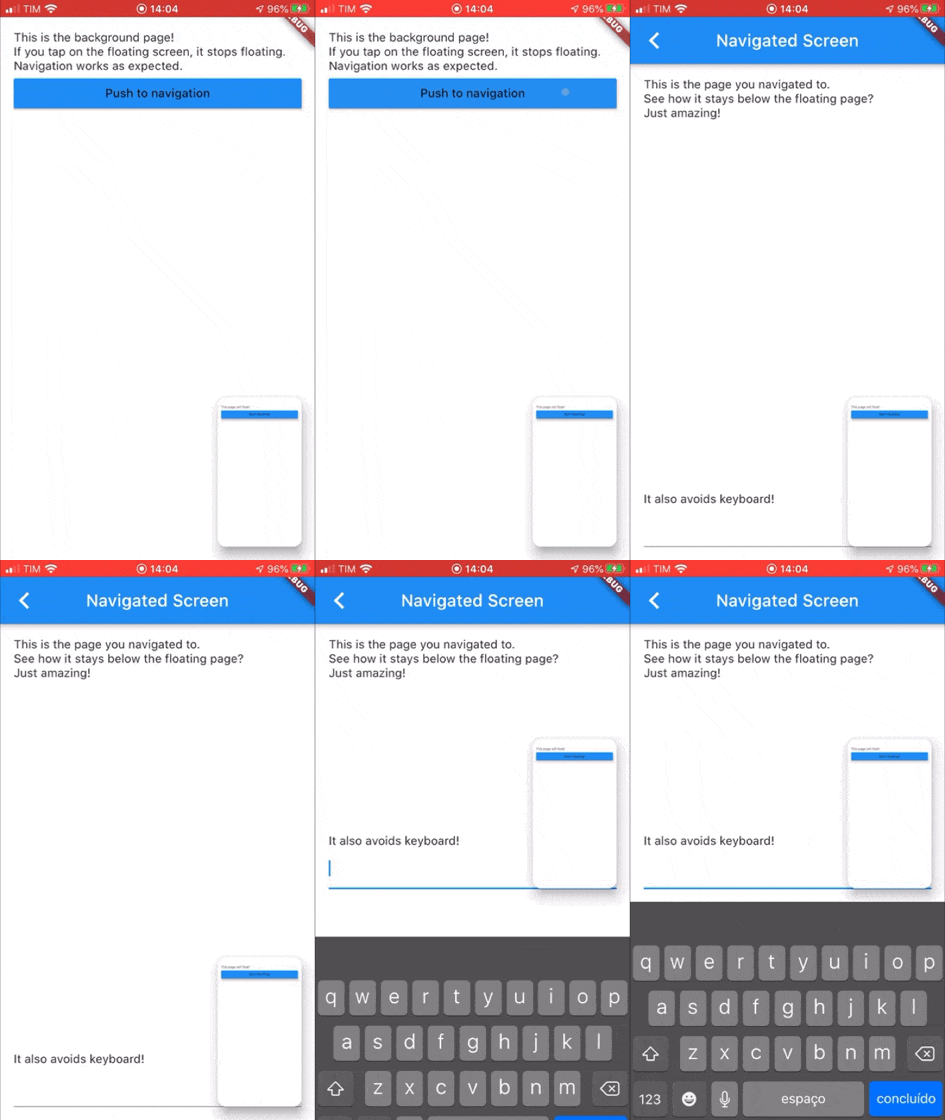
pip_view 包使开发者能够在浮动覆盖层下方显示一个控件,常用于画中画功能。它允许在更大的应用界面中无缝集成一个更小的、可拖动的内容区域,非常适合视频播放或实时流媒体。该包支持 Android、iOS、Web、macOS、Windows 和 Linux 多个平台,确保跨平台的一致性。它轻量级且设计简单,配置最少即可轻松实现。这使其适用于需要动态、交互式覆盖层但又不干扰主 UI 流程的应用。
适合场景
画中画模式下的视频播放
实时摄像头画面叠加
交互式浮动控件
多任务应用界面
实时数据监控显示
主要特点
带拖拽支持的浮动小部件
叠加层渲染在主内容下方
跨平台兼容性
所需设置最少
可自定义大小和位置
适合对象
媒体应用
具有双屏布局的教育工具
协作工作应用
实时监控仪表板
需要持久浮动UI元素的应用程序
使用建议
可能需要额外处理复杂手势
对低端设备的性能影响
高级动画的自定义功能有限
不适用于全屏替换
在复杂的用户界面中需要适当的布局管理
原始 README
以下为关联源码仓库的 README 原文快照,最新内容请访问源码仓库。
pip_view
Widget to allow the presentation of a widget below a floating one. It supports moving the floating widget around which sticks to the corners.
Usage
Create a PIPView widget, the prop builder will be the view rendered floating when requested. To present a view below the floating view use PIPView.of(context).presentBelow(MyWidget()).
Props:
avoidKeyboard: whether the floating view should avoid the keyboard;
builder: a builder for the widget to float, the second parameter indicates if the view is floating;
initialCorner: the corner in which the floating view will be sticked initially
Possible values are: PIPViewCorner.topLeft, PIPViewCorner.topRight, PIPViewCorner.bottomLeft, PIPViewCorner.bottomRight;
floatingHeight: the height of the foreground view when floating. If not set is calculated from the floatingWidth to keep aspect ratio of the screen;
floatingWidth: the width of the foreground view when floating. If not set and floatingHeight is set, it is calculated from the floatingHeight value to keep aspect ratio of the screen. If not set and floatingHeight is not set, defaults to 100.0;
Example:
classMyScreenextendsStatelessWidget{
@overrideWidgetbuild(BuildContext context) {
returnPIPView(
builder: (context, isFloating) {
returnScaffold(
body: Column(
children: [
Text('This is the screen that will float!');
MaterialButton(
child: Text('Start floating');
onPressed: () {
PIPView.of(context).presentBelow(MyBackgroundScreen());
},
),
],
);
);
},
);
}
}
classMyBackgroundScreenextendsStatelessWidget{
@overrideWidgetbuild(BuildContext context) {
returnScaffold(
body: Text('This is my background screen!');
);
}
}
NOTE: If you want a more declarative way of using the PIPView, you can use RawPIPView instead.