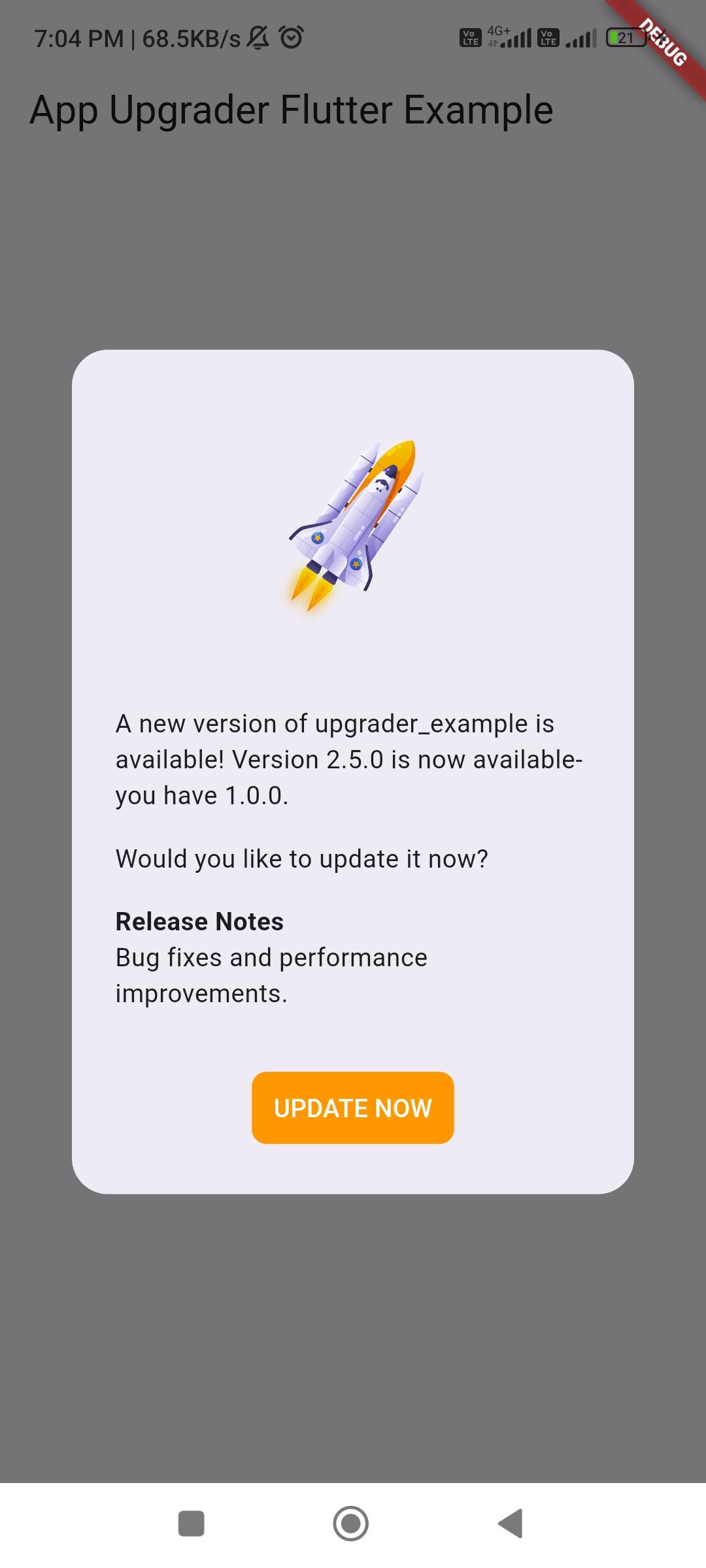
AppUpgraderFlutter 是一个 Flutter 包,可检测应用商店中是否有新版本的应用,并提示用户升级。它支持 Android、iOS、Web、macOS、Windows 和 Linux 等多个平台。该包通过比较当前应用版本与应用商店中发布的最新版本来检查更新,提供可自定义的对话框,从而实现无缝的用户体验。它通过鼓励及时升级,帮助维护应用的质量和安全性。
适合场景
提示用户更新新版本
通过及时更新提升应用安全
通过自动版本检查提升用户体验
确保与新功能的兼容性
减少因旧版本导致的支持问题
主要特点
跨平台支持
可自定义的升级对话框
自动版本比较
支持所有主要应用商店
轻量且易于集成
适合对象
需要频繁更新的应用
需要严格版本控制的企业应用
面向公众的应用程序,拥有庞大的用户基础
专注于用户留存的开发者
重视应用安全的团队
使用建议
需要互联网连接以进行版本检查
可能需要针对特定商店需求进行定制
仅限基于商店的版本检测
不适用于私人或内部应用程序分发
依赖应用商店中准确的版本元数据
原始 README
以下为关联源码仓库的 README 原文快照,最新内容请访问源码仓库。
App Upgrader Flutter
A Flutter package for prompting users to upgrade when there is a newer version of the app in the store.
Overview
When a newer app version is available in the app store, a simple alert prompt or card is
displayed.
With today's modern app stores, there is little need to persuade users to upgrade
their apps because most are already using the auto upgrade feature. However, there may be times when
an app needs to be updated more quickly than usual, and nagging a user to upgrade will entice
the upgrade sooner. Also, with Flutter supporting more than just Android and iOS platforms, it
will become more likely that users on other app stores need to be nagged about upgrading.
Platform Support
Platform
Automatically Supported?
Appcast Supported?
ANDROID
✅ Yes
✅ Yes
IOS
✅ Yes
✅ Yes
LINUX
❌ No
✅ Yes
MACOS
❌ No
✅ Yes
WEB
❌ No
✅ Yes
WINDOWS
❌ No
✅ Yes
Widgets
The widgets come in two flavors: alert or card. The AppUpgradeAlert widget is used to display the
popup alert prompt, and the AppUpgradeCard widget is used to display the inline material design card.
There are three buttons displayed to the user: IGNORE, LATER, and UPDATE NOW.
Tapping IGNORE prevents the alert from being displayed again for that version.
Tapping the LATER button just closes the alert allowing the alert to be displayed sometime in the future.
Tapping the UPDATE NOW button takes the user to the App Store (iOS) or Google Play Store (Android) where the user is required to initiate the update process.
Alert Example
Just wrap your body widget in the AppUpgradeAlert widget, and it will handle the rest.
Just return an AppUpgradeCard widget in your build method and a material design card will be displayed
when an update is detected. The widget will have width and height of 0.0 when no update is detected.
The text displayed in the app_upgrader_flutter package is localized in many languages, and supports customization.
Release Notes
The release notes are displayed by default when a new version is available. On Android
the release notes are taken from the the WHAT'S NEW section on Google Play when
available, otherwise the main app description is used.
On iOS the release notes are taken from the App Store What's New section.
For appcast), the release notes are taken from the description field.
Customization
The Upgrader class can be customized by setting parameters in the constructor.
appcast: Provide an Appcast that can be replaced for mock testing, defaults to null
appcastConfig: the appcast configuration, defaults to null
canDismissDialog: can alert dialog be dismissed on tap outside of the alert dialog, which defaults to false (not used by AppUpgradeCard)
countryCode: the country code that will override the system locale, which defaults to null
cupertinoButtonTextStyle: the text style for the cupertino dialog buttons, which defaults to null
languageCode: the language code that will override the system locale, which defaults to null
client: an HTTP Client that can be replaced for mock testing, defaults to null
debugDisplayAlways: always force the upgrade to be available, defaults to false
debugDisplayOnce: display the upgrade at least once, defaults to false
debugLogging: display logging statements, which defaults to false
dialogStyle: the upgrade dialog style, either material or cupertino, defaults to material, used only by AppUpgradeAlert, works on Android and iOS.
durationUntilAlertAgain: duration until alerting user again, which defaults to 3 days
messages: optional localized messages used for display in upgrader
minAppVersion: the minimum app version supported by this app. Earlier versions of this app will be forced to update to the current version. It should be a valid version string like this: 2.0.13. Defaults to null.
onIgnore: called when the ignore button is tapped, defaults to null
onLater: called when the later button is tapped, defaults to null
onUpdate: called when the update button is tapped, defaults to null
platform: The [TargetPlatform] that identifies the platform on which the package is currently executing. Defaults to [defaultTargetPlatform]. Note that [TargetPlatform] does not include web, but includes mobile and desktop. This parameter is normally used to change the target platform during testing.
shouldPopScope: called when the back button is tapped, defaults to null
showIgnore: hide or show Ignore button, which defaults to true
showLater: hide or show Later button, which defaults to true
showReleaseNotes: hide or show release notes, which defaults to true
upgraderOS: Provides information on which OS this code is running on, defaults to null
willDisplayUpgrade: called when upgrader determines that an upgrade may
or may not be displayed, defaults to null
Minimum App Version
The app_upgrader_flutter package can enforce a minimum app version simply by adding a
version number to the description field in the app stores.
For the Android Play Store, use this format:
[Minimum supported app version: 1.2.3]
For the iOS App Store, use this format:
[:mav: 1.2.3]
Using that text says that the minimum app version is 1.2.3 and that earlier
versions of this app will be forced to update to the current version. The Ignore
and Later buttons will automatically be hidden.
After the app containing this text has been submitted for review, approved, and
released on the app store, the version number will be visible to the app_upgrader_flutter
package. When the minimum app version is updated in the future, all previously
installed apps with this package will recognize and honor that value.
This overrides any value supplied in the minAppVersion parameter.
Android
Add this text to the bottom of the full description field in the Google Play
Console under the main store listing.
iOS
Add this text to the bottom of the description field in App Store Connect in the
description field.
Go Router
When using GoRouter (package go_router) with upgrader, you may need to provide
a navigatorKey to the AppUpgradeAlert widget so that the correct route
context is used. Below is part of the code you will need for this. Also,
checkout the example/lib/main-gorouter.dart example for a more complete example.
When using the AppUpgradeAlert widget, the Android back button will not
dismiss the alert dialog by default. To allow the back button to dismiss the
dialog, use shouldPopScope and return true like this:
On iOS, when your app is not in the US App Store, which is the default, you must use
the countryCode parameter mentioned above. The app_upgrader_flutter package does not know
which country app store to use because it is not provided by iOS. It assumes
the app is in the US App Store.
On Android, the app_upgrader_flutter package uses the system locale to determine the country code.
Android Language Code
Android description and release notes language, defaults to en.
Limitations
These widgets work on both Android and iOS. When running on Android the Google
Play Store will provide the latest app version.
When running on iOS the App Store will provide the
latest app version. In all cases, the widget will display the prompt at the
appropriate times.
On Android, the version number is often not available from the Google Play
Store, such as with the
Google Maps
app. In this case, the version is listed as Varies with device. That is not a
valid version for upgrader and cannot be used. The upgrader widget will not be
displayed in this case.
There is an appcast that can be used to remotely configure the
latest app version. See appcast below for more details.
Appcast
The class Appcast, in this Flutter package, is used by the upgrader widgets
to download app details from an appcast,
based on the Sparkle framework by Andy Matuschak.
You can read the Sparkle documentation here:
https://sparkle-project.org/documentation/publishing/.
An appcast is an RSS feed with one channel that has a collection of items that each describe
one app version. The appcast will describe each app version and will provide the latest app
version to app_upgrader_flutter that indicates when an upgrade should be recommended.
The appcast must be hosted on a server that can be reached by everyone from the app. The appcast
XML file can be autogenerated during the release process, or just manually updated after a release
is available on the app store.
The Appcast class can be used stand alone or as part of upgrader.
Appcast Example
This is an Appcast example for Android.
@overrideWidgetbuild(BuildContext context) {
// On Android, setup the Appcast.// On iOS, the default behavior will be to use the App Store version.final appcastURL =
'https://github.com/Eleganceinfolab/app_upgrader_flutter/blob/main/lib/testappcast.xml';
final cfg = AppcastConfiguration(url: appcastURL, supportedOS: ['android']);
returnMaterialApp(
title: 'Upgrader Example',
home: Scaffold(
appBar: AppBar(
title: Text('Upgrader Example'),
),
body: AppUpgradeAlert(
Upgrader(appcastConfig: cfg),
child: Center(child: Text('Checking...')),
)),
);
}
Appcast Sample File
<?xml version="1.0" encoding="utf-8"?><rssversion="2.0"xmlns:sparkle="http://www.andymatuschak.org/xml-namespaces/sparkle"><channel><title>Debt Now App - Appcast</title><item><title>Version 1.15.0</title><description>Minor updates and improvements.</description><pubDate>Sun, 30 Dec 2018 12:00:00 +0000</pubDate><enclosureurl="https://play.google.com/store/apps/details?id=com.moonwink.treasury"sparkle:version="1.15.0"sparkle:os="android" /></item></channel></rss>
Appcast Class
final appcast = Appcast();
final items = await appcast.parseAppcastItemsFromUri('https://github.com/Eleganceinfolab/app_upgrader_flutter/blob/main/lib/testappcast.xml');
final bestItem = appcast.bestItem();
Customizing the strings
The strings displayed in upgrader can be customzied by extending the UpgraderMessages class
to provide custom values.
As an example, to replace the Ignore button with a custom value, first create a new
class that extends UpgraderMessages, and override the buttonTitleIgnore function. Next,
when calling AppUpgradeAlert (or AppUpgradeCard), add the parameter messages with an instance
of your extended class. Here is an example:
The strings displayed in upgrader are already localized in 34 languages. New languages will be
supported in the future with minor updates. It also supports right to left languages.
Languages supported:
English ('en')
Arabic ('ar')
Bengali ('bn')
Chinese ('zh')
Danish ('da')
Dutch ('nl')
Filipino ('fil')
French ('fr')
German ('de')
Greek ('el')
Haitian Creole ('ht')
Hebrew ('he')
Hindi ('hi')
Hungarian ('hu')
Indonesian ('id')
Italian ('it')
Japanese ('ja')
Kazakh ('kk')
Khmer ('km')
Korean ('ko')
Lithuanian ('lt')
Mongolian ('mn')
Norwegian ('nb')
Persian ('fa')
Polish ('pl')
Portuguese ('pt')
Russian ('ru')
Spanish ('es')
Swedish ('sv')
Tamil ('ta')
Telugu ('te')
Turkish ('tr')
Ukrainian ('uk')
Vietnamese ('vi')
The app_upgrader_flutter package can be supplied with additional languages in your code by extending the UpgraderMessages class
to provide custom values.
As an example, to add the Spanish (es) language (which is already provided), first create a new
class that extends UpgraderMessages, and override the message function. Next, add a string for
each of the messages. Finally, when calling AppUpgradeAlert (or AppUpgradeCard), add the parameter messages with an instance
of your extended class. Here is an example:
classMySpanishMessagesextendsUpgraderMessages{
/// Override the message function to provide custom language localization.@overrideStringmessage(UpgraderMessage messageKey) {
if (languageCode == 'es') {
switch (messageKey) {
caseUpgraderMessage.body:
return'es A new version of {{appName}} is available!';
caseUpgraderMessage.buttonTitleIgnore:
return'es Ignore';
caseUpgraderMessage.buttonTitleLater:
return'es Later';
caseUpgraderMessage.buttonTitleUpdate:
return'es Update Now';
caseUpgraderMessage.prompt:
return'es Want to update?';
caseUpgraderMessage.releaseNotes:
return'es Release Notes';
caseUpgraderMessage.title:
return'es Update App?';
}
}
// Messages that are not provided above can still use the default values.returnsuper.message(messageKey);
}
}
AppUpgradeAlert(Upgrader(messages: MySpanishMessages()));
You can even force the app_upgrader_flutter package to use a specific language, instead of the
system language on the device. Just pass the language code to an instance of
UpgraderMessages when displaying the alert or card. Here is an example:
The Appupgrader package uses the version package that
is in compliance with the Semantic Versioning spec at http://semver.org/.
iTunes Search API
There is a class in this Flutter package used by the upgrader widgets to download app details
from the
iTunes Search API.
The class ITunesSearchAPI can be used standalone to query iTunes for app details.
ITunesSearchAPI Example
final iTunes = ITunesSearchAPI();
final resultsFuture = iTunes.lookupByBundleId('com.google.Maps');
resultsFuture.then((results) {
    print('results: $results');
});
Results
Command Line App - Android
There is a command line app used to display the results from Google Play Store. The code is located in
bin/playstore_lookup.dart, and can be run from the command line like this:
$ cd bin
$ dart playstore_lookup.dart id=com.google.android.apps.mapslite
There is a command line app used to display the results from iTunes Search. The code is located in
bin/itunes_lookup.dart, and can be run from the command line like this:
Please submit issue reports here on GitHub.
To better assist in analyzing issues, please include all of the upgrader log,
which can be enabled by setting debugLogging to true.