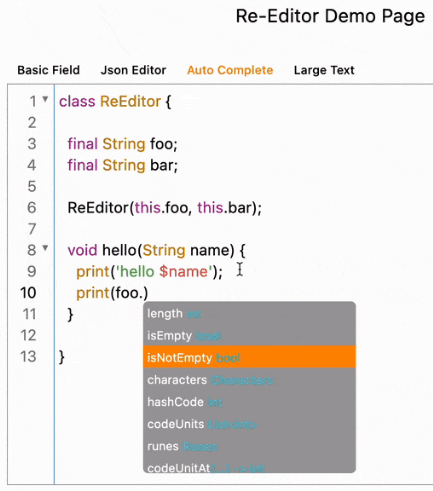
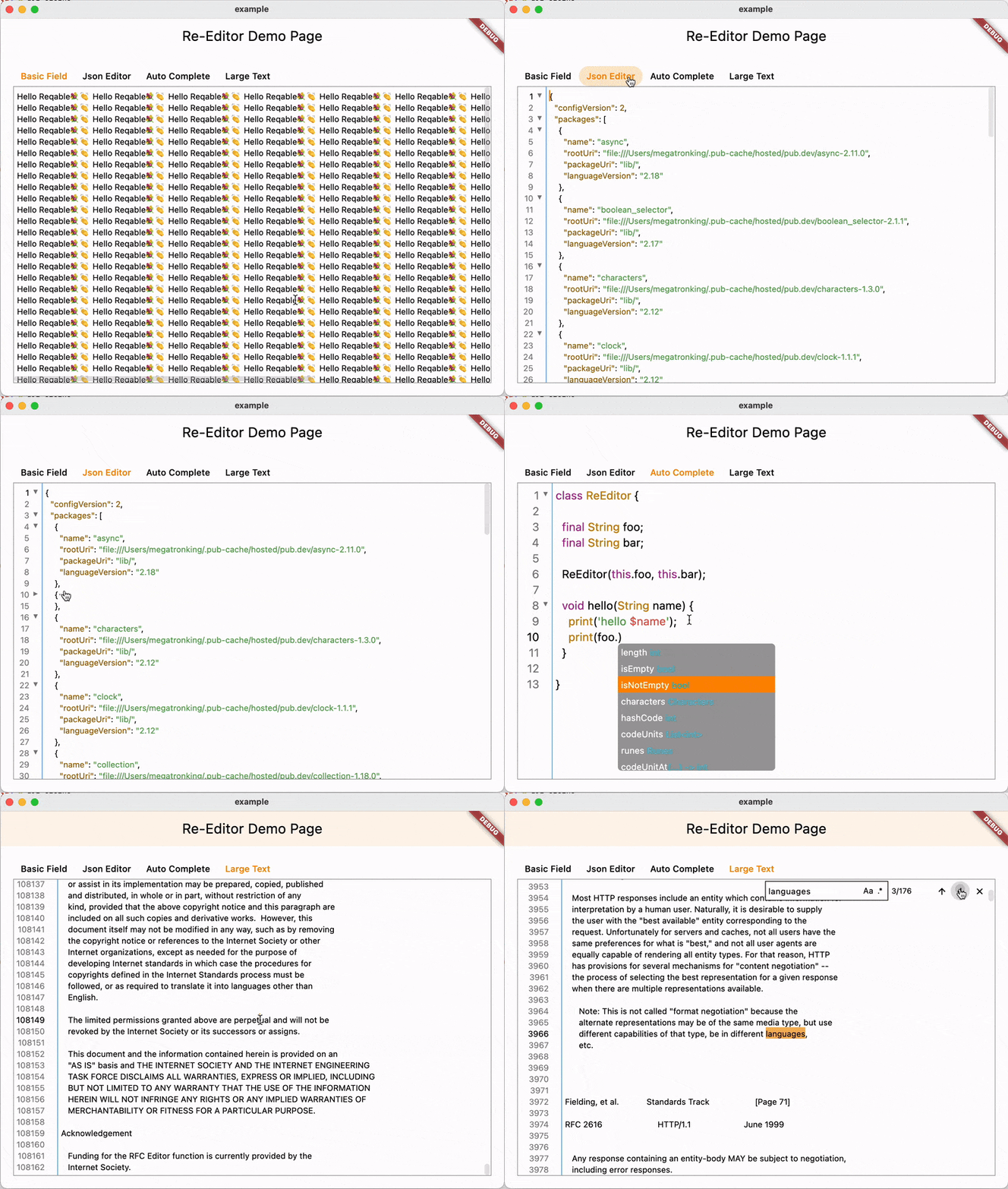
Re-Editor is a powerful lightweight text and code editor widget and a module in the Reqable project. It can be used as a simple text area or to develop a code editor with complex functions. Unlike Flutter's default TextField, Re-Editor is specifically tailored for the display and input of multi-line text and offers the following features:
Two-way horizontal and vertical scrolling.
Text syntax highlighting.
Content collapsing and expanding.
Input hints and auto-completion.
Search and replace.
Custom context menu builder.
Shortcut keys.
Large text display and editing.
Line numbers and focus line builder.
Smart input.
Re-Editor is not a secondary encapsulation based on TextField, but independently implements the layout, drawing, event processing, etc. It is specifically optimized for large texts, providing extremely high performance and fixed some issues of TextField.
Re-Editor offers a high degree of freedom. For example, developers can control whether to enable horizontal scrolling (word wrap), enable read-only mode, display line numbers, display content folding, define custom shortcut keys, and specify text syntax highlighting.
You can run the example project to experience it.
Getting Started
Add the followings in pubspec.yaml.
dependencies:re_editor:^0.10.0
Like TextField, Re-Editor uses CodeLineEditingController as the controller. The following sample code creates the simplest multi-line input area, which is not much different from TextField.
The text highlighting of Re-Editor is based on Re-Highlight and supports nearly a hundred languages and theme styles. Developers can freely choose and configure the code Highlight. The following code specifies the JSON syntax highlighting rules and applies the Atom One Light code coloring.
Re-Editor supports configuring whether to display code line numbers and code folding marks, and developers can also implement display styles and layouts by themselves. The example code below shows the default style, built with indicatorBuilder.
By default, Re-Editor will automatically detect the folding areas of {} and []. Developers can control whether to detect or write their own detection rules. DefaultCodeChunkAnalyzer is the default detector. If you wish to disable detection, you can use NonCodeChunkAnalyzer.
Re-Editor implements search and replace control logic, but does not provide a default UI. Developers need to write the UI of the search panel according to the actual situation of their own projects, and use the findBuilder attribute to set up their own search and replace UI.
The CodeFindPanelView in the above example is implemented by the developer himself. For the detailed implementation process, please refer to the code in example.
Context Menu
Re-Editor implements the control logic of the desktop context menu and the mobile long-press selection menu, but does not provide a default UI. Developers need to implement the SelectionToolbarController interface and setup it through toolbarController.
Re-Editor has the built-in default shortcut hotkeys, and developers can also use shortcutsActivatorsBuilder to set custom shortcut hotkeys. Of course, the shortcut keys only work on the desktop.
The shortcut keys supported by Re-Editor are as follows:
Select all (Control/Command + A)
Cut selected/current line (Control/Command + V)
Copy selected/current line (Control/Command + C)
Paste (Control/Command + V)
Undo (Control/Command + Z)
Redo (Shift + Control/Command + Z)
Select the current line (Control/Command + L)
Delete current line (Control/Command + D)
Move current line (Alt + ↑/↓)
Continuous selection (Shift + ↑/↓/←/→)
Move cursor (↑/↓/←/→)
Move cursor between word boundaries (Alt + ←/→)
Move to top/bottom of page (Control/Command + ↑/↓)
Indent (Tab)
Unindent (Shift + Tab)
Comment/uncomment a single line (Control/Command + /)
Re-Editor supports using the CodeAutocomplete widget to implement code input prompts and automatic completion. Re-Editor implements basic control logic, but the code prompt content, auto-completion rules and display UI need to be defined by the developer.
Note that Re-Editor is only a lightweight editor and does not have the IDE dynamic syntax analysis, so the code prompts and completion have many limitations. You can refer to the code in example to implement a simple code prompt and completion.
Used By
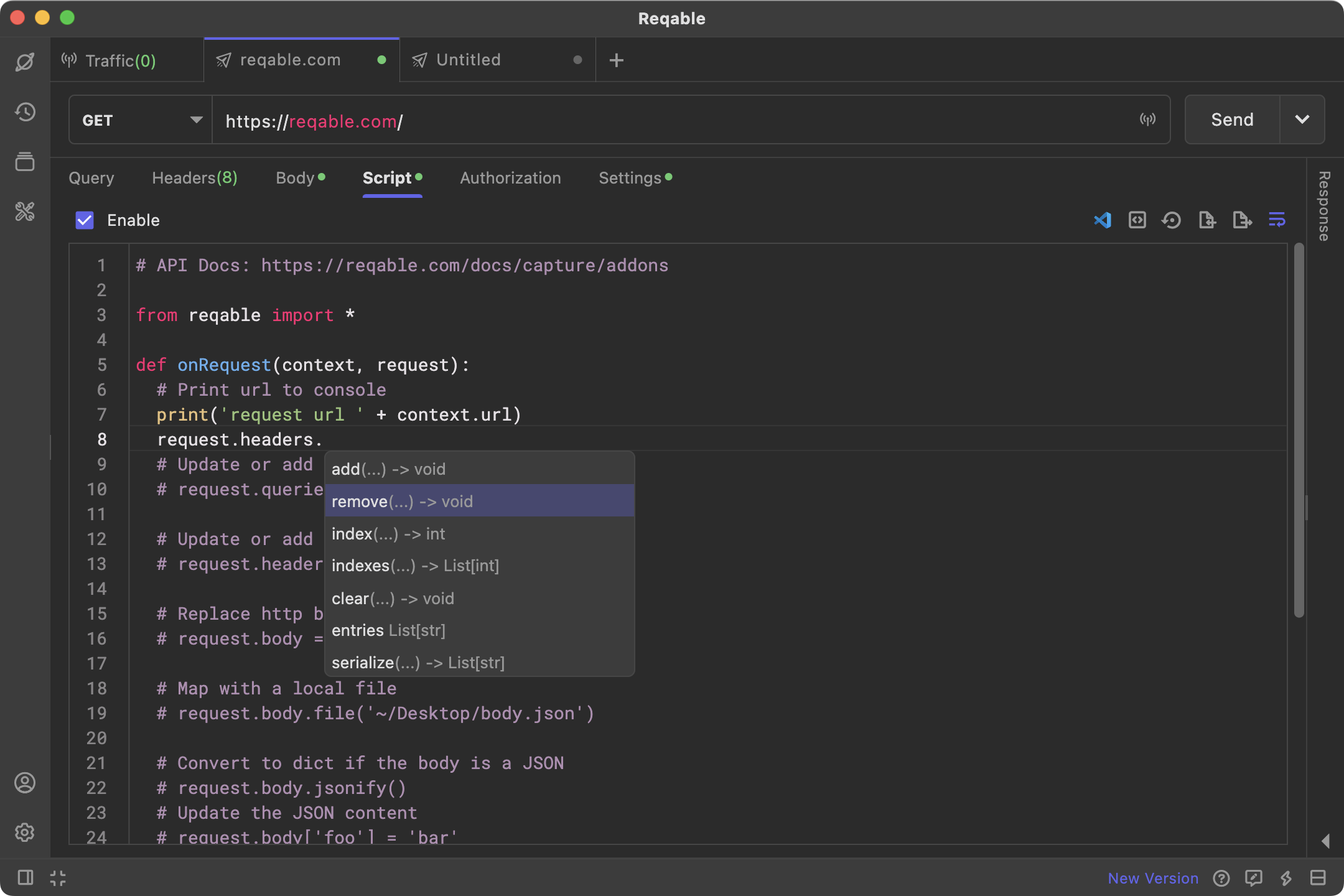
Re-Editor has been extensively practiced in the Reqable project. You are welcome to download Reqable to experience it.
License
MIT License
Sponsor
If you would like to sponsor this project, you can support us by purchasing a Reqable license.