Search packages, repositories and app categories

Package detailsv0.1.3

aad_b2c_webview

A simple Flutter package which embeds webview for accessing Azure AD B2C user flow endpoint.

30-day downloads
694
Likes
25
Pub points
110

Install package

flutter pub add aad_b2c_webview

Package Overview

Package selection guidance compiled from public package information, community data, and project usage.

A Flutter package that simplifies integration with Azure AD B2C by embedding a web view to access user flow endpoints. It enables seamless authentication flows such as sign-up, sign-in, and password reset directly within the app. Designed for developers using Microsoft's identity platform, it handles the UI rendering of B2C policies through a native web view, reducing the need for custom authentication logic. The package is lightweight and focused on providing a straightforward bridge between Flutter apps and Azure AD B2C services.

Use cases

  • Integrating Azure AD B2C sign-in flows
  • Enabling user registration via B2C policies
  • Supporting password reset workflows
  • Embedding B2C UI in mobile apps
  • Handling custom authentication journeys

Key features

  • Simple web view integration
  • Direct access to B2C user flows
  • Minimal setup required
  • Secure token handling
  • Built for Microsoft identity ecosystem

Suitable for

  • Flutter apps using Azure AD B2C
  • Mobile apps needing secure authentication
  • Developers familiar with B2C policies
  • Teams building enterprise-grade apps
  • Projects requiring minimal custom auth code

Considerations

  • Requires valid Azure AD B2C configuration
  • Limited to web view-based flows
  • No built-in token persistence
  • Depends on external B2C policy URLs
  • Not suitable for fully native UI authentication

Original README

Original README snapshot from the linked source repository. Visit the repository for the latest content.

Azure AD B2C Embedded Webview

Azure AD B2C Embedded Webview is a very simple Flutter package that demonstrates how to use the embedded web view to sign in users with Azure AD B2C. Currently, using Flutter packages - appAuth and flutter_azure_b2c redirects to browser and doesn't provide in-app experience.

This package embeds the web view of the user flow endpoint using flutter_appview and redirects the user as per onRedirect callback method.

📚 Features

  • Login Button
  • Webview Interaction
  • Flutter UI Customization
  • Dynamic Flutter Layout
  • Refresh Token

🚀 Getting started

To use the package in your Flutter app, add the following code to your main.dart file:

dependencies:
  aad_b2c_webview: <latest_version>

🛠️ Usage

Parameters

It is recommended to use env to save the keys securely

const aadB2CClientID = "<app-id>";
const aadB2CRedirectURL = "https://jwt.ms";
const aadB2CUserFlowName = "B2C_1_APPNAME_Signin";
const aadB2CScopes = ['openid', 'offline_access'];
const aadB2CTenantName = "<tenantName>";
const aadB2CUserAuthFlow = "https://$aadB2CTenantName.b2clogin.com/$aadB2CTenantName.onmicrosoft.com";
Where to find?
Configure parameters in the code
B2CWebViewParams params = B2CWebViewParams(
  responseType: Constants.defaultResponseType,
  tenantBaseUrl: aadB2CUserAuthFlow,
  clientId: aadB2CClientID,
  userFlowName: aadB2CUserFlowName,
  redirectUrl: aadB2CRedirectURL,
  scopes: aadB2CScopes,
  containsChallenge: true,
  isLoginFlow: true,
);
Send Optional Parameters

You have the flexibility to include optional parameters in order to customize the URL according to your specific requirements. The optionalParameters parameter allows you to pass a list of OptionalParam objects, where each object consists of a key and a value that represent the parameter name and its corresponding value, respectively.

Here's an example of how you can utilize the optionalParameters parameter to add new parameters to the URL:

optionalParameters: [
  OptionalParam(key: "parameter1", value: "value1"),
  OptionalParam(key: "parameter2", value: "value2"),
],

In the above example, we include two optional parameters: "parameter1" with the value "value1" and "parameter2" with the value "value2". You can include multiple OptionalParam objects within the list to incorporate multiple optional parameters in the URL.

These optional parameters provide you with the ability to customize the behavior of the URL and conveniently transmit additional information as per your needs.

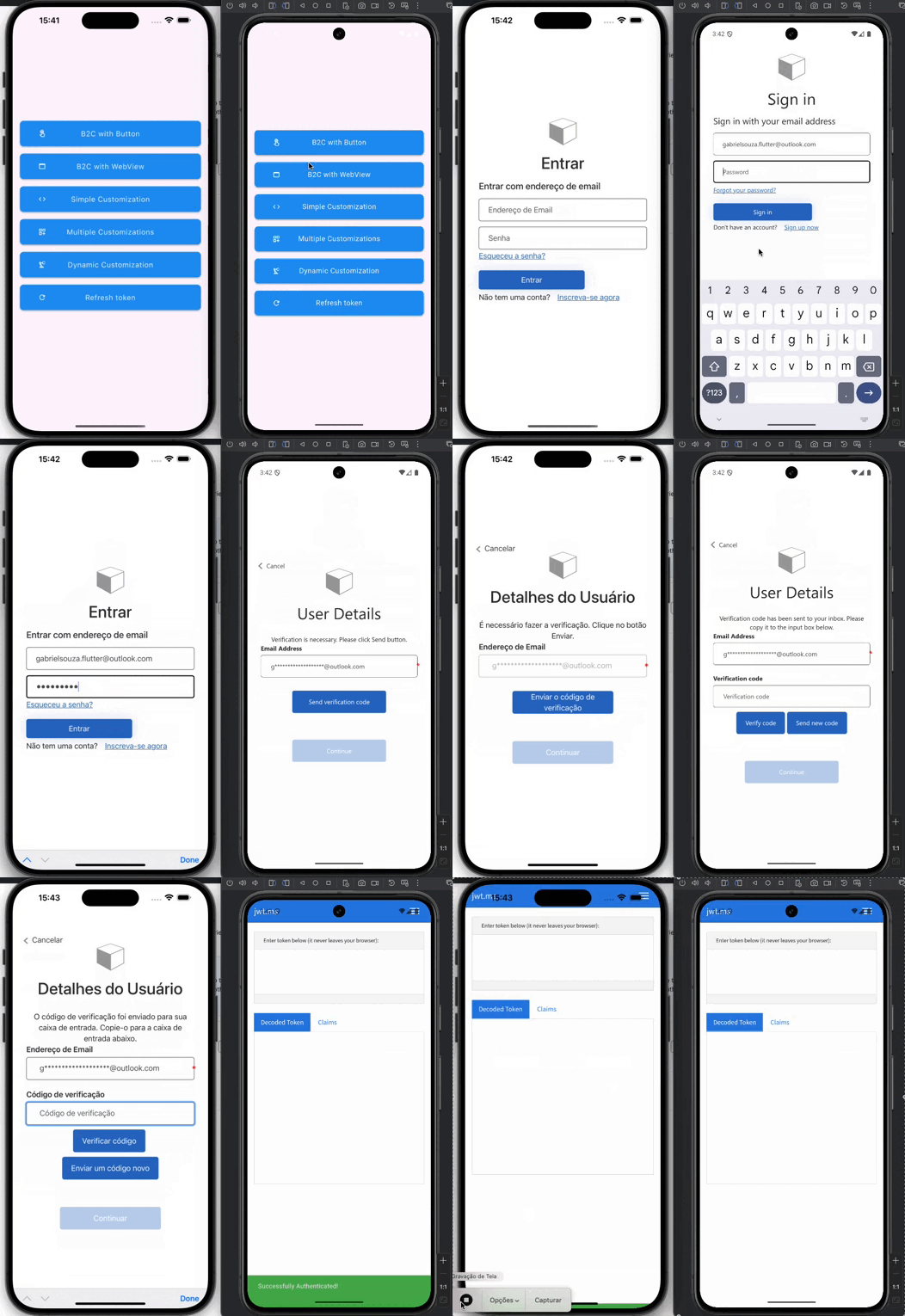
Login Button

To add the easy to use sign in with microsoft button simply use the AADB2CBase.button widget and a beautiful sign in button appears as shown below.

Configuration

Add the following /android/app/src/main/AndroidManifest.xml inside the tags:

<meta-data android:name="flutter_deeplinking_enabled" android:value="true" />
<intent-filter android:autoVerify="true">
<action android:name="android.intent.action.VIEW" />
<category android:name="android.intent.category.DEFAULT" />
<category android:name="android.intent.category.BROWSABLE" />
<data android:scheme="https" android:host="myurl.com" />
</intent-filter>
  • Add it to the redirect URL in the Azure AD B2C project. If you prefer, you can change the redirect URL in our Flutter code to yours (change it in the Azure AD B2C portal too)
Example
import 'package:aad_b2c_webview/aad_b2c_webview.dart';
import 'package:flutter/material.dart';

class B2CWithButton extends StatelessWidget {
  final B2CWebViewParams params;
  const B2CWithButton({super.key, required this.params});

  @override
  Widget build(BuildContext context) {
    return Scaffold(
      appBar: AppBar(),
      body: SafeArea(
        child: Padding(
          padding: const EdgeInsets.all(16.0),
          child: Column(
            mainAxisAlignment: MainAxisAlignment.center,
            children: [
              const Text(
                'Azure B2C Button',
                style: TextStyle(
                  fontSize: 24.0,
                  fontWeight: FontWeight.bold,
                ),
              ),
              const SizedBox(height: 16.0),
              AADB2CBase.button(
                params: params,
                settings: ButtonSettingsEntity(
                  onError: _onError,
                  onSuccess: _onSuccess,
                  onKeepLoading: _onKeepLoading,
                ),
              ),
            ],
          ),
        ),
      ),
    );
  }

  _onSuccess(
      BuildContext context,
      accessToken,
      idToken,
      refreshToken,
      ) {
    var snackBar = const SnackBar(
      content: Text('Successfully Authenticated!'),
      backgroundColor: Colors.green,
    );
    ScaffoldMessenger.of(context).showSnackBar(snackBar);
  }

  _onError(BuildContext context, String? error) {
    var snackBar = SnackBar(
      content: Text(error ?? ''),
      backgroundColor: Colors.redAccent,
    );
    ScaffoldMessenger.of(context).showSnackBar(snackBar);
  }

  bool _onKeepLoading(String? url) =>
      url?.startsWith(params.redirectUrl) ?? false;
}

Click here to access the full example

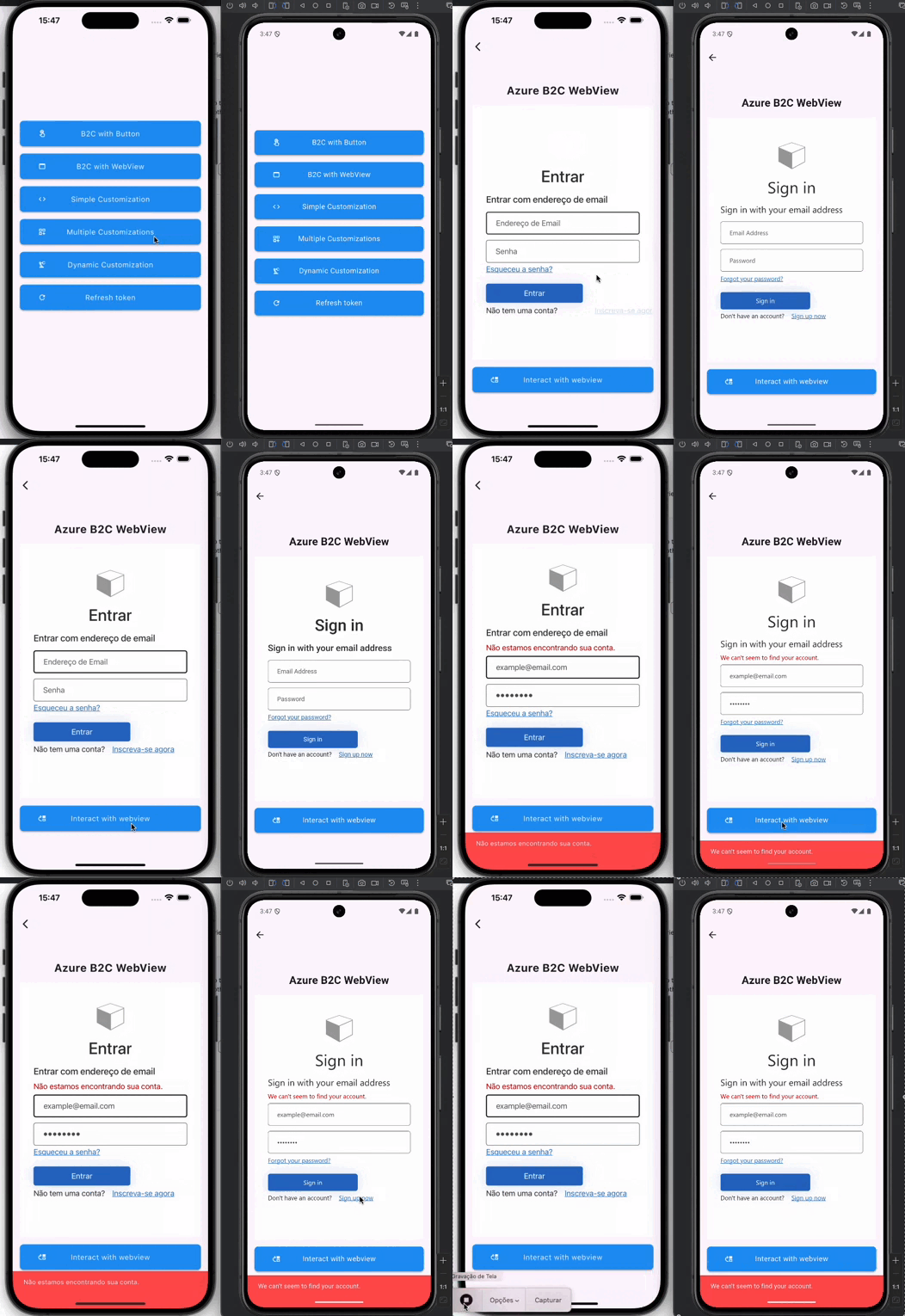
Webview Interaction

Custom build sign in button to call web view page

Example
import 'dart:developer';
import 'package:aad_b2c_webview/aad_b2c_webview.dart';
import 'package:flutter/foundation.dart';
import 'package:flutter/material.dart';
import 'widgets/button_widget.dart';

class B2CWithWebView extends StatefulWidget {
  final B2CWebViewParams params;
  const B2CWithWebView({super.key, required this.params});

  @override
  State<B2CWithWebView> createState() => _B2CWithWebViewState();
}

class _B2CWithWebViewState extends State<B2CWithWebView> {
  ActionController? _controller;

  @override
  Widget build(BuildContext context) {
    return Scaffold(
      appBar: AppBar(),
      resizeToAvoidBottomInset: false,
      body: SafeArea(
        child: Padding(
          padding: const EdgeInsets.symmetric(horizontal: 16.0),
          child: Column(
            mainAxisAlignment: MainAxisAlignment.center,
            children: [
              const Center(
                child: Text(
                  'Azure B2C WebView',
                  style: TextStyle(
                    fontSize: 24.0,
                    fontWeight: FontWeight.bold,
                  ),
                ),
              ),
              const SizedBox(height: 16.0),
              SizedBox(
                height: MediaQuery.sizeOf(context).height * 0.6,
                width: MediaQuery.sizeOf(context).width,
                child: AADB2CBase.webview(
                  params: widget.params,
                  settings: WebViewSettingsEntity(
                    onError: _onError,
                    onSuccess: _onSuccess,
                    controllerBuilder: (
                      BuildContext context,
                      ActionController action,
                    ) => _controller = action,
                  ),
                ),
              ),
              const SizedBox(height: 16.0),
              ButtonWidget(
                onTap: () async {
                  try {
                    await _controller?.insertAndClick(
                      listIdValue: [
                        ActionEntity(id: 'email', value: 'example@email.com'),
                        ActionEntity(id: 'password', value: '12345678'),
                      ],
                      buttonId: 'next',
                    );
                  } catch (error, trace) {
                    if (kDebugMode) log('Error: $error', stackTrace: trace);
                  }
                },
                title: 'Interact with webview',
                icon: Icons.move_up_outlined,
              ),
            ],
          ),
        ),
      ),
    );
  }

  _onSuccess(
    BuildContext context,
    accessToken,
    idToken,
    refreshToken,
  ) {
    var snackBar = const SnackBar(
      content: Text('Successfully Authenticated!'),
      backgroundColor: Colors.green,
    );
    ScaffoldMessenger.of(context).showSnackBar(snackBar);
  }

  _onError(BuildContext context, String? error) {
    var snackBar = SnackBar(
      content: Text(error ?? ''),
      backgroundColor: Colors.redAccent,
    );
    ScaffoldMessenger.of(context).showSnackBar(snackBar);
  }
}

Click here to access the full example

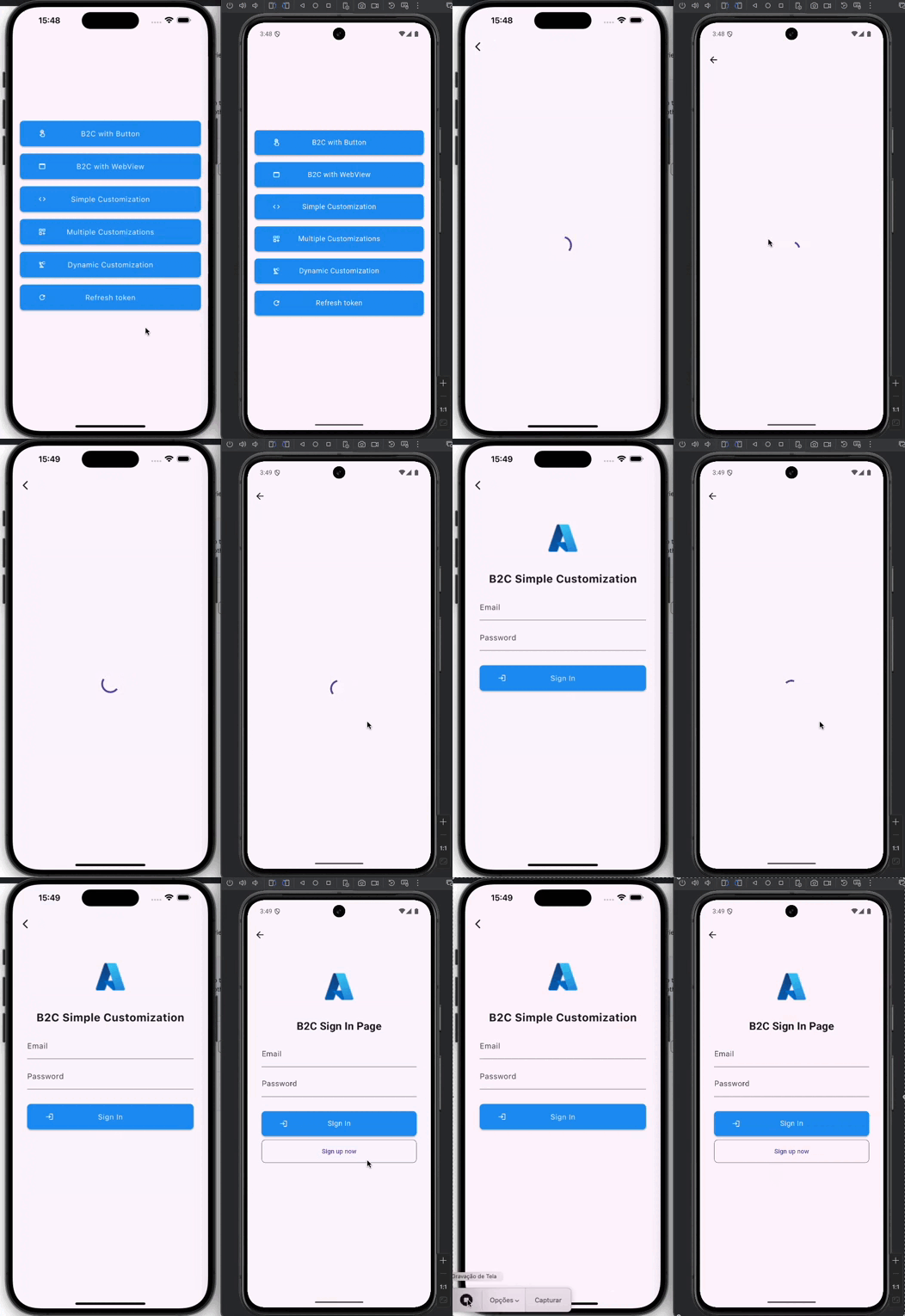
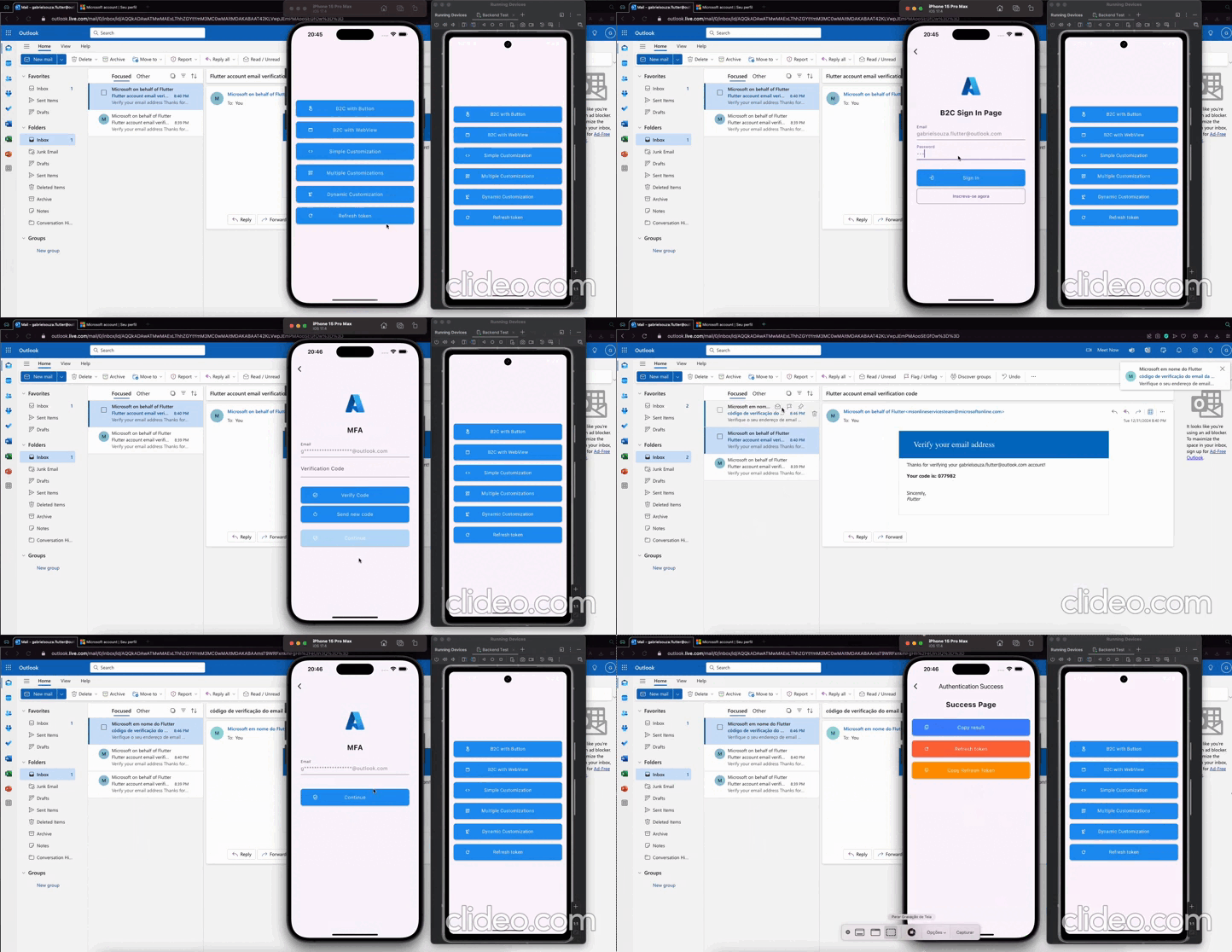
Flutter UI Customization

Get all the power of Flutter/Dart to customize the layout of Azure authentication screens

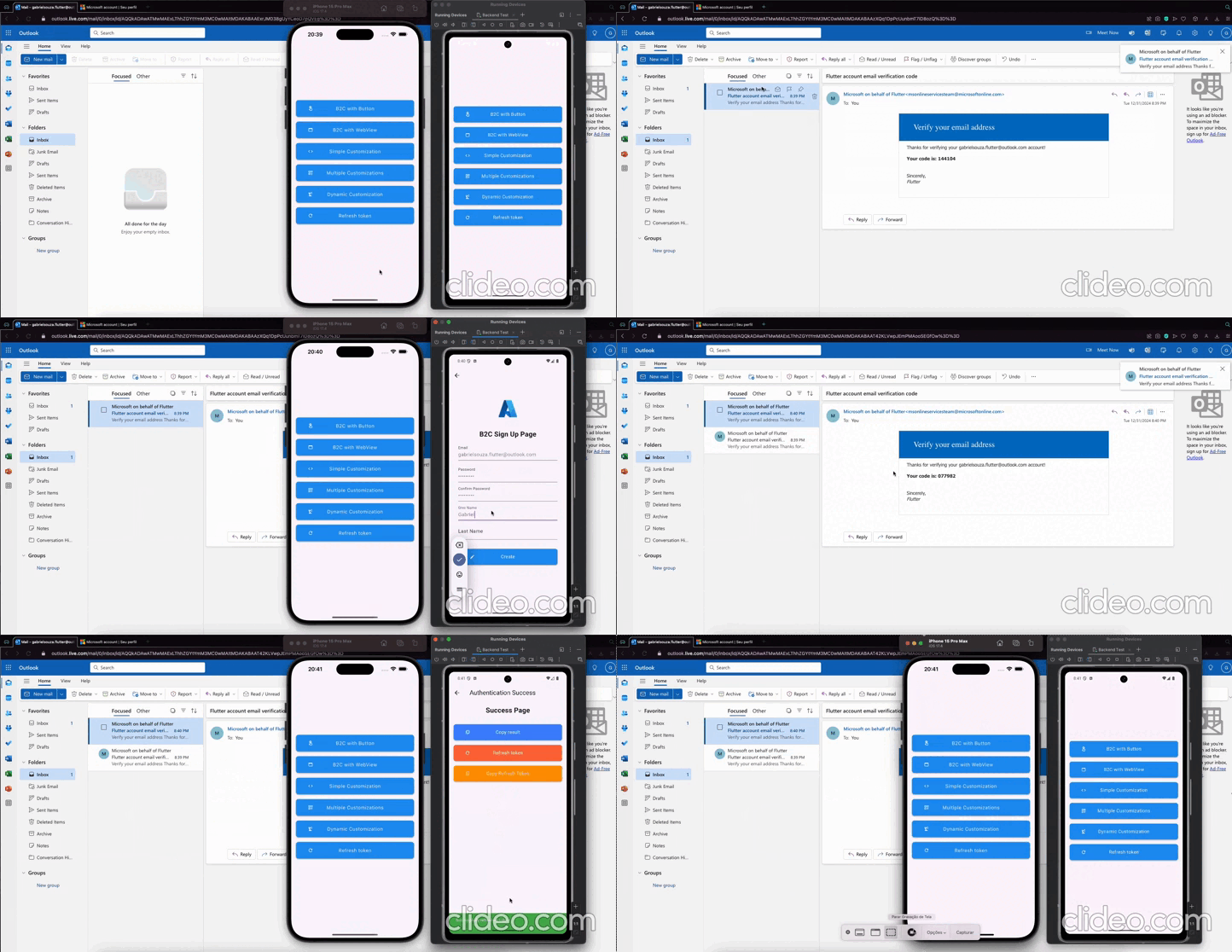
Sign In

Sign Up & Sign In & MFA

Full Examples

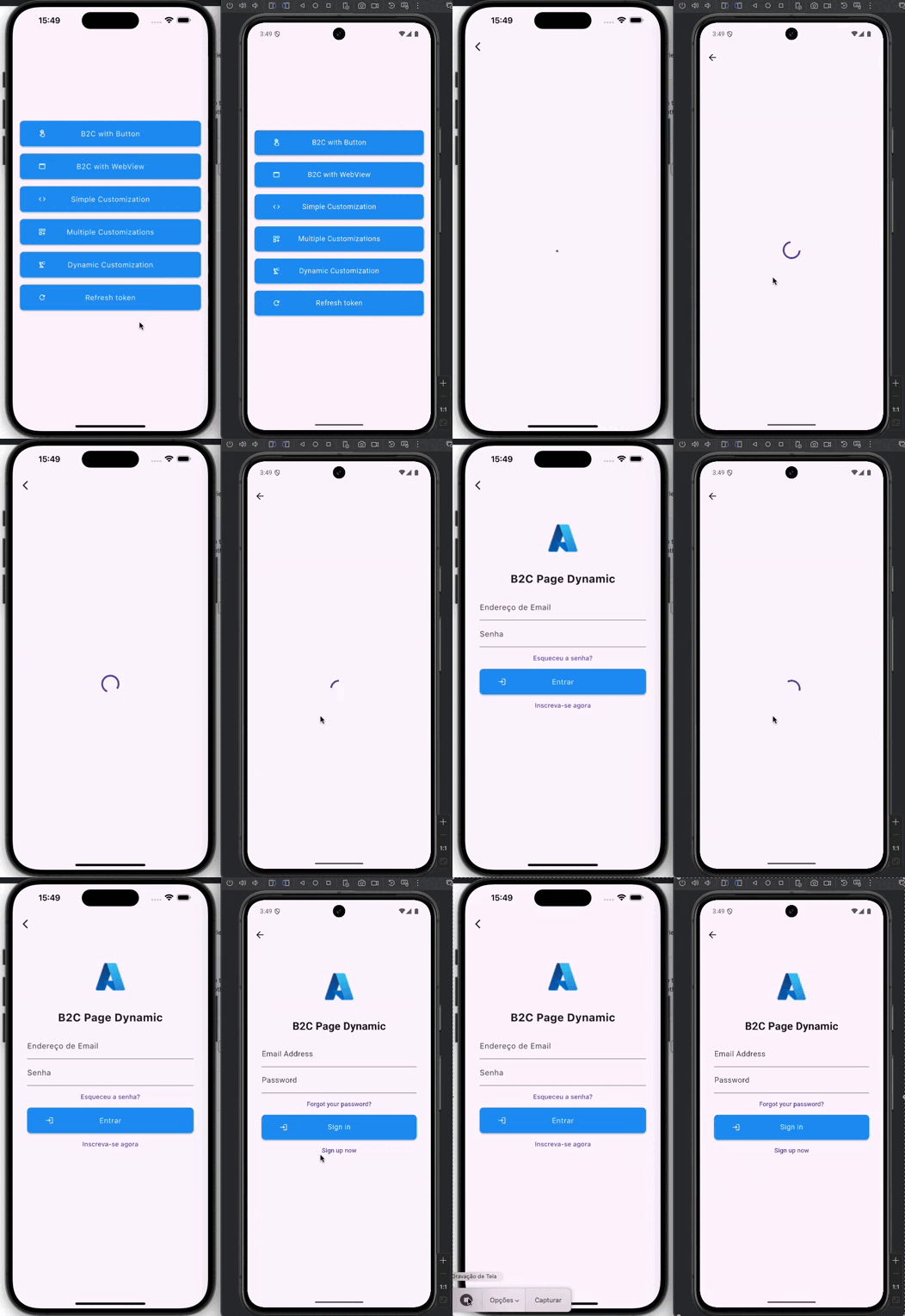
Dynamic Flutter Layout

Convert layout to flutter automatically

Example
import 'package:aad_b2c_webview/aad_b2c_webview.dart';
import 'package:example/core/commons.dart';
import 'package:flutter/material.dart';
import 'widgets/button_widget.dart';

class B2CWithDynamicCustomization extends StatefulWidget {
  final B2CWebViewParams params;
  const B2CWithDynamicCustomization({super.key, required this.params});

  @override
  State<B2CWithDynamicCustomization> createState() =>
      _B2CWithDynamicCustomizationState();
}

class _B2CWithDynamicCustomizationState
    extends State<B2CWithDynamicCustomization> {
  @override
  Widget build(BuildContext context) {
    return Scaffold(
      appBar: AppBar(),
      body: Scaffold(
        body: AADB2CBase.custom(
          params: widget.params,
          settings: CustomSettingsEntity(
            onError: (BuildContext context, String? error) {
              setState(() => _isLoading = false);
              var snackBar = SnackBar(
                content: Text(error ?? ''),
                backgroundColor: Colors.redAccent,
              );
              ScaffoldMessenger.of(context).showSnackBar(snackBar);
            },
            onSuccess: (context, accessToken, idToken, refreshToken) async {
              setState(() => _isLoading = false);
              var snackBar = const SnackBar(
                content: Text('Successfully Authenticated!'),
                backgroundColor: Colors.green,
              );
              ScaffoldMessenger.of(context).showSnackBar(snackBar);
            },
            pageBuilder: (_, __, controller, List<HtmlParseEntity>? htmlItems) {
              return Padding(
                padding: const EdgeInsets.all(32.0),
                child: Form(
                  key: _formKey,
                  child: CustomScrollView(
                    slivers: [
                      defaultImage(),
                      buildTitle('B2C Page Dynamic'),
                      SliverList.builder(
                        itemCount: htmlItems?.length ?? 0,
                        itemBuilder: (BuildContext context, int index) {
                          final item = htmlItems?[index];
                          if (item?.type == null) return const SizedBox();
                          return switch (item!.type) {
                            HtmlParseType.input => _inputBuilder(item),
                            HtmlParseType.button => _button(
                                controller,
                                item,
                                false,
                              ),
                            HtmlParseType.a => _button(
                                controller,
                                item,
                                true,
                              ),
                            HtmlParseType.none => const SizedBox(),
                          };
                        },
                      ),
                    ],
                  ),
                ),
              );
            },
          ),
        ),
      ),
    );
  }

  bool _isLoading = false;
  final GlobalKey<FormState> _formKey = GlobalKey<FormState>();
  final TextEditingController _emailController = TextEditingController();
  final TextEditingController _passwordController = TextEditingController();

  Widget _inputBuilder(HtmlParseEntity params) {
    return TextFormField(
      controller: TextEditingController(),
      enabled: !_isLoading,
      decoration: InputDecoration(
        labelText: params.name,
      ),
      keyboardType: TextInputType.text,
    );
  }

  Widget _button(
    ActionController controller,
    HtmlParseEntity params,
    bool isLink,
  ) {
    onTap() async {
      if (_formKey.currentState?.validate() ?? false) {
        setState(() => _isLoading = true);
        String email = _emailController.text.trim();
        String password = _passwordController.text.trim();
        await controller.insertAndClick(
          listIdValue: [
            ActionEntity(id: 'email', value: email),
            ActionEntity(id: 'password', value: password),
          ],
          buttonId: 'next',
        );
      }
    }

    if (_isLoading) return _buildLoading();
    if (isLink) {
      return TextButton(
        onPressed: onTap,
        child: Text(
          params.textContent,
          style: const TextStyle(
            decorationStyle: TextDecorationStyle.solid,
          ),
        ),
      );
    }
    return ButtonWidget(
      title: params.textContent,
      icon: Icons.login_outlined,
      onTap: onTap,
    );
  }

  Widget _buildLoading() {
    return const Column(
      mainAxisAlignment: MainAxisAlignment.center,
      crossAxisAlignment: CrossAxisAlignment.center,
      children: [
        CircularProgressIndicator(),
      ],
    );
  }
}

Click here to access the full example

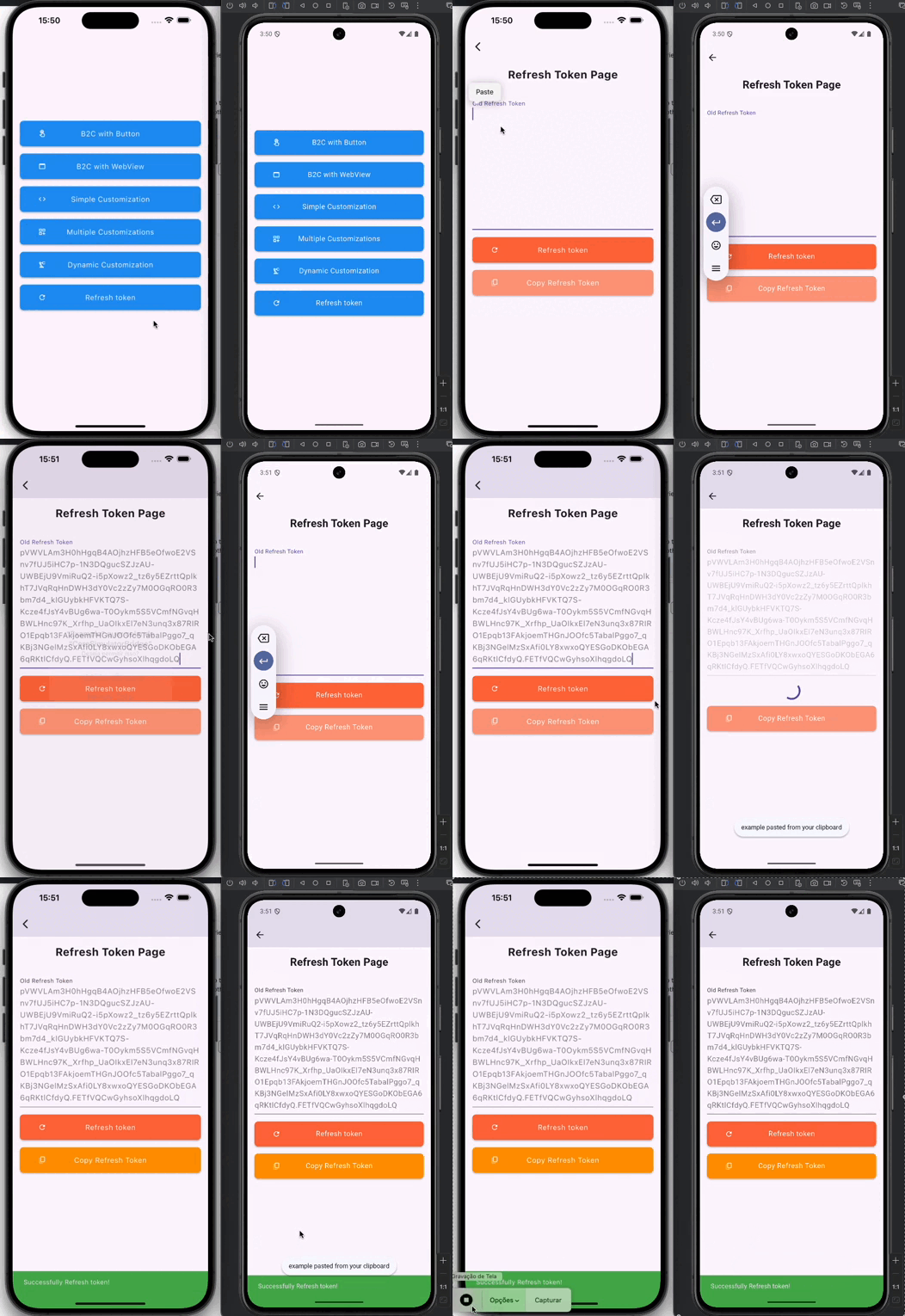
Refresh Token

Use the code below to refresh the token

Example
await controller.refreshToken(
  B2CAuthEntity(
    refreshToken: _refreshTokenController.text.trim(),
    userFlowName: aadB2CUserFlowName,
    tenantBaseUrl: aadB2CUserAuthFlow,
    clientId: aadB2CClientID,
  ),
);

Click here to access the full example

Categories

Dependencies

Dependency list 7 items

  • get_it^7.7.0
  • http^1.2.2
  • pkce^1.1.0+1
  • webview_flutter^4.10.0
  • webview_flutter_android^4.2.0
  • webview_flutter_platform_interface^2.10.0
  • webview_flutter_wkwebview^3.18.4

Source repository

Projects using this package

No data available yet.