Search packages, repositories and app categories

flutter_overlay_window cover
Package detailsv1.0.2

flutter_overlay_window

Flutter plugin for displaying your flutter app over other apps on the screen

Android
30-day downloads
15.9K
Likes
532
Pub points
160

Install package

flutter pub add flutter_overlay_window

Package Overview

Package selection guidance compiled from public package information, community data, and project usage.

A Flutter plugin enabling apps to display content over other applications on Android, such as floating windows or overlays. It allows developers to create persistent UI elements that remain visible across different app contexts, ideal for tools like chat heads, media controls, or real-time notifications. The plugin integrates with the Android system's overlay permissions and provides a simple API to manage the overlay window’s position, visibility, and interaction. It is particularly useful for apps requiring constant user attention without full-screen interruption.

Use cases

  • Floating chat heads
  • Real-time notifications
  • Media control overlays
  • Persistent UI widgets
  • Screen recording helpers

Key features

  • Android-only support
  • System overlay permission handling
  • Customizable overlay size and position
  • Simple API for show/hide
  • Background execution compatibility

Suitable for

  • Apps needing persistent on-screen elements
  • Developers building interactive overlays
  • Tools requiring minimal user interaction
  • Android-focused Flutter projects
  • Accessibility or utility apps

Considerations

  • Requires Android system overlay permission
  • Limited to Android platform
  • May be restricted by device manufacturers
  • User must manually enable overlay permission
  • Potential battery and performance impact

Original README

Original README snapshot from the linked source repository. Visit the repository for the latest content.

auto_route_logo

MIT License stars pub version

Buy Me A Coffee

Flutter plugin for displaying your Flutter app over other apps on the screen


Preview

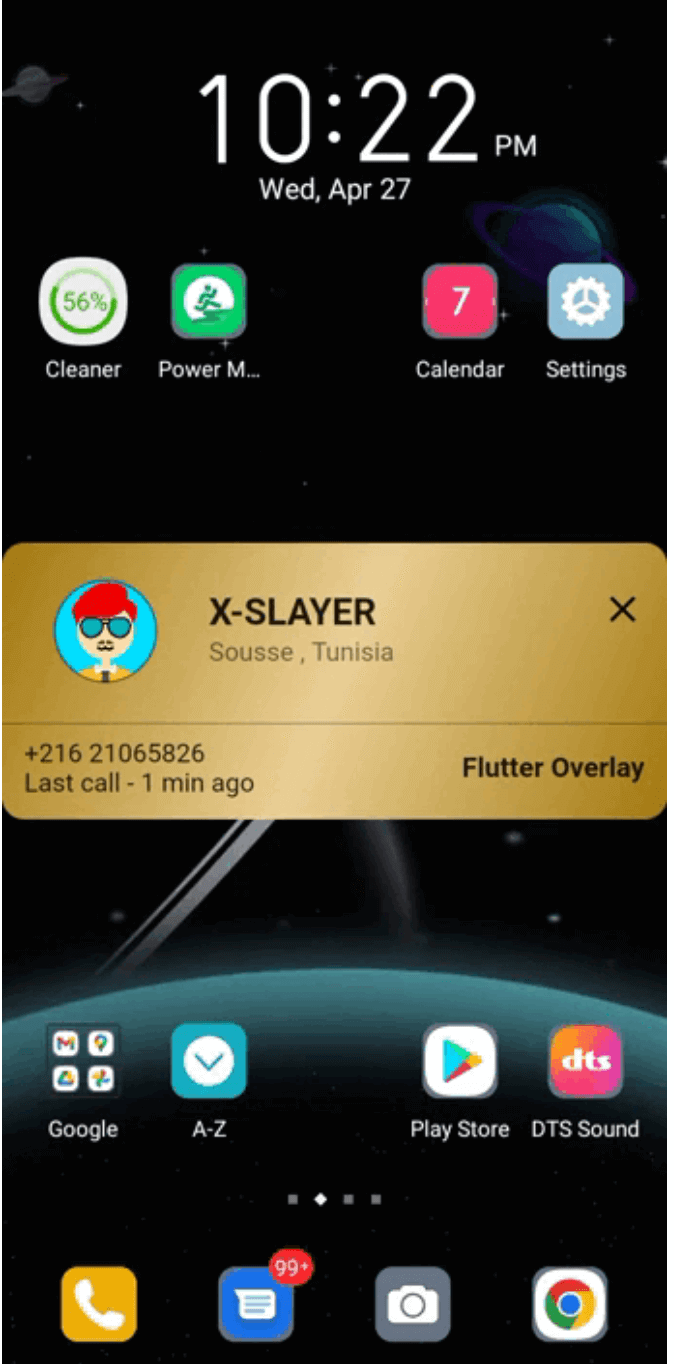
TrueCaller overlay example click-through overlay example Messanger chat-head example

Installation

Add package to your pubspec:

dependencies:
  flutter_overlay_window: any # or the latest version on Pub
Android

You'll need to add the SYSTEM_ALERT_WINDOW permission and OverlayService to your Android Manifest. Replace explanation_for_special_use with your custom explanation.

    <uses-permission android:name="android.permission.SYSTEM_ALERT_WINDOW" />
    <uses-permission android:name="android.permission.FOREGROUND_SERVICE"/>
    <uses-permission android:name="android.permission.FOREGROUND_SERVICE_SPECIAL_USE" />

    <application>
        ...
        <service android:name="flutter.overlay.window.flutter_overlay_window.OverlayService" 
            android:exported="false"
            android:foregroundServiceType="specialUse">
            <property android:name="android.app.PROPERTY_SPECIAL_USE_FGS_SUBTYPE"
                android:value="explanation_for_special_use"/>
        </service>
    </application>
Entry point

Inside main.dart create an entry point for your Overlay widget;


// overlay entry point
@pragma("vm:entry-point")
void overlayMain() {
  runApp(const MaterialApp(
    debugShowCheckedModeBanner: false,
    home: Material(child: Text("My overlay"))
  ));
}

USAGE
 /// check if overlay permission is granted
 final bool status = await FlutterOverlayWindow.isPermissionGranted();

 /// request overlay permission
 /// it will open the overlay settings page and return `true` once the permission granted.
 final bool status = await FlutterOverlayWindow.requestPermission();

  /// Open overLay content
  ///
  /// - Optional arguments:
  ///
  /// `height` the overlay height and default is [WindowSize.fullCover]
  ///
  /// `width` the overlay width and default is [WindowSize.matchParent]
  ///
  /// `alignment` the alignment postion on screen and default is [OverlayAlignment.center]
  ///
  /// `visibilitySecret` the detail displayed in notifications on the lock screen and default is [NotificationVisibility.visibilitySecret]
  ///
  /// `OverlayFlag` the overlay flag and default is [OverlayFlag.defaultFlag]
  ///
  /// `overlayTitle` the notification message and default is "overlay activated"
  ///
  /// `overlayContent` the notification message
  ///
  /// `enableDrag` to enable/disable dragging the overlay over the screen and default is "false"
  ///
  /// `positionGravity` the overlay postion after drag and default is [PositionGravity.none]
  ///
  /// `startPosition` the overlay start position and default is null
 await FlutterOverlayWindow.showOverlay();

 /// closes overlay if open
 await FlutterOverlayWindow.closeOverlay();

 /// broadcast data to and from overlay app
 await FlutterOverlayWindow.shareData("Hello from the other side");

 /// streams message shared between overlay and main app
  FlutterOverlayWindow.overlayListener.listen((event) {
      log("Current Event: $event");
    });

 /// use [OverlayFlag.focusPointer] when you want to use fields that show keyboards
 await FlutterOverlayWindow.showOverlay(flag: OverlayFlag.focusPointer);


 /// update the overlay flag while the overlay in action
 await FlutterOverlayWindow.updateFlag(OverlayFlag.defaultFlag);

 /// Update the overlay size in the screen
 await FlutterOverlayWindow.resizeOverlay(80, 120);

 /// Update the overlay position in the screen
 ///
 /// `position` the new position of the overlay
 ///
 /// `return` true if the position updated successfully
 await FlutterOverlayWindow.moveOverlay(OverlayPosition(0, 156))

 /// Get the current overlay position
 ///
 /// `return` the current overlay position
 await FlutterOverlayWindow.getOverlayPosition()


enum OverlayFlag {
  /// Window flag: this window can never receive touch events.
  /// Usefull if you want to display click-through overlay
  clickThrough,

  /// Window flag: this window won't ever get key input focus
  /// so the user can not send key or other button events to it.
  defaultFlag,

  /// Window flag: allow any pointer events outside of the window to be sent to the windows behind it.
  /// Usefull when you want to use fields that show keyboards.
  focusPointer,
}


  /// Type of dragging behavior for the overlay.
  enum PositionGravity {
    /// The `PositionGravity.none` will allow the overlay to postioned anywhere on the screen.
    none,

    /// The `PositionGravity.right` will allow the overlay to stick on the right side of the screen.
    right,

    /// The `PositionGravity.left` will allow the overlay to stick on the left side of the screen.
    left,

    /// The `PositionGravity.auto` will allow the overlay to stick either on the left or right side of the screen depending on the overlay position.
    auto,
  }


Categories

Source repository

Projects using this package