Package selection guidance compiled from public package information, community data, and project usage.
A Flutter plugin that enables listening to process text streams, allowing apps to receive continuous intent data from external sources. It is designed for Android and iOS, facilitating seamless integration with system-level text processing workflows. The plugin captures text intents in real time, making it ideal for use cases involving clipboard monitoring, text sharing, or integrating with other apps' text output. Built with simplicity and cross-platform compatibility in mind, it provides a straightforward API for developers to access incoming text streams.
Use cases
Clipboard monitoring
Text sharing integration
Real-time text processing
Cross-app text communication
Intent-based data capture
Key features
Real-time text stream listening
Cross-platform support (Android & iOS)
Simple API for intent data
Supports continuous text flow
Built-in stream handling
Suitable for
Developers building text-sharing apps
Apps requiring clipboard interaction
Intents-driven applications
Cross-platform text processing tools
Plugins for productivity or automation
Considerations
Requires proper permissions on Android
Limited to text intent data only
May require background execution setup
Not suitable for non-intent text sources
iOS may have limited background capabilities
Original README
Original README snapshot from the linked source repository. Visit the repository for the latest content.
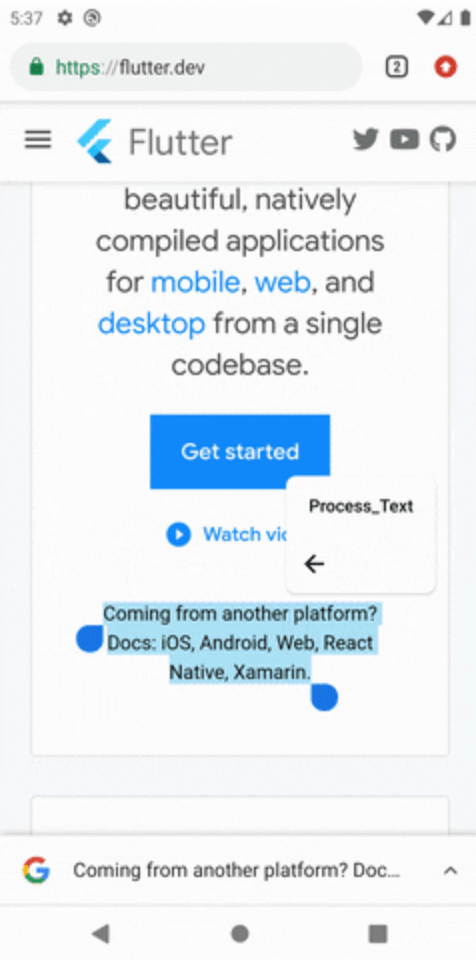
Note: You may change the android:name from ProcessTextActivity to anything you want. also change the android:label from Process_Text to the process action text that you want to display.
Step 3: Create new activity class
Create a new Java/Kotlin file with the same name as android:name in step 2.
Copy the below code and paste in the newly created file.
package com.divyanshushekhar.flutter_process_text_example;

import com.divyanshushekhar.flutter_process_text.FlutterProcessTextPlugin;
import io.flutter.embedding.android.FlutterActivity;
import android.os.Bundle;

public class ProcessTextActivity extends FlutterActivity {

    @Override
    public void onCreate(Bundle savedInstanceState) {
        super.onCreate(savedInstanceState);
        boolean issAppRunning = MainActivity.getIsAppRunning();
        FlutterProcessTextPlugin.listenProcessTextIntent(issAppRunning);
    }
}
Note: Don't forget to change the package name in the above code.
Step 4: Changes in MainActivity
Make the necessary changes in the MainActivity class.
package com.divyanshushekhar.flutter_process_text_example;

import io.flutter.embedding.android.FlutterActivity;

import android.app.ActivityManager;
import android.content.Context;
import android.os.Bundle;
import java.util.List;

public class MainActivity extends FlutterActivity {
   private static boolean isAppRunning;

   public static boolean getIsAppRunning() {
     return isAppRunning;
   }

   @Override
   public void onCreate(Bundle savedInstanceState) {
       super.onCreate(savedInstanceState);
        isAppRunning = isAppRunning(this);
   }

    public static boolean isAppRunning(Context context) {
        final String packageName = context.getPackageName();
        final ActivityManager activityManager = (ActivityManager) context.getSystemService(Context.ACTIVITY_SERVICE);
        final List<ActivityManager.RunningAppProcessInfo> processInfo = activityManager.getRunningAppProcesses();
        if (processInfo != null)
        {
            for (final ActivityManager.RunningAppProcessInfo info : processInfo) {
                if (info.processName.equals(packageName)) {
                    return true;
                }
            }
        }
        return false;
    }
}
Step 5: Connect to flutter
First thing you need to do is to call the initialize method from the FlutterProcessText class in the initState() {} of the page.
There are two ways to work with stream, either create a StreamSubscription to listen for the incoming data or store the Stream and use it in StreamBuilder.