Package selection guidance compiled from public package information, community data, and project usage.
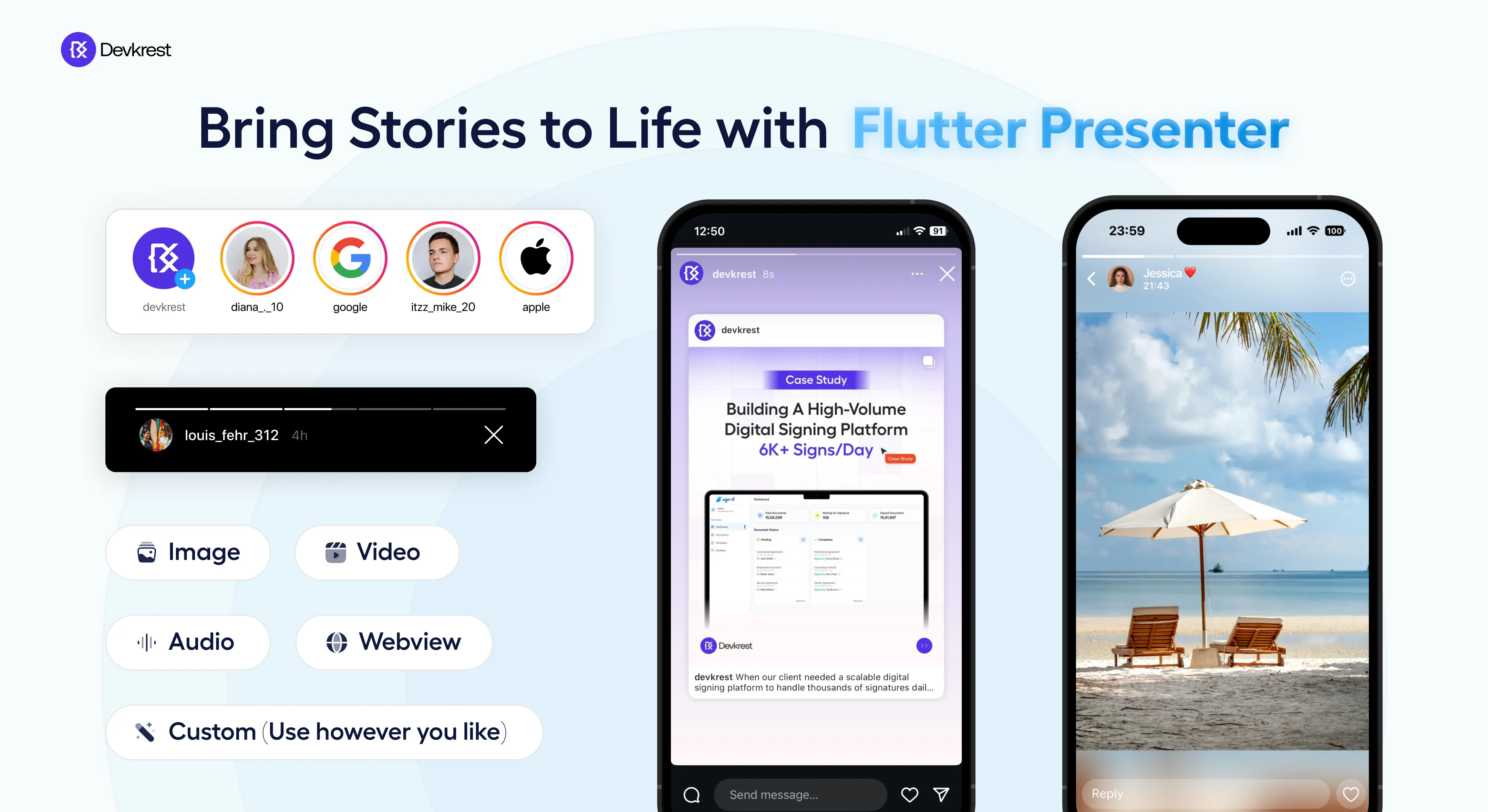
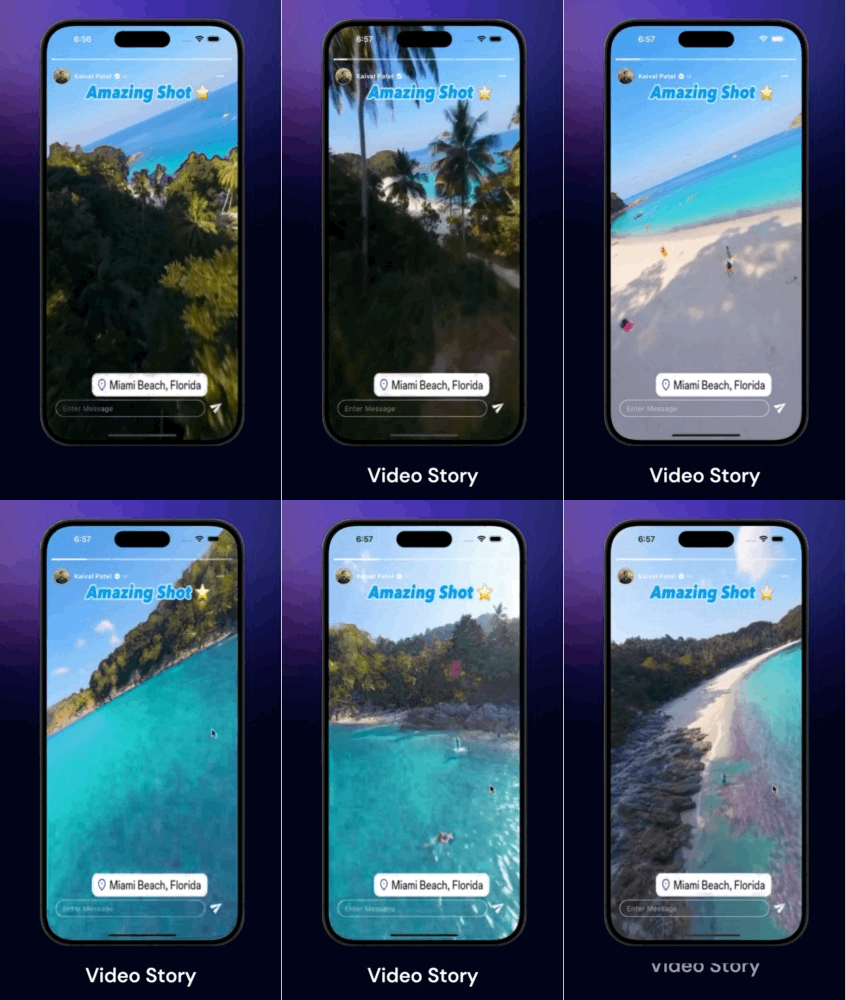
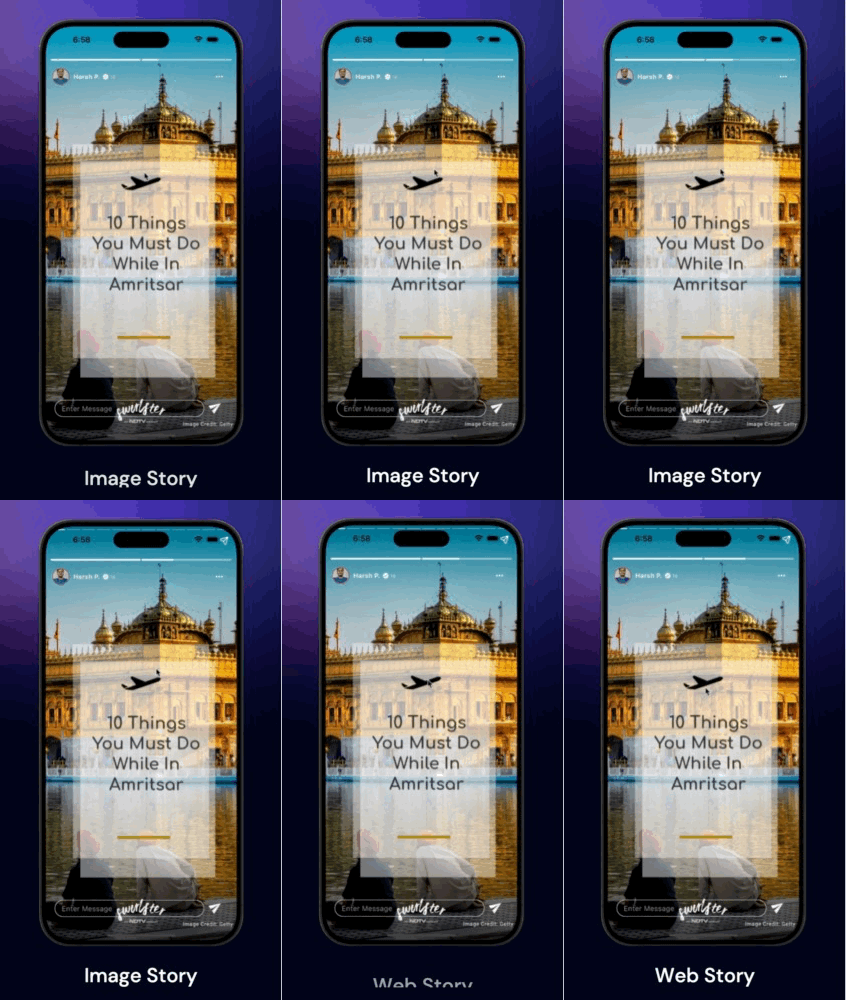
A Flutter package that enables developers to display stories with videos, images, and text in a swipeable, full-screen format similar to Instagram and WhatsApp. It supports smooth transitions, automatic progression, and customizable UI elements. The package is designed for simplicity and performance across Android, iOS, and macOS platforms. It integrates seamlessly into existing Flutter apps with minimal setup. Ideal for social media apps, content sharing platforms, or any app requiring a story-like experience.
Use cases
Social media apps
Content sharing features
User onboarding flows
Interactive tutorials
Marketing campaigns
Key features
Swipeable story navigation
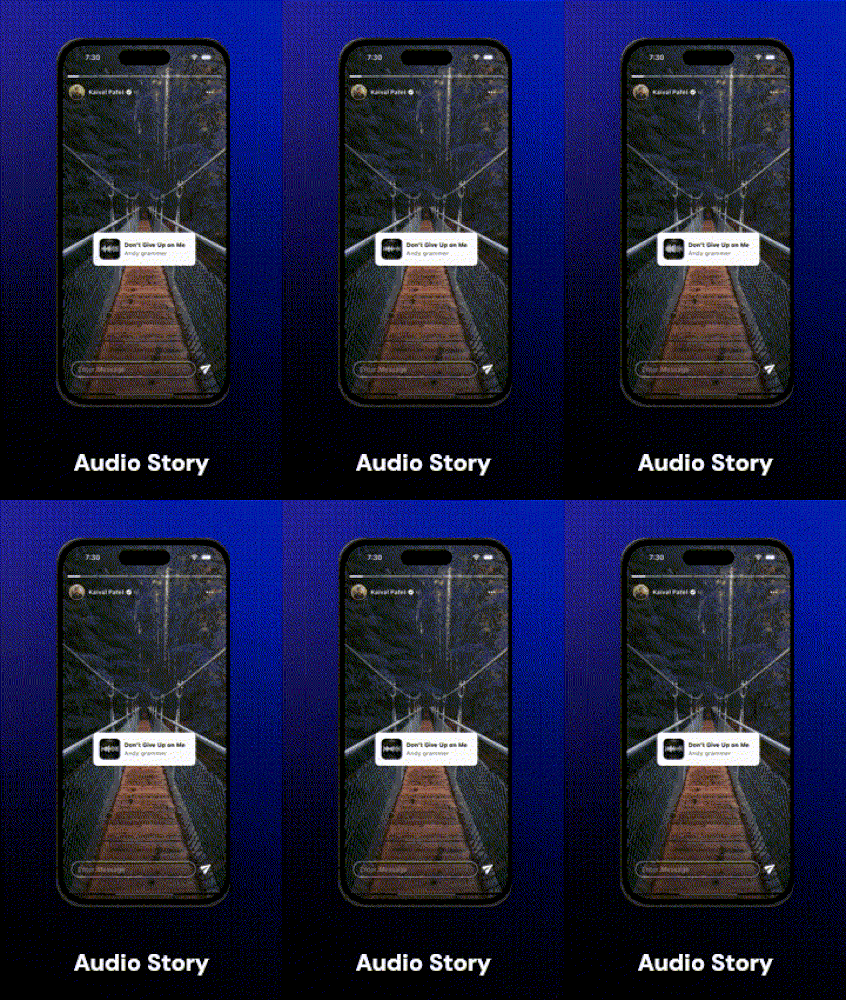
Support for video, image, and text
Auto-advance between stories
Customizable UI components
Cross-platform compatibility
Suitable for
Developers building social features
Apps needing interactive storytelling
Projects with multimedia content
Mobile-first applications
Fast prototyping of story interfaces
Considerations
Requires proper asset management
Limited built-in customization options
May need additional styling for complex designs
Depends on platform-specific rendering
Not optimized for very long story sequences
Original README
Original README snapshot from the linked source repository. Visit the repository for the latest content.
FlutterStoryPresenter
This Flutter package makes it easy to create story and news views like popular social media apps with just a few lines of code! 📱✨ It's loaded with features for customizing and managing stories, perfect for showcasing stories inside your awesome app.
For a detailed view and more examples, check out example/main.dart.
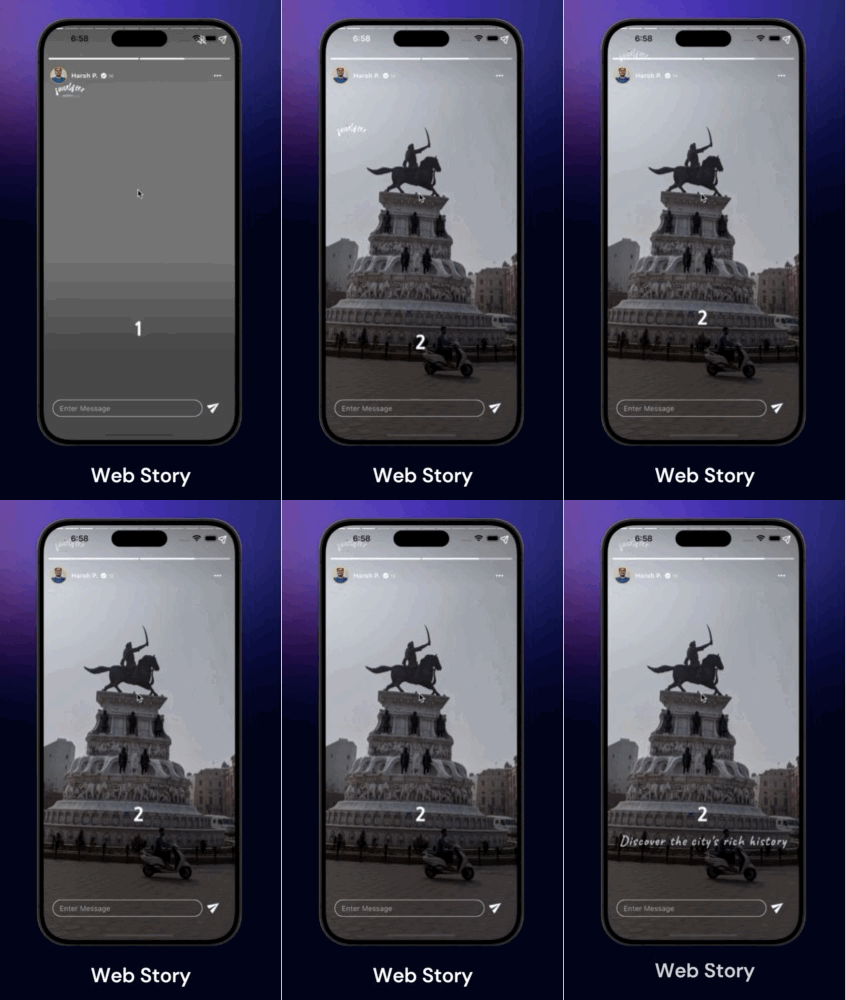
Use FlutterStoryPresenter to display stories on any screen. It accepts a list of StoryItem, each containing URLs for displaying images, videos, and web pages.
FlutterStoryPresenter(
controller : FlutterStoryController(),
items: [
/// For Image Story ItemStoryItem(
url:'https://picsum.photos/1000/1000',
type: StoryItemType.image,
),
/// For Video Story ItemStoryItem(
url:'https://videos.pexels.com/video-files/7297870/7297870-hd_1080_1920_30fps.mp4',
type: StoryItemType.video,
),
/// For Text Story ItemStoryItem(
url:'We won this tournament ... Many more to go',
type: StoryItemType.text,
),
/// For Web Story ItemStoryItem(
url:'https://devkrest.com/',
type: StoryItemType.web,
),
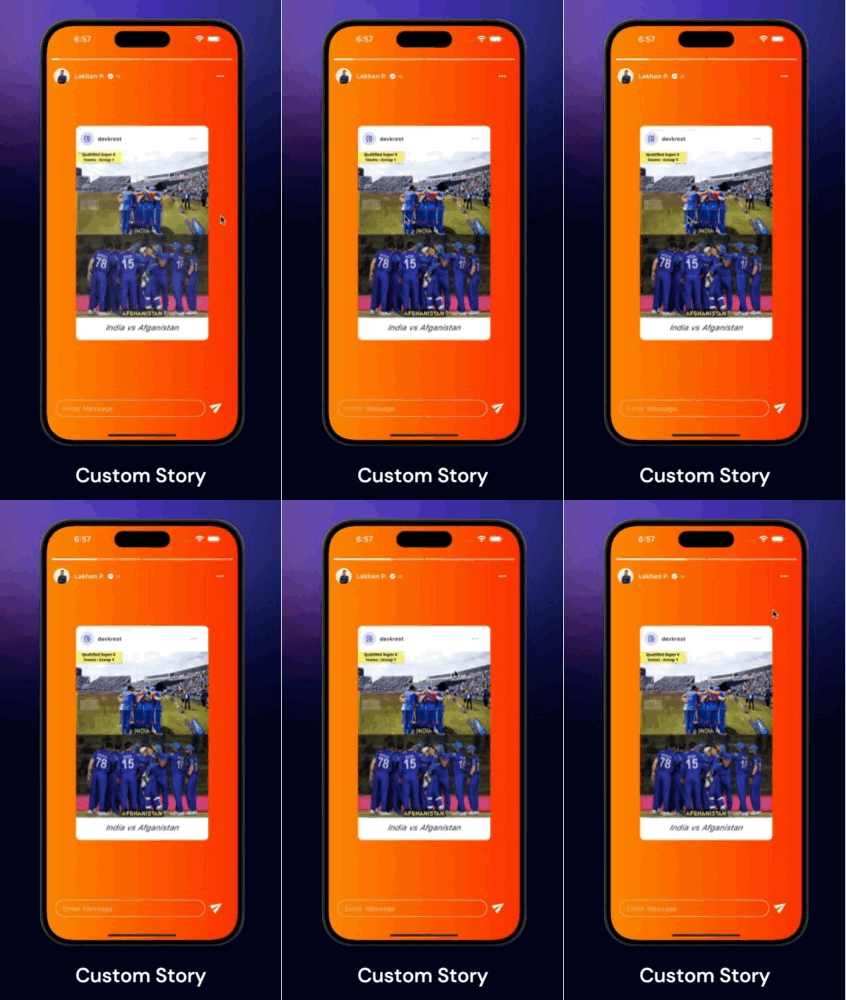
/// For Custom Story ItemStoryItem(
customWidget: YourOwnBakedStoryWidget(),
type: StoryItemType.custom,
),
]
)
FlutterStoryPresenter Properties
Here are some of the properties you may have look for further customisations & callbacks.
/// List of StoryItem objects to display in the story view.finalList<StoryItem> items;
/// Controller for managing the current playing media.finalFlutterStoryController? flutterStoryController;
/// Callback function triggered whenever the story changes or the user navigates to the previous/next story.finalOnStoryChanged? onStoryChanged;
/// Callback function triggered when all items in the list have been played.finalOnCompleted? onCompleted;
/// Callback function triggered when the user taps on the left half of the screen./// Returns a Future<bool> - if true, the story will navigate to the previous item; if false, navigation is blocked./// If not provided, tapping left will always navigate to the previous story.finalOnLeftTap? onLeftTap;
/// Callback function triggered when the user taps on the right half of the screen./// Returns a Future<bool> - if true, the story will navigate to the next item; if false, navigation is blocked./// If not provided, tapping right will always navigate to the next story.finalOnRightTap? onRightTap;
/// Callback function triggered when user drag downs the storyview.finalOnSlideDown? onSlideDown;
/// Callback function triggered when user starts drag downs the storyview.finalOnSlideStart? onSlideStart;
/// Indicates whether the story view should restart from the beginning after all items have been played.finalbool restartOnCompleted;
/// Index to start playing the story from initially.finalint initialIndex;
/// Configuration and styling options for the story view indicator.finalStoryViewIndicatorConfig? storyViewIndicatorConfig;
/// Callback function to retrieve the VideoPlayerController when it is initialized and ready to play.finalOnVideoLoad? onVideoLoad;
/// Widget to display user profile or other details at the top of the screen.finalWidget? headerWidget;
/// Widget to display text field or other content at the bottom of the screen.finalWidget? footerWidget;
Using FlutterStoryController
FlutterStoryController is a controller class designed to manage the current story displayed on FlutterStoryPresenter. It includes various methods such as play(), pause(), jumpTo(), next(), previous(), mute(), and unMute(), allowing you to control the existing StoryItem.
final storyController = FlutterStoryController();
FlutterStoryPresenter(
    controller : storyController,
    items: [
        /// Story Item goes here
    ]
)
...
/// Somewhere in your code
storyController.pause();
storyController.play();
storyController.next();
storyController.previous();
storyController.jumpTo(2);
storyController.mute();
storyController.unMute();
Using StoryItem
The StoryItem class is used to define the individual items displayed in a FlutterStoryPresenter. Each StoryItem can represent an image, video, text, web content, or a custom widget.
url: The URL, file path, or web URL of the story item. Required unless storyItemType is custom.
storyItemType: The type of story item. Required. It can be an image, video, text, web content, or custom.
thumbnail: A widget to display as a thumbnail.
isMuteByDefault: A boolean indicating whether the video should be muted by default. Applicable when storyItemType is video.
duration: The duration for displaying the widget. Defaults to 3 seconds.
storyItemSource: The source type of the story item. Defaults to StoryItemSource.network.
videoConfig: Configuration for video stories.
errorWidget: A widget to display when an error occurs while loading the view.
imageConfig: Configuration for image stories.
textConfig: Configuration for text stories.
webConfig: Configuration for web stories.
customWidget: A custom widget to display fully instead of any other view. Required when storyItemType is custom.
Example
StoryItem(
url: 'https://example.com/image.jpg',
storyItemType: StoryItemType.image,
storyItemSource: StoryItemSource.network,
duration: Duration(seconds: 5),
thumbnail: Image.network('https://example.com/thumbnail.jpg'),
imageConfig: StoryViewImageConfig(
fit: BoxFit.cover,
height: 300,
width: 300,
progressIndicatorBuilder: (_,_,loadProgress){
returnYourImageLoaderWidget();
}
),
)
StoryItem(
url: 'https://example.com/video.mp4',
storyItemType: StoryItemType.video,
isMuteByDefault: true,
storyItemSource: StoryItemSource.network,
duration: Duration(seconds: 10),
videoConfig: StoryViewVideoConfig(
cacheVideo: true,
fit: BoxFit.cover,
height: 500,
width: 500,
loadingWidget: MyVideoLoadingWidget(),
/// If you opt to cache video, // it will store to user device and then played, // if already cached, will play without buffer // from next time
cacheVideo: false,
useVideoAspectRatio: false,
videoPlayerOptions: VideoPlayerOptions(mixWithOthers: true,),
),
)
StoryItem(
storyItemType: StoryItemType.custom,
customWidget: MyCustomWidget(),
)
Full Example
This is the full example demonstrating the usage of FlutterStoryPresenter. For more insights and detailed reference, refer to the official documentation.