Search packages, repositories and app categories

Package detailsv0.0.6

image_crop_widget

A Flutter widget to crop images. The widget is completely written in Dart and has minimal dependencies.

30-day downloads
28
Likes
9
Pub points
40

Install package

flutter pub add image_crop_widget

Package Overview

Package selection guidance compiled from public package information, community data, and project usage.

A Flutter widget designed for cropping images directly within apps. Built entirely in Dart with minimal dependencies, it provides a lightweight and efficient solution for image manipulation. The widget offers intuitive controls for selecting and adjusting crop areas, making it ideal for profile picture editing or image preprocessing. It integrates seamlessly into Flutter projects and supports responsive design across different screen sizes.

Use cases

  • Profile picture cropping
  • Image preprocessing before upload
  • User-generated content editing
  • Photo editing tools in apps
  • Custom image selection workflows

Key features

  • Pure Dart implementation
  • Minimal dependencies
  • Responsive UI
  • Intuitive drag-and-drop crop controls
  • Easy integration with Flutter projects

Suitable for

  • Developers building image-heavy apps
  • Apps requiring user image cropping
  • Projects prioritizing lightweight dependencies
  • Frontend developers seeking simple solutions
  • Mobile app features with image editing needs

Considerations

  • Limited to basic cropping functionality
  • No built-in image filters or enhancements
  • Requires manual handling of cropped image output
  • Not optimized for very large images
  • No support for multiple crop areas simultaneously
Original README

Original README snapshot from the linked source repository. Visit the repository for the latest content.

image_crop_widget

A Flutter widget to crop images. The widget is completely written in Dart and has minimal dependencies.

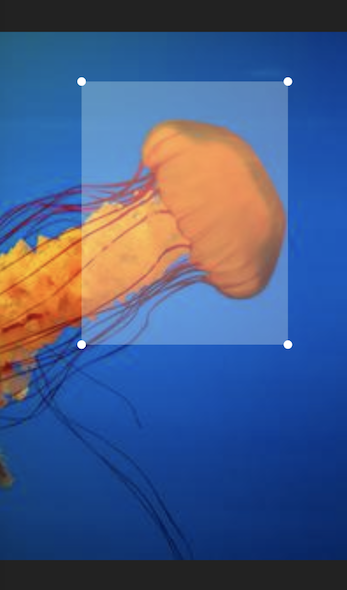
The widget displays the image within the given layout space. On top of the image a transparent rectangular overlay, with handles on each corner, is drawn. The overlay handles can be dragged by touch to adjust the cropping area.

Example

By calling the cropImage() method on the widget's state object, the image area that is marked by the overlay is returned as a new image object.

To acquire the widget's state you can use a GlobalKey object.

Example:

import 'dart:ui'; // This imports the 'Image' class.

final key = GlobalKey<ImageCropState>();
Image imageObject = ...

...

ImageCrop(key: key, image: imageObject) // This could be used inside a  build method.

...
await key.currentState.rotateImage(); // Rotate the image be 90° clockwise.
final cropedImage = await key.currentState.cropImage(); // This could be used inside a 'onPress' handler method.

How to create an image object

The Image class from dart:ui is typically not instantiated directly. Instead, you could convert your image data into a Uint8List and instantiate the image like this:

Uint8List bytes = ...
final codec = await instantiateImageCodec(bytes);
final frame = await codec.getNextFrame();
final image = frame.image;

How to display an image object

The Image object can be displayed with the Flutter Image widget. One way to do this, is by converting the image into a Uint8List and pass it into the widget's memory constructor. Please note, that the widget is not the same Image class as the image object itself.

final cropedImage = await key.currentState.cropImage();
final byte = await cropedImage.toByteData(format: ui.ImageByteFormat.png);
final byteList = byte.buffer.asUint8List();

Image.memory(byteList)

How to persist an image object

The Image object can be persisted into a file or a database. To do this, you can convert the image object into a Uint8List and write it into a File or your database object.

final cropedImage = await key.currentState.cropImage();
final byte = await cropedImage.toByteData(format: ui.ImageByteFormat.png);
final byteList = byte.buffer.asUint8List();

final imageFile = File("Some path and filename"); // You can use the path_provider package to locate the right path.
final result = await imageFile.writeAsBytes(byteList);

Categories

Source repository

Projects using this package

No data available yet.