Package selection guidance compiled from public package information, community data, and project usage.
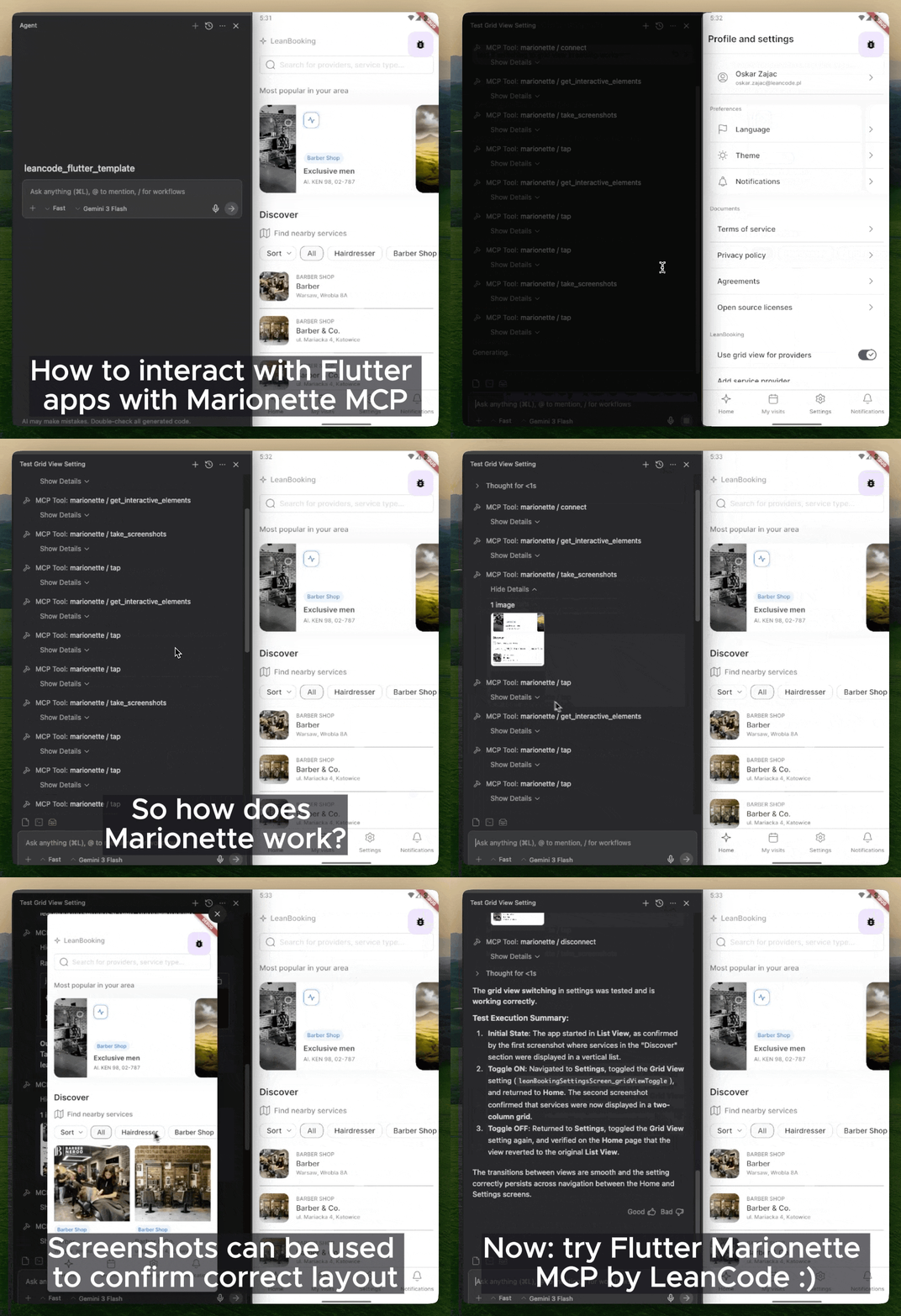
Marionette Flutter enables AI agents to interact with Flutter apps through the MCP protocol, allowing tools like Claude, Copilot, and Cursor to perform actions such as tapping, scrolling, typing, and capturing screenshots. It extends Flutter applications with capabilities for automated testing and AI-driven UI interaction, enhancing development workflows. The package integrates seamlessly across multiple platforms including Android, iOS, Web, macOS, Windows, and Linux. Designed for developers leveraging LLMs in app testing or automation, it bridges the gap between AI agents and native app behaviors.
Use cases
Automated UI testing with AI agents
AI-powered app exploration and debugging
Integration with Copilot and Claude for app interaction
Real-time screenshot capture during testing
Cross-platform app interaction via MCP
Key features
MCP protocol support for AI agent communication
Support for tap, scroll, type, and screenshot actions
Seamless integration with LLM-powered development tools
Lightweight Flutter extensions for agent interaction
Suitable for
Developers using AI agents for testing
Teams implementing AI-driven UI automation
Flutter projects requiring advanced test orchestration
Integrators working with Copilot, Claude, or Cursor
Projects focused on generative AI in app development
Considerations
Requires compatible AI agent with MCP support
May need additional setup for secure agent access
Limited to platforms where MCP is supported
Depends on external AI tooling for full functionality
Not intended for production user interactions
Original README
Original README snapshot from the linked source repository. Visit the repository for the latest content.
Marionette MCP
"Playwright MCP/Cursor Browser, but for Flutter apps"
Marionette MCP enables AI agents (Claude Code, Copilot, Cursor, Gemini CLI, and more) to inspect and interact with running Flutter applications. It connects your AI agent directly to a running app via the Model Context Protocol (MCP), so it can see the widget tree, tap elements, enter text, scroll, and capture screenshots for automated AI-driven smoke testing and interaction.
Marionette MCP keeps the surface area intentionally small. It exposes only a handful of high-signal actions and returns the minimum actionable data, which helps keep prompts focused and context sizes under control.
The official Dart & Flutter MCP server focuses on development-time tasks: searching pub.dev, managing dependencies, analyzing code, and inspecting runtime errors. It can also drive the UI, but it does so through Flutter Driver, which introduces extra instrumentation in your app. Marionette MCP focuses solely (and in an opinionated way) on runtime interaction: tapping buttons, entering text, scrolling, and taking screenshots, while requiring minimal changes to your app. Use Flutter MCP to build your app, use Marionette MCP to test and interact with it with minimal code changes.
Quick Start
[!NOTE]
Your Flutter app must be prepared to be compatible with Marionette. The steps below are the short version — the Getting Started guide walks through each one.
Prepare your app — add marionette_flutter and initialize MarionetteBinding in main.dart:
Run your app in debug mode — flutter run, then copy the VM service URI from the console (e.g. ws://127.0.0.1:9101/ws).
Connect and interact — ask your agent to connect using that URI and start driving the app.
[!IMPORTANT]
Standard Material widgets work out of the box. If your app uses a custom design system, configuration is required — otherwise the agent can't see or tap your custom buttons and fields. Start with the Production Setup Checklist.
What you can do
Once connected, an agent can drive your app with a small, focused toolset: inspect the widget tree (get_interactive_elements), tap / secondary_tap / double_tap / long_press / swipe / pinch_zoom / scroll_to, enter_text, press_back_button, take_screenshots, read get_logs, and hot_reload. Full list: MCP Tools.
Your app can also expose its own actions to the agent via Custom Extensions — navigate by route name, seed test data, toggle feature flags, and more.
Some real-world prompts:
"I implemented the Forgot Password screen — connect, navigate to login, tap 'Forgot Password', enter a valid email, submit, and check the logs that the API call fired."
"I refactored the routing. Run a smoke test: cycle through all bottom-nav tabs and verify each screen loads without exceptions in the logs."
"Investigate the unresponsive 'Clear Cache' button on Settings — find it via get_interactive_elements, tap it, and analyze the logs."