Package selection guidance compiled from public package information, community data, and project usage.
PasswordGrid is a Flutter package that enables developers to create secure, customizable password grids for user authentication. It supports multiple platforms including Android, iOS, Web, macOS, Windows, and Linux, making it ideal for cross-platform applications requiring grid-based password input. The package provides an intuitive interface for entering passwords via a grid layout, enhancing usability while maintaining security. It integrates seamlessly with Flutter's widget system and can be easily customized to match app design requirements.
Use cases
Secure login interfaces
Two-factor authentication
Grid-based password entry
Cross-platform app development
User-friendly authentication
Customizable UI for password input
Key features
Cross-platform support
Customizable grid layout
Secure password input
Easy integration with Flutter
Responsive design
Supports multiple operating systems
Suitable for
Mobile and web apps
Authentication systems
Security-focused applications
Developers seeking reusable UI components
Apps needing grid-based input
Multi-platform projects
Considerations
Requires careful handling of sensitive data
May need additional validation logic
Not suitable for complex password policies
UI customization may require advanced Flutter knowledge
Limited to grid-style password entry
Depends on external source code for updates
Original README
Original README snapshot from the linked source repository. Visit the repository for the latest content.
PasswordGrid
A Flutter Package to Generate Password Grid. You can use this widget directly in your application UI.
Stay Secure with 2FA Passcode Grid
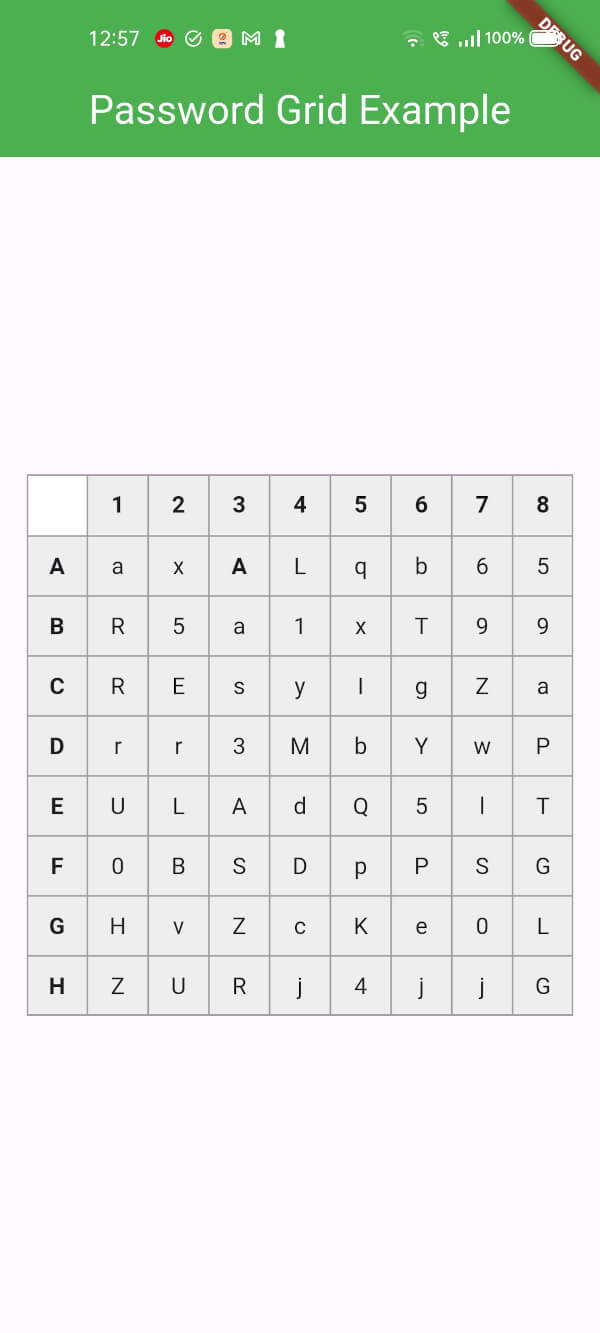
A password grid, also called a "passcode grid," is a table with rows and columns containing unique letters or numbers where you select specific combinations to authenticate, essentially acting as a visual password by choosing specific coordinates on the grid to form your login credentials; to use it, you would typically be presented with a grid, then asked to enter the letters or numbers from specific grid positions (like "A3, B2, C1") to log in, usually requiring you to save or print the grid for future use as it's unique to your account.
Key points about using a password grid:
Access your grid:
While designing a authentication system, you can ask your users to enter the values in the Password grid as a 2FA passcode.
The user will be prompted to access your grid, which you should generate and show them.
The password grid can be generated at the time of user signin and they should save it for future use. so that the user can use the grid for 2FA authentication.
Select coordinates:
The system will ask the user to enter the letters or numbers from specific grid positions, usually indicated by a combination of a column letter and row number (e.g., "B2", A8, etc).
Enter the code:
The user will enter the values from the requested grid coordinates into the 2FA login field to authenticate.
Benefits of a password grid:
Enhanced security:
Since the user selects multiple characters from a grid, it's harder for someone to guess your password compared to a simple text-based password.
Shoulder surfing resistant:
Less susceptible to "shoulder surfing" attacks where someone observes your password entry because the grid doesn't reveal the exact password sequence.
Accessibility for some users:
Can be easier for people who struggle with remembering complex passwords.
Usage
In your application,
import'package:passwordgrid/main.dart';
then pass grid configuration
GridConfig config = GridConfig(
numbers: true,
alphaUpper: true,
alphaLower: true,
symbols: false,
gridSize: 8, // max size is 8 and min size is 5
);
// or Optionally pass GridConfig or use default valuesGridConfig? config;
// and invoke thisPasswordGrid passwordGrid = PasswordGrid(config: config);
// sample code@overrideWidgetbuild(BuildContext context) {
// pass grid configurationGridConfig config = GridConfig(
numbers: true,
alphaUpper: true,
alphaLower: true,
symbols: false,
gridSize: 8, // max size is 8 and min size is 5
);
// or Optionally pass GridConfig or use default values// GridConfig? config;PasswordGrid passwordGrid = PasswordGrid(config: config);
returnScaffold(
appBar: AppBar(
title: Text('Password Grid Example'),
backgroundColor: Colors.green,
centerTitle: true,
titleTextStyle: TextStyle(
color: Colors.white,
fontSize: 24,
),
),
body: Center(
child: passwordGrid,
),
);
}
An example application of how to use this password grid package is included in the example folder.
This will generate a password grid similar to
Grid Configuration
While generating grid, you can configure the grid generation parameters.
  GridConfig config = GridConfig(
    numbers: false,
    alphaUpper: true,
    alphaLower: true,
    symbols: false,
    gridSize: 6, // max size is 8 and min size is 5
  );
If everything is set to false as below, then it is invalid, so grid parameters will be set to default. i.e., all falsg will be set to true