Search packages, repositories and app categories

pull_to_refresh_notification cover
Package detailsv3.1.1

pull_to_refresh_notification

Flutter plugin for building pull to refresh effects with PullToRefreshNotification and PullToRefreshContainer quickly.

AndroidiOSWebmacOSWindowsLinux
30-day downloads
5.8K
Likes
80
Pub points
150

Install package

flutter pub add pull_to_refresh_notification

Package Overview

Package selection guidance compiled from public package information, community data, and project usage.

A Flutter plugin that enables developers to implement pull-to-refresh functionality using the PullToRefreshNotification and PullToRefreshContainer widgets. It provides a simple, efficient way to add refresh gestures to lists or scrollable content across multiple platforms. The package integrates seamlessly with existing scroll views and supports custom refresh indicators, making it ideal for apps requiring smooth, responsive data reloading. Built for performance and ease of use, it works on Android, iOS, Web, macOS, Windows, and Linux.

Use cases

  • Implementing pull-to-refresh in list views
  • Creating custom refresh indicators
  • Enhancing user experience in data-heavy apps
  • Building cross-platform refreshable UIs
  • Adding real-time data updates
  • Integrating with scrollable widgets

Key features

  • PullToRefreshNotification for event handling
  • PullToRefreshContainer for wrapping scrollable content
  • Cross-platform support
  • Customizable refresh indicators
  • Simple integration with ScrollViews
  • Real-time refresh state management

Suitable for

  • Developers building dynamic list interfaces
  • Teams targeting multiple platforms
  • Apps requiring frequent data updates
  • UI-focused Flutter projects
  • Fast prototyping of refreshable screens

Considerations

  • Requires integration with ScrollViews
  • Limited to pull-to-refresh behavior
  • May need additional styling for custom designs
  • Depends on Flutter's gesture system
  • Not suitable for non-scrollable refresh scenarios

Original README

Original README snapshot from the linked source repository. Visit the repository for the latest content.

pull_to_refresh_notification

pub package GitHub stars GitHub forks GitHub license GitHub issues FlutterCandies QQ 群

Language: English | 中文简体

widget to build pull to refresh effects.

Web demo for PullToRefreshNotification

Chinese blog

RefreshIndicatorMode

enum RefreshIndicatorMode {
  drag, // Pointer is down.
  armed, // Dragged far enough that an up event will run the onRefresh callback.
  snap, // Animating to the indicator's final "displacement".
  refresh, // Running the refresh callback.
  done, // Animating the indicator's fade-out after refreshing.
  canceled, // Animating the indicator's fade-out after not arming.
  error, //refresh failed
}

Sample 1 appbar

build appbar to pull to refresh with PullToRefreshContainer

   Widget build(BuildContext context) {
 return PullToRefreshNotification(
      color: Colors.blue,
      pullBackOnRefresh: true,
      onRefresh: onRefresh,
      child: CustomScrollView(
        slivers: <Widget>[
          PullToRefreshContainer(buildPulltoRefreshAppbar),
          SliverList(
              delegate:
                  SliverChildBuilderDelegate((BuildContext context, int index) {
            return Container(
                padding: EdgeInsets.only(bottom: 4.0),
                child: Column(
                  children: <Widget>[
                    Text(
                      "List item : ${listlength - index}",
                      style: TextStyle(fontSize: 15.0, inherit: false),
                    ),
                    Divider(
                      color: Colors.grey,
                      height: 2.0,
                    )
                  ],
                ));
          }, childCount: listlength)),
        ],
      ),
    );
}
    
     Widget buildPulltoRefreshAppbar(PullToRefreshScrollNotificationInfo info) {
        var action = Padding(
          child: info?.refreshWidget ?? Icon(Icons.more_horiz),
          padding: EdgeInsets.all(15.0),
        );
        var offset = info?.dragOffset ?? 0.0;
        return SliverAppBar(
            pinned: true,
            title: Text("PullToRefreshAppbar"),
            centerTitle: true,
            expandedHeight: 200.0 + offset,
            actions: <Widget>[action],
            flexibleSpace: FlexibleSpaceBar(
                //centerTitle: true,
                title: Text(
                  info?.mode?.toString() ?? "",
                  style: TextStyle(fontSize: 10.0),
                ),
                collapseMode: CollapseMode.pin,
                background: Image.asset(
                  "assets/467141054.jpg",
                  //fit: offset > 0.0 ? BoxFit.cover : BoxFit.fill,
                  fit: BoxFit.cover,
                )));
      }

Sample 2 header

build header to pull to refresh with PullToRefreshContainer. and you can easy to handle the status in pulling.

  Widget build(BuildContext context) {
    return PullToRefreshNotification(
       color: Colors.blue,
       onRefresh: onRefresh,
       maxDragOffset: 80.0,
       child: CustomScrollView(
         slivers: <Widget>[
           SliverAppBar(
             pinned: true,
             title: Text("PullToRefreshHeader"),
           ),
           PullToRefreshContainer(buildPulltoRefreshHeader),
           SliverList(
               delegate:
                   SliverChildBuilderDelegate((BuildContext context, int index) {
             return Container(
                 padding: EdgeInsets.only(bottom: 4.0),
                 child: Column(
                   children: <Widget>[
                     Text(
                       "List item : ${listlength - index}",
                       style: TextStyle(fontSize: 15.0, inherit: false),
                     ),
                     Divider(
                       color: Colors.grey,
                       height: 2.0,
                     )
                   ],
                 ));
           }, childCount: listlength)),
         ],
       ),
     );
   }
 
   Widget buildPulltoRefreshHeader(PullToRefreshScrollNotificationInfo info) {
     var offset = info?.dragOffset ?? 0.0;
     var mode = info?.mode;
     Widget refreshWidget = Container();
     //it should more than 18, so that RefreshProgressIndicator can be shown fully
     if (info?.refreshWidget != null &&
         offset > 18.0 &&
         mode != RefreshIndicatorMode.error) {
       refreshWidget = info.refreshWidget;
     }
 
     Widget child = null;
     if (mode == RefreshIndicatorMode.error) {
       child = GestureDetector(
           onTap: () {
             // refreshNotification;
             info?.pullToRefreshNotificationState?.show();
           },
           child: Container(
             color: Colors.grey,
             alignment: Alignment.bottomCenter,
             height: offset,
             width: double.infinity,
             //padding: EdgeInsets.only(top: offset),
             child: Container(
               padding: EdgeInsets.only(left: 5.0),
               alignment: Alignment.center,
               child: Text(
                 mode?.toString() + "  click to retry" ?? "",
                 style: TextStyle(fontSize: 12.0, inherit: false),
               ),
             ),
           ));
     } else {
       child = Container(
         color: Colors.grey,
         alignment: Alignment.bottomCenter,
         height: offset,
         width: double.infinity,
         //padding: EdgeInsets.only(top: offset),
         child: Row(
           mainAxisAlignment: MainAxisAlignment.center,
           children: <Widget>[
             refreshWidget,
             Container(
               padding: EdgeInsets.only(left: 5.0),
               alignment: Alignment.center,
               child: Text(
                 mode?.toString() ?? "",
                 style: TextStyle(fontSize: 12.0, inherit: false),
               ),
             )
           ],
         ),
       );
     }
 
     return SliverToBoxAdapter(
       child: child,
     );
   }

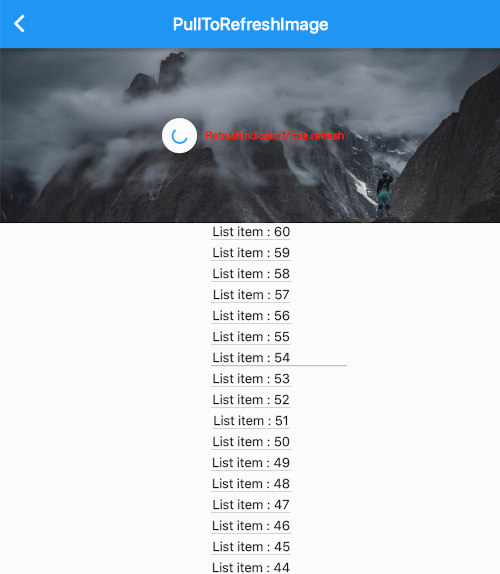
Sample 3 image

build zoom image to pull to refresh with using PullToRefreshContainer.

 Widget build(BuildContext context) {
     return PullToRefreshNotification(
       color: Colors.blue,
       pullBackOnRefresh: true,
       onRefresh: onRefresh,
       child: CustomScrollView(
         slivers: <Widget>[
           SliverAppBar(
             title: Text("PullToRefreshImage"),
           ),
           PullToRefreshContainer(buildPulltoRefreshImage),
           SliverList(
               delegate:
                   SliverChildBuilderDelegate((BuildContext context, int index) {
             return Container(
                 padding: EdgeInsets.only(bottom: 4.0),
                 child: Column(
                   children: <Widget>[
                     Text(
                       "List item : ${listlength - index}",
                       style: TextStyle(fontSize: 15.0, inherit: false),
                     ),
                     Divider(
                       color: Colors.grey,
                       height: 2.0,
                     )
                   ],
                 ));
           }, childCount: listlength)),
         ],
       ),
     );
   }
   
   Widget buildPulltoRefreshImage(PullToRefreshScrollNotificationInfo info) {
     var offset = info?.dragOffset ?? 0.0;
     Widget refreshWidget = Container();
     if (info?.refreshWidget != null) {
       refreshWidget = Material(
         type: MaterialType.circle,
         color: Theme.of(context).canvasColor,
         elevation: 2.0,
         child: Padding(
           padding: EdgeInsets.all(12),
           child: info.refreshWidget,
         ),
       );
     }
 
     return SliverToBoxAdapter(
       child: Stack(
         alignment: Alignment.center,
         children: <Widget>[
           Container(
               height: 200.0 + offset,
               width: double.infinity,
               child: Image.asset(
                 "assets/467141054.jpg",
                 //fit: offset > 0.0 ? BoxFit.cover : BoxFit.fill,
                 fit: BoxFit.cover,
               )),
           Center(
             child: Row(
               mainAxisAlignment: MainAxisAlignment.center,
               children: <Widget>[
                 refreshWidget,
                 Container(
                   padding: EdgeInsets.only(left: 5.0),
                   alignment: Alignment.center,
                   child: Text(
                     info?.mode?.toString() ?? "",
                     style: TextStyle(fontSize: 12.0, inherit: false),
                   ),
                 )
               ],
             ),
           )
         ],
       ),
     );
   }

Sample 4 candies

build candies animation to pull to refresh with using PullToRefreshContainer.

  Widget build(BuildContext context) {
    return Material(
      child: Stack(
        children: <Widget>[
          PullToRefreshNotification(
            color: Colors.blue,
            onRefresh: onRefresh,
            maxDragOffset: maxDragOffset,
            armedDragUpCancel: false,
            key: key,
            child: CustomScrollView(
              ///in case list is not full screen and remove ios Bouncing
              physics: AlwaysScrollableClampingScrollPhysics(),
              slivers: <Widget>[
                SliverAppBar(
                  title: Text("PullToRefreshCandies"),
                ),
                PullToRefreshContainer((info) {
                  var offset = info?.dragOffset ?? 0.0;
                  Widget child = Container(
                    alignment: Alignment.center,
                    height: offset,
                    width: double.infinity,
                    child: RefreshLogo(
                      mode: info?.mode,
                      offset: offset,
                    ),
                  );

                  return SliverToBoxAdapter(
                    child: child,
                  );
                }),
                SliverList(
                    delegate: SliverChildBuilderDelegate(
                        (BuildContext context, int index) {
                  return Container(
                      padding: EdgeInsets.only(bottom: 4.0),
                      child: Column(
                        children: <Widget>[
                          Text(
                            "List item : ${listlength - index}",
                            style: TextStyle(fontSize: 15.0),
                          ),
                          Divider(
                            color: Colors.grey,
                            height: 2.0,
                          )
                        ],
                      ));
                }, childCount: listlength)),
              ],
            ),
          ),
          Positioned(
            right: 20.0,
            bottom: 20.0,
            child: FloatingActionButton(
              child: Icon(Icons.refresh),
              onPressed: () {
                key.currentState.show(notificationDragOffset: maxDragOffset);
              },
            ),
          )
        ],
      ),
    );
  }

Sample 5 candies

Show how to use pull to refresh notification for reverse list like chat list.

        PullToRefreshNotification(
          onRefresh: onRefresh,
          maxDragOffset: 48,
          armedDragUpCancel: false,
          reverse: true,
          child: Column(
            children: <Widget>[
              PullToRefreshContainer(
                  (PullToRefreshScrollNotificationInfo info) {
                final double offset = info?.dragOffset ?? 0.0;

                //loading history data
                return Container(
                  height: offset,
                  child: const RefreshProgressIndicator(
                    valueColor: AlwaysStoppedAnimation<Color>(Colors.blue),
                    strokeWidth: 2.0,
                  ),
                );
              }),
              Expanded(
                child: ExtendedListView.builder(
                  ///in case list is not full screen and remove ios Bouncing
                  physics: const AlwaysScrollableClampingScrollPhysics(),
                  reverse: true,
                  extendedListDelegate:
                      const ExtendedListDelegate(closeToTrailing: true),
                  itemBuilder: (BuildContext context, int index) {
                    List<Widget> children = <Widget>[
                      Text('$index. ${chats[index]}'),
                      Image.asset(
                        'assets/avatar.jpg',
                        width: 30,
                        height: 30,
                      ),
                    ];
                    if (index % 2 == 0) {
                      children = children.reversed.toList();
                    }
                    return Row(
                      mainAxisAlignment: index % 2 == 0
                          ? MainAxisAlignment.start
                          : MainAxisAlignment.end,
                      children: children,
                    );
                  },
                  itemCount: chats.length,
                ),
              )
            ],
          ),
        ),

refresh with code

  • define key
  final GlobalKey<PullToRefreshNotificationState> key =
      new GlobalKey<PullToRefreshNotificationState>();

        PullToRefreshNotification(
          key: key,    
  • use key

if you define pull Container hegith with dragOffset, you need set notificationDragOffset when refresh.

  key.currentState.show(notificationDragOffset: maxDragOffset);

Categories

Source repository

Projects using this package