Package selection guidance compiled from public package information, community data, and project usage.
A lightweight 3D rendering package for Flutter that enables basic 3D scene creation with support for cameras, lighting, and a world environment. It allows user interaction through taps and is designed for simple 3D visualizations across multiple platforms. Ideal for prototyping or educational apps requiring minimal setup and straightforward 3D rendering capabilities.
Use cases
Interactive 3D prototypes
Educational 3D visualizations
Simple game environments
Basic 3D model viewers
Cross-platform 3D demos
Key features
Built-in cameras and lighting
Tap-based user interaction
Multi-platform support
Simple scene management
Lightweight 3D rendering engine
Suitable for
Beginners in 3D graphics
Flutter developers seeking quick 3D integration
Educational projects
Prototypes with minimal 3D complexity
Considerations
Limited advanced 3D features
Not suited for complex animations or high-performance games
Depends on external source code for updates
No built-in model loading support
Original README
Original README snapshot from the linked source repository. Visit the repository for the latest content.
This package is for rendering Sp3dObj.
Sp3dObj is an implementation of the Simple 3D Format created for science.
It is created mainly for use by scientists.
Please refer to the following for the packages to be used together.
If you want to implement Undo/Redo functionality in an app that directly edits Sp3dObj,
you can use the following package. file_state_manager
For examples of using this package, see the following package: sakura_blizzard
Although this is a very experimental project, there are also packages for converting from other 3D formats.
However, Sp3dObj is intended for scientific use and has significant differences in functionality, so only minimal compatibility is supported. convert_simple_3d
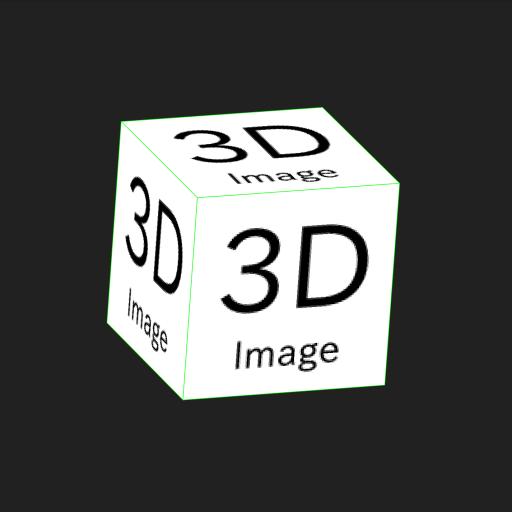
For example, rewrite sample code as follows.(*Note that some unnecessary parameters remain for simplicity)
sample_image.png
// Change Cube of initState().Sp3dObj obj = UtilSp3dGeometry.cube(200,200,200,1,1,1);
--------------------------------------------------------------------
// Change functionvoidloadImage() async {
this.objs[0].fragments[0].faces[0].materialIndex=1;
this.objs[0].fragments[0].faces[1].materialIndex=1;
this.objs[0].fragments[0].faces[2].materialIndex=1;
this.objs[0].fragments[0].faces[3].materialIndex=1;
this.objs[0].materials[1].imageIndex = 0;
// You can use images by creating an assets/images folder under your project, adding images, and adding the asset path to pubspec.yaml.// For Flutter Web, you also need to copy it to your web folder.this.objs[0].images.add(await_readFileBytes("./assets/images/sample_image.png"));
this.world = Sp3dWorld(objs);
this.world.initImages().then(
(List<Sp3dObj> errorObjs){
setState(() {
this.isLoaded = true;
});
}
);
}
// Add functionFuture<Uint8List> _readFileBytes(String filePath) async {
ByteData bd = await rootBundle.load(filePath);
return bd.buffer.asUint8List(bd.offsetInBytes,bd.lengthInBytes);
}
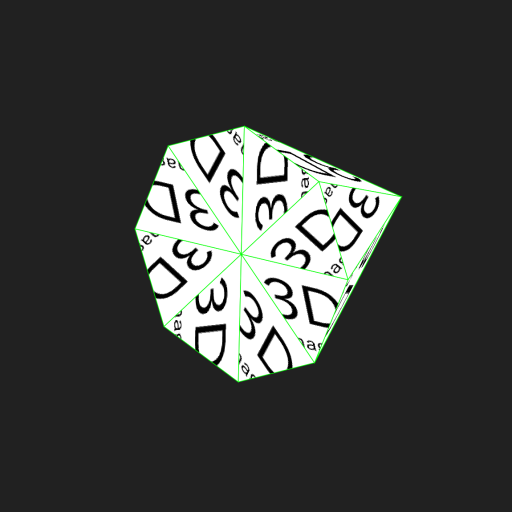
Triangle mesh
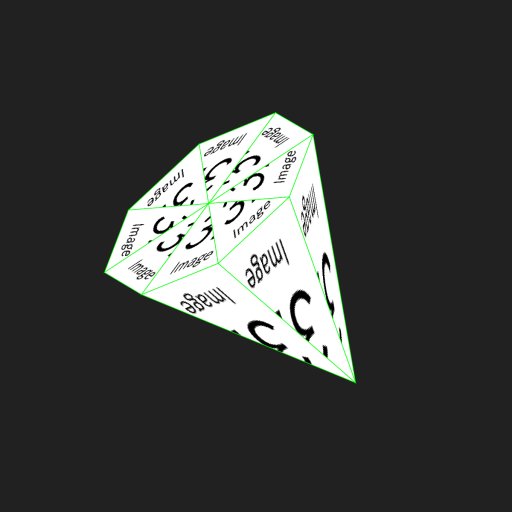
If the drawing destination of the image is a triangular mesh, the image is automatically divided into triangles with the vertices at the upper left, lower left, and lower right, and displayed.
You can also use the Sp3dMaterial parameters to control the cutout position with respect to the triangular mesh.
*Note that the size of the image of paste to cone is (width, height) = (128, 128).
Since textureCoordinates specifies the position where you want to cut out the image, it indicate the points on the image.
And this image is (0,0) in the upper left and (128,128) in the lower right.
For example, the following sample is cut out at the upper left, the middle of the lower side, and the upper right.
In the case of a square mesh, it is necessary to specify two triangles, so six vertices are required.
For example, rewrite sample code as follows.
The return value Sp3dFaceObj in onPanDown is a class that contains information about the touched surface.
The sample uses this information to move the object touched by the user.
If you want to save / restore multiple Sp3dObj along with their location, Sp3dWorld also has toDict and fromDict methods.
The extension when saving is recommended to be .s3dw to avoid confusion.
Support
If you need paid support for any reason, please contact my company.
This package is developed by me personally, but may be supported via the company. SimpleAppli Inc.
Rendering Speed (300 paint average)
When using CPU Ryzen5 5600, it is a consideration of the time it takes to draw in debug mode and on a web browser.
There are some speed issues, such as running on a CPU and being single-threaded.
In the case of real-time rendering, the limit is about 1000 cubes (8000 vertices), and anything higher than that is heavy.
Note: Not all objects will perform equally well due to acceleration logic.
For models such as spheres with many vertices, the amount you can comfortably manipulate is much smaller.