Search packages, repositories and app categories

Package detailsv1.1.3

floatingpanel

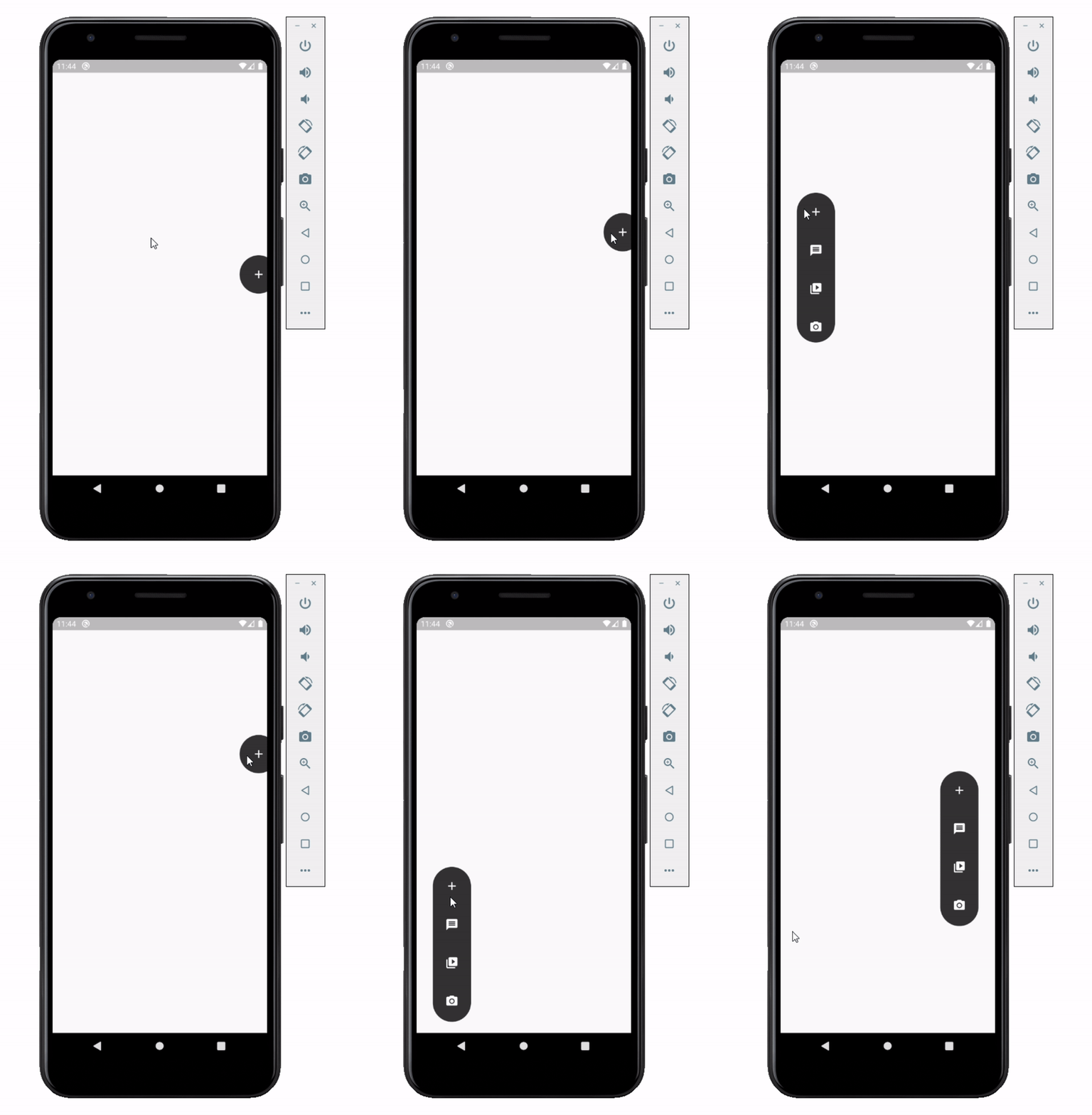
Floating panel helps you create easy floating menu which you can drag and drop to any edge of the screen (horizontally).

30-day downloads
44
Likes
130
Pub points
30

Install package

flutter pub add floatingpanel

Package Overview

Package selection guidance compiled from public package information, community data, and project usage.

FloatingPanel is a Flutter package that enables developers to create draggable floating menus that can be positioned along any horizontal edge of the screen. It provides a smooth, interactive experience for users to move the panel with gestures, making it ideal for quick access to actions or navigation options. The package is lightweight and integrates seamlessly into existing Flutter apps. It supports customization of appearance and behavior through configurable properties. Designed with simplicity in mind, FloatingPanel enhances user interface design by offering an intuitive way to present contextual controls.

Use cases

  • Quick action menus
  • Contextual navigation
  • Gesture-based UI elements
  • Mobile app toolbars
  • Customizable side panels
  • User preference settings

Key features

  • Draggable positioning
  • Horizontal edge alignment
  • Smooth gesture support
  • Customizable appearance
  • Lightweight implementation
  • Easy integration with Flutter

Suitable for

  • Mobile app developers
  • UI/UX designers
  • Interactive widget creators
  • Flutter beginners
  • Apps needing floating controls
  • Gesture-heavy interfaces

Considerations

  • Limited to horizontal edges
  • No vertical edge support
  • May require additional styling
  • Not suitable for complex layouts
  • Performance depends on content complexity
  • Requires manual handling of edge constraints
Original README

Original README snapshot from the linked source repository. Visit the repository for the latest content.

Flutter Float Box

Float Box - v1.0

Overview

alt Floating Panel

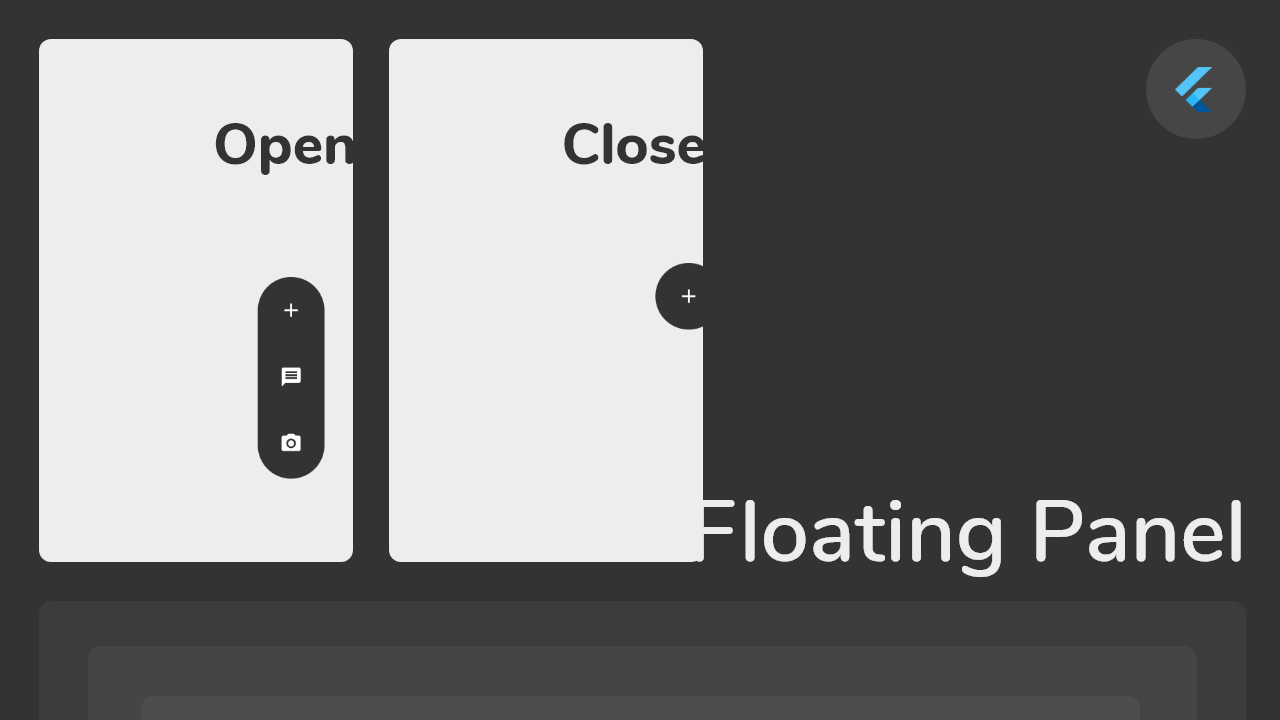
Float box is a true floating panel for your app, which can be docked to either edges of the screen (horizontally).

Code - Basic:

This is what you needs to get the widget working. Import Widget -> Add 'FloatBoxPanel' at the bottom of your stack widget. Add icons inside the "buttons" list.

import 'package:widgets/float_box.dart'; // Import Float Box Widget

Stack(
    children: [
        ...

        // Add Float Box Panel at the bottom of the 'stack' widget.
        FloatBoxPanel(
            buttons: [
                // Add Icons to the buttons list.
                Icons.message,
                Icons.photo_camera,
                Icons.video_library
            ]
        );
    ]
);

alt Floating Panel

Code - All Properties:

These are all the properties you can customize of the floating panel.

    import 'package:widgets/float_box.dart'; // Import Float Box Widget
    
    Stack(
        children: [
            ...
    
            // Add Float Box Panel at the bottom of the 'stack' widget.
            FloatBoxPanel(
                positionTop: 0.0, // Initial Top Position
                positionLeft: 0.0, // Initial Left Position
                backgroundColor: Color(0xFFEDEDED), // Color of the panel
                contentColor: Colors.black, // Color of the icons
                panelShape: PanelShape.rectangle, // 'PanelShape.rectangle' or 'PanelShape.rounded', border radius property doesn't work in the rounded shape
                borderRadius: BorderRadius.circular(8.0), // Border radius of the panel
                dockType: DockType.inside, // 'DockType.inside' or 'DockType.outside', weather to dock the panel outside or inside the edge of the screen
                dockOffset: 5.0, // Offset the dock from the edge depending on the 'dockType' property
                panelAnimDuration: 300, // Duration for panel open and close animation
                panelAnimCurve: Curves.easeOut, // Curve for panel open and close animation
                dockAnimDuration: 300, // Auto dock to the edge of screen - animation duration
                dockAnimCurve: Curves.easeOut, // Auto dock animation curve
                panelOpenOffset: 20.0, // Offset from the edge of screen when panel is open
                panelIcon: Icons.menu, // Panel open/close icon
                size: 70.0, // Size of single button in the panel
                iconSize: 24.0, // Size of icons
                borderWidth: 1.0, // Width of panel border
                borderColor: Colors.black, // Color of panel border
                onPressed: (index) {
                    print("Clicked on item: $index");
                }
                buttons: [
                    // Add Icons to the buttons list.
                    Icons.message,
                    Icons.photo_camera,
                    Icons.video_library
                ]
            );
        ]
    );

Categories

Source repository

Projects using this package

No data available yet.