Package selection guidance compiled from public package information, community data, and project usage.
Screenshot Modes is a Flutter package that provides an easy, automatic way to take screenshots within your app. Designed as a plugin for the device_preview package, it enables developers to capture and manage screenshots seamlessly during development and testing. It enhances the workflow by integrating screenshot functionality directly into the preview environment, allowing instant visual feedback without manual intervention. Ideal for UI testing and design validation, it streamlines the process of documenting app states across different devices and orientations.
Use cases
UI testing
Design validation
Cross-device preview
Automated screenshot capture
Development debugging
Key features
Integration with device_preview
Automatic screenshot capture
Support for multiple device modes
Simple setup via pub
Real-time preview snapshots
Suitable for
Flutter developers
UI/UX designers
Test automation engineers
App prototyping teams
Quality assurance testers
Considerations
Requires device_preview to function
Limited to development environment
No runtime screenshot capability
Not intended for production use
Dependent on device_preview updates
Original README
Original README snapshot from the linked source repository. Visit the repository for the latest content.
screenshot_modes
easy screenshot take for your app
screenshot_modes is a flutter package that work as a plugin for device preview package, take automatics screenshots for pages app
setup this plugin
0- you will need to setup device preview package first before using this plugin. it is just a few step.
simple mode :
simple mode you will just select device frame you want and function navigate to page and the plugin will make it work ,
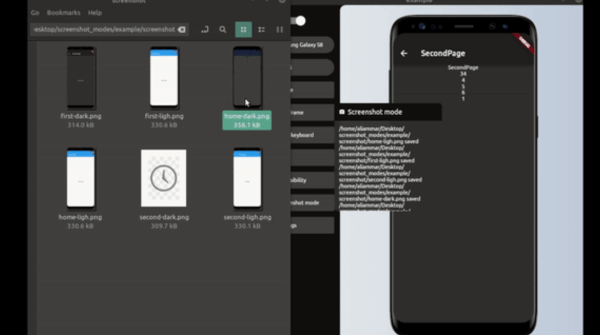
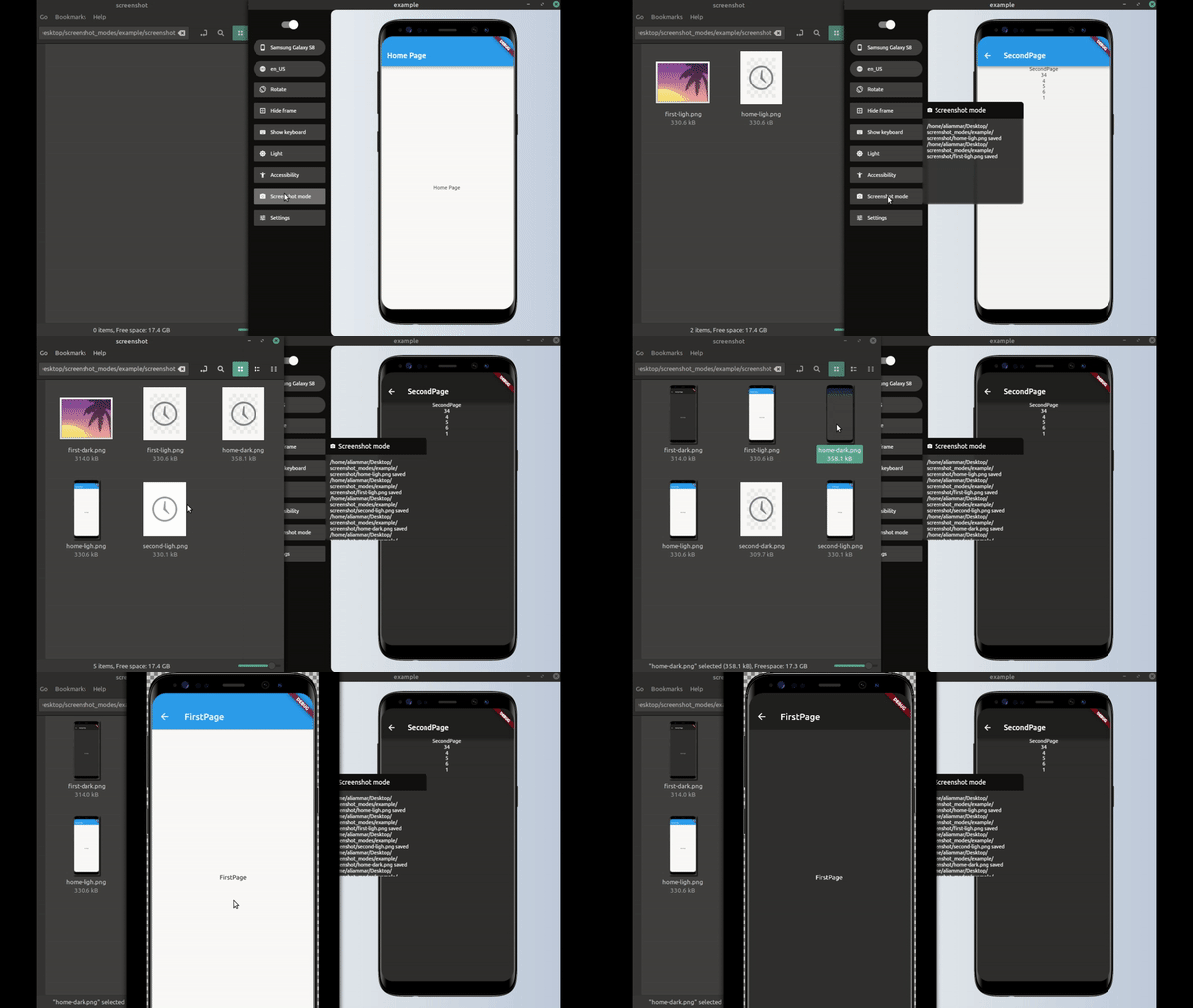
will take screenshot for all your page in all frames in dark and light mode.
3- define saveScreenShot function this response for saving the image or upload it to some server or that ever you want to do with the image example to save the image in desktop
Future<String> saveScreenShot(DeviceScreenshotWithLabel screen) async {
String name = screen.label.join('/');
final path = join(Directory.current.path, 'screenshot', '$name.png');
final imageFile = File(path);
await imageFile.create(recursive: true);
await imageFile.writeAsBytes(screen.deviceScreenshot.bytes);
return'$path saved'; // message printed to device preview plugins windows;
}
you could benefid from DevicePreviewHelper class to change device , theme and other helper function
5- click the new button(screenshot mode) in device preview tabs
_______
what is ItemScreenMode :
it is represents every screenshot we will take
function parameter is a function that called before take screen
we must navigate to the page you want take screenshot for it
maybe also get some data from database or api before navigate
label parameter is string helps for naming the image inside processor (saveScreenShot)
modes parameter is another list of ItemScreenMode used if we have nested mode
like light/dark for all pages and change frame for all pages
like in above example
could i set function parameter for ItemScreenMode to null ?
yes when you don't need to do any things before first shot taken maybe when you already inside home page (defalut page) and in right themes mode
tips : don't do that if you have multi nested page
why we must use DirectPageRouteBuilder for navigation
you must use DirectPageRouteBuilder for navigation like this
because the MaterialPageRoute have 500ms Duration for animations
this will cause as a problem with screenshot
so we must either use DirectPageRouteBuilder or await 500ms Duration after Navigation inside ItemScreenMode function
we prefers to use this plugin on desktop
TODO :
resizing the image for every mode ( so we could resized to the size required by google play or app store) ( now could done in saveScreenShot function )