Search packages, repositories and app categories

fluentui_system_icons cover
Package detailsv1.1.273

fluentui_system_icons

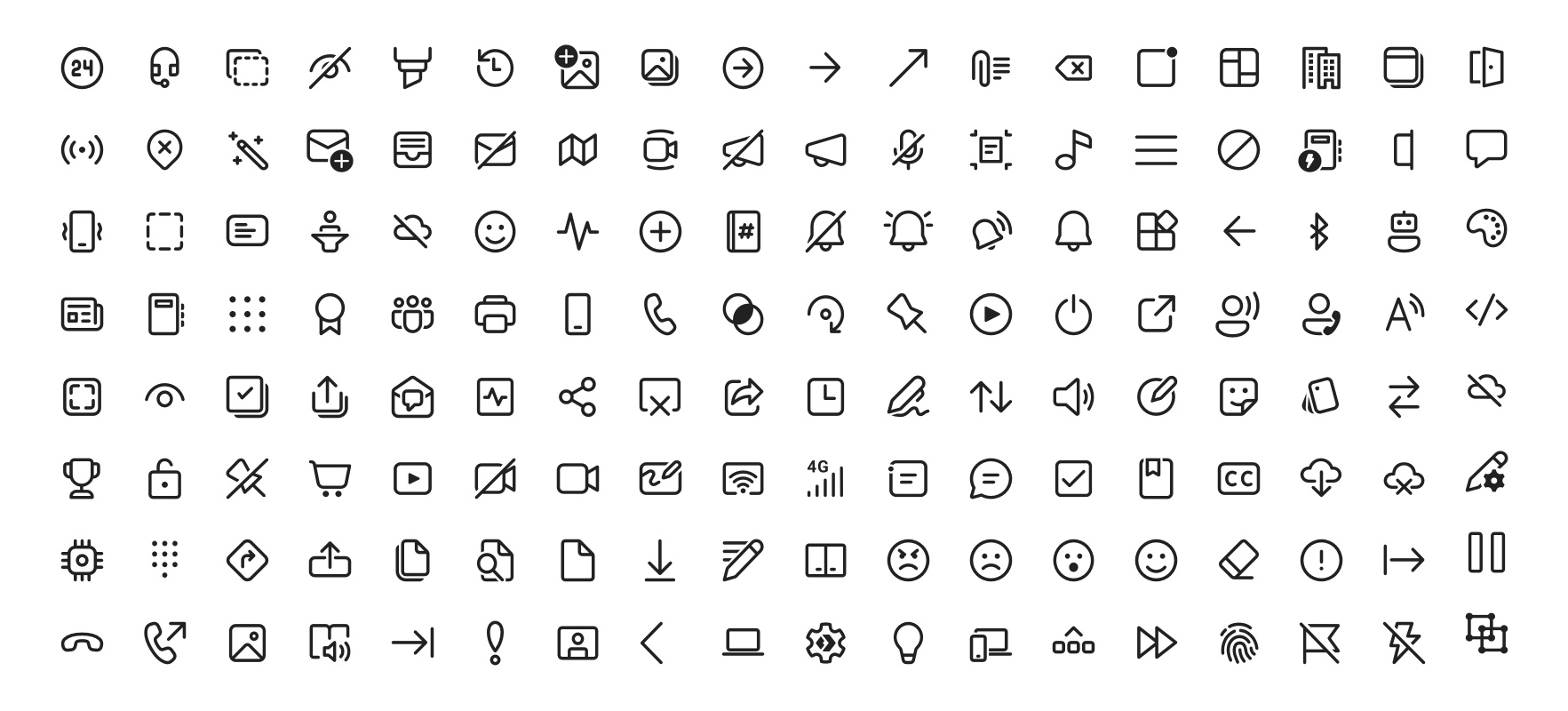
Fluent UI System Icons are a collection of familiar, friendly and modern icons from Microsoft.

AndroidiOSWebmacOSWindowsLinux
30-day downloads
63K
Likes
958
Pub points
160

Install package

flutter pub add fluentui_system_icons

Package Overview

Package selection guidance compiled from public package information, community data, and project usage.

Fluent UI System Icons is a comprehensive collection of modern, clean, and consistent icons developed by Microsoft. Designed for use across platforms, these icons align with the Fluent Design System, offering a cohesive visual language for apps. The package provides easy integration into Flutter projects, supporting Android, iOS, Web, macOS, Windows, and Linux. With a focus on accessibility and scalability, it enables developers to enhance user interfaces with professional-grade icons without additional design overhead.

Use cases

  • App UI enhancement
  • Cross-platform app design
  • Modern interface styling
  • Accessibility-focused design
  • Brand-consistent iconography

Key features

  • Official Microsoft icon set
  • Multi-platform support
  • Scalable vector icons
  • Accessibility optimized
  • Easy Flutter integration

Suitable for

  • Developers using Fluent Design
  • Cross-platform mobile and desktop apps
  • Teams prioritizing brand consistency
  • UI designers seeking modern icons
  • Projects requiring accessible icons

Considerations

  • Requires Flutter 2.5 or higher
  • Limited customization options
  • Dependent on external source updates
  • Not suitable for highly custom icon needs
  • Potential size impact with full icon set

Original README

Original README snapshot from the linked source repository. Visit the repository for the latest content.

Fluent UI System Icons

Pull request validation

Fluent UI System Icons are a collection of familiar, friendly and modern icons from Microsoft.

Fluent System Icons

Icon List

Direction

Within the metadata.json file for an icon, a property named directionType is used to indicate the direction of the icon. This property can have one of the following values:

  • unique, meaning that the icon is unique and has a specific RTL and LTR version
  • mirror, meaning that the icon can be mirrored for RTL or LTR languages

The property singleton is also used to indicate the default direction that should be used for the icon.

Installation

Android

The library is published via Maven Central, please ensure that the mavenCentral() repository has been added to the root build.gradle file:

repositories {
    ...
    mavenCentral()
}

Include the following dependency in your project's build.gradle:

implementation 'com.microsoft.design:fluent-system-icons:1.1.341@aar'

For library docs, see android/README.md.

iOS and macOS
CocoaPods
use_frameworks!

pod "FluentIcons", "1.1.341"
Carthage
git "git@github.com:microsoft/fluentui-system-icons.git" "1.1.341"

For library docs, see ios/README.md.

Flutter

In the pubspec.yaml of your flutter project, add the following dependency:

dependencies:
  ...
  fluentui_system_icons: ^1.1.341

For library docs, see flutter/README.md.

Plain svg

Inline svg directly. See packages/svg-icons/README.md.

Contributing

Importer

The importer generates the Android and iOS libraries from the icons in the assets directory.

Install dependencies from the repository root (this is a single yarn workspace, so dependencies for every package are installed in one go):

corepack enable
yarn install

Jump into the directory:

cd importer
yarn clean

List all the available commands:

yarn run
Build Pipeline

Our build pipeline runs deploy:android and deploy:ios to create the libraries. The build definitions are located in .github/workflows/.

Demo apps

You can build and run the demo apps following the steps below.

Android
  1. Follow the Importer section above and run the command yarn deploy:android
  2. Open the android directory in Android Studio
  3. Select the sample-showcase in the build configuration dropdown
  4. Click run
Flutter

Prerequisite: Make sure you have flutter configured in Android Studio

  1. Open the flutter directory in Android Studio
  2. Select the example in the directory and open it in Android Studio
  3. Click run

Contact

Please feel free to open a GitHub issue and assign to the following points of contact with questions or requests.

Code of Conduct

This project has adopted the Microsoft Open Source Code of Conduct. For more information see the Code of Conduct FAQ or contact opencode@microsoft.com with any additional questions or comments.

Categories

Source repository

Projects using this package

Rankings